ENEnglish
 LTLietuviškai
 DEDeutsch
 FRFrançais
 RUРусский
 ESEspañol
 PLPolski
 ITItaliano
 UKУкраїнська
 CSČeština
 PTPortuguês
 JA日本語
JA日本語 LVLatviešu valoda
 ETEesti
 HUMagyar
 IDBahasa Indonesia
 TRTürkçe
 HIहिन्दी
 ELΕλληνικά
 ARالعربية
 THไทย
THไทย VITiếng Việt
 RORomână
 MSBahasa Melayu
 BNবাংলা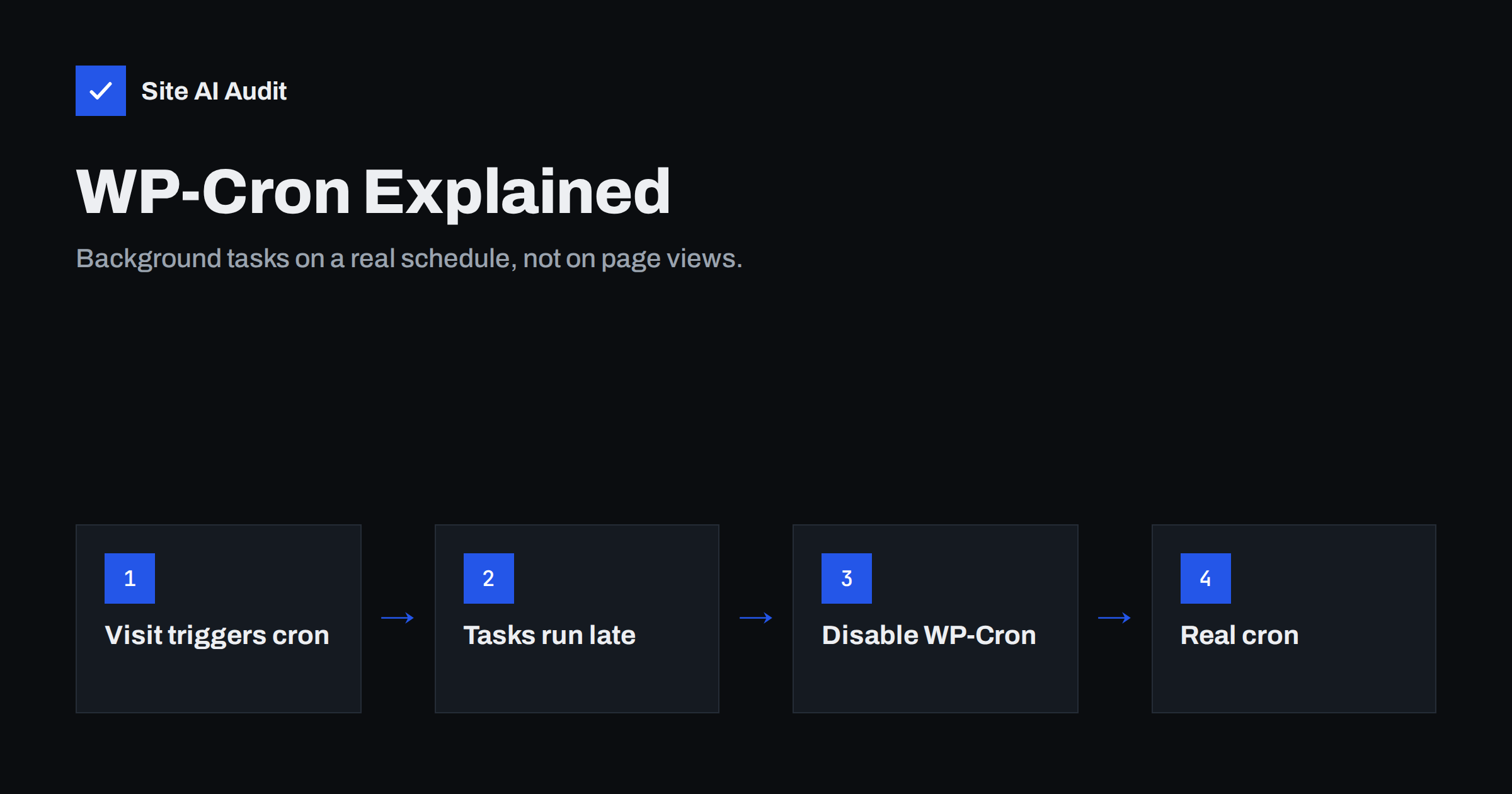
Short answer: WP-Cron is WordPress’s built-in task scheduler. It does not run on a clock; it is triggered by page visits. On quiet sites this means tasks run late or not at all, and on busy sites it adds extra PHP work while visitors are browsing. For most sites the fix is simple: disable the page-load trigger with DISABLE_WP_CRON in wp-config.php and run wp-cron.php from a real server cron job every few minutes. Then check which scheduled events exist and remove the ones left behind by old plugins.
What WP-Cron does
WordPress and its plugins need to do things in the background: publish scheduled posts, check for updates, send queued emails, clean up expired data, create backups, sync stock with a marketplace, renew subscriptions and much more. Each of these is registered as a scheduled event with a time and, for recurring tasks, an interval such as hourly or daily.
WordPress keeps the list of events in a single option in the database, named cron. When something needs to happen, WordPress runs the hook attached to that event, and the plugin’s code does the work. All of that is fine. The unusual part is how WordPress decides that it is time to check the list.
How WP-Cron is triggered
Because WordPress has to run on cheap shared hosting where users cannot set up system cron jobs, it uses a trick. On every page load, WordPress checks whether any event is due. If one is, it sends a quick, non-blocking HTTP request from the server to its own wp-cron.php file, a so-called loopback request. That second request then runs the due tasks while the visitor’s page continues loading.
A lock prevents this from happening on every single request: by default WordPress spawns cron at most once per minute. Even so, the design has three consequences:
- No visitors, no cron. On a site with little traffic, a task due at 03:00 runs only when the first visitor arrives, possibly hours later.
- Visitors pay for the work. The loopback request uses a PHP worker and database connections on the same server that is serving visitors. Heavy tasks compete with real page views.
- Page caching hides visits. If pages are served from a full-page cache or a CDN, WordPress often does not run at all for those visits, so cron may fire less often than you expect.
Signs that WP-Cron is causing problems
- “Missed schedule” on posts. Scheduled posts stay unpublished past their time because no cron run happened.
- Emails and reports arrive late or in bursts, for example order follow-ups or newsletter batches.
- Random slow responses. Some page loads, or the admin area, are slow at irregular intervals, which matches heavy tasks starting.
- High CPU at regular times in your hosting graphs, caused by backups, imports or feed generation.
- Site Health warnings about loopback requests failing or scheduled events being late.
- Many requests to wp-cron.php in the access log on very busy sites.
If you are investigating a slow WordPress site in general, our guide on finding the plugin that slows your site helps separate cron problems from other causes.
How to replace WP-Cron with a real cron job
- Disable the page-load trigger. Add this line to
wp-config.php, above the line that says to stop editing:define( 'DISABLE_WP_CRON', true );. WordPress will no longer spawn cron on visits. Scheduled events are not deleted; they simply wait. - Create a system cron job. In your hosting panel’s cron section, or with
crontab -eon a server, add a job that runs every five minutes. Two common forms:- With WP-CLI:
*/5 * * * * cd /path/to/wordpress && wp cron event run --due-now --quiet - Over HTTP:
*/5 * * * * curl -s https://example.com/wp-cron.php?doing_wp_cron > /dev/null 2>&1
- With WP-CLI:
- Choose the interval. Five minutes suits most sites. Shops with time-sensitive tasks may use every minute; brochure sites can use fifteen.
- Test it. Schedule a post a few minutes ahead and confirm that it publishes on time.
The WP-CLI version is usually better: it runs PHP directly, is not affected by web server timeouts or firewall rules, and does not occupy a web worker. The HTTP version works on hosting without shell access. If you use it, make sure that security plugins, basic authentication or a CDN rule do not block requests to wp-cron.php.
To confirm that the new job works, look at the list of scheduled events after an hour: nothing should be overdue by more than your interval. Site Health under Tools also reports when scheduled events are late. If your old setup failed because loopback requests were blocked, for example by basic authentication on a staging site, the server cron solves that as well, since it no longer depends on WordPress calling itself. The ALTERNATE_WP_CRON constant, which runs cron through a redirect on page load, is an older workaround for the same problem; a real cron job is the cleaner choice.
Some managed WordPress hosts already run cron for you on a schedule. Check their documentation before adding a second job.
Clean up the list of scheduled events
Replacing the trigger fixes timing, but it does not fix tasks that should not exist. Plugins that were deleted without proper cleanup often leave their events behind, and some plugins schedule tasks far more often than needed. A free plugin such as WP Crontrol, or the command wp cron event list, shows every event, its next run and its interval.
Look for:
- Events whose hook belongs to a plugin you no longer use. Deleting these is safe.
- Very frequent events, such as every minute, from plugins that do not need that precision.
- Events that are overdue by hours, which suggests that cron is not running or a task keeps failing.
- Thousands of one-off events, a sign of a plugin bug that also bloats the
cronoption, which WordPress loads on every request.
Shops using WooCommerce also have the Action Scheduler queue, which stores tasks in its own database tables and appears under Tools, Scheduled Actions. Large numbers of failed or pending actions there are worth investigating, and the completed history can be trimmed. Our guide on WordPress database cleanup covers this safely.
Move heavy work away from peak hours
Once cron runs on a real schedule, you control when the heavy tasks happen. Schedule full backups, large imports, image regeneration and sitemap rebuilding at night in your visitors’ time zone. Many backup and feed plugins let you set the time explicitly. If a task is very heavy, consider running it as its own WP-CLI command in a separate cron entry, so that it cannot delay the small, time-sensitive tasks such as scheduled posts and order emails.
This matters for speed because a server busy with a backup answers visitors more slowly. If your site’s response time is uneven during the day, compare the slow periods with your task schedule. Our guide to reducing server response time lists the other common causes.
Common mistakes
- Disabling WP-Cron without adding a system cron. Scheduled posts, updates checks and plugin tasks then stop completely.
- Running cron every minute over HTTP on weak hosting. That can cost more than the original trigger. Use WP-CLI or a longer interval.
- Adding the same job twice, once in the panel and once by the host, so tasks overlap.
- Blocking wp-cron.php completely in a security plugin, which breaks the HTTP method.
- Forgetting multisite. On a WordPress network, each site has its own events; WP-CLI needs to run them per site, for example by looping over the sites list.
How Site AI Audit helps
Site AI Audit measures speed from the outside: Google PageSpeed results for mobile, Core Web Vitals (LCP, CLS and INP), how long your server takes to respond, compression, page weight, the HTTP protocol version and pages that took more than two seconds to load during the crawl. It cannot see your scheduled events, but an uneven or slow server response is often the first visible sign of background work competing with visitors. On paid plans, re-checks after each change show whether the fix helped. You can check your site for free and compare plans on the pricing page.
Related reading
- How to Fix a Slow WordPress Site: A Step-by-Step Guide
- Object Caching with Redis: When Your Website Needs It
- How to Choose a WordPress Caching Plugin for Your Hosting
The bottom line
WP-Cron is a clever workaround for hosting without a scheduler, but it ties background work to visitor traffic. That makes tasks unreliable on quiet sites and adds load on busy ones. Disable the page-load trigger, run cron from the server every few minutes, clean out events you do not need and schedule heavy jobs for quiet hours. Your scheduled posts will publish on time and your visitors will stop sharing the server with backups.
SSS
Is it safe to set DISABLE_WP_CRON to true?
Yes, as long as you add a real cron job that runs wp-cron.php or WP-CLI regularly. Without it, scheduled tasks stop running.
How often should the system cron run?
Every five minutes suits most sites. Use every minute only if you have time-sensitive tasks and the server can handle it, and every fifteen minutes for very simple sites.
Why do my scheduled posts show “Missed schedule”?
Usually because no cron run happened at the scheduled time, either due to low traffic, page caching or blocked loopback requests. A real server cron job fixes this.
Does page caching stop WP-Cron from running?
It can reduce how often it runs, because cached visits often do not load WordPress. This is another reason to trigger cron from the server instead.
Can I delete old cron events?
Yes, events from plugins you have removed can be deleted safely. Leave core WordPress events and those of active plugins in place.