ENEnglish
 LTLietuviškai
 DEDeutsch
 FRFrançais
 RUРусский
 ESEspañol
 PLPolski
 ITItaliano
 UKУкраїнська
 CSČeština
 PTPortuguês
 JA日本語
JA日本語 LVLatviešu valoda
 ETEesti
 HUMagyar
 IDBahasa Indonesia
 TRTürkçe
 HIहिन्दी
 ELΕλληνικά
 ARالعربية
 THไทย
THไทย VITiếng Việt
 RORomână
 MSBahasa Melayu
 BNবাংলা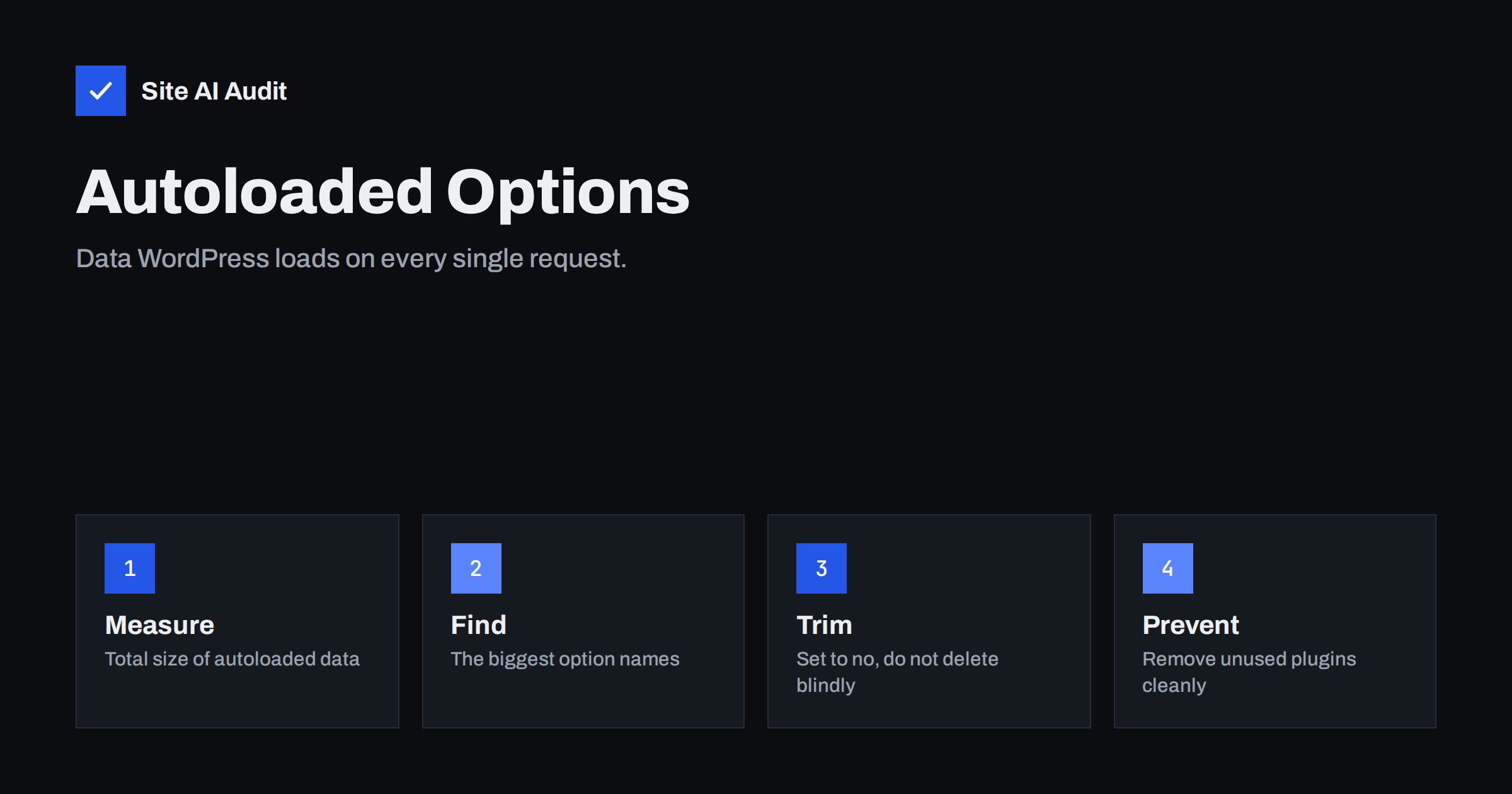
Short answer: WordPress stores many settings in a database table called wp_options, and it loads every row marked as autoloaded on every request, before it shows anything. When old plugins and themes leave large amounts of data there, each page, including the dashboard, becomes slower and uses more memory. You can measure the total, find the biggest entries and switch off autoloading for those that are not needed on every page.
What autoloaded options are
WordPress keeps its configuration in the options table: the site title, the active plugins, widget settings, the permalink rules and thousands of values created by plugins and themes. Each row has a flag called autoload. If the flag says the option should be loaded automatically, WordPress reads it in one large database query at the start of every request and keeps it in memory.
This design is good for small settings that nearly every page needs. It saves many small queries. The problem begins when something large is stored with the flag on. Because the data is loaded before the page is built, a heavy row slows down every single visit, whether the visitor needs it or not. It also slows down requests that are already cached at the page level, whenever they are rebuilt, and the admin area, which can never use a page cache.
Note that the list of autoloaded options is not part of the content of your pages. You will not see this problem in the page itself, only in the server response time and the memory use.
How leftover data builds up
Several habits create the problem:
- Removed plugins that leave data behind. Many plugins do not clean up when they are deleted. Their settings, logs and caches remain in the table and are still loaded.
- Plugins that store big data as an option. Page builders, form tools, security scanners, statistics and import tools sometimes save long lists, logs or generated styles in a single row.
- Transients without an expiry time. Temporary cached values are meant to expire. Some are saved without an end date, and those can be autoloaded forever.
- Update and licence checks. Premium products store responses from their servers in options.
- Long-lived sites. A site that has been running for ten years and tried dozens of plugins will have a long tail of old rows.
Each row on its own may be small, but together they can reach several megabytes. A site with one or two megabytes of autoloaded data may feel slow on cheap hosting, while a site with 300 KB rarely has an issue.
How much is too much
There is no exact limit, but some guidelines exist. WordPress Site Health can show a warning when the total size of autoloaded options is high, and the default warning level in recent versions is 800 KB. Many performance experts prefer to stay well below 1 MB, and consider anything above 2 MB a problem worth fixing.
WordPress has also changed its own behaviour. In recent versions, very large options are no longer set to autoload by default when they are saved. That helps new data, but it does not fix old rows that were already marked, so a site that has been around for years can still need a clean-up.
If you see a slow server response and cannot explain it, measure autoloaded data early, because the check takes only a minute. Our article on how to reduce server response time places it among the other causes.
How to measure the total and find the largest rows
You need access to the database, for example through the hosting panel or a command line tool. Take a backup first. Then run a query that adds up the size of the autoloaded values:
SELECT SUM(LENGTH(option_value)) FROM wp_options WHERE autoload IN ('yes','on','auto-on','auto');
The prefix wp_ may be different on your site, and the values for autoload depend on the version, which is why the list includes several words. The result is in bytes: divide by 1,000 for kilobytes.
To find the largest entries, sort them:
SELECT option_name, LENGTH(option_value) AS size FROM wp_options WHERE autoload IN ('yes','on','auto-on','auto') ORDER BY size DESC LIMIT 20;
Look at the names. A prefix usually points to the plugin or theme that created the row. Names starting with an underscore and the word transient are temporary values. If a plugin is not on your site any more but its rows are among the largest, you have found a good candidate for cleaning. A few well-known rows, such as the list of active plugins and the rewrite rules, are normal and should be left alone.
Several free tools for WordPress show the same information in the dashboard, which is easier if you are not comfortable with database queries.
What to do with big rows
Decide row by row, from safest to riskiest:
- Belongs to a plugin that you have removed. The data is no longer used. After a backup, you can delete the row.
- Belongs to an active plugin, and is large. Do not delete it. Switch the autoload flag to off for that row. If the plugin needs it, WordPress will still read it on demand, using one extra query on the pages that need it. Test the pages that use the plugin.
- Expired or orphaned temporary values. Remove them, or let a clean-up tool do it, as described in WordPress database cleanup.
- Unknown names. Search for the name together with “wp_options” to find which plugin writes it, before you touch it.
Changing the flag is safer than deleting, because the data remains available. Make one change at a time, test the site and the dashboard, and keep a note of what you did so that you can reverse it. If a feature breaks, switch the flag back on.
Prevent it from coming back
- Remove what you do not use. Inactive plugins and themes should be removed completely, and some plugins have a setting to delete their data when they are uninstalled.
- Test plugins on a staging copy. If you try many products, do it away from the live site, using the approach in a safe update strategy.
- Review the size every few months. A quick check of the total takes less time than finding the cause of a slowdown later.
- Choose lean plugins. Products that store their data in their own tables rather than in one huge option are kinder to your site.
- Use a persistent object cache when it fits. It keeps the options in memory between requests, which reduces the cost of loading them, although a giant set of options is still better small. See object caching with Redis.
Where this fits in a slow site investigation
Autoloaded data is one cause among several. If your site is slow, work through the usual list: hosting and PHP version, caching, images, scripts and plugins. Our guide on how to fix a slow WordPress site follows that order, and how to find which plugin is slowing your site helps when you suspect a single product. If only the dashboard is slow, read about a slow WordPress admin, because large options hurt the admin area the most.
What Site AI Audit can and cannot tell you
Site AI Audit measures the speed of your pages with Google’s data from real phones, including LCP, CLS and INP, and reports server response time, compression and page weight. A high server response time on several pages is a hint that the cause lies on the server, and autoloaded data is one of the possible reasons. It cannot see your database, so it cannot tell you how large the options are. Check your site for free, clean up, then run it again, or see the plans for unlimited re-checks.
Related reading
- WordPress Database Cleanup: Safe Steps for Better Performance
- Abandoned WordPress Plugins: How to Spot and Replace Them
- Why Upgrading PHP Makes Your Website Faster (and Safer)
The bottom line
Autoloaded options are loaded on every request, so size matters. Measure the total, look at the largest rows, delete leftovers from plugins you removed, switch off autoloading for large data you do not need on every page, and keep the table clean with a few good habits. Always take a backup first and change one thing at a time.
SSS
What does autoload mean in the wp_options table?
It is a flag that tells WordPress whether to load an option at the start of each request. Options marked to load automatically are read in one query and kept in memory, so large values slow down every page.
Is it safe to delete rows from wp_options?
Only when you know what they belong to. Rows left by removed plugins are usually safe to delete after a backup. For active plugins, change the autoload flag instead of deleting.
How do I check the size of autoloaded options without SQL?
WordPress Site Health may show a warning when the total is high, and several free plugins display the figures in the dashboard. Use them to find the largest rows, and still take a backup before making changes.
Will cleaning autoloaded options make my site faster?
It can, especially if the total is above one or two megabytes. The effect is largest on the server response time and on the admin area. If the total is small, look for other causes.
Do caching plugins fix this problem?
A page cache hides it for visitors on cached pages, but not for the dashboard or for pages that are rebuilt. An object cache reduces the cost, but the better solution is to reduce the data.