 ENEnglish
 LTLietuviškai
 DEDeutsch
 FRFrançais
 RUРусский
 ESEspañol
 PLPolski
 ITItaliano
 UKУкраїнська
 CSČeština
 PTPortuguês
 JA日本語
JA日本語 LVLatviešu valoda
 ETEesti
 HUMagyar
 IDBahasa Indonesia
 TRTürkçe
 HIहिन्दी
 ELΕλληνικά
 ARالعربية
 THไทย
THไทย VITiếng Việt
 RORomână
 MSBahasa Melayu
 BNবাংলা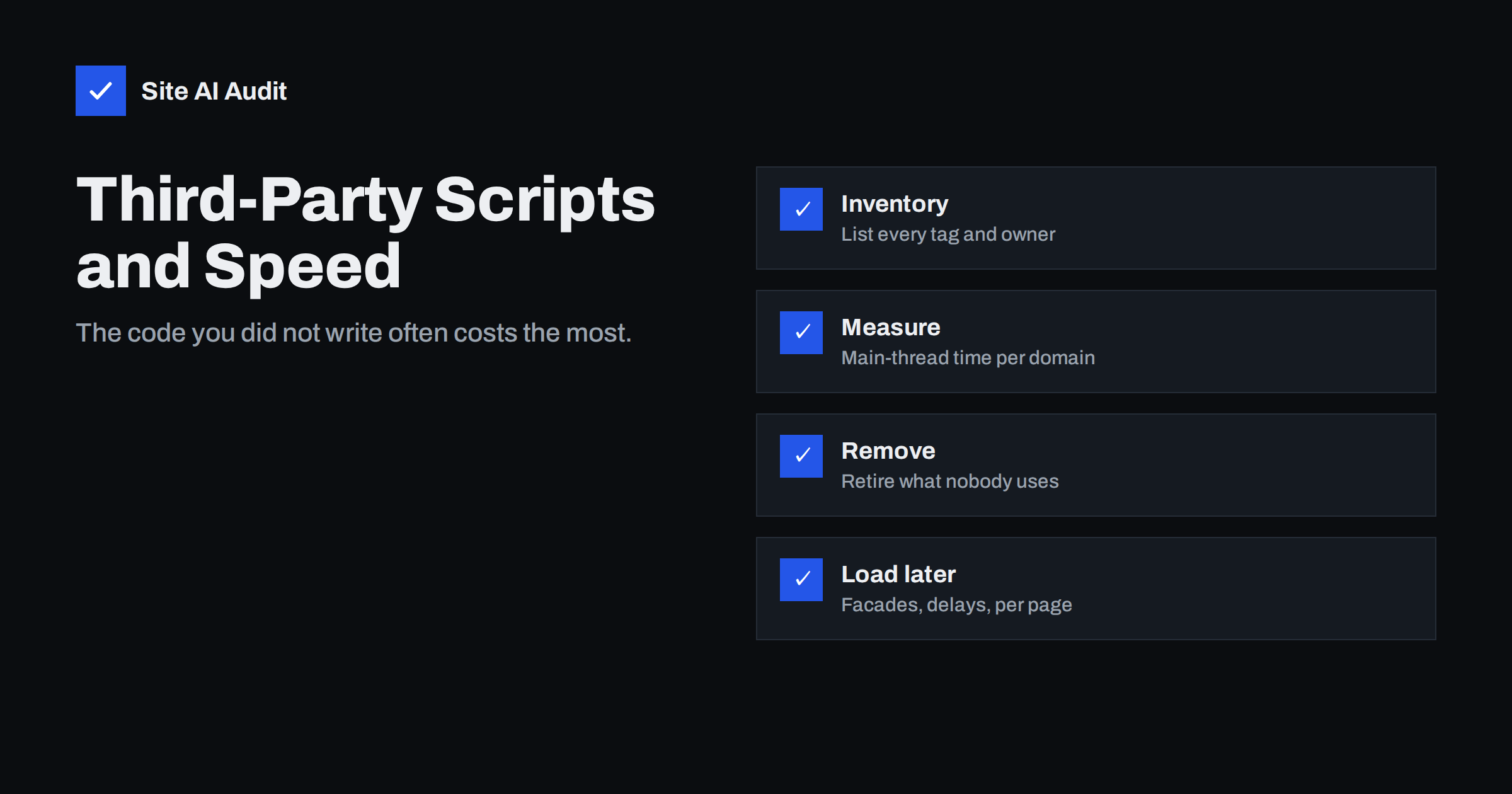
Short answer: Third-party scripts are code loaded from other companies’ servers: analytics, advertising pixels, tag managers, chat widgets, review badges, video and map embeds, consent tools and A/B testing. They slow sites down by adding extra connections, large downloads and main-thread work you cannot optimise directly. The fix is to inventory every script, measure its cost, remove what is not needed, and load the rest later, only on relevant pages, or behind a click with a lightweight placeholder.
When a site owner asks why their site is slow, the answer is surprisingly often “because of things that are not really part of the site”. The theme may be lean and the images optimised, but the page still loads a tag manager that fires eight marketing tags, a chat widget, a heatmap tool, a review carousel and an embedded video player. Each vendor promises its snippet is “lightweight” and “asynchronous”. Together, they can easily outweigh everything the site itself delivers.
Why third-party scripts are expensive
- Extra connections. Each new domain requires DNS lookup, a TCP connection and a TLS handshake before any byte is transferred. On mobile networks, that setup alone takes noticeable time.
- Chains of requests. A tag often loads another script, which loads a configuration file, which loads more scripts and tracking pixels. You see one line of code; the browser sees dozens of requests.
- Main-thread work. JavaScript has to be parsed and executed on the same thread that responds to user input. Heavy third-party code directly hurts Interaction to Next Paint.
- Bandwidth competition. Downloads from third parties compete with your own main image and stylesheets during loading, delaying Largest Contentful Paint.
- Layout shifts. Widgets and ads that inject content after load push the page around.
- No control. You cannot compress, cache or fix their code, and they can change it at any time without telling you.
- Reliability. If a vendor’s server is slow or down, a synchronously loaded script can stall your page.
Step 1: Build an inventory
Most organisations do not know exactly which third-party scripts run on their site. Start with a list.
- Open the page in Chrome, open DevTools, go to the Network panel and reload.
- Use the “Group by domain” or filter options, or sort by domain, to see every external host.
- Check your tag manager container and list every tag, its trigger and the pages where it fires.
- Look at your theme and plugin settings for integrations: chat, reviews, social feeds, maps, fonts.
- For each entry, write down who requested it, what it is used for and whether it is still in use.
This list alone often reveals tags from previous agencies, tools from cancelled subscriptions and duplicate analytics installations.
Step 2: Measure the cost of each script
Not all third parties are equal. Measure before you decide:
- PageSpeed Insights / Lighthouse has a third-party summary showing transfer size and main-thread blocking time by provider.
- DevTools Performance panel with CPU throttling shows which scripts create long tasks. The “Bottom-Up” view groups time by domain or file.
- Request blocking. In DevTools you can block a specific domain and reload. Comparing load time and Total Blocking Time with and without a script shows its real impact.
- Test on a slow profile. A script that costs 50 milliseconds on a laptop may cost several times as much on a mid-range phone.
Step 3: Remove what is not worth its cost
With the inventory and measurements in hand, have an honest conversation with the people who own each tool:
- Is anyone looking at the heatmaps or session recordings? If not, remove the tool or enable it only for short research periods.
- Are two analytics tools measuring the same thing? Keep one.
- Are old campaign pixels still firing? Remove them from the tag manager.
- Does the review widget bring more value than a static list of reviews with a link would?
- Does the social media feed in the footer get any clicks?
Removal is the only optimisation that eliminates the cost completely. Everything else just reduces it.
Step 4: Load the rest smarter
| Script type | Better loading approach |
|---|---|
| Analytics | Async, one tool, minimal plugins and features |
| Advertising and remarketing pixels | Only after consent, only on relevant pages, via the tag manager |
| Chat widget | Load after a delay or on interaction; show a lightweight button first |
| Video embeds | Facade: preview image with play button, load player on click |
| Maps | Static map image linking to the full map, or load on click |
| Review and social widgets | Load below the fold with reserved space, or replace with static content |
| A/B testing | Use only during active tests; prefer server-side testing where possible |
Additional techniques:
- Preconnect to the one or two third-party domains that are truly critical, so the connection is ready earlier. Do not preconnect to everything; each preconnect has a cost.
- Self-host where allowed. Fonts and some libraries can be hosted on your own domain, removing a connection.
- Restrict by page. Booking widgets on the booking page, maps on the contact page, payment scripts on checkout.
- Reserve space for anything that injects visible content, to avoid layout shift.
Tag managers: help and hazard
Tag managers make it easy for marketers to add tools without developers. That is their strength and their risk. A tag manager container can grow for years without anyone reviewing it. Good practices:
- Review the container at least twice a year and delete unused tags, triggers and variables.
- Name tags clearly with owner and purpose.
- Use specific triggers (particular pages or events) instead of “all pages” where possible.
- Test the impact of new tags on a staging environment or in preview mode before publishing.
- Limit who can publish changes, and document why each tag exists.
Consent and speed go together
In many countries, marketing and analytics tags that set cookies or track visitors need consent before loading. A properly configured consent tool therefore also improves speed for visitors who have not consented, because those scripts do not load. Make sure the consent banner itself is light and does not cause layout shift, and that tags are really blocked until consent, not just hidden.
Questions to ask before adding a new tool
The cheapest third-party script is the one that never gets added. Before a new widget or tag goes live, ask a few simple questions and write the answers next to the tag:
- What decision will this tool help us make, and who will look at its data? If nobody can answer, it is not needed yet.
- Which pages does it need to run on? “All pages” should be the exception, not the default.
- How much does it load? Test it on a staging copy and compare transfer size and blocking time before and after.
- Can it load later? Most tools work just as well a few seconds after the page appears.
- Does it need consent? If yes, it must not load before the visitor agrees.
- When will we review it? Put a date in the calendar, for example at the end of the campaign.
This takes a few minutes per tool and prevents the slow build-up that turns a fast site into a slow one over a couple of years.
Keep an eye on changes
Third-party code changes without warning. A vendor can ship a heavier version of its script tomorrow, and your site becomes slower without anyone on your side touching anything. Regular monitoring of speed metrics is the only way to notice. When a slowdown appears and nothing changed in your own code, check the third parties first.
How Site AI Audit helps
Site AI Audit runs Google PageSpeed for mobile in every check and reports Core Web Vitals, page weight and server response time, so the effect of heavy third-party scripts on INP and loading shows up in the findings with a plain-language fix. Paid plans add re-checks and weekly monitoring, so you can re-test after removing a tag and compare results over time; see the plans.
Related reading
- How to Reduce Unused JavaScript and Speed Up Your Pages
- Defer vs Async: How to Load JavaScript Without Slowing Pages
- Interaction to Next Paint (INP): How to Fix Slow Interactions
- Content Security Policy for Beginners: A Practical Setup Guide
The bottom line
Third-party scripts are often the largest source of slowness on otherwise well-built sites. Make a list, measure each script’s cost, remove what is not earning its place, and load the rest later, on fewer pages or behind a click. Review your tag manager regularly and monitor speed, because vendors change their code without asking you.
SSS
What counts as a third-party script?
Any script loaded from a domain operated by another company, such as analytics, advertising, chat, reviews, video, maps, fonts, consent tools and tag managers. Scripts you host on your own domain but did not write, such as plugin code, are first-party in the technical sense but can be just as heavy.
Are async third-party scripts harmless?
No. Async prevents a script from blocking HTML parsing, but it still downloads, competes for bandwidth and runs on the main thread. Heavy async scripts can still hurt LCP and INP.
How do I know which third-party script is slowing my site?
Use the third-party summary in Lighthouse and the Performance panel in Chrome DevTools to see time spent per domain. Blocking a domain in DevTools and comparing results shows its impact directly. Test on a throttled mobile profile.
Should I remove Google Tag Manager to speed up my site?
Not necessarily. The tag manager itself is usually modest; the tags inside it cause most of the cost. Clean up the container, use specific triggers and remove unused tags before deciding to drop it.
Do chat widgets hurt page speed?
Many chat widgets load significant JavaScript and several additional requests. Loading the widget after a delay or on the first interaction, with a lightweight button placeholder, usually keeps the feature while greatly reducing its impact on loading.


