 ENEnglish
 LTLietuviškai
 DEDeutsch
 FRFrançais
 RUРусский
 ESEspañol
 PLPolski
 ITItaliano
 UKУкраїнська
 CSČeština
 PTPortuguês
 JA日本語
JA日本語 LVLatviešu valoda
 ETEesti
 HUMagyar
 IDBahasa Indonesia
 TRTürkçe
 HIहिन्दी
 ELΕλληνικά
 ARالعربية
 THไทย
THไทย VITiếng Việt
 RORomână
 MSBahasa Melayu
 BNবাংলা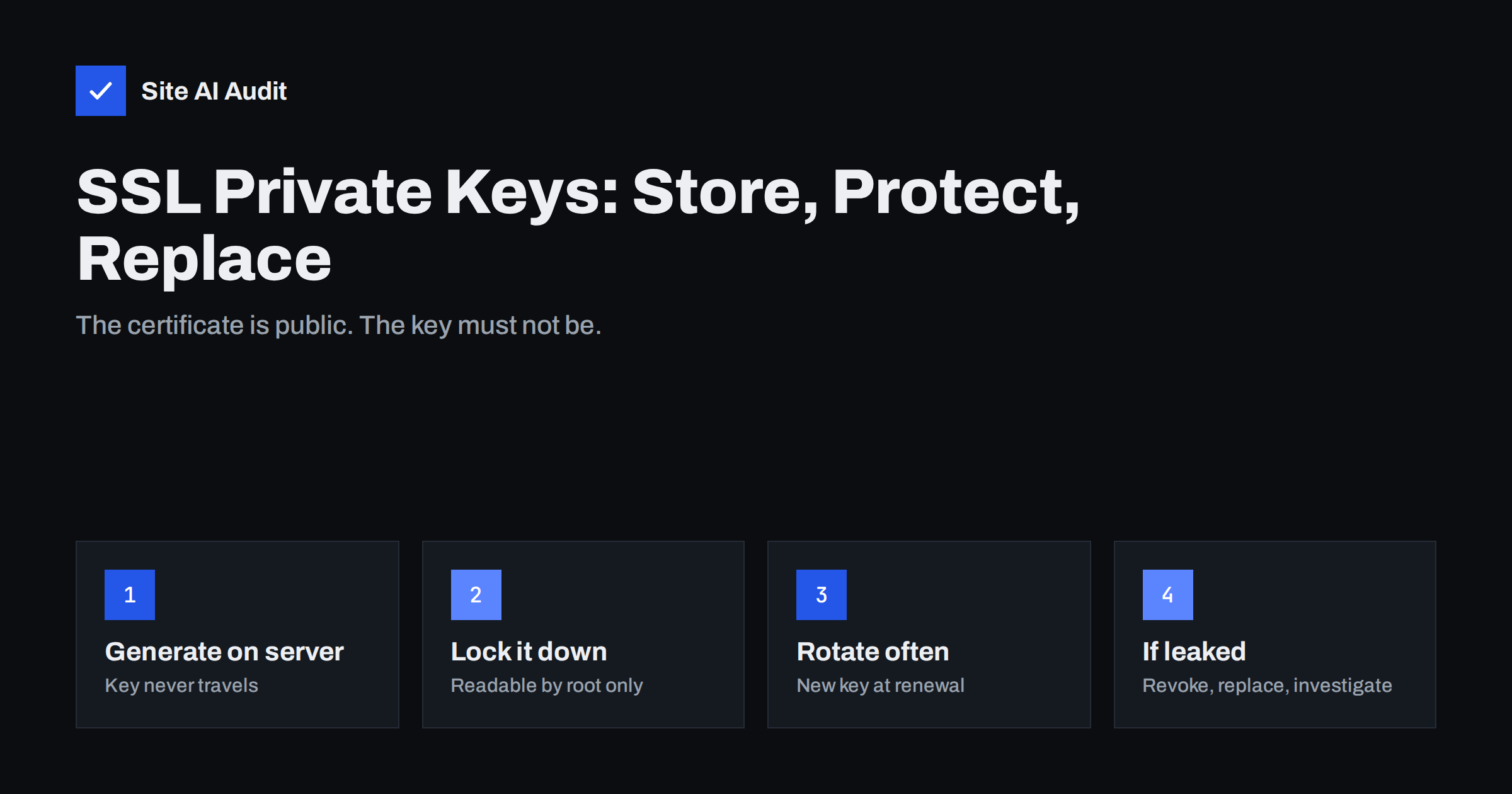
Short answer: The private key is the secret half of your SSL/TLS certificate. Anyone who has it can impersonate your website to visitors whose traffic they can intercept. Generate the key on the server that uses it, store it in a file readable only by the system administrator account, never send it by e-mail or commit it to code repositories, and create a new key at each renewal. If a key may have been exposed, revoke the certificate, issue a new one with a new key, and find out how the leak happened.
What the private key does
An SSL/TLS certificate contains a public key and information about the domain, signed by a certificate authority. The certificate is public: every visitor’s browser receives a copy. The matching private key stays on your server. During the TLS handshake, the server proves it holds the private key, and that proof is what convinces the browser it is talking to the real website.
This is why the key matters more than the certificate. A copy of your certificate is useless to an attacker. A copy of your private key, combined with a way to intercept traffic, such as control of a public Wi-Fi network, a compromised router or a hijacked DNS record, lets them present your valid certificate and read or change everything visitors send.
With modern TLS configurations that use forward secrecy, which TLS 1.3 always does, a stolen key does not decrypt traffic recorded in the past. Older configurations that used RSA key exchange did not have this protection, which is one more reason to disable outdated protocols and ciphers, as covered in getting an A grade in an SSL server test.
Where private keys usually leak
Keys rarely leak through clever cryptographic attacks. They leak through ordinary operational mistakes:
- E-mail and chat. A key sent to a developer or agency as an attachment stays in mailboxes and chat histories indefinitely.
- Code repositories. Keys committed to Git with the rest of the site configuration, sometimes in public repositories.
- Web-accessible folders. Keys stored in the website’s directory, where a misconfiguration or backup file can expose them. See exposed .env, .git and backup files.
- Unencrypted backups. Server backups copied to cloud storage or external drives without encryption.
- Shared across many servers. One key reused on a dozen machines, including old ones that are no longer patched.
- Online “CSR generators”. Tools that create the key in a browser or on a third-party server, so the key exists outside your control from the start.
- Compromised servers. An attacker with administrator access to the server can read the key, which is why a hacked server always means a new key.
Generating keys the safe way
The safest key is one that is created where it will be used and never moves:
- Generate the key and certificate signing request (CSR) on the server itself, with your hosting panel, an ACME client or OpenSSL.
- Send only the CSR to the certificate authority. The CSR contains the public key; the private key never needs to leave the server.
- Use a current key type and size: RSA with at least 2048 bits, or an elliptic curve key such as ECDSA P-256, which is smaller and faster with comparable security.
- Let automation handle it where possible. ACME clients such as Certbot and most hosting panels generate keys locally and install the certificate without anyone handling the key file. The setup is described in automating SSL renewal with Certbot.
Storing keys securely
On a typical Linux server:
- Keep keys outside the web root, in a system directory such as
/etc/ssl/privateor the directory your ACME client uses. - Restrict permissions. The key file should be readable only by the administrator account (permissions 600 or stricter), and the directory should not be readable by other users. The web server reads it at start-up with elevated rights.
- Do not reuse the key file name in public paths and do not create copies such as
key.bakin random folders. - Encrypt backups that contain keys, and limit who can restore them.
- Keep an inventory. Note which certificates exist, where their keys are stored, which servers use them and when they expire.
Higher-value systems sometimes keep keys in hardware security modules or cloud key management services, where the key cannot be exported at all. For most small business websites, correct file permissions, automation and short certificate lifetimes provide good protection.
Keys on CDNs, load balancers and hosting panels
Many sites terminate HTTPS somewhere other than their own server:
| Where TLS ends | Who holds the key | What to check |
|---|---|---|
| Your own server | You | File permissions, backups, who has root access |
| Hosting control panel | Your host, on your behalf | Panel account security and who has panel access |
| CDN with its own certificate | The CDN | No key handling needed; secure your CDN account |
| CDN with an uploaded custom certificate | The CDN and you | Upload over the dashboard only; remove old uploads |
| Load balancer or proxy | Your infrastructure team | Access to the configuration and secrets store |
In every case, the key is only as safe as the account that controls it. Protect those accounts with strong, unique passwords and multi-factor authentication, and remove access for people who no longer need it.
Rotation: replace keys regularly
Reusing the same private key for years increases the damage if it ever leaks, because every certificate issued with it is affected. Good practice is to generate a new key whenever a certificate is renewed. Most ACME clients do this by default, and with certificate lifetimes getting shorter, as described in SSL certificates moving to 47 days, rotation becomes a natural part of automated renewal.
Also rotate keys immediately when:
- Someone who had access to the key leaves the company or the agency relationship ends.
- A server that held the key is decommissioned, sold or compromised.
- The key was ever sent by e-mail, chat or stored somewhere it should not have been.
A quick self-check for your own keys
You can review your situation in half an hour by answering a few questions honestly:
- Do you know every place a key exists? List servers, hosting panels, CDN accounts, load balancers and mail servers that use a certificate for your domains.
- Has a key ever travelled? Search your mailbox, chat tools and shared drives for files ending in
.keyor.pem, or for the text “BEGIN PRIVATE KEY”. Any hit means that key should be replaced. - Is anything in a repository? Search your code repositories for the same patterns, including their history, not just the current files.
- Who can read the key files? Check permissions on each server and the list of people with administrator access.
- When was each key last replaced? If the answer is “when the site was built”, plan a rotation now.
- Are backups encrypted? Confirm that server backups containing key files cannot be read by anyone who gets hold of the storage.
Most small businesses find at least one key that was e-mailed years ago or copied to an old server. Replacing it is quick and costs nothing with free, automated certificates.
What to do if a key is exposed
- Generate a new key and CSR on the server, and obtain a new certificate.
- Install the new certificate everywhere the old one was used: servers, CDN, load balancers, mail servers.
- Revoke the old certificate with the certificate authority, giving key compromise as the reason. How revocation works is explained in SSL certificate revocation.
- Remove every copy of the old key, including from backups, repositories, e-mail and chat where possible.
- Find the cause. If the server was compromised, follow a full incident response, because the attacker may have taken more than the key.
- Watch for unexpected certificates for your domain in Certificate Transparency logs, which show every publicly trusted certificate issued; see Certificate Transparency monitoring.
How Site AI Audit helps
Private keys live on your servers, so they cannot be checked from outside. What Site AI Audit checks is the public result: whether your SSL certificate is valid, when it expires, whether HTTP redirects to HTTPS and which security headers are set. After replacing a key and certificate, a re-check confirms that the new certificate is live and correctly installed. Paid plans add alerts before a certificate expires; see the pricing page.
Related reading
- Wildcard vs Multi-Domain (SAN) SSL: Which Should You Choose?
- SSL Certificate Monitoring: How to Never Miss an Expiry Again
- Website Backup Strategy: How to Back Up So You Can Restore
The bottom line
The private key is what makes your certificate trustworthy. Generate it on the server, never send or commit it, restrict file permissions, encrypt backups, and create a new key at every renewal. If a key might have leaked, replace and revoke the certificate straight away and find out how it happened.
SSS
What happens if someone steals my SSL private key?
They can impersonate your website to visitors whose traffic they can intercept, reading or changing what is sent. Revoke the certificate and issue a new one with a new key immediately.
Where should an SSL private key be stored?
On the server that uses it, outside the website’s public folders, in a file readable only by the administrator account. Backups containing the key should be encrypted.
Can I send my private key to my web developer?
Avoid it. Give the developer access to generate the key on the server instead, or let your host or ACME client handle certificates automatically so the key never needs to move.
Should I create a new private key when renewing a certificate?
Yes. A new key at each renewal limits the damage if an old key was ever exposed. Most automated renewal tools do this by default.
Is it safe to use the same key on several servers?
It is common with multi-server setups but increases risk, because a compromise of any one server exposes the key for all. Limit the number of copies and rotate the key regularly.


