ENEnglish
 LTLietuviškai
 DEDeutsch
 FRFrançais
 RUРусский
 ESEspañol
 PLPolski
 ITItaliano
 UKУкраїнська
 CSČeština
 PTPortuguês
 JA日本語
JA日本語 LVLatviešu valoda
 ETEesti
 HUMagyar
 IDBahasa Indonesia
 TRTürkçe
 HIहिन्दी
 ELΕλληνικά
 ARالعربية
 THไทย
THไทย VITiếng Việt
 RORomână
 MSBahasa Melayu
 BNবাংলা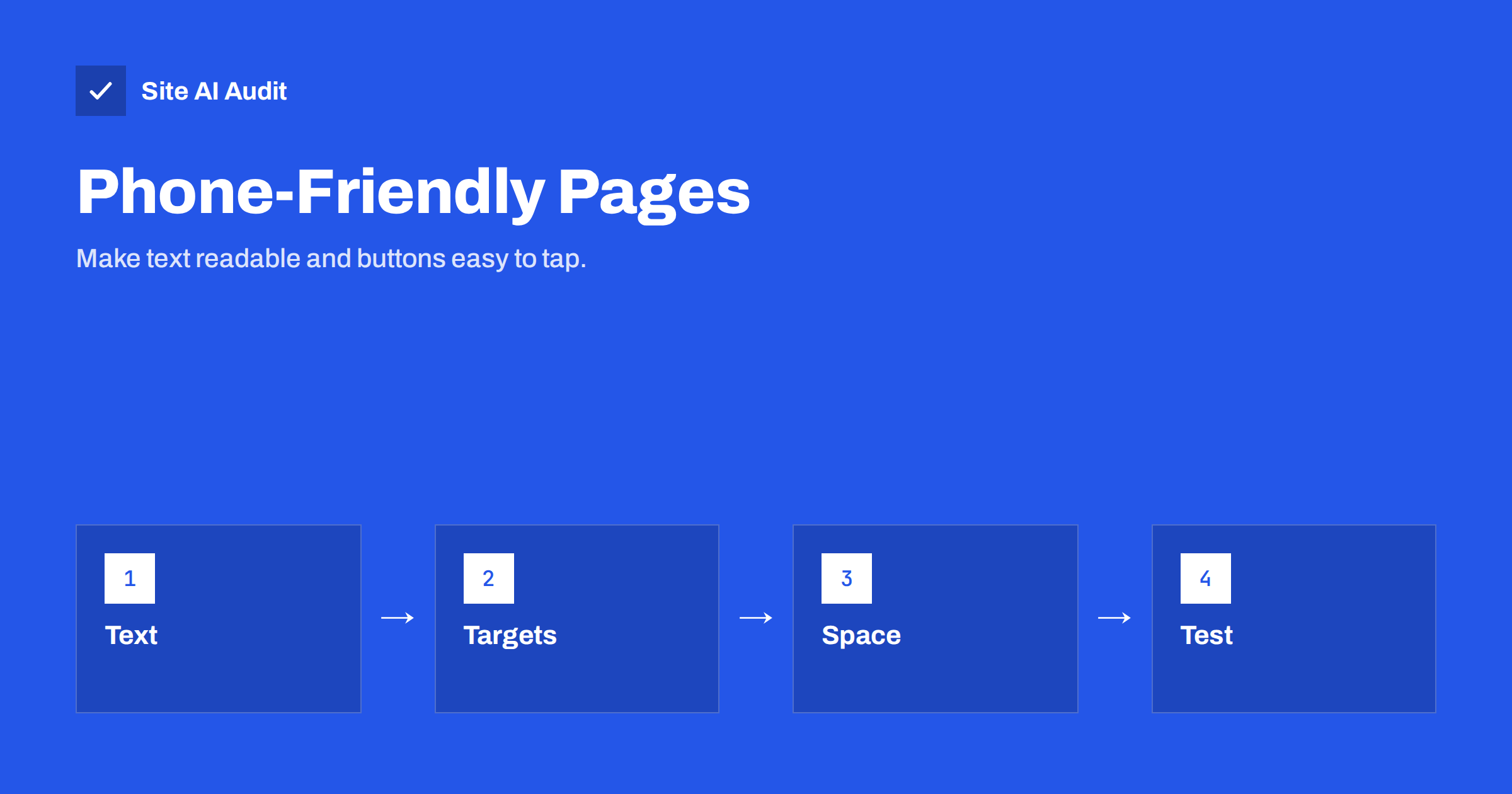
Short answer: On a phone, small text and cramped buttons make a site hard to use, and visitors who struggle leave. A good starting point is body text of about 16 pixels, tap targets that are at least about 44 to 48 pixels wide and high, and some space between neighbouring links. Do not block pinch zoom, check forms and menus on a real phone and treat comfort as part of quality rather than a ranking trick.
Why size matters on a phone
A mouse pointer is precise, a finger is not. A fingertip covers an area roughly as large as a small coin, and it hides what is under it while it taps. On a desktop screen, a small text link is easy to click. On a phone, the same link can be missed, or the finger can hit the neighbouring one by accident.
Text size works in a similar way. A page designed on a large monitor and shrunk to fit a narrow screen produces letters that are hard to read without zooming. Every time a visitor has to pinch, scroll sideways or retry a tap, the visit becomes harder, and a share of people give up. For a shop, that means lost orders; for a service business, it means lost calls and enquiries.
Is it a ranking factor?
Google indexes the mobile version of most sites, as explained in mobile-first indexing. Google has also retired its separate Mobile-Friendly Test and the Mobile Usability report in Search Console, so the old pass or fail label is no longer there. That does not mean that usability stopped mattering. Pages that people find easy to use satisfy visitors, get shared and bring customers back, and these effects are what you want. Tap targets and font size are not a magic ranking switch. They are part of making a page that works.
They are also part of accessibility. People with larger fingers, tremors, low vision or an injured hand all benefit from generous sizes, as described in how accessibility and SEO overlap. The Web Content Accessibility Guidelines include a minimum size for pointer targets at level AA, with a small allowance when enough space surrounds them, and many design systems recommend larger sizes for comfort.
Recommended sizes
No single number fits every design, but these values are widely used and sensible starting points.
- Body text: about 16 CSS pixels or more. Smaller text should be rare and never carry important information.
- Line height: around 1.4 to 1.6 times the font size for paragraphs, so lines do not crowd each other.
- Tap targets: about 44 to 48 CSS pixels in width and height for buttons, menu items and icons. Platform guidelines from large vendors point to this range.
- Spacing: at least several pixels between neighbouring targets, so that a slightly misplaced tap does not trigger the wrong one.
- Form fields: tall enough to tap easily, with labels outside the field and font size of at least 16 pixels. Smaller text in input fields makes some mobile browsers zoom in when the field is focused.
- Line length: about 40 to 75 characters per line, which on a phone usually happens by itself.
The target does not have to look large. A small icon can sit inside a larger, invisible tappable area created with padding. That keeps the design light while the touch area is comfortable.
Common problems
- Links packed in lists. Footers with many tiny links, tag clouds and long lists of categories are typical culprits. Add padding or turn them into a vertical list with space around each item.
- Icon-only buttons. A close icon, a share symbol or a small arrow without padding is easy to miss.
- Menus that open on hover. Phones have no hover. Dropdowns should open with a tap and close in an obvious way.
- Text links inside paragraphs. Links in running text are hard to tap on small screens. Keep them reasonably spaced and avoid putting two links side by side.
- Tiny fine print. Legal text and captions are often set in a very small size. Make sure they are still readable.
- Sticky bars covering content. Cookie banners, chat bubbles and floating buttons can cover targets and make accidental taps. See popups, modals and page speed.
- Blocked zoom. A viewport setting that forbids pinch zoom takes away an essential tool for people who need larger text. Do not disable it.
- Layout that jumps. Elements that move while a person is about to tap cause wrong clicks. See fixing cumulative layout shift.
How to fix them
- Set a sensible base size in your theme or stylesheet, and use relative units such as rem so that text scales with the user’s browser settings.
- Add padding to links and buttons instead of only increasing the font. Padding enlarges the tappable area while keeping the look tidy.
- Use a minimum height for interactive elements in the stylesheet, for example for menu rows and form buttons.
- Increase the gap between neighbouring items, especially in footers and menus.
- Review the viewport declaration. The basic setting described in the viewport meta tag guide lets the page fit the screen without disabling zoom.
- Check the theme and plugins. Many WordPress themes have mobile menu or typography settings that solve most of these problems without code.
How to test without special tools
- Use your own phone. Open key pages with one hand, in daylight, as a customer would. Try the menu, the search, the contact form and the checkout.
- Ask someone else. A person who has never seen the site finds problems that you no longer notice.
- Check at different sizes. The browser’s device mode shows how the layout behaves on small and medium screens. Remember that real phones differ in size, so test at least one small and one large.
- Increase the system font size. Many people use larger text. See whether the page still works.
- Watch where taps go wrong. If you use a heatmap or session recording tool, look for repeated taps in the same area.
Also test on a slow connection, because a page that loads slowly makes tapping even more frustrating; see why a website is slow on mobile.
Where to start on a small business site
You do not need to review every page on the first day. Begin with the places where a visitor takes action, because that is where a small problem costs the most.
- The phone number and contact button. It should be one tap away, large and easy to find at the top of the page.
- The main menu. Check that every item can be tapped without hitting its neighbour, and that the menu closes again.
- Forms. Test the contact form, the booking form and the checkout with real data. Make sure the keyboard type matches the field, with a number pad for phone numbers and an e-mail keyboard for addresses.
- Product or service pages. Look at the buttons for buying or asking for a quote and at any image galleries.
- The footer. It often holds the smallest links on the site, including legal pages that visitors sometimes need.
Write down what you find, fix the most important items first and test again on the phone. Small adjustments, such as more padding and a larger base font, usually solve most of the trouble in an hour. After that, make the sizes part of your design rules, so that new pages and plugins follow them from the start.
How Site AI Audit helps
Site AI Audit does not measure tap target sizes or font sizes, so test those by hand as described above. What it does report is the experience of the page on a phone, including how fast the main content appears, layout stability and page weight, together with titles, headings, broken links, SSL, security headers and e-mail authentication, explained in plain words and ranked by impact. The first check is free, covers up to 50 pages and needs no sign-up. You can run a free check of your website or see the plans for regular monitoring.
Related reading
- Viewport Meta Tag and Mobile Usability: A Practical Guide
- Mobile-First Indexing Explained: What Your Site Needs
- Why Your Website Is Slow on Mobile and How to Fix It
- Interaction to Next Paint (INP): How to Fix Slow Interactions
The bottom line
Readable text and comfortable tap targets are basic courtesy to phone visitors. Aim for body text of about 16 pixels, targets of about 44 to 48 pixels with space between them, working zoom and menus that do not rely on hover. Fix the problem areas that your own testing shows, and recheck after every redesign, because small, tidy sizes tend to creep back when new elements are added.
SSS
What is the best font size for mobile text?
About 16 pixels for body text is a good starting point. Use relative units so that text can scale with the visitor’s settings, and keep very small text for minor details only.
How big should a tap target be?
Aim for about 44 to 48 pixels in width and height, with some space between neighbours. A small icon can have padding around it to reach that size.
Does Google penalise small tap targets?
There is no simple penalty label any more, as Google has retired its separate mobile usability report. Poor usability still hurts visitors and conversions, which affects results indirectly.
Should I disable pinch zoom to keep my layout?
No. Zoom is an important tool for many people. Fix the layout instead so that text is readable without zooming.
Why does the page zoom when I tap a form field?
Some mobile browsers zoom in when the field text is smaller than about 16 pixels. Use a larger font size in form fields to prevent it.