ENEnglish
 LTLietuviškai
 DEDeutsch
 FRFrançais
 RUРусский
 ESEspañol
 PLPolski
 ITItaliano
 UKУкраїнська
 CSČeština
 PTPortuguês
 JA日本語
JA日本語 LVLatviešu valoda
 ETEesti
 HUMagyar
 IDBahasa Indonesia
 TRTürkçe
 HIहिन्दी
 ELΕλληνικά
 ARالعربية
 THไทย
THไทย VITiếng Việt
 RORomână
 MSBahasa Melayu
 BNবাংলা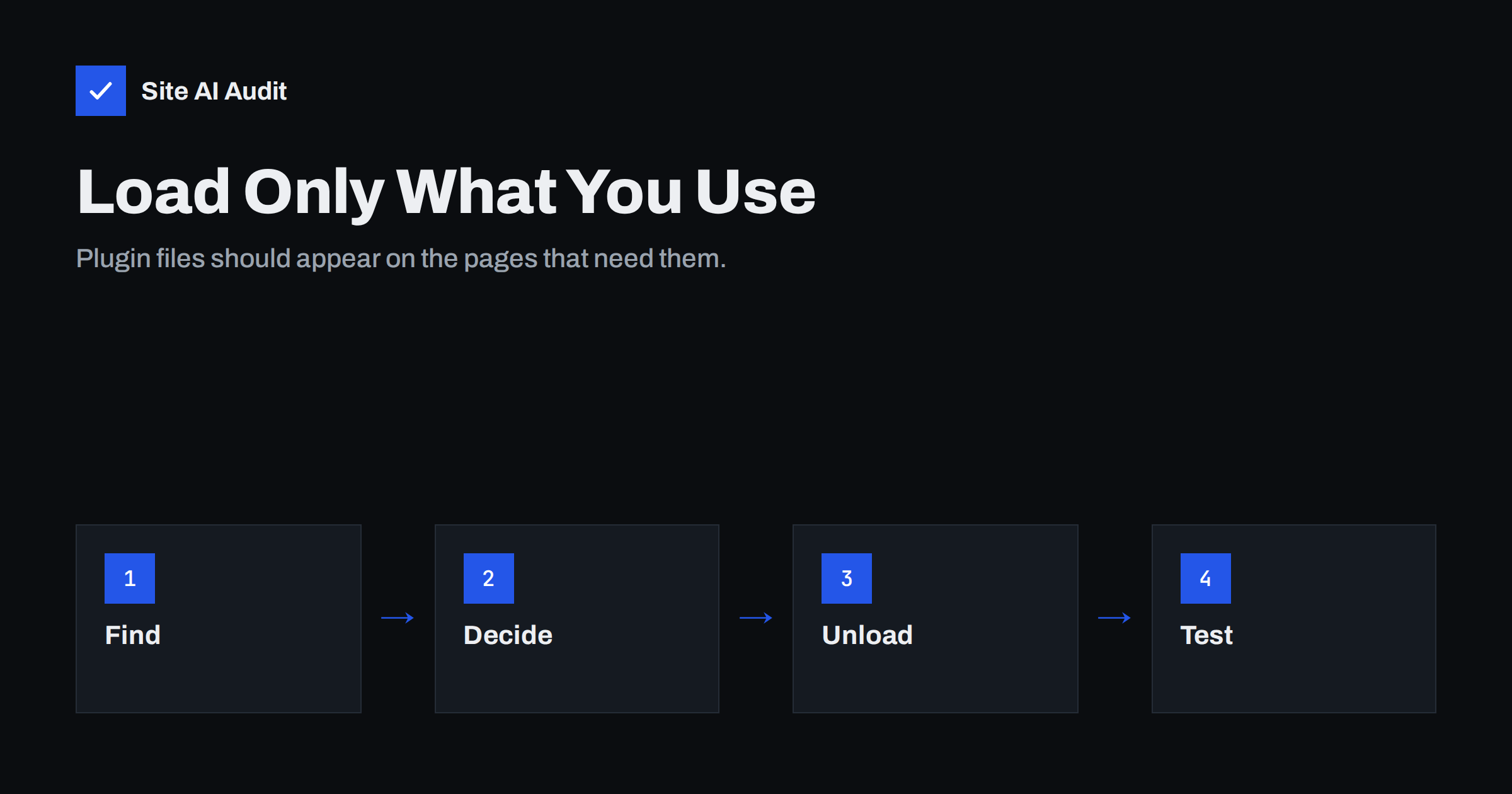
Short answer: Many WordPress plugins add their stylesheets and scripts to every page, although only one or two pages use them. A contact form plugin may load its files on the blog, the home page and the shop. Each extra file costs requests, bytes and processing time, especially on phones. You can find these files in the browser’s developer tools and stop them from loading where they are not needed, but do it carefully and test, because unloading the wrong file breaks features.
How the problem arises
WordPress has a standard way for plugins and themes to add files to a page. They register a script or stylesheet with a short name, called a handle, and then ask WordPress to include it. A plugin does this when it loads, and the simplest approach is to include its files everywhere. It is easy to write, it always works and it avoids support questions about missing styles. The cost lands on the visitor.
The result is a familiar picture: a page with a few paragraphs of text that downloads a slider script, a form script, a map library, a review widget and five stylesheets. The pattern behind slow pages like this is described in how many WordPress plugins are too many, and the effect is often the one reported as unused code in reducing unused JavaScript.
Why it matters
- More requests. Each file needs a connection and a response, and on a slow mobile network that adds up.
- More bytes. Even compressed files add weight, which delays the main content.
- Render blocking. Stylesheets in the page head, and scripts that are not deferred, hold back the first display, as explained in eliminating render-blocking resources.
- Main-thread work. JavaScript must be parsed and run, and heavy scripts delay interaction, which affects the measure covered in Interaction to Next Paint.
- Unused CSS. Styles for features that are absent still have to be downloaded and processed. See unused CSS.
Step 1: Find what loads where
- Pick a few typical pages: the home page, a blog post, a normal page and a page that uses a plugin feature, such as the contact page.
- Open the page in a desktop browser, open the developer tools and go to the Network tab. Reload and filter by “CSS” and “JS”.
- Note the path of each file. Plugin files live in a folder named after the plugin, and the folder name tells you who adds them. The guide on reading a waterfall chart helps you read the results.
- In the page source, find the tags that load them. WordPress gives each stylesheet an identifier made of its handle followed by “-css”, and each script one with “-js”. For example, a handle that ends with “contact-form-7” becomes an identifier that you can search for.
- Use the Coverage tool in the developer tools to see how much of each file the page really used. A file that is 95 percent unused on a blog post is a candidate.
Write down the handle, the plugin and the pages where the file is needed. This little list is the basis of everything that follows.
Step 2: Decide what to do with each file
- Keep it everywhere if the feature appears sitewide, such as a cookie banner or a menu script.
- Load it only on certain pages if the feature is limited, such as forms, galleries, maps, calendars or booking tools.
- Defer it if it is needed but not for the first view. See defer versus async.
- Replace the plugin if a small piece of functionality drags in a large library, as discussed in finding which plugin slows your site.
Step 3: Limit loading
There are three ways to do this, from easiest to most technical.
- Use the plugin’s own setting. Many plugins now have an option such as “load assets only on pages with the shortcode” or “disable plugin styles”. Always check this first, because it is the safest.
- Use an asset manager plugin. Several plugins let you switch off a file for chosen pages, post types or patterns, without code. They show each file that loads on the current page, which makes the job quick.
- Use a small code snippet. A developer can remove a file with the functions that WordPress offers for dequeuing styles and scripts. Hook the code to run after the plugin has added its files, which means a late priority, and wrap it in a condition such as “if this is not the contact page”. Keep the snippet in a small custom plugin and not in the theme, so that it survives a theme change.
For example, a rule that says “remove the contact form script and style unless this is the contact page” can cover most of what small sites need. The same idea applies to calendars, galleries, maps and slider libraries.
Step 4: Test properly
Unloading is easy; knowing it did not break something is the real work.
- Work on a staging copy, or at least take a backup first, as in website backup strategy.
- After each change, load the page on which the feature should still work, and use it: submit the form, open the map, click through the slider.
- Check pages where the feature appears in an unexpected place, such as a form in a sidebar widget, a footer or a pop-up.
- Test logged-in and logged-out views, and the checkout if you have a shop.
- Look at the browser console for errors about missing files or undefined functions.
- Clear every cache and CDN before you judge the result.
Change one thing at a time. If you remove ten files at once and something breaks, you will not know which one caused it.
Cases that need extra care
- Online shops. Cart, checkout and account pages depend on scripts that may also be used by mini-carts and widgets on other pages. Leave shop assets alone until you have tested every purchase path. See speeding up a WooCommerce store.
- Page builders. They add many files, and some of them are required for the layout. Use their own performance settings first.
- Dependencies. A script may need another one to load first. Removing the parent breaks the child, and the other way round.
- Combining and minifying. If a speed plugin joins files, change one setting at a time and clear its cache after each step. The overview in minifying CSS and JavaScript explains the limits of this approach.
Document what you changed. A simple note listing the handle, the plugin, the pages where it is still loaded and the date makes later updates easier. Plugins change over time: an update may rename a handle, add a new dependency or fix the loading itself, and an old rule may then become pointless or harmful. Review the list after major plugin updates, and remove rules that no longer match anything.
What to expect
Savings depend on how many unneeded files you remove. A typical small site can drop several requests and tens of kilobytes from its busiest pages, which shows up as a faster first display and a calmer main thread on phones. Do not expect miracles from this alone. Combine it with image optimisation, good hosting and caching, as in the website speed checklist.
How Site AI Audit helps
Site AI Audit does not decide which plugin file can be unloaded. It measures the result that visitors feel: Google PageSpeed for mobile, Core Web Vitals, server response time, compression and page weight, alongside SEO, SSL, security header and e-mail checks. Re-checking after a change shows whether the page improved. The first check is free, covers up to 50 pages and needs no sign-up. You can run a free check of your website or see the plans for weekly monitoring.
Related reading
- Remove Unneeded WordPress Scripts: Emoji, Embeds and More
- How Many WordPress Plugins Are Too Many for Speed?
- How to Reduce Unused JavaScript and Speed Up Your Pages
- How Third-Party Scripts Slow Down Your Website (and Fixes)
The bottom line
A page should load only the code it uses. Many plugins ignore that rule, so list what loads on a few typical pages, check each plugin’s own settings, then use an asset manager or a short snippet to remove files where they are not needed. Test one change at a time, especially around forms and checkout, and measure again afterwards. The reward is a lighter page and a faster experience for every visitor on a phone.
FAQ
Is it safe to unload plugin scripts?
It is safe when you remove them only from pages that do not use the feature and you test afterwards. Unloading a file that a page needs breaks that feature, so work step by step.
Will an asset manager plugin make my site slower?
It adds a small amount of work, which is normally far smaller than the savings. Choose a well-maintained plugin and disable it for visitors if it offers a front-end tool.
Why does a contact form plugin load on my blog posts?
Because it is simplest for the developer to add its files everywhere. Some plugins have a setting to load only where the form appears; if yours does not, you can limit it manually.
Does this help Core Web Vitals?
It can. Fewer blocking styles and scripts help the largest content appear sooner and reduce main-thread work, which supports better loading and interaction scores.
Should I just delete the plugin instead?
If you do not need the feature, yes. Removing a plugin that you no longer use is the cleanest fix. If you need it on one page, limit its assets instead.