ENEnglish
 LTLietuviškai
 DEDeutsch
 FRFrançais
 RUРусский
 ESEspañol
 PLPolski
 ITItaliano
 UKУкраїнська
 CSČeština
 PTPortuguês
 JA日本語
 LVLatviešu valoda
 ETEesti
 HUMagyar
 IDBahasa Indonesia
 TRTürkçe
 HIहिन्दी
 ELΕλληνικά
 ARالعربية
 THไทย
 VITiếng Việt
 RORomână
 MSBahasa Melayu
 BNবাংলা
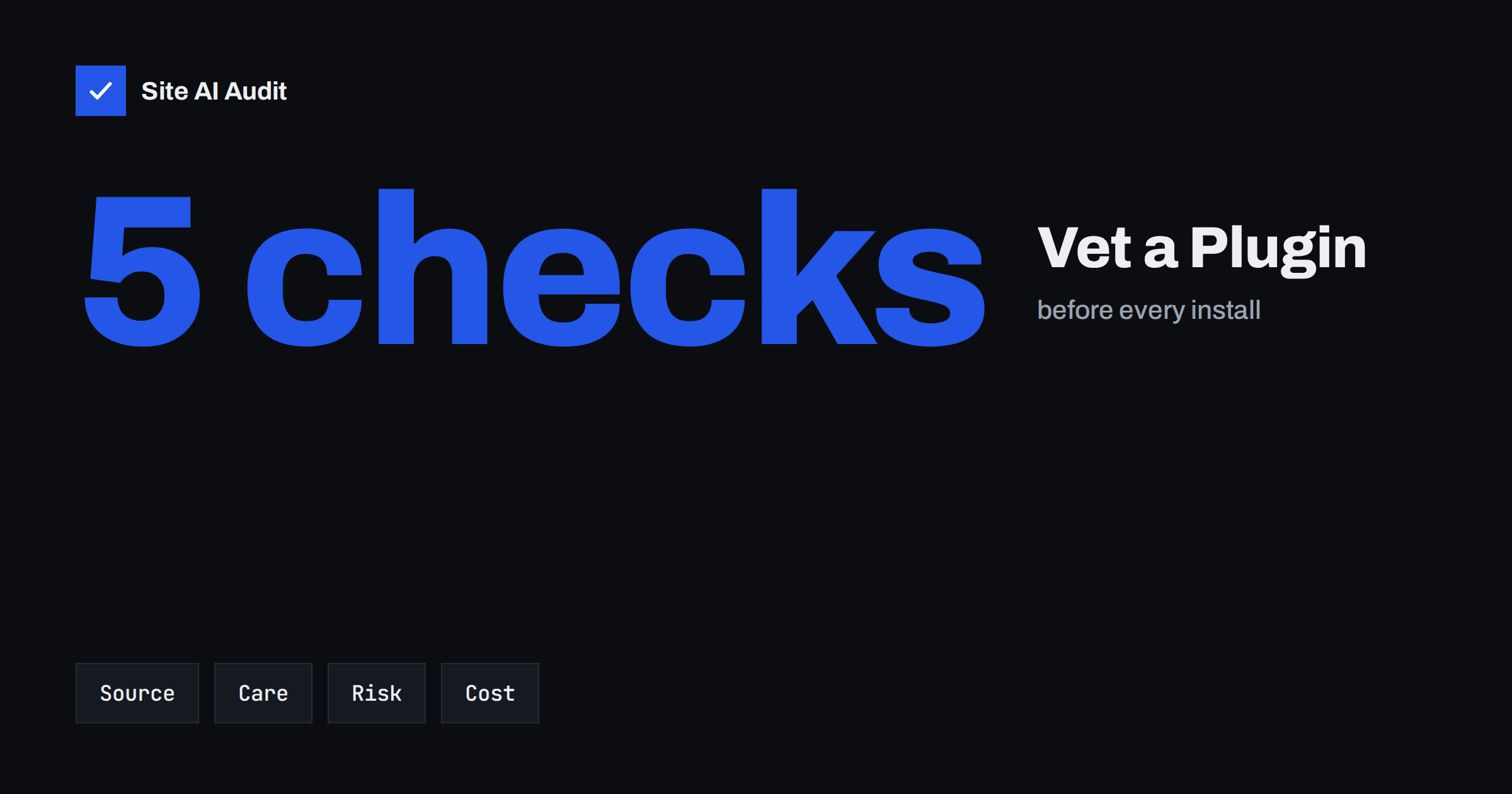
Short answer: A plugin is code that runs on your site with wide permissions, so a poor choice can slow it down, break it or open a door for attackers. Before you install one, check where it comes from, how recently it was updated, what other users say, whether it has known security flaws, how heavy it is and whether you could leave it later. Test it on a copy of the site first.
Why one plugin can cause so much trouble
WordPress plugins are powerful. A plugin can read your database, add pages and forms, send email, load scripts on every page and, in the worst case, run any code on your server. That power is why they are useful, and also why a weak or abandoned plugin is one of the most common ways in which sites are hacked. Most attacks on WordPress sites go through plugins and themes rather than through WordPress itself.
Problems also come in quieter forms. A plugin can slow each page by hundreds of milliseconds, conflict with another plugin after an update, collect visitor data in a way that breaks your privacy promises, or stop being maintained after you have built your site around it. A short check before installation is much cheaper than a repair afterwards.
Ask first: do you need a plugin?
The safest plugin is the one that you do not install. Before you search, define the exact job. Many tasks need only a few lines in a theme setting, a feature that WordPress already has, or a service outside the site. If a plugin would add a single small feature, such as a simple button or a footer note, consider whether a small block of code or a built-in option is enough.
When you do need a plugin, prefer one that does one thing well over a large suite that does twenty things, because every extra feature is more code to maintain and more surface to attack. The guide to how many plugins are too many explains why the number matters less than the quality and the weight of each.
Check where it comes from
- Use official sources. The WordPress.org plugin directory reviews plugins for basic rules before listing them. Well-known commercial vendors with their own sites are also reasonable choices.
- Avoid pirated copies. A “free” copy of a paid plugin from a random site often contains hidden code. The article on nulled themes and plugins explains the risks.
- Look at the developer. Is there a real company or a named author, a website, a support channel and a history of other plugins? A page with no information is a warning.
- Check the address you download from. Type it yourself and avoid links in unsolicited emails and ads that promise a special version.
Check how well it is maintained
On a plugin’s page in the directory you can see several useful facts at a glance.
- Last updated. A plugin that has not been updated for more than a year, and especially for two years or more, may no longer work with current WordPress or PHP versions. The directory shows a warning for plugins that have not been updated in over two years. Read more in the article on abandoned WordPress plugins.
- Tested up to. This shows the newest WordPress version that the author has confirmed. A value that is several major versions behind suggests neglect.
- Active installations. A large number of sites suggests that the plugin is tested in practice. It does not prove that it is safe, and popular plugins also have flaws, but a plugin with a handful of installations has had fewer eyes on it.
- Support forum. Look at recent threads. Are questions answered, and are problems fixed? A forum full of unanswered questions is a poor sign.
- Changelog. Regular entries with specific fixes show that someone is paying attention. Note whether security fixes are announced clearly.
- Required PHP version. A plugin that works only with an old PHP version holds your whole site back.
Check for known security problems
Search for the plugin’s name together with words such as vulnerability, CVE or security advisory. Public databases and security blogs list flaws that researchers have found, with the versions that are affected and the version that fixes each flaw. The guide to reading security advisories explains how to interpret them.
- A few past flaws that were fixed quickly are normal for a popular plugin, and a fast response is a good sign.
- A flaw that was never fixed, or that took months to fix, is a reason to choose another plugin.
- Check whether any open flaw affects the current version. Make sure that the version you install includes the fix.
- Be careful with plugins that ask for far more access than their job needs.
Remember that a plugin can be safe today and become dangerous tomorrow, for instance when its owner changes. The article on plugin supply chain attacks describes how a trusted update can turn bad.
Check its weight and its habits
- Speed. Test a copy of your site with and without the plugin and compare load times. Tools such as Query Monitor and browser developer tools show added scripts, styles and database queries. See how to find the plugin that slows your site.
- Assets on every page. Some plugins load scripts and styles everywhere, even where they are not used. The guide to loading assets only where needed shows a remedy.
- Outside requests. Plugins that contact other servers on every page can add delays and privacy concerns. Compare with the article on slow external API calls.
- Database clutter. Some plugins store large amounts of data in options or custom tables and leave it behind when removed. See autoloaded options.
- Privacy. Find out what data the plugin collects, where it is sent and whether it needs consent. Read the plugin’s privacy information, and update your own privacy policy where needed.
Test it on a copy first
- Take a backup of the files and the database, and confirm that you can restore it. See website backup strategy.
- Install on a staging copy, not on the live site. If you have no staging site, use a local copy or a temporary test site.
- Configure it with the minimum settings, and turn off optional features that you do not need.
- Use the feature, and then check the main pages, forms, checkout and login.
- Check for conflicts with the other plugins and the theme. Look at the browser console for errors.
- Measure again for speed and for new warnings in the PHP error log.
- Roll out in a quiet period, and watch the site for a day. Follow the routine in the guide to a safe update strategy.
Plan the exit and the updates
Before you rely on a plugin, ask how you would leave it. Can you export your data in a standard format? If you remove the plugin, will your content turn into unreadable shortcodes? Does it clean up after itself? A plugin that locks your content in a custom format makes a later change very costly.
Then plan the updates. Subscribe to the plugin’s release notes if possible, update regularly on a schedule and remove plugins that you no longer use, since inactive plugins still hold code that can be attacked. The WordPress security checklist gives a broader routine.
How Site AI Audit helps
Site AI Audit does not list your plugins or check them for flaws, so it cannot vet one for you. After you install something, though, it shows the effects that a plugin may have on the public side of the site: the Google PageSpeed score, Core Web Vitals, server response time, page weight, security headers and exposed software versions. Comparing a check before and after an installation shows whether the new plugin cost you speed. The free check covers up to 50 pages and needs no sign-up. You can run a free check of your website or see the plans for weekly monitoring and alerts.
Related reading
- Abandoned WordPress Plugins: How to Spot and Replace Them
- Nulled Themes and Plugins: The Real Cost of Free Premium
- How to Find Which WordPress Plugin Is Slowing Your Site
- WordPress Security Checklist: 20 Steps That Actually Matter
The bottom line
Treat every plugin as a guest with a key to your house. Install one only when you need it, from a source that you trust, with a record of updates and a good response to problems. Test it on a copy, measure what it costs and keep a plan for leaving it.
FAQ
Is a plugin with millions of installs always safe?
No. Popular plugins are tested by many sites and often fixed quickly, but they also attract attackers and researchers. Keep them updated and read advisories.
How old is too old for a plugin update?
A year without updates deserves a closer look, and two years or more is a strong warning. Check whether the plugin still works with your WordPress and PHP versions.
Are premium plugins better than free ones?
Not automatically. A paid plugin usually has support and a company behind it, which helps, but you should apply the same checks to both.
Should I delete plugins I do not use?
Yes. A deactivated plugin still has files on the server, and flaws in those files can sometimes be reached. Delete what you do not use.
Can a plugin hack my site even if I never open it?
Yes. Many flaws can be reached by visitors from outside, without a login, as soon as the plugin is active. That is why updates matter.