ENEnglish
 LTLietuviškai
 DEDeutsch
 FRFrançais
 RUРусский
 ESEspañol
 PLPolski
 ITItaliano
 UKУкраїнська
 CSČeština
 PTPortuguês
 JA日本語
JA日本語 LVLatviešu valoda
 ETEesti
 HUMagyar
 IDBahasa Indonesia
 TRTürkçe
 HIहिन्दी
 ELΕλληνικά
 ARالعربية
 THไทย
THไทย VITiếng Việt
 RORomână
 MSBahasa Melayu
 BNবাংলা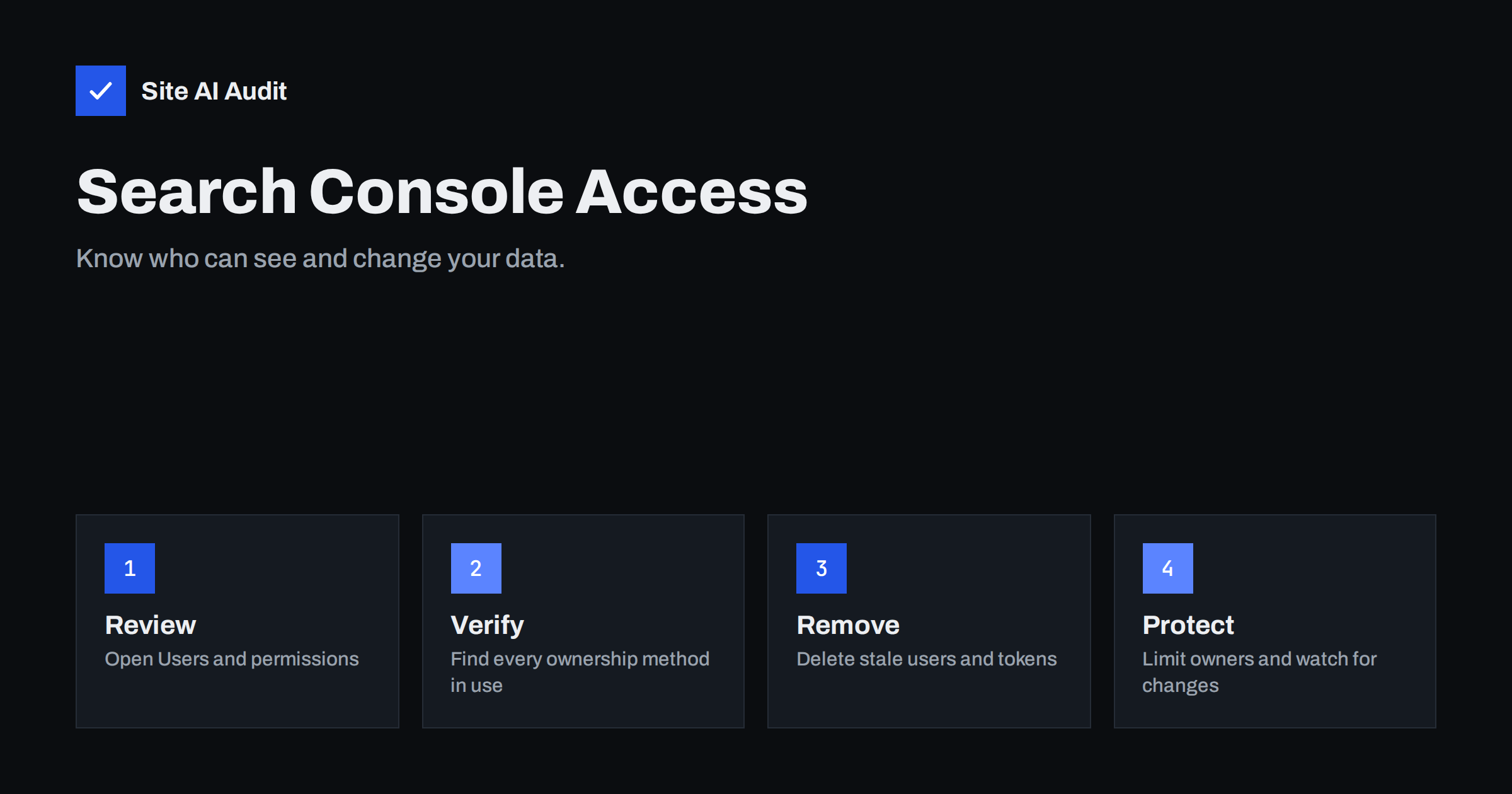
Short answer: Open Settings, then Users and permissions, in Google Search Console and look at every person and service with access. Remove those you do not recognise or no longer need. Then check the ownership verification methods, because a leftover file, tag or DNS record can let a former owner back in. Keep owners to a minimum and give everyone else a lower role.
Why access to Search Console matters
Search Console feels like a harmless reporting tool, so many owners never look at who can open it. In fact it holds sensitive information and offers real controls. It shows which search queries bring visitors, which pages are indexed and which problems Google has found. It also lets an owner do things that affect your visibility.
- Submit or remove sitemaps and request indexing of pages.
- Ask Google to temporarily hide pages from results with the Removals tool, which could take your most important pages out of search for months if misused.
- Use the Change of Address tool to tell Google that a site has moved to another domain, a risk described in the Change of Address tool guide.
- See the list of linking sites and the full list of queries.
- Add or remove other users.
An unknown owner is therefore a real risk, whether it is an attacker who gained access, a former agency that you forgot or a freelancer’s personal account that was never removed.
The roles you will see
Search Console has several levels of access, and each person or service should hold only the lowest level that they need.
- Verified owner. The strongest role. A verified owner has proved control of the site through a file, a tag, a DNS record or another method. This kind of owner cannot be removed from the Users list alone, because the verification itself must be undone.
- Delegated owner. A person added by a verified owner. They have the same powers, but the owner can remove them from the list at any time.
- Full user. Can see nearly all data and take some actions, such as requesting indexing, but cannot add users or change key settings.
- Restricted user. Can view most data but cannot take actions.
- Associates. Linked services or accounts, such as an analytics property, that are associated with the property and may be shown there.
Most staff and agencies need only full or restricted access. Giving owner rights to everyone is a common mistake. The same principle appears in least privilege for website user accounts.
How to review who has access
- Sign in to Search Console with an owner account and select your property.
- Open Settings in the left menu and choose Users and permissions.
- Read the list. For each entry, note the e-mail address, the role and whether it is an owner who is verified or delegated.
- Mark anyone you do not recognise, anyone who left the company and any address that looks like a free personal mailbox of a past supplier.
- If you manage several properties, repeat the check for each one. A domain property and a URL-prefix property for the same site have separate lists, as explained in domain property versus URL-prefix property.
Do this at least once a quarter, and after any change of agency, developer or staff member. The routine fits well in your offboarding steps, covered in revoking developer access.
Before you remove anyone, make sure that you have not removed your own way in. Confirm that you are signed in with an owner account that you control, and that a second owner exists. If an agency set up the property in the past and is the only verified owner, create your own verification first, by adding a DNS record or a tag that you control, and only then remove theirs. Doing the steps in this order avoids the situation where nobody on your side can manage the site in Google.
Removing a delegated user
For a delegated owner, full user or restricted user, the removal is simple. Select the entry in Users and permissions, open the menu next to it and choose Remove access. The person immediately loses access to that property. If you are unsure whether someone still needs it, change the role to restricted first, then remove them after a short wait.
Removing a verified owner
This is the part that people miss. A verified owner stays on the list until the proof of ownership is gone, and the proof can exist in several places at once. If you only delete the person, the verification may still be in place and they can return by using it.
- In Settings, open Ownership verification and read the list of verified owners and the method each used.
- For each unknown or former owner, find the matching proof: an HTML file in your site’s root folder, a meta tag in the head of your pages, a TXT record in DNS, a Google Analytics or Tag Manager link, or a similar method.
- Remove that proof from your website or DNS first. Remember that a tag may sit in a theme, a header plugin or a page builder, so check all three.
- Return to Ownership verification and choose to unverify the owner. Google checks that the proof is gone before the change takes effect.
Keep at least one verification method that you control, so that you do not lock yourself out. A DNS record at a registrar account that only you control is the most durable, which is another reason to protect that account, as discussed in domain hijacking and registrar lock.
Signs that an attacker has gained access
- A new owner or user appears that nobody on your team added.
- Sitemaps you did not submit appear, especially with strange addresses.
- Pages you did not choose are removed from results or marked for removal.
- Search Console warns about a security issue or a manual action, see manual actions in Search Console.
- Strange pages show up in the performance report, such as pages that sell goods in another language, a pattern seen in the Japanese keyword hack.
If any of these appear, treat the website as potentially compromised and follow the plan in website hacked: a recovery plan. Also review messages from Google, which are explained in Search Console messages and email alerts.
Protect the accounts themselves
A clean list is only useful if the accounts on it are safe. Make sure each owner account uses a unique, strong password in a manager, as in password managers for website teams, and has two-step verification turned on. Prefer personal named accounts over shared logins, so that you can tell who did what and remove one person without affecting the rest. If an agency needs access, add their staff addresses with the lowest useful role and set a date to review it.
A simple access policy for your team
Written rules are easier to follow than good intentions. A one-page policy for Search Console and similar tools is enough, and it can be short.
- Name the owners. Decide who holds the owner role. Two people is a good number: one main owner and one backup, so that a holiday or a lost phone does not lock you out.
- Use company addresses. Add people with an address on your own domain where you can. When someone leaves, you disable the mailbox and the access goes with it.
- Record why each person has access. A short note in a spreadsheet, such as “agency, monthly reports, restricted, review in June”, makes later reviews quick.
- Set an end date for outside suppliers. Contracts end, and access should end with them. Put the removal into the project closing checklist.
- Review verification methods yearly. Old HTML files and meta tags tend to remain for years after the person who added them has gone.
- Tell people what is monitored. Knowing that access is reviewed makes staff and suppliers more careful about sharing logins.
The same policy applies to other tools that hold data about your site, such as analytics, tag managers, hosting panels and your domain registrar. A weak link in any of them can matter as much as one in Search Console, and the checks are almost identical.
How Site AI Audit helps
Site AI Audit cannot see who has access to your Search Console, because that list belongs to your Google account. It checks the website itself: titles and descriptions, headings, broken links, redirects, sitemap, robots.txt and noindex settings, plus SSL, security headers, speed and e-mail authentication. The first check is free, covers up to 50 pages and needs no sign-up. You can run a free check of your website or see the plans for weekly monitoring.
Related reading
- How to Set Up Google Search Console for a Small Business
- Hidden Admin Users in WordPress: How to Find Them
- Two-Factor Authentication for Website Owners: What to Protect
- 9 Signs Your Website Has Been Hacked (and How to Check)
The bottom line
Search Console access is power over how Google sees your site. Review Users and permissions every quarter, remove people you do not know, give most people a lower role, and remember to remove the verification proof of any former owner. Then protect the accounts that remain with strong passwords and two-step verification.
FAQ
Why can’t I remove an owner from the list?
A verified owner remains until the proof of ownership is removed from your site or DNS and the owner is unverified in Settings.
How often should I review access?
At least every three months, and whenever an agency, freelancer or employee leaves or is added.
Can a former agency still see my data?
Yes, if their user, their verification file, tag or DNS record is still in place. Remove all of them.
What role should an SEO agency have?
Usually full user access is enough. Give owner rights only if they must manage verification or users, and set a review date.
Does removing access affect my rankings?
No. Users and permissions only control who can view and manage the data. Your search results do not change.