ENEnglish
 LTLietuviškai
 DEDeutsch
 FRFrançais
 RUРусский
 ESEspañol
 PLPolski
 ITItaliano
 UKУкраїнська
 CSČeština
 PTPortuguês
 JA日本語
 LVLatviešu valoda
 ETEesti
 HUMagyar
 IDBahasa Indonesia
 TRTürkçe
 HIहिन्दी
 ELΕλληνικά
 ARالعربية
 THไทย
 VITiếng Việt
 RORomână
 MSBahasa Melayu
 BNবাংলা
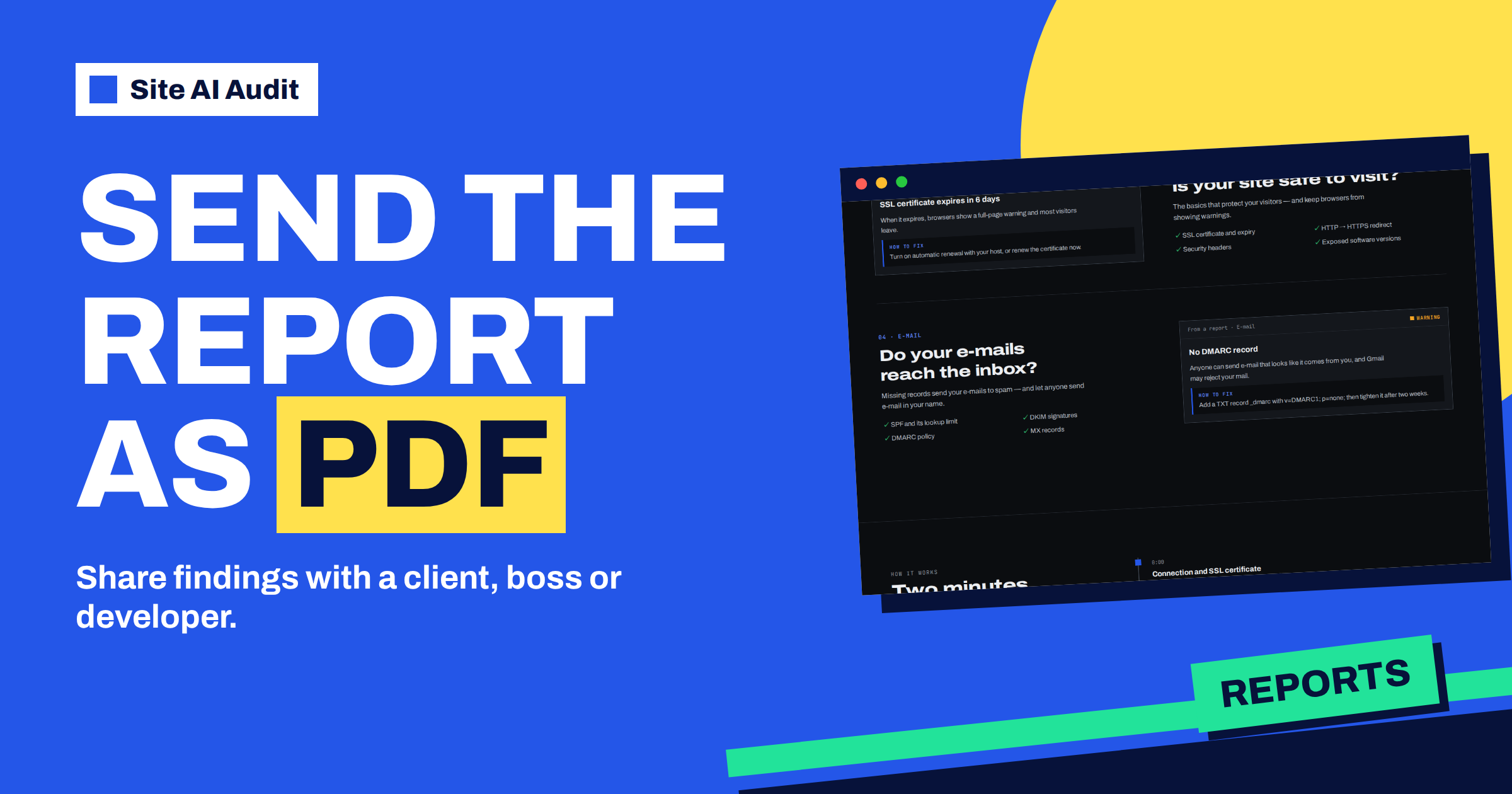
Short answer: On the Monitor, Business and Agency plans, every finished Site AI Audit report can be downloaded as a PDF with the “Download PDF” button. The file contains the score, the four area scores and every finding with its explanation and fix, in a printable A4 layout. It is the right format for a client, a manager or a developer who does not have an account. On the Agency plan, the PDF carries your logo and company details instead of ours.
Why a PDF is useful
An audit report is only useful when it reaches the person who can act on it. Often that person is not you. A web designer tells the owner what to fix. An owner forwards the findings to the hosting company. A marketing manager needs something to present at a meeting. In all of these cases, an on-screen report with expandable sections is not the best format. A PDF has some clear advantages:
- It is a snapshot. It shows the state of the website on the day of the check, which is useful for records and for before-and-after comparisons.
- It opens anywhere. Every device reads a PDF, with no account or login.
- It prints well. A paper copy for a meeting or a signature needs no special layout work.
- It shows everything at once. In the PDF, all findings are shown in full, not hidden in folded sections.
- It can be attached to an e-mail or to a project folder.
Which plans include the PDF
The pricing page lists “PDF report” for the Monitor plan at €9 a month, and the Business and Agency plans include everything from Monitor. The free account does not include it. If you press the PDF link without a plan, you are taken to the pricing page with a short note that PDF reports are part of the paid plans. The article on comparing the plans shows how the plans differ in other ways. Prices are in euros without VAT, as the pricing page says.
How to download it
- Run an audit and open the finished report while you are signed in.
- Press “Download PDF” in the row of buttons near the top, next to “Fix it for me”, “Re-check now” and “History & changes”.
- Save the file. It is named after the website and the date of the check, in the form of the domain name, then “audit” and the date, for example example.com-audit-2026-11-20.pdf.
When a check finishes on a paid plan, the e-mail that tells you the report is ready also contains a link to the PDF, together with the score, the number of pages checked, the counts of critical, warning and notice findings and the three most important findings. That makes the PDF one click away, even if you have left the browser.
What is inside
The PDF follows the structure of the online report:
- The website and the date of the check, and the number of pages that were read.
- The overall score and the four area scores for SEO, speed, security and e-mail.
- The findings, ranked by impact, each with a severity label, a plain explanation of why it matters, a “how to fix” step and the pages that are affected.
In the PDF, the details of every finding are open. You do not need to click anything to see them. For readers who are not technical, the plain-language explanations are the most useful part. The article on how to read a Site AI Audit report explains the pieces if you need to guide someone through them.
PDF or report link?
You have a second way of sharing: the “Copy report link” button gives you the address of the online report. Both are useful, in different situations.
Send the PDF when
- You want a fixed record of the day, for a client file or a handover.
- The reader prefers an attachment or will print it.
- You want to keep the report as it was, even if you run new checks.
Send the link when
- The reader should see the report in its interactive form, with sections that open and close.
- You want a short message instead of an attachment.
A note about links: the address of a report contains a long, random part. Anyone who has the link can open the report, so treat it like a private link and send it only to people who should see it. When the website’s owner is on a paid plan, the link opens the full report. Only the signed-in owner can download the PDF from the report page; the person who receives your file does not need an account.
Agencies: your logo on the PDF
On the Agency plan, the pricing page lists “Reports with your logo”. Set up your company name, logo, colour and contact details in your account, under branding. The PDF of your reports then carries them, which turns a technical document into part of your service. Reports produced through the embeddable audit form, which the plan also includes, are branded in the same way. The article on Site AI Audit for agencies describes the whole workflow, from the first check to the branded report.
A simple routine with PDFs
- Before work starts, run an audit and download the PDF. This is your starting point.
- Fix the findings in order of severity.
- Re-check with “Re-check now” on a paid plan, and download the new PDF.
- Send both to the client or manager, with two lines of explanation: the score went from this to that, and these findings were fixed.
- Keep them in the project folder. They are your record.
The history page described in the article on comparing two audits gives you the “new, fixed and worse” lists for the same purpose.
Tips for a good handover
- Add a short cover note. Tell the reader what to read first: the “Fix these first” findings are at the top.
- Separate who does what. Mark which fixes you can do and which need the host, the designer or the mail provider.
- Do not send the PDF alone to someone who needs advice. A list of findings is more useful with a plan and a next step.
- Remember that it is a snapshot. If the site changes, run a new check before the next meeting.
If the reader would like help with the fixes, the report also has a “Fix it for me” button, which sends the report to Internet Solutions and brings you an estimate.
Keeping your PDFs organised
If you look after several websites, a few simple rules make the PDFs far more useful. Keep one folder for each website, and keep the original file names, because they already contain the domain and the date. Add a short text file or a line in your project notes with the score, so you can see the trend without opening each file. When you send a PDF to a client, send the first one and the latest one together, since the change between them is the story.
Think about what you share. The report lists the addresses of pages with problems and describes weaknesses of the website, such as missing security headers. That information is meant for the people who fix the site. Send it to them, and do not post it publicly. If you need to show a result in public, such as in a case study, describe the improvement in general terms and leave out the details of any unresolved security findings.
Finally, remember that findings can change between checks without any action on your side, for example when a certificate gets closer to its expiry date. A PDF from last quarter is a record of that time and should not be used as the current state of the site.
A worked example
A freelance web designer takes over the website of a dental clinic. On the Monitor plan, she runs an audit, downloads the PDF and sends it to the clinic’s manager with a note: three critical findings, all about e-mail and broken links, and a plan to fix them in a week. After the work, she re-checks and sends a second PDF. The manager forwards both to the clinic’s owner, who has no account and does not need one. The first PDF shows a score of 62, the second 88, and the owner approves the invoice without questions.
To try it, run a Site AI Audit. The first check needs a free account, and the plans unlock the full report and the PDF.
Related reading
- Monitor Plan for a Small Business Website: Check, Fix, Re-check
- Free Account in Site AI Audit: What You Get and What Is Locked
- Site AI Audit “Fix It for Me”: DIY or Ask for Help?
- Website Security Checks for Agencies: A Repeatable Client Process
The bottom line
Paid plans give you a PDF of every report: a fixed, printable record that anyone can open. Send it when you need a snapshot, send the link when you want the live report and on the Agency plan add your own logo.
FAQ
Which plans include the PDF report?
Monitor, Business and Agency. The free account does not include it.
Does the person who receives the PDF need an account?
No. A PDF opens on any device.
Can I add my logo?
Yes, on the Agency plan, which lists reports with your logo. Set your branding in your account.
Is the PDF the same as the online report?
It has the same content: the scores and every finding with its explanation, fix and affected pages, with all details open.
Will the PDF update when I fix things?
No. It is a snapshot of the check. Run a re-check and download a new one.