ENEnglish
 LTLietuviškai
 DEDeutsch
 FRFrançais
 RUРусский
 ESEspañol
 PLPolski
 ITItaliano
 UKУкраїнська
 CSČeština
 PTPortuguês
 JA日本語
JA日本語 LVLatviešu valoda
 ETEesti
 HUMagyar
 IDBahasa Indonesia
 TRTürkçe
 HIहिन्दी
 ELΕλληνικά
 ARالعربية
 THไทย
THไทย VITiếng Việt
 RORomână
 MSBahasa Melayu
 BNবাংলা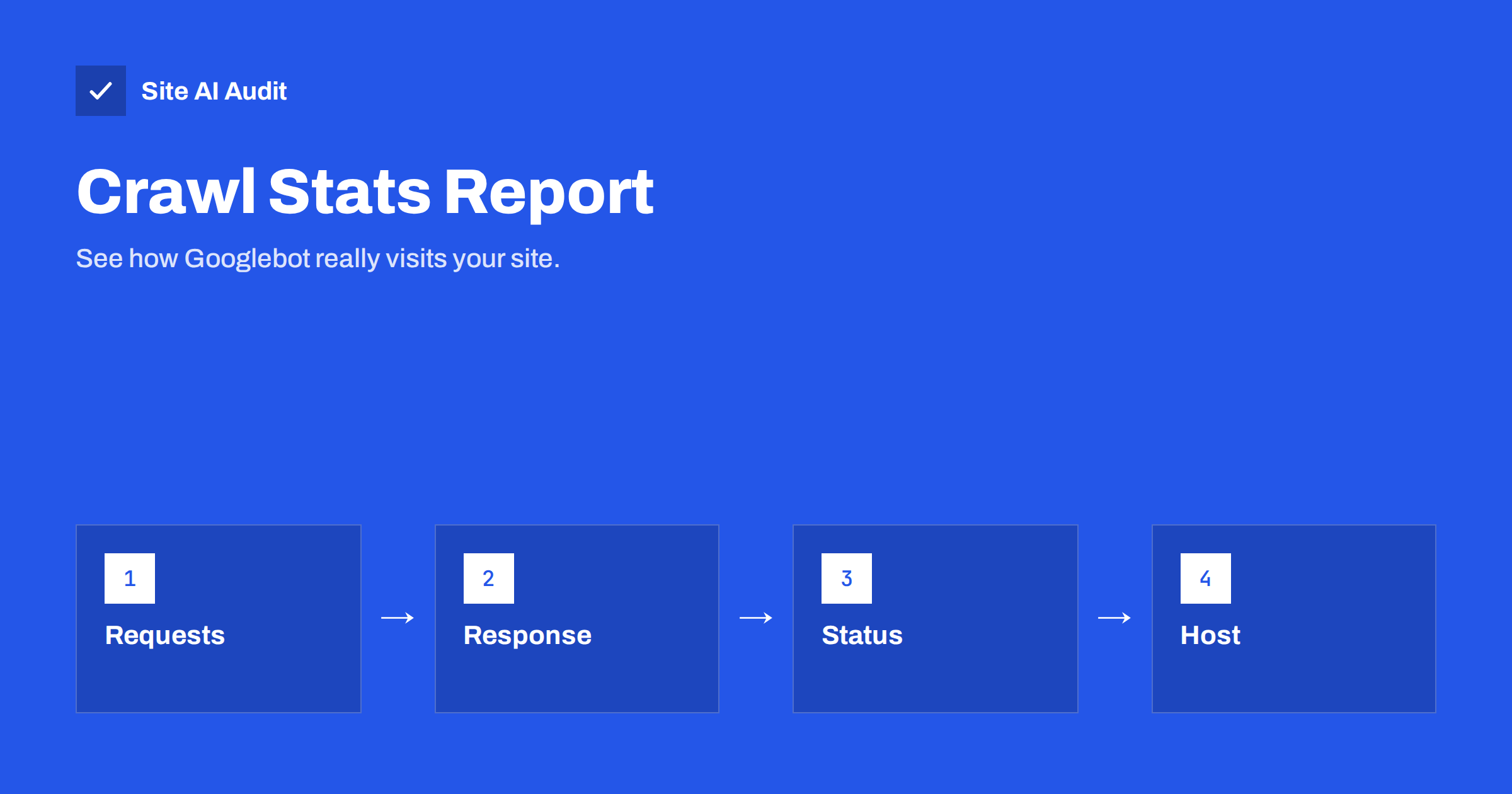
Short answer: The Crawl Stats report in Google Search Console shows how Googlebot has requested your site over the last 90 days: how many requests, how much data, how fast your server answered, which response codes it received and whether it had trouble reaching your host. Use it to spot rising response times, growing numbers of errors and redirects, and a sudden fall in crawling, since each can slow down how quickly new and changed pages appear in search.
Where to find the report
The report is not in the main menu. Open Search Console, choose your property, go to Settings and select Open Report in the Crawl stats section. It is available for domain properties and for URL-prefix properties at the root of a host. A property for a subfolder does not show it, so if the report is missing, check which property type you are using.
The report covers the last 90 days and it describes all of Google’s crawlers visiting your host, not only the main one. It is a summary of fetches, not a list of the pages that are indexed. For that, use the indexing reports, and for a view of one specific page, the URL Inspection tool.
The three headline charts
At the top of the report you see three charts, and they tell most of the story.
- Total crawl requests. The number of requests Google made each day, including failed ones. A stable or slowly growing line is normal. A sharp drop can mean that Google had trouble reaching the site or that it found fewer URLs of interest. A sudden spike can follow a large site change, a new sitemap or a large number of new URLs, such as filtered or parameter pages.
- Total download size. The amount of data Googlebot downloaded. If it grows while the number of requests stays the same, your pages or files have become heavier.
- Average response time. How long your server took to answer a request, measured over the day. This number matters more than any other in the report. When it climbs, Google crawls more cautiously, and your visitors probably have a slow experience too. Our guide to reducing server response time explains the usual causes.
Look at the shape over weeks, not at a single day. One bad day often reflects a short outage or maintenance, while a rising trend points to a growing problem.
Host status: can Google reach your site?
Below the charts is the host status section, which shows whether Google had problems fetching three basics over the last 90 days: your robots.txt file, DNS resolution and server connectivity. Each has a status such as no issues, some issues in the past, or a recent problem.
- Robots.txt fetch. If Google cannot fetch the file, it may pause crawling to avoid fetching pages you wanted to block. Keep the file reachable and fast. See our robots.txt guide.
- DNS resolution. Failures here mean Google could not turn your domain name into an address. Check your DNS provider and records.
- Server connectivity. Timeouts and refused connections point to hosting limits, firewalls or overloaded servers.
A recent problem in this section deserves immediate attention. A brief past problem that has not returned usually needs no action.
It also helps to know what the report does not do. It does not tell you why a page is not indexed, it does not rank your pages and it does not list every URL Google knows. Treat it as a view of your server’s relationship with Google’s crawlers. When something looks wrong, the next step is nearly always outside the report: a hosting dashboard, a plugin setting, a firewall rule or a list of redirects that needs cleaning up.
Breakdown by response
This table shows how requests ended. Healthy sites see mostly 200 responses for pages. The other groups help you find waste and errors:
- 301 and 302 redirects. A small share is normal. A large share means Google spends time on old addresses, often because internal links and sitemaps still point to them. Read about redirect chains and loops.
- 404 not found. Occasional ones are harmless. A large number means broken internal links or old URLs that need a redirect or removal. Our guide to finding and fixing broken links shows how.
- 5xx server errors. These tell Google that your server is failing. Repeated errors can reduce crawling. See server errors in Search Console.
- Blocked by robots.txt. Requests that were disallowed. Check that you are not blocking pages that should be indexed.
- Not modified (304). Good news. It means Google asked whether a page had changed and was told it had not, which saves bandwidth for both sides.
Click a response type to see example URLs. This is the quickest way to find the pages behind a problem.
Breakdown by file type, purpose and crawler
The report also breaks down requests in other ways, and each shows something different.
- By file type. HTML, images, CSS, JavaScript, PDF and others. If a large share of requests goes to scripts or files you do not care about, consider whether your pages load too many resources.
- By purpose. Discovery means Google found a new URL, and refresh means it rechecked a known one. A site that publishes new content should show a healthy level of discovery. A site that never adds pages mostly shows refresh.
- By Googlebot type. Smartphone, desktop, image, video and others. Since Google indexes the mobile version of most sites first, smartphone should normally dominate. Our article on mobile-first indexing explains why.
Unexpected patterns, for instance a large share of requests for parameter URLs or for old file types, show where crawl effort is wasted.
Common patterns and what they mean
- Response time rising, requests falling. Google is slowing down because your server is struggling. Look at hosting, caching and heavy plugins first.
- Requests spike after a redesign. Google is rechecking many addresses. It is normal for a short time, but check for a flood of redirects and 404 errors.
- Requests fall to near zero. Check the host status for robots.txt, DNS and server problems, and check that nothing blocks Googlebot in a firewall or security plugin.
- Many requests to parameter or filter URLs. Your site generates too many URL variations. Review our guides on URL parameters and faceted navigation.
- High share of 404 responses. Broken internal links or old links from other sites. Fix the links and redirect the important old URLs.
Server logs give a deeper view, since the report shows only Google’s crawlers. See our article on reading access logs.
Do small sites need to worry about crawl budget?
For most small sites, no. Google has said that crawl budget matters mainly for very large sites with many thousands of URLs, or sites whose content changes quickly. A site of a few hundred pages is usually crawled fully. For these sites the report is a health monitor, not a budget tool. It tells you early when a server problem or a technical mistake gets in the way. Our article on crawl budget discusses when it becomes relevant.
A short monthly routine
- Open the report and set the view to the full 90 days.
- Check average response time. Is it stable?
- Check host status for recent problems.
- Open the response breakdown and look at the share of errors and redirects.
- Click any group that looks too large and fix the URLs behind it.
- Note the numbers in a spreadsheet, so that you can compare after the next site change.
What Site AI Audit can and cannot tell you
Site AI Audit does not see how Googlebot visits your site, so it cannot replace the Crawl Stats report. It does crawl up to 50 pages itself and reports on broken links, redirects, the sitemap, robots.txt and noindex tags, which are the same kind of problems the report reveals. It also measures server response time. Running it after a change lets you find redirect and 404 problems quickly, and Search Console shows what Google saw later. You can run a free check of your website or look at the plans.
Related reading
- Crawl Budget Explained: Does It Matter for Your Website?
- Server Error (5xx) in Search Console: Find and Fix the Cause
- How to Read Web Server Access Logs to Spot Attacks
- How to Read the Search Console Performance Report
The bottom line
The Crawl Stats report is a quiet but useful early warning system. Watch response time, host status and the share of errors and redirects. Fix the pages behind any group that looks too large, and treat a falling line as a reason to check your server before you blame your content.
FAQ
Why can I not see the Crawl Stats report?
It is available only for domain properties and for URL-prefix properties at the root of a host. If your property covers a subfolder, the report does not appear. Add a domain property to see it.
What is a good average response time?
Lower is better, and there is no single threshold. Aim for a stable line that stays low, and investigate when it rises over several days. A fast server helps both crawling and visitor experience.
Does a drop in crawl requests hurt my rankings?
Not by itself. Fewer requests can simply mean that Google has nothing new to fetch. It is a concern when it coincides with errors, host problems or slower responses, because new and changed pages may then take longer to appear.
Can I ask Google to crawl more?
You cannot set a higher crawl rate directly. You can encourage more crawling by keeping the site fast and reliable, publishing useful content, linking pages clearly and maintaining an accurate sitemap.
How often should I check the report?
Once a month is enough for a small site. Check it also after a migration, a redesign, a hosting change or a sudden fall in traffic, since those events are the most likely to affect crawling.