 ENEnglish
 LTLietuviškai
 DEDeutsch
 FRFrançais
 RUРусский
 ESEspañol
 PLPolski
 ITItaliano
 UKУкраїнська
 CSČeština
 PTPortuguês
 JA日本語
JA日本語 LVLatviešu valoda
 ETEesti
 HUMagyar
 IDBahasa Indonesia
 TRTürkçe
 HIहिन्दी
 ELΕλληνικά
 ARالعربية
 THไทย
THไทย VITiếng Việt
 RORomână
 MSBahasa Melayu
 BNবাংলা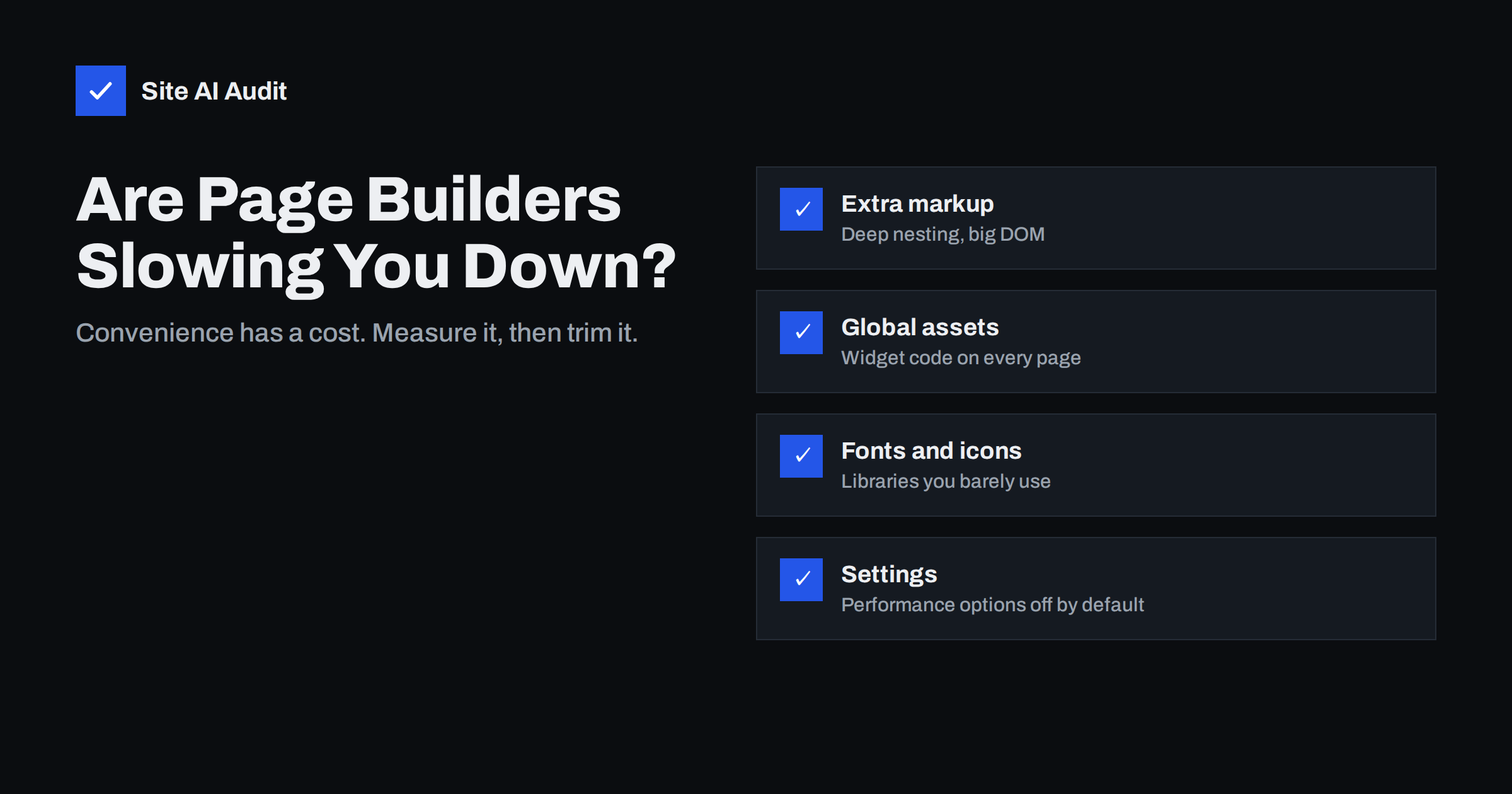
Short answer: Page builders can slow WordPress sites because they typically add extra CSS and JavaScript, deeply nested HTML, icon and font libraries, and widget scripts that may load on pages that do not use them. How much slower depends on the builder, its settings and how the pages are built. A builder site can still pass Core Web Vitals if you enable the builder’s performance options, avoid heavy widgets such as sliders and animations, load assets only where needed, optimise images and use page caching. Rebuilding without a builder is worth considering only when measurements show the builder itself is the main bottleneck.
Visual page builders transformed WordPress for small businesses and agencies. They let non-developers create attractive layouts, change pages without code and deliver projects quickly. They also have a reputation for making sites slow. That reputation is partly deserved and partly outdated: modern builders have improved considerably, and many slow builder sites are slow for reasons unrelated to the builder. The useful question is not “are builders bad?” but “how much is the builder costing on my site, and what can I do about it?”
Where page builders add weight
- Markup. Every section, column and widget is wrapped in several containers to make visual editing flexible. A simple layout can produce many nested elements, increasing DOM size, which slows style calculation, layout and interactions.
- CSS. Builders ship styles for their whole widget library, plus per-page generated CSS. On some setups, a large general stylesheet loads everywhere.
- JavaScript. Scripts for animations, sliders, tabs, accordions, sticky headers, pop-ups and motion effects, sometimes plus older libraries such as jQuery.
- Icon libraries and fonts. Full icon font libraries and several Google Fonts families may load even if the page uses a few icons and one font.
- Add-on packs. Third-party widget packs add their own CSS and JavaScript, often globally.
- Features that encourage heaviness. Background videos, parallax, entrance animations, carousels and lottie animations are easy to add and costly to load.
How to measure the builder’s cost on your site
- Run PageSpeed Insights on mobile for a builder page and note LCP, CLS, Total Blocking Time and page weight.
- Check the DOM size. Lighthouse reports “Avoid an excessive DOM size” with the element count; very high counts on simple pages point to builder markup.
- Look at the Network panel filtered by CSS and JS. File paths show which files come from the builder, the theme and each add-on.
- Use the Coverage tab to see how much builder CSS and JavaScript is unused on the page.
- Compare with a plain page. On a staging copy, create the same content with the default block editor and compare metrics. The difference is roughly the builder’s cost for that layout.
Builder settings that help
Most major builders now include performance options, often disabled by default for backward compatibility. Look for settings such as:
- Optimised or reduced DOM output, which removes unnecessary wrapper elements.
- Improved or conditional asset loading, which loads widget CSS and JavaScript only on pages that use those widgets.
- Inline or split CSS, which loads only the styles for widgets on the page.
- Font and icon options, such as disabling the builder’s font loading if the theme handles fonts, loading icons as inline SVG, or disabling unused icon libraries.
- Lazy loading for background images, for sections below the fold.
- Disabling features you do not use, such as motion effects, legacy libraries or unused widgets.
Enable options one at a time on staging, clear caches, and check that layouts and interactive widgets still work.
Design choices that matter more than the builder
- Replace hero sliders with a single image and headline. Sliders load several large images and scripts and often delay LCP.
- Limit animations. Entrance animations on every section add JavaScript and can delay content appearing.
- Avoid background videos on mobile.
- Use one or two font families with few weights.
- Keep sections simple. Fewer nested inner sections and columns mean a smaller DOM.
- Use global widgets and templates instead of duplicating complex blocks on every page.
- Uninstall add-on packs if you use only one or two of their widgets.
The basics still apply
Many builder sites are slow for the same reasons as any site. Before blaming the builder, check:
- Page caching and a fast server response.
- Image sizes and formats, especially the hero.
- Third-party scripts such as chat, tracking and review widgets.
- Compression and caching headers.
- A current PHP version.
Fixing these often brings a builder site into the green without touching the builder at all.
A tidy-up plan for an existing builder site
If your site already runs on a builder and you want it faster without a rebuild, a structured afternoon usually achieves a lot. Start with a staging copy and a baseline measurement of the home page, a service or product page and a blog post. Then work through the site in this order:
- Update the builder, its add-ons and the theme, because recent versions often include performance improvements.
- Switch on the builder’s performance features one by one, testing after each.
- List the add-on packs and the widgets actually used; remove packs you barely use and replace their widgets with native ones.
- Replace the home page slider with a single optimised hero image, and remove entrance animations from sections above the fold.
- Disable builder font loading if the theme already loads fonts, and reduce icon libraries to the icons you use.
- Check that page caching, image compression and lazy loading are working, and remove third-party widgets nobody uses.
- Measure again, compare with the baseline, and only then move the changes to the live site.
Builder discipline for agencies
For agencies, the biggest speed gains come from habits rather than one-off fixes. Build a starter template with performance settings already enabled and only the widgets you normally need. Agree on a short list of approved add-ons. Give clients editing guidance that explains image sizes and why a new slider or background video is not a free addition. Include a speed check in the handover and in regular maintenance. A builder used with discipline produces sites that stay fast long after launch.
Builder vs block editor vs custom theme
| Page builder | Block editor with a lean theme | Custom-coded theme | |
|---|---|---|---|
| Ease of editing | High | Medium to high | Depends on the build |
| Typical front-end weight | Higher | Lower | Lowest, if built carefully |
| DOM size | Often large | Moderate | Small |
| Speed tuning effort | Settings and discipline | Low | Developer time |
| Dependence on one vendor | High | Low | On the developer |
The right choice depends on who edits the site and how often, the budget, and how important speed is relative to flexibility. A well-configured builder site can be fast enough for most small businesses; a poorly configured block-editor site can be slow.
When to consider moving away from a builder
- After enabling performance settings and fixing the basics, mobile Core Web Vitals still fail because of builder CSS, JavaScript or DOM size.
- The site is due for a redesign anyway.
- Editors only use a small set of layouts that could be provided as block patterns.
- Updates to the builder or its add-ons regularly break layouts.
Plan such a move carefully: rebuilding pages takes time, content must be migrated, and URLs, titles and structured data must be preserved to protect search visibility.
How Site AI Audit helps
Site AI Audit runs Google PageSpeed for mobile and measures page weight, so the effect of builder CSS, JavaScript and markup shows up in LCP, INP and total size, alongside server response time and compression. Findings are explained in plain words and ranked against your SEO, security and e-mail issues, which helps decide whether the builder is really the bottleneck. Paid plans let you re-check after each setting you change.
Related reading
- How to Fix a Slow WordPress Site: A Step-by-Step Guide
- How to Find Which WordPress Plugin Is Slowing Your Site
- How to Reduce Unused JavaScript and Speed Up Your Pages
- Critical CSS Explained: What It Is and Whether You Need It
The bottom line
Page builders add markup, CSS and JavaScript, but most builder sites can be made fast enough with the builder’s performance settings, simpler designs, fewer add-ons and the usual basics of caching, images and scripts. Measure the builder’s real cost before deciding to rebuild, and let the numbers, not the reputation, guide the decision.
FAQ
Do page builders slow down WordPress?
They usually add some weight in CSS, JavaScript and HTML compared with a lean theme and the block editor. The size of the effect depends on the builder, its settings and how pages are designed. Many builder sites can still pass Core Web Vitals.
Which is faster, a page builder or the block editor?
Pages built with the block editor and a lightweight theme are typically lighter. The difference shrinks when the builder’s performance options are enabled and designs are kept simple. Measure your own pages to compare.
How can I make my page builder site faster?
Enable the builder’s performance features, remove unused add-ons and widgets, replace sliders and heavy animations, limit fonts and icons, and apply the basics: caching, image optimisation and fewer third-party scripts.
What is excessive DOM size and why does it matter?
It means the page has a very large number of HTML elements. Large DOMs take longer to style, lay out and update, which can slow rendering and interactions. Builder layouts with many nested containers are a common cause.
Should I rebuild my site without a page builder?
Only if measurements show the builder is the main remaining bottleneck after other fixes, or if a redesign is planned anyway. Rebuilding is expensive and must preserve URLs and content for SEO.


