ENEnglish
 LTLietuviškai
 DEDeutsch
 FRFrançais
 RUРусский
 ESEspañol
 PLPolski
 ITItaliano
 UKУкраїнська
 CSČeština
 PTPortuguês
 JA日本語
JA日本語 LVLatviešu valoda
 ETEesti
 HUMagyar
 IDBahasa Indonesia
 TRTürkçe
 HIहिन्दी
 ELΕλληνικά
 ARالعربية
 THไทย
THไทย VITiếng Việt
 RORomână
 MSBahasa Melayu
 BNবাংলা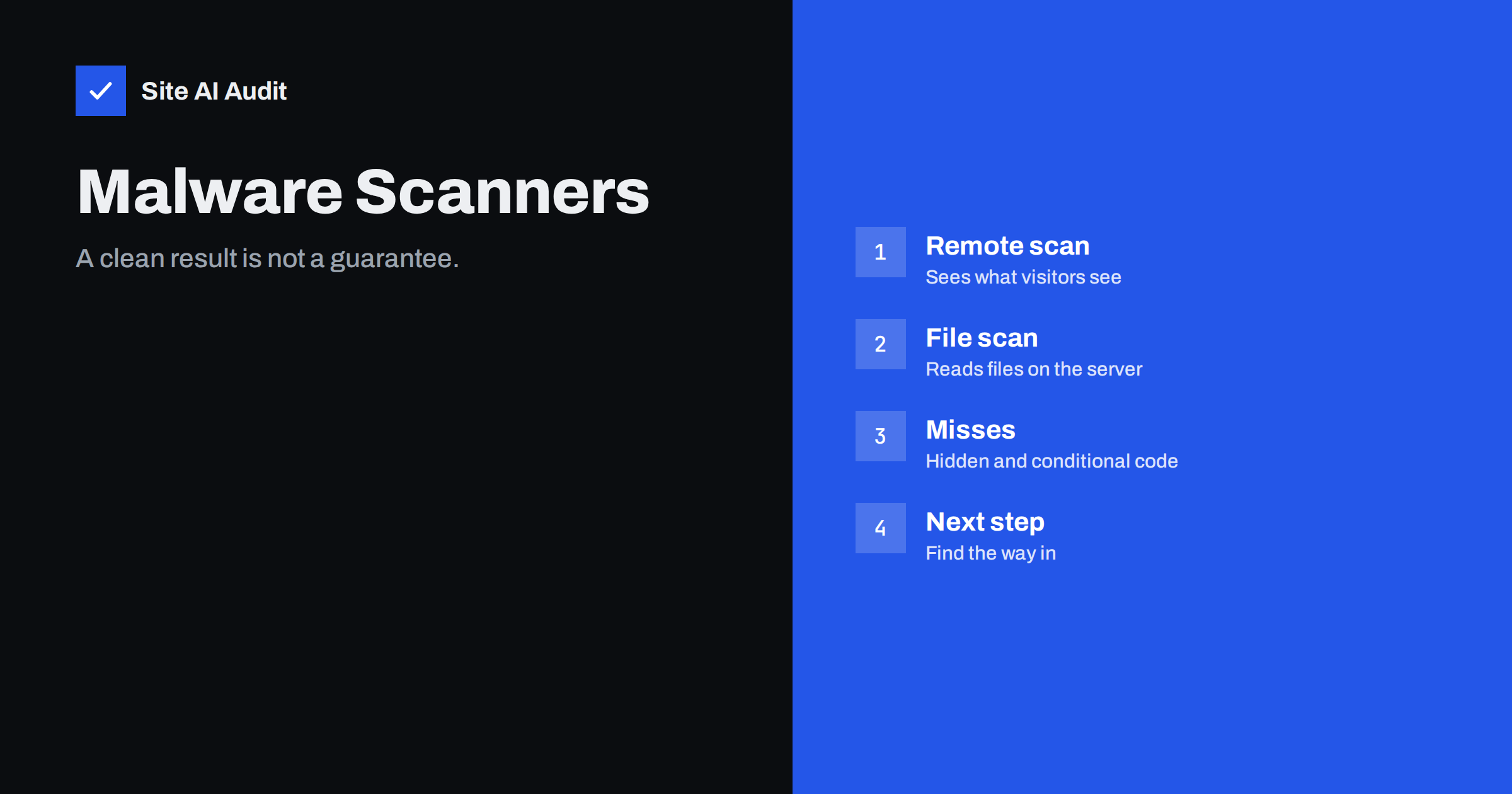
Short answer: A website malware scanner looks for known bad code or signs of infection, either from outside by loading your pages or from inside by reading your files. Both approaches catch the common cases and both miss some, especially hidden, obfuscated or conditional malware. A clean report lowers the worry but does not prove the site is safe, and a warning means you must find how the intruder got in, not only delete what was found.
The two main kinds of scanner
Scanners fall into two groups that work in very different ways. A remote scanner visits your website like a visitor, downloads the pages and checks them for suspicious content: injected links, hidden iframes, strange scripts and whether your address appears on public blocklists. You need no access to the server, which is why many online tools work this way.
A server-side scanner runs on the hosting account, usually as a plugin or a service installed by the host. It reads the files and the database, compares core files with known good copies and searches for patterns that match known malware. It can see things a remote scanner never will, such as a backdoor file that nobody links to. Each kind has blind spots, and a careful owner uses both.
What scanners do well
Scanners are good at spotting the common and the recurring. Mass attacks reuse the same malicious code on thousands of sites, so signature checks recognise it quickly. Typical findings include modified core files, known backdoor scripts, injected spam links, suspicious redirects and files that should not exist in a folder. Scanners also give you a regular routine, which is valuable on its own, since most owners never look at their files unless something breaks.
They also help with the early signs described in our guide to the signs that a website is hacked. A weekly scan that suddenly reports a new file in the uploads folder is a clear signal to investigate before search engines or customers notice.
Scanners also help after cleanup. Running one again confirms that the known problem is gone, and the next weekly report shows whether the infection came back. That feedback is valuable because reinfection is common when the entry point was never closed.
Where scanners fail
The weaknesses are just as important to understand:
- Obfuscated code. Attackers encode or split their code so that signatures do not match. A new variant may be unknown to the scanner for days.
- Conditional malware. Some infections show their payload only to visitors who arrive from a search engine, or only on a mobile device, or only once per visitor. A remote scan from a plain request sees a clean page. This trick is related to the techniques in our article on cloaking and sneaky redirects.
- Hidden locations. Malicious code may sit in the database, in a theme option, in a scheduled task or in a file with a harmless name.
- Limited scope. A scanner that checks only WordPress core and plugins ignores custom code and files outside the usual folders.
- False sense of safety. A green tick makes people stop looking.
The practical lesson is to add human checks to the automatic ones. Open your site from a search result on a phone, search for your own brand and read the titles and descriptions in the results. Spam pages injected into a site often appear in search results long before a scanner notices them.
False positives and false alarms
Scanners sometimes flag harmless code. Legitimate plugins use techniques that also appear in malware, for example encoded strings or functions that run text as code. A heavily modified theme, a custom plugin or a file left by a developer can trigger a warning even though nothing is wrong.
Do not delete flagged files blindly. Deleting a legitimate file can break the site, and deleting a real malicious file without finding the cause leaves the door open. Compare the file with the original from the official source, check when it changed and ask whether you or your developer made that change. When in doubt, take a backup first and then investigate.
Keep a short note of files you have reviewed and decided are harmless, with the reason. The next time the scanner flags the same file, you will not have to start from zero, and a new person on the team can see the history. Many scanners also let you mark a file as trusted, but use that feature sparingly and review the list from time to time, because attackers like to hide inside exceptions.
What to do when a scanner finds something
Treat a real finding as a symptom. The malicious file is the result of an earlier problem, such as a vulnerable plugin, a stolen password or weak file permissions. If you only remove the file, the attacker can often return within hours. A sensible sequence looks like this:
- Make a full backup of the infected state, so that evidence is not lost.
- Put the site into maintenance mode if visitors are at risk.
- Change all passwords, including hosting, database, email and administrator accounts.
- Update WordPress, themes and plugins and remove anything unused or abandoned.
- Replace core files with clean copies and check the uploads folder for scripts that do not belong.
- Look for hidden backdoors, as described in our guide to web shells and backdoor removal.
- Review the access logs for the first sign of the intrusion.
Our complete walkthrough, hacked website recovery steps, covers the full process and what to tell your hosting provider.
Choosing and using a scanner sensibly
You do not need an expensive tool to begin. A reputable security plugin for WordPress, a scan offered by your hosting company and an occasional remote check give reasonable coverage together. Look for these features:
- Comparison of core files with the official versions.
- Regular updates of the detection rules.
- Email alerts that go to a person who will read them.
- Clear reports that show what changed and when, not only a score.
Be careful with free tools that ask for broad access or that shout alarming warnings to sell a cleaning service. A trustworthy tool explains what it found and lets you decide.
What scanners cannot replace
Scanning finds problems after they appear. Prevention reduces how often they appear at all: timely updates, strong and unique passwords, two-step login, correct file permissions, limited user roles and tested backups. Our WordPress security checklist lists these basics, and a proper backup strategy lets you restore a clean version quickly if everything else fails.
Logging is the other missing piece. A scanner says that a file changed, while logs can show who changed it and from where. Even a simple routine, as described in security logging for small sites, makes investigations much faster.
A simple scanning routine for a small business
A routine beats a perfect tool that nobody opens. A small business can keep it very simple. Once a week, a scheduled server-side scan runs and sends a short report to the person responsible. Once a month, someone checks the list of administrator accounts, the installed plugins and the newest files in the uploads folder. After every large update, someone opens the main pages as a visitor, once from a search result and once on a phone, to see that nothing strange appears.
Write down who receives the alerts and who acts on them. Alerts that go to an old address, or to a person who left the company, are one of the most common reasons that an infection runs for weeks. If you work with an agency or a freelancer, agree in writing who monitors the site and what happens when a warning arrives, including who pays for the cleanup and who contacts the hosting provider.
How Site AI Audit fits in
Site AI Audit is not a malware scanner. It checks the security basics of your website from the outside: the SSL certificate and its expiry, the HTTP to HTTPS redirect, security headers and exposed software versions. These checks reduce the attack surface and show weaknesses that attackers look for, but they will not find an infected file. Use a dedicated scanner for that. You can run a free check of your website or see the plans.
Related reading
- Website Security Audit Checklist: What to Check and in What Order
- Website Security Scan vs Penetration Test: What You Need
- Japanese Keyword Hack: How to Find and Remove SEO Spam Pages
- “Deceptive Site Ahead” Warning: Causes and How to Remove It
The bottom line
Malware scanners are useful but limited. Use a mix of remote and file-based scanning, treat a clean report as good news and not as proof, and treat every real finding as a clue to a deeper problem. Combine scanning with updates, strong access control, backups and logs, and you will find trouble early and recover faster.
FAQ
If my scan is clean, is my website safe?
Not necessarily. Scanners miss new, hidden and conditional malware. A clean result is a good sign, but it does not replace updates, backups and strong passwords.
How often should I scan my site?
A weekly scan suits most small sites, with alerts that go to someone who reads them. Scan also after any suspicious event or after a major update.
Can a scanner remove malware for me?
Some tools offer automatic cleaning, but it can break the site and may leave a backdoor behind. Take a backup first and look for the cause.
Why does my scanner flag a plugin I trust?
Legitimate code sometimes looks like malware to a signature check. Compare the file with the official copy before you remove or trust it.
Is a remote scanner enough?
It is a useful start, but it only sees what visitors see. A server-side scan can find files and database entries that remote tools never reach.