ENEnglish
 LTLietuviškai
 DEDeutsch
 FRFrançais
 RUРусский
 ESEspañol
 PLPolski
 ITItaliano
 UKУкраїнська
 CSČeština
 PTPortuguês
 JA日本語
 LVLatviešu valoda
 ETEesti
 HUMagyar
 IDBahasa Indonesia
 TRTürkçe
 HIहिन्दी
 ELΕλληνικά
 ARالعربية
 THไทย
 VITiếng Việt
 RORomână
 MSBahasa Melayu
 BNবাংলা
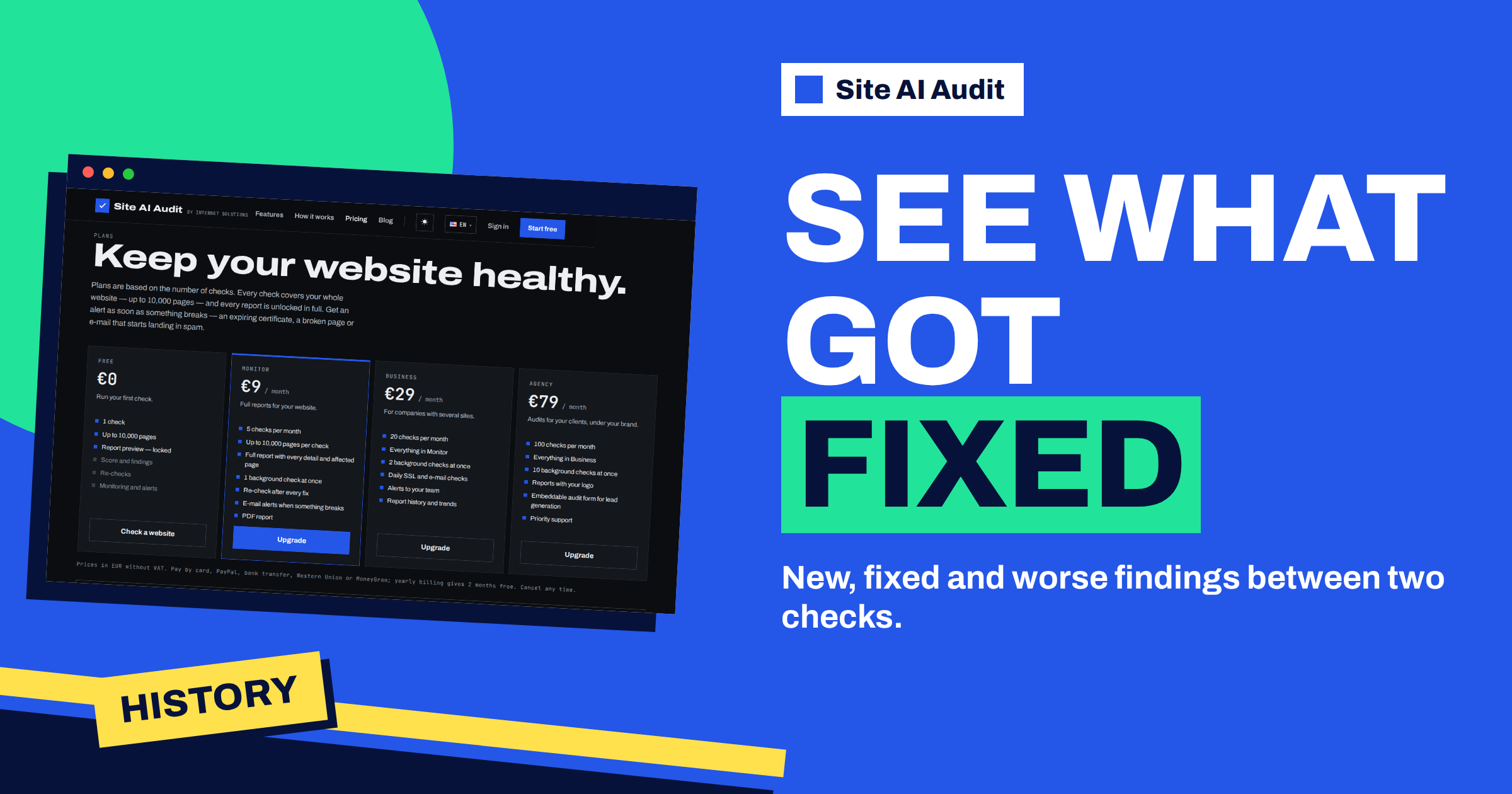
Short answer: For a website you have checked more than once, Site AI Audit keeps a history page called “History and changes”. It draws the score over time, lists every audit in a table and compares two checks: which findings are new, which are fixed and which got worse because they now affect more pages. The comparison turns a pile of reports into a clear answer to the question “did my work help?”. Open it from the “History & changes” button in your report.
Why one report is not enough
A single audit tells you where your website stands today. It cannot tell you whether you are moving in the right direction. After a few weeks of work, you may remember that you fixed the missing titles, but you may not remember how many pages were affected, whether the score went up or whether a new problem appeared at the same time. People who maintain websites for clients have an even harder task: they need to show what changed since the last visit.
The history page solves this by comparing audits for you. It is built on one simple idea: every finding in a report has a type, such as “pages without a meta description”, and the audit can tell whether the same type exists in the previous report. From that, it works out what is new, what has gone and what has changed in size.
Where to find it
- Run an audit of your website and open the report.
- Press “History & changes” in the row of buttons at the top. The button is shown to the owner of the website, next to “Re-check now”, “Download PDF” and “Copy report link”, where your plan includes them.
- Read the page. It opens in your account, under the website.
The history is a feature of the paid plans. The account page says that history, trends and comparison between audits are part of them, and the pricing page lists report history and trends in the Business plan, so check the plan table for the current details. On the free account, the page shows a short note instead of the comparison.
What is on the history page
Four key figures
At the top, a row of numbers shows the current score, with the change since the previous check in brackets, the number of audits in the history, how checks are started and, where daily checks apply, the days left until the SSL certificate expires. The line about starting checks says that audits run when you press “Re-check”, because Site AI Audit checks only when you ask.
Score over time
If there is more than one audit, a line chart shows the overall score of up to the last 30 audits, with a point for each check. Hovering over a point shows the date and score. A line that climbs and then flattens means that you have fixed the big things. A sudden dip is a signal to look at what changed on that date.
Changes since the previous check
This is the core. Under the heading “Changes since” and a date, you see the change in each area score, for example SEO plus 6, speed minus 2. Below it, three lists:
- New issues. Findings that were not in the previous report. Each one carries its severity label, so you see at a glance if a new critical finding has appeared.
- Fixed. Findings that were in the previous report and are gone now. This is the list to show to a client or a boss.
- Got worse. Findings that exist in both reports, but now affect more pages. Each entry shows the earlier and the new number, for example 12 to 31.
Each list shows the first 15 entries, which is enough for a quick review. If a list is empty, the page says “None”.
All audits
The last block is a table with one row for each audit: the date, the type, the overall score, the four area scores and the number of findings. Every row has a link to its full report, and rows other than the latest have a “Compare with latest” link. That is how you can compare any older check with the newest one, not only the last two.
How to read the three lists
Use the lists as a work log:
- Start with “New issues”. A new critical finding right after a change usually points to the cause. For example, a critical broken-links finding after a redesign means that old addresses lost their redirects.
- Check “Got worse”. The same problem on more pages often means that a template or a plugin is producing it. Fixing the source is cheaper than fixing pages one by one.
- Celebrate “Fixed” and keep it. Copy the list into your notes. It is evidence of the work done, and it protects you against the question “what did we actually do last month?”.
- Look at the area changes to see where effort paid off. A plus in the e-mail area after you fixed your SPF record confirms that the change took effect.
Keep in mind that the comparison matches findings by type, not by page. A finding that is fixed on 10 pages but still affects 5 others stays in both reports, and shows up in neither “Fixed” nor “Got worse” if the count has not increased. Open the report to see the exact pages.
Reasons for a change you did not expect
Sometimes the history shows a drop although you changed nothing. The usual reasons are:
- Speed varies. Google’s mobile score changes between tests, which is the subject of the article on why a PageSpeed score changes. The speed area takes it into account, as explained in how the score is calculated.
- Time-based findings. A certificate that is getting close to its expiry date produces a warning even though nobody touched it.
- New content. New pages bring their own findings, for example a duplicate title or an image without alt text.
- Changes by others. A host, a plugin update or a colleague may alter headers, redirects or DNS records.
Alerts: when the history writes to you
On plans that include alerts, the comparison also works in the background. After each finished check, the audit compares it with the previous one. If the overall score has fallen by five points or more, or a new critical finding has appeared, you receive an e-mail alert with the new findings listed. If neither happens, you get no alert, so the message means something. Business adds daily SSL and e-mail checks and alerts for your team, as described in the article on the Business plan.
Using the history in client work
For agencies and freelancers, the history is a ready-made report. Before you start, run an audit and keep the score and the number of findings. After each round of fixes, run another and open the comparison. In a monthly message to the client you can say: the score went from 61 to 84, nine findings were fixed, one new notice appeared and is on the list. The article on Site AI Audit for agencies shows how branded PDF reports fit into the same routine, and the one on the Monitor plan describes the check, fix and re-check cycle for a small business.
A worked example
A garden centre has a score of 58 after its first check, with 19 findings. Over two weekends the owner fixes titles, adds the missing viewport tag and renews a certificate that was close to expiry. She runs a re-check and opens “History & changes”. The score is 77, the SEO area is up 14 points, 8 findings are in “Fixed”, one is in “New issues”, a notice about missing social sharing tags on newly added pages, and one is in “Got worse”, the images without alt text, which went from 31 to 44 because of new product photos. The list tells her what to do next: add alt text to the new images and the sharing tags to the new template.
To start your own history, run a Site AI Audit. The first check needs a free account, and the plans unlock the full reports and the history.
Related reading
- How to Read Your Site AI Audit Report: Score and Fixes
- Site AI Audit Plans Compared: Free, Monitor, Business, Agency
- How to Prioritise SEO Audit Findings: What to Fix First
- Check a Single Page: Audit One URL With Site AI Audit After a Fix
The bottom line
The history page shows your score over time and tells you what is new, fixed or worse since a previous check. Use it after every round of fixes, keep the lists as a record of the work and read new critical findings first.
FAQ
Which audits can I compare?
The page compares the latest check with the previous one by default, and a “Compare with latest” link on every older row lets you compare any earlier audit with the newest.
How many points of history are shown in the chart?
The chart shows up to the last 30 audits.
Does a single-page check appear in the history?
No. Single-page checks are kept apart from the website history, which is based on full audits.
Why does a finding stay in both lists?
Findings are matched by type. If the same finding still affects pages, it is neither new nor fixed. It appears under “Got worse” only when it affects more pages than before.
Is the history available on the free account?
No. History, trends and comparison between audits are part of the paid plans.