ENEnglish
 LTLietuviškai
 DEDeutsch
 FRFrançais
 RUРусский
 ESEspañol
 PLPolski
 ITItaliano
 UKУкраїнська
 CSČeština
 PTPortuguês
 JA日本語
 LVLatviešu valoda
 ETEesti
 HUMagyar
 IDBahasa Indonesia
 TRTürkçe
 HIहिन्दी
 ELΕλληνικά
 ARالعربية
 THไทย
 VITiếng Việt
 RORomână
 MSBahasa Melayu
 BNবাংলা
Short answer: A Site AI Audit report gives one overall score out of 100, four area scores for SEO, speed, security and e-mail, and a list of findings ranked by impact. Each finding has a severity label, a plain explanation of why it matters and a “how to fix” text. Read the weakest area first, fix the critical findings, then the warnings, and re-check to see the score move.
The overall score
At the top of the report you see a number from 0 to 100 and the count of findings. The home page shows an example: a score of 73 out of 100 with 17 findings. Think of the score as a summary of the health of the whole site, not as an exam mark. A higher number means that fewer or less serious problems were found, but two sites with the same score can have very different problems, so always look at the areas below it.
Use the score mainly for comparison with yourself. Write down the first score, fix a group of findings, check again and see the change. Comparing your score with a competitor’s is less useful, because sites differ in size, purpose and technology.
The four area scores
Under the overall number, the report shows separate scores for the four areas that the check covers. In the sample, they read 81 for SEO, 58 for speed, 67 for security and 92 for e-mail. This breakdown tells you where to look first. Here is what each one covers, according to the description on the Site AI Audit home page:
- SEO. Whether search engines can find and show your pages: titles and descriptions, headings and alt texts, broken links and redirects, sitemap, robots.txt and noindex rules.
- Speed. How fast the site feels on a phone: the Google PageSpeed score, Core Web Vitals (LCP, CLS, INP), server response time, compression and page weight.
- Security. The basics that protect visitors: the SSL certificate and its expiry, the redirect from HTTP to HTTPS, security headers and exposed software versions.
- E-mail. Whether your e-mail reaches the inbox: SPF and its lookup limit, DKIM signatures, the DMARC policy and MX records.
The lowest area is usually the best place to start, since a fix there lifts the overall score most. But do not ignore a low score in a small area that matters for your business. A shop that sends order confirmations may care more about e-mail than about a perfect SEO score.
Findings and severity labels
The main part of the report is the list of findings, ranked by impact. Each finding has a label that shows how serious it is. The examples on the home page use the labels “warning” and “critical”. A critical finding, such as a certificate that expires in six days, can stop visitors completely, because browsers show a full-page warning when it expires. A warning, such as twelve pages that share the same title, does not stop anyone today but costs you visibility or speed.
Because findings are sorted by impact, you can work from the top. If you have little time, deal with the critical findings, then the warnings that affect the most pages.
How a finding is written
Each finding follows the same pattern, which makes the report easy to scan:
- The problem in one sentence. For example, “Main content appears after 4.1 s on mobile”.
- Why it matters. The same example explains that Google counts anything above 2.5 seconds as slow, and that half of mobile visitors leave after 3 seconds.
- How to fix. A concrete step, such as compressing the hero image to WebP and loading it first, and deferring scripts below the fold.
This structure means you can pass a finding to a developer or host without translating it. If you want to know more about a topic, our guides go deeper, for example improving Largest Contentful Paint for a slow main content, fixing an expired certificate or DMARC explained for a missing record.
What the free report shows and what it holds back
The free check shows the score and every finding, and gives full instructions for the three most important ones. The detail for the other findings, such as the exact list of affected pages, comes with a paid plan. According to the pricing page, Monitor, Business and Agency show the full report with every detail and affected page, and add unlimited re-checks. Monitor and Business also include a PDF report, and Business adds report history and trends. Agency reports can carry your own logo.
If you only need an overview, the free report is enough to decide what to do. If you need to hand a developer the exact pages to change, the affected-page lists save a great deal of time.
Reading your report: a short routine
- Note the overall score and the four area scores.
- Open the lowest area and read its critical findings first.
- For each, decide who fixes it: you, your developer, your host or your e-mail provider.
- Fix the top three, then re-check if your plan allows it.
- Repeat for the next area. Keep notes, so that you can show progress.
Common ways to misread a report
- Chasing 100. Not every finding is worth the effort for every site. Fix what affects visitors and visibility first.
- Treating all warnings alike. A warning on one rarely visited page matters less than a warning that repeats on every page.
- Ignoring e-mail. Owners focus on the website and forget that missing e-mail records can send their messages to spam.
- Expecting one run to cover everything. The free check covers up to 50 pages. For larger sites, paid plans cover up to 1,000 or 10,000 pages.
- Fixing and forgetting. Problems return after updates or changes. Regular re-checks, or the weekly monitoring in paid plans, catch them early.
Turn the report into a plan
The report is only useful if it changes what you do. A simple method is to copy the top findings into a list with three columns: the finding, who will fix it and the date. Group related items, such as several image findings, into one task. Start with items that take minutes, like adding a missing description or correcting a redirect, and schedule larger items, like speed work, as separate tasks. The guide to prioritising audit findings offers a way to rank the work when everything seems important.
Example: reading the four sample findings
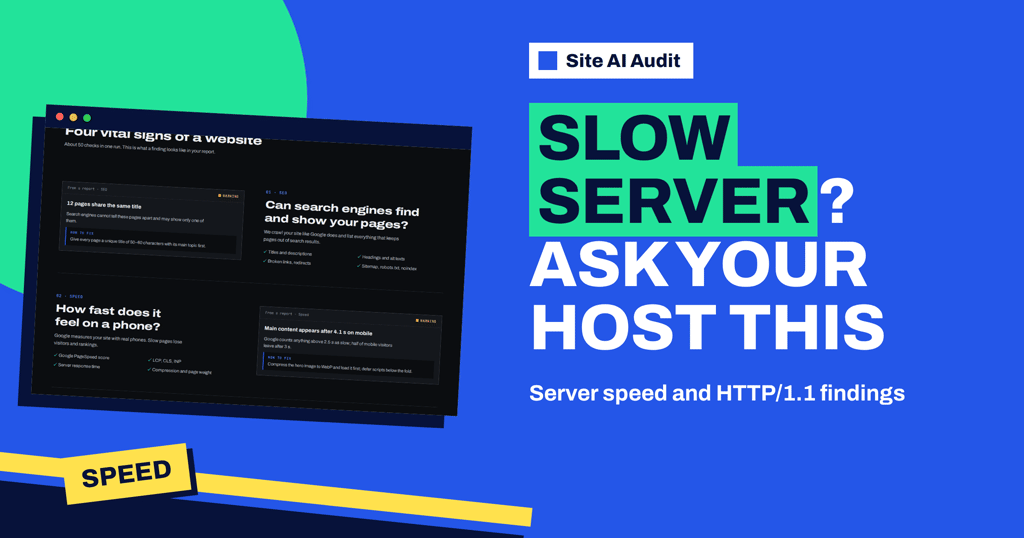
The home page of Site AI Audit shows one example finding for each area, and they make a good practice exercise. In SEO, the warning says that 12 pages share the same title, so search engines cannot tell them apart and may show only one. The fix is to give every page a unique title of 50 to 60 characters with its main topic first. In speed, the warning says that main content appears after 4.1 seconds on mobile, and the fix is to compress the hero image and load it first. In security, the critical finding says the SSL certificate expires in 6 days, and the fix is to turn on automatic renewal or renew now. In e-mail, the warning says there is no DMARC record, which lets anyone send e-mail that looks like it comes from you, and the fix is to add a TXT record named _dmarc and tighten the policy after two weeks.
Notice how different the four fixes are. One is an editing job, one is a design job, one is a task for your host and one is a DNS change. A report that covers all four areas lets you give each task to the right person on the same day.
Who should read which part
- Owner or manager: the overall score, the area scores and the critical findings.
- Content editor: the SEO findings about titles, descriptions, headings and images.
- Developer: the speed and security findings and the lists of affected pages.
- Whoever manages the domain: the e-mail findings about SPF, DKIM, DMARC and MX records.
Splitting the report this way keeps meetings short. Each person reads only what they can act on, and the owner tracks the score.
Try it on your website
The quickest way to understand the report is to see your own. Run a free check of your website to get your score and findings in about two minutes, or open the plans to compare what the free and paid reports include. If you have not yet seen how the check runs, read how to run a free website check first.
Related reading
- How to Run a Free Website Check With Site AI Audit
- How to Prioritise SEO Audit Findings: What to Fix First
- How to Read a PageSpeed Insights Report Without Guesswork
- Website Security Audit Checklist: What to Check and in What Order
The bottom line
Start with the overall score, move to the weakest area, fix critical findings first and use the how-to-fix text as your instructions. Keep a note of each score, so that you can see progress. A report is a to-do list, and its value comes from the work that follows.
FAQ
What is a good score?
Higher is better, and the report is built so that fewer or less serious problems give a higher number. Instead of a target, aim to improve your own score and clear critical findings.
Why does my score differ from other tools?
Tools measure different things and weigh them differently. Use each tool’s score to track change over time rather than to compare tools.
Do I see all findings on the free check?
Yes. The free check shows the score and every finding, with full instructions for the three most important ones.
How do I see which pages are affected?
The list of affected pages is part of the full report on paid plans. The free check shows the finding itself and the explanation.
Can I download the report?
A PDF report is included in the Monitor and Business plans, according to the pricing page. Agency plans add reports with your logo.