 ENEnglish
 LTLietuviškai
 DEDeutsch
 FRFrançais
 RUРусский
 ESEspañol
 PLPolski
 ITItaliano
 UKУкраїнська
 CSČeština
 PTPortuguês
 JA日本語
JA日本語 LVLatviešu valoda
 ETEesti
 HUMagyar
 IDBahasa Indonesia
 TRTürkçe
 HIहिन्दी
 ELΕλληνικά
 ARالعربية
 THไทย
THไทย VITiếng Việt
 RORomână
 MSBahasa Melayu
 BNবাংলা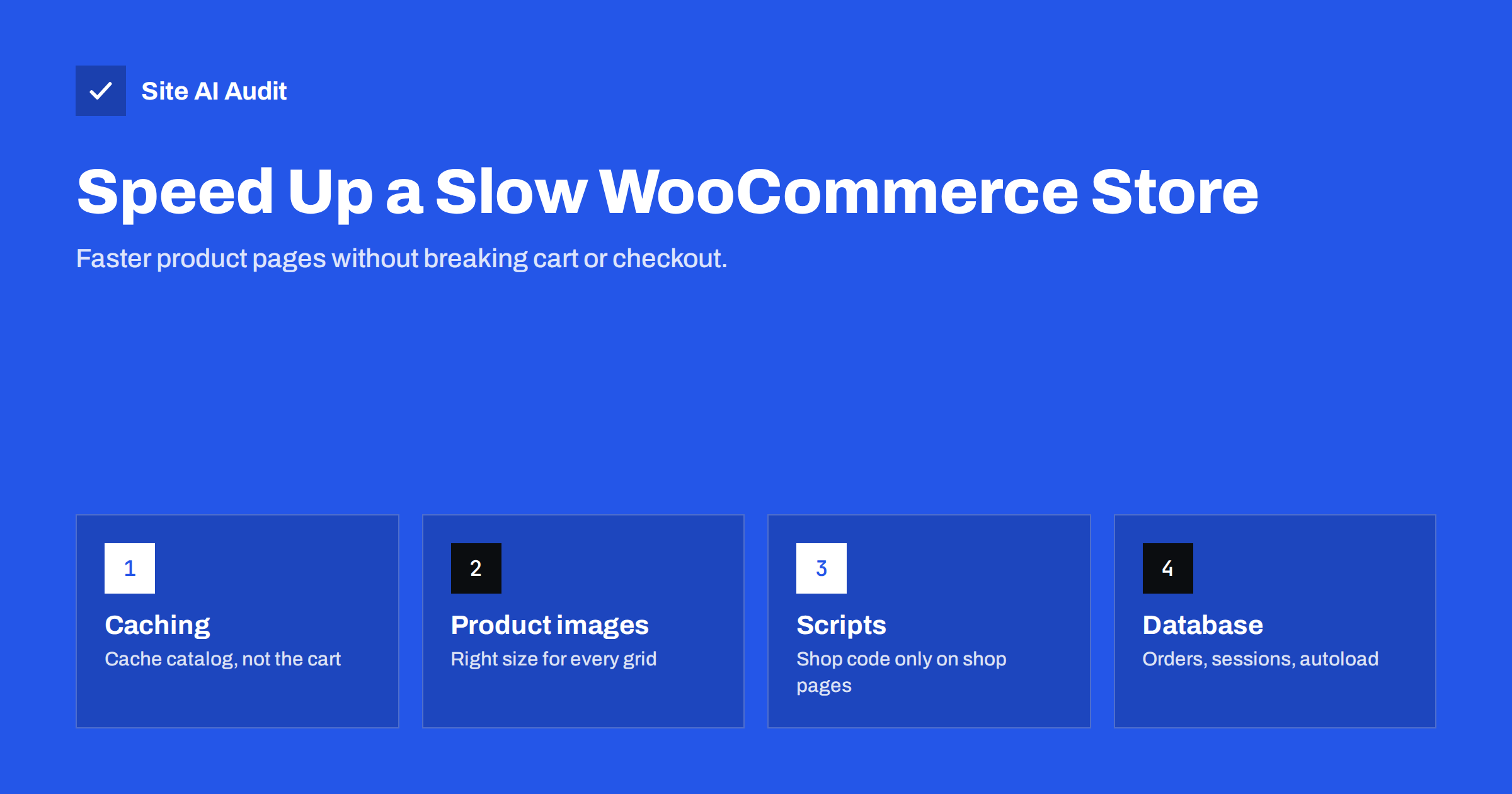
Short answer: To speed up a slow WooCommerce store, cache catalogue and product pages for anonymous visitors while excluding cart, checkout and account pages; add object caching for the uncached parts; optimise product images and gallery loading; stop shop scripts from loading on non-shop pages; reduce heavy plugins and marketing tags; and keep the database healthy by cleaning expired sessions and transients and using WooCommerce’s high-performance order storage. Always test add-to-cart and checkout after each change.
Online shops have a harder speed problem than ordinary websites. A blog post looks the same to every visitor, so it can be cached completely. A shop has personal carts, logged-in customers, stock levels, prices that change, and a checkout that must never serve one customer’s data to another. On top of that, shops tend to collect plugins: payment gateways, shipping calculators, product filters, reviews, wish lists, upsells and marketing tags. WooCommerce itself can run fast; the challenge is keeping it fast as the store grows.
Measure the right pages
A shop’s home page is rarely where speed matters most. Test the pages that make money:
- a category or shop archive page with many products;
- a simple product page and a variable product page with several variations;
- the cart, after adding a product;
- the checkout;
- search results and filtered listings, if customers use them.
Test each on mobile, record Time to First Byte, LCP and Total Blocking Time, and also try the key interactions on a throttled phone profile: choose a variation, add to cart, change quantity, apply a coupon. Slow interactions on product pages cost sales even when the page loads quickly.
Caching that respects the cart
Page caching is still the biggest win for a shop, because most visitors browse without buying. The rules:
- Cache the home page, category pages, product pages and content pages for visitors without a cart.
- Never cache the cart, checkout and my-account pages. Good caching solutions detect WooCommerce and exclude them automatically; verify it.
- Bypass the cache for visitors who have items in their cart or are logged in, based on WooCommerce’s cookies.
- Purge product pages when price or stock changes, so customers do not see outdated information.
- Add an object cache such as Redis for the requests that cannot be page-cached. It keeps repeated database results in memory and speeds up carts, checkouts and logged-in browsing.
Test by adding a product to the cart in one browser and opening the cart in a private window: the second browser must show an empty cart.
Product images and galleries
Product photography is usually the heaviest part of a shop. WooCommerce generates separate sizes for thumbnails, catalogue grids and single product images; make sure those sizes match your theme’s layout so browsers do not download huge files for small thumbnails.
- Upload high-quality originals, but let WooCommerce and your image tool generate WebP or AVIF versions at the right sizes.
- Regenerate thumbnails after changing image size settings or switching themes.
- On product pages, load the main image immediately and lazy-load the other gallery images.
- On category pages, lazy-load products below the fold but load the first row eagerly.
- Keep zoom and lightbox features lightweight; some gallery plugins load large scripts for a small effect.
Keep shop scripts off non-shop pages
WooCommerce and its extensions load scripts and styles for cart fragments, variation handling, payment gateways and more. Many of these load on every page by default, including blog posts and landing pages where nobody interacts with the cart.
- Use an asset management plugin or small theme changes to disable WooCommerce scripts and styles on pages that do not need them.
- Check whether the mini-cart in the header needs to refresh through a separate request on every page. The cart fragments mechanism in older setups made an extra uncached request on each page view; newer versions of WooCommerce limit it, and many themes let you control it.
- Load payment gateway scripts only on the checkout, unless the gateway requires them elsewhere for express payment buttons.
- Remove extensions for features you tried once and no longer use.
Product filters and search
Layered navigation, attribute filters and live search can be very heavy on the database, especially with thousands of products and many attributes. Each combination of filters is a unique, uncacheable query.
- Choose filter plugins that use indexed lookup tables rather than scanning all products on every request.
- Limit the number of filters shown; customers rarely need twenty.
- Debounce live search so it does not fire a request on every keystroke.
- Prevent search engines from crawling endless filter combinations, which wastes server resources.
Keep the database healthy
A shop’s database grows with every order, session, log entry and plugin. Over the years, that growth slows queries, especially in the admin area and at checkout.
- Use High-Performance Order Storage (HPOS), WooCommerce’s dedicated order tables, instead of storing orders as posts. It is the default for new stores and can be enabled for existing stores after checking extension compatibility.
- Clean expired sessions and transients regularly. WooCommerce schedules cleanup, but it can fall behind if scheduled tasks do not run.
- Watch autoloaded options. Plugins sometimes store large data in options loaded on every request.
- Keep the Action Scheduler tidy. Failed and completed actions accumulate; WooCommerce cleans old completed actions, but check for large numbers of failed or pending ones.
- Take a backup before any cleanup, and never delete order data you are legally required to keep.
Plugins and marketing tags
Shops tend to accumulate the most third-party code of any type of website: pixels for several ad platforms, review widgets, live chat, pop-ups, loyalty programmes and recommendation engines. Each may be justified individually, but together they can dominate the product page’s loading and responsiveness.
- List every extension and tag with its owner and purpose.
- Remove duplicates, such as two review systems or two analytics setups.
- Load pop-ups and chat after the page is interactive.
- Keep marketing tags off the checkout unless they are strictly needed there, both for speed and for security.
Hosting for shops
Because carts, checkouts and logged-in sessions cannot be page-cached, shops depend more on raw server performance than brochure sites. Adequate PHP workers, a current PHP version, fast storage, enough database memory and object caching matter. If Time to First Byte for the cart and checkout is slow while cached product pages are fast, the server or the plugins handling those pages are the bottleneck.
Where shops lose speed: a summary
| Area | Typical problem | Fix |
|---|---|---|
| Catalogue pages | No page cache, large thumbnails | Cache for guests, correct image sizes |
| Product pages | Heavy gallery, many widgets | Lazy gallery, fewer widgets |
| Cart and checkout | Slow uncached requests | Object cache, faster server, fewer plugins |
| All pages | Shop scripts loaded everywhere | Conditional loading |
| Admin area | Large order and session tables | HPOS, cleanup of sessions and transients |
Test safely
Every speed change in a shop carries the risk of breaking something that costs money. Use a staging copy for larger changes, make one change at a time, and after each one place a real test order with each payment method you offer. Check order e-mails, stock changes and coupons. Keep a record of what you changed so you can roll back quickly.
How Site AI Audit helps
Site AI Audit checks your store from the outside: server response time, Google PageSpeed for mobile with Core Web Vitals, compression and page weight, together with SEO, SSL and e-mail authentication, which matters for order confirmations reaching customers. Findings are ranked by impact with plain-language fixes. Paid plans include re-checks after every change and weekly monitoring; see the plans.
Related reading
- How to Fix a Slow WordPress Site: A Step-by-Step Guide
- Page Caching Explained: How to Speed Up a Dynamic Website
- Image Optimization for Faster Websites: A Practical Guide
- How Third-Party Scripts Slow Down Your Website (and Fixes)
The bottom line
A fast WooCommerce store caches everything it safely can, speeds up what it cannot cache with object caching and a capable server, keeps product images and galleries light, loads shop scripts only where they are needed and keeps the database tidy. Measure the pages that earn money, change one thing at a time and test checkout after every change.
BUJ
Why is my WooCommerce store so slow?
Common causes are missing page caching, oversized product images, many plugins and marketing tags, heavy product filters, and a large database with old sessions and transients. Carts and checkouts also cannot be page-cached, so they depend on server performance. Measure product, cart and checkout pages separately to find the cause.
Can I use page caching with WooCommerce?
Yes, for catalogue, product and content pages viewed by guests. Cart, checkout and account pages must be excluded, and visitors with items in their cart should bypass the cache. Most caching solutions handle WooCommerce correctly, but always test.
What is WooCommerce High-Performance Order Storage?
HPOS stores orders in dedicated database tables instead of the general posts tables. It makes order queries faster and more scalable. It is the default for new stores; existing stores can switch after confirming their extensions are compatible.
Do WooCommerce cart fragments slow down my site?
In older setups, cart fragments made an extra uncached request on every page to update the mini-cart, which could slow sites down. Recent WooCommerce versions reduce this, and many themes let you control it. Check whether the request appears in your Network panel on non-shop pages.
How many plugins is too many for WooCommerce?
There is no fixed number. What matters is what each plugin does on each page. A few heavy extensions that load scripts site-wide or run expensive queries cost more than many lightweight ones. Review them by impact, not by count.


