ENEnglish
 LTLietuviškai
 DEDeutsch
 FRFrançais
 RUРусский
 ESEspañol
 PLPolski
 ITItaliano
 UKУкраїнська
 CSČeština
 PTPortuguês
 JA日本語
JA日本語 LVLatviešu valoda
 ETEesti
 HUMagyar
 IDBahasa Indonesia
 TRTürkçe
 HIहिन्दी
 ELΕλληνικά
 ARالعربية
 THไทย
THไทย VITiếng Việt
 RORomână
 MSBahasa Melayu
 BNবাংলা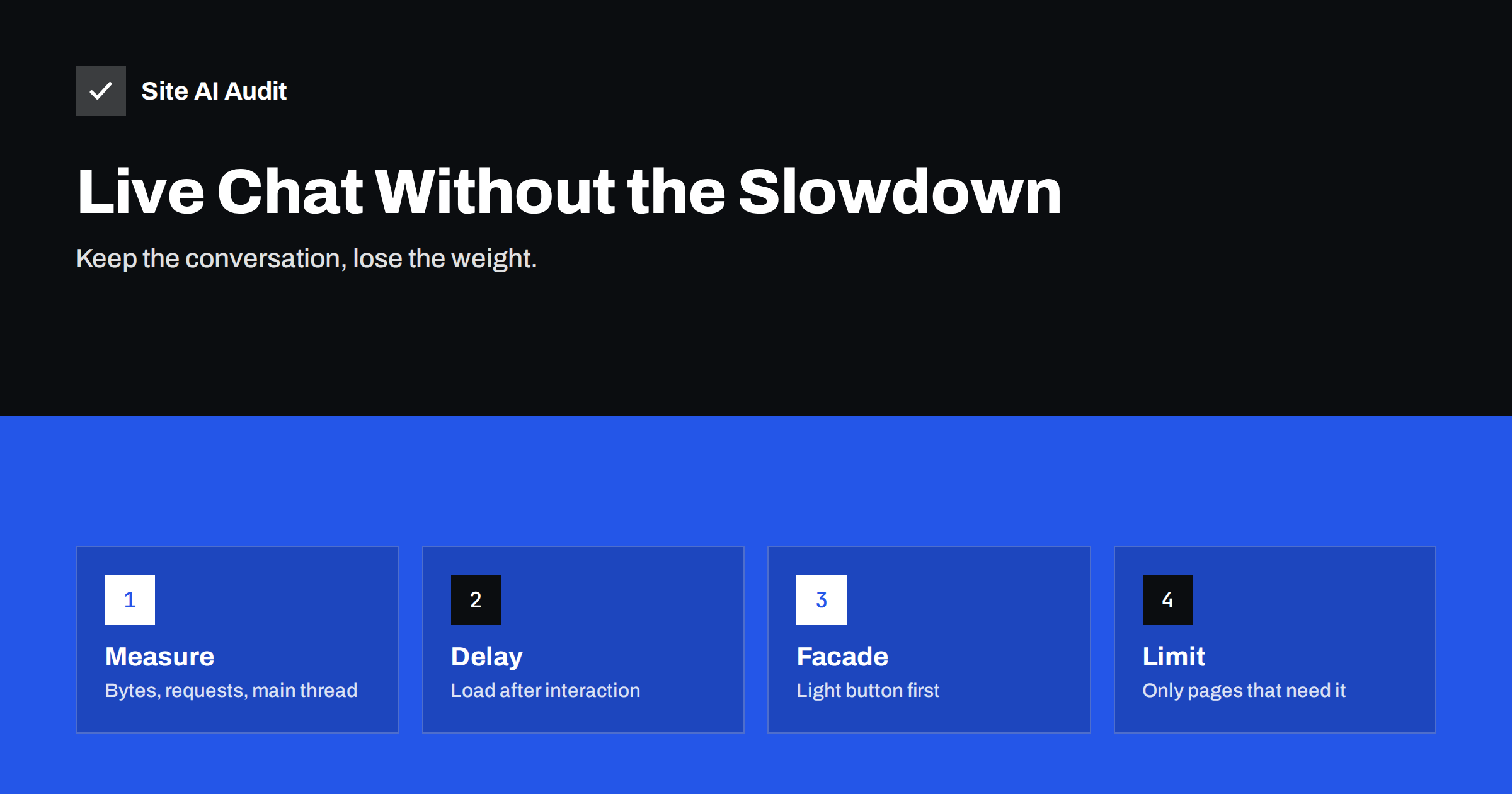
Short answer: Most live chat widgets load a sizeable amount of JavaScript, fonts, images and network connections on every page, even though only a small share of visitors ever opens the chat. That extra work competes with your own content, slows down Largest Contentful Paint on phones and can make the page feel sluggish when people tap, which shows up as a worse Interaction to Next Paint. The fix is not to remove chat, but to load it only when it is needed: after an interaction, with a lightweight placeholder button, and only on pages where conversations actually happen.
Why chat widgets are heavier than they look
The visible part of a chat widget is a small round button in the corner. Behind it, a typical installation loads a loader script, which then fetches a larger application bundle, style sheets, web fonts, avatar images, sound files and sometimes an iframe with its own copy of a framework. Many widgets also open a persistent connection to their servers so that messages arrive instantly, and some load analytics or visitor tracking for the support team.
All of this happens on every page view, for every visitor, whether they want to chat or not. On a fast desktop connection the cost is easy to miss. On a mid-range phone over mobile data, the browser has to download, parse and execute that code while it is also trying to show your page. The result is the familiar pattern described in our guide to third-party scripts: your own content waits for someone else’s code.
How a chat widget affects Core Web Vitals
- Largest Contentful Paint (LCP). Chat code competes for bandwidth and processing time early in the page load. If the widget loads in the head or with high priority, the main image or heading can appear later.
- Interaction to Next Paint (INP). Long JavaScript tasks from the widget block the main thread. If a visitor taps a menu or button while the widget is starting up, the response is delayed. See our guide to fixing slow interactions.
- Cumulative Layout Shift (CLS). Pop-up greetings, proactive message bubbles and banners that push content can cause layout shifts, especially on small screens.
- Total Blocking Time in lab tests often rises noticeably when chat is added, which lowers the PageSpeed score even when field data is still acceptable.
The exact impact depends on the provider and your setup, so measure it rather than guessing.
How to measure what your chat widget costs
- Test a key page twice in PageSpeed Insights or WebPageTest: once as it is, and once with the chat disabled, for example on a staging copy or by temporarily excluding the script on one URL.
- Compare mobile results: LCP, Total Blocking Time, the number of requests and the total page weight.
- Open the browser’s developer tools, go to the Network panel and filter by the chat provider’s domain. Add up the transferred bytes and count the requests.
- Record a performance profile in the Performance panel and look for long tasks that belong to the widget’s scripts.
- Check real-user data in the Core Web Vitals report in Search Console over the following weeks, because lab tests only show one device and one network.
Run each test several times. Results vary between runs, as explained in our article on why PageSpeed scores change, and you want a stable comparison.
Technique 1: load the widget after the page is ready
The simplest improvement is to make the chat script wait. Instead of loading it in the head, start it after the page has finished loading, or a few seconds later, or after the first user interaction such as scrolling, moving the mouse or a tap. Many visitors who want to chat will have interacted with the page by then, and the critical first seconds belong entirely to your content.
Some widgets provide an official setting for delayed loading. Performance plugins for popular content management systems also offer “delay JavaScript until interaction” features that work with most chat scripts. Whatever method you use, test that the chat still opens correctly, that messages from returning visitors are restored and that no errors appear in the console.
Technique 2: a lightweight facade button
A facade is a static imitation of the chat button: a few lines of HTML and CSS, styled like the real thing, with no third-party code behind it. When a visitor clicks it, your page loads the real widget and opens the chat window. Until then, nothing from the chat provider is downloaded at all.
This is the same idea used for embedded videos and maps; our guides on embedding videos and Google Maps describe it in detail. For chat the trade-off is a short delay after the first click while the widget loads. Show a small “connecting” state so visitors know something is happening. Most chat providers document a JavaScript method to open the window programmatically, which makes facades straightforward to build.
A facade does give up a few features: proactive greetings that pop up on their own and visitor tracking before the first click will not work. Decide whether those features bring in enough conversations to justify their cost on every page.
Technique 3: show chat only where it helps
Ask where conversations actually start. For many small businesses it is the pricing page, the contact page, product pages and the checkout. Blog articles and legal pages rarely produce useful chats, yet they often make up most of the traffic.
- Load chat on selected pages only through your tag manager, theme or the widget’s own page rules.
- Hide it on mobile if your support team mostly handles desktop chats, or replace it with a simple link to your contact options.
- Remove duplicate tools. Sites often carry a chat widget, a feedback widget and a popup tool that each load their own framework.
- Turn off extras you do not use, such as sound notifications, file sharing or visitor tracking dashboards.
Technical details that make a difference
- Load scripts with async or defer and never as a blocking script in the head; see defer vs async.
- Do not preload chat assets. Preload and preconnect hints are for resources the page needs immediately, not for a widget that might be used later.
- Reserve space for any bubble or banner the widget shows, or position it so it overlays content instead of pushing it.
- Keep the cookie banner and chat in order. If chat sets cookies that need consent, it should not load before consent anyway, which naturally delays it.
- Re-test after provider updates. Widget code changes on the provider’s side without any change on your site.
A simple rollout plan for busy teams
Changing how chat loads touches both marketing and support, so make the change in small, measurable steps:
- Write down the baseline: mobile LCP, INP and page weight on three typical pages, plus the number of chats per week.
- Remove what nobody uses: extra widgets, duplicate tracking and features switched on by default.
- Delay loading until the first interaction on all pages, and compare the speed numbers after a few days.
- Limit chat to key pages if blog and legal pages bring few conversations.
- Try a facade on the pages with the most traffic if the widget is still heavy.
- Review after a month: compare chats per week and Core Web Vitals with the baseline, and keep the setup that wins on both.
Agree with the support team in advance which numbers count as success, so the decision is based on data rather than impressions.
How Site AI Audit helps
Site AI Audit measures mobile speed with Google PageSpeed and Core Web Vitals (LCP, CLS and INP), along with server response time, compression and page weight. Running a check before and after you change how the chat widget loads gives you a clear comparison, and slow results come with a plain-language explanation and a concrete fix, ranked by impact. You can run a free check; paid plans add re-checks after each change and weekly monitoring, as listed on the pricing page.
Related reading
- Cookie Consent Banners and Page Speed: How to Keep Both
- Total Blocking Time Explained: What It Means and How to Cut It
- Core Web Vitals Explained for Small Business Websites
The bottom line
A live chat widget can bring in leads, but loaded the default way it charges every visitor a speed cost for a feature only a few use. Measure what it adds, delay it until the page is ready or the visitor interacts, consider a facade button, and show it only where conversations happen. You keep the conversations and give the first seconds of every page back to your content.
BUJ
Do live chat widgets slow down websites?
Often, yes. Most load several scripts and other files on every page, which competes with your content and can worsen LCP and INP on mobile. The size of the effect depends on the provider and how it is loaded.
Will delaying the chat widget lose me conversations?
Usually not. Visitors who want to chat are already interacting with the page, so a widget that loads after the first interaction or on click is ready when they need it.
What is a chat facade?
A facade is a lightweight button that looks like the chat launcher but loads no third-party code. The real widget loads only when someone clicks it.
Should I remove live chat from my blog pages?
If blog visitors rarely start chats, loading the widget only on pages such as pricing, contact and product pages saves speed for most of your traffic without losing many conversations.
How do I know if my chat widget hurts Core Web Vitals?
Compare PageSpeed results with and without the widget on the same page, check its long tasks in the browser’s Performance panel and watch real-user data in Search Console after changes.