ENEnglish
 LTLietuviškai
 DEDeutsch
 FRFrançais
 RUРусский
 ESEspañol
 PLPolski
 ITItaliano
 UKУкраїнська
 CSČeština
 PTPortuguês
 JA日本語
 LVLatviešu valoda
 ETEesti
 HUMagyar
 IDBahasa Indonesia
 TRTürkçe
 HIहिन्दी
 ELΕλληνικά
 ARالعربية
 THไทย
 VITiếng Việt
 RORomână
 MSBahasa Melayu
 BNবাংলা
Short answer: A data URI puts the content of a file, usually an image, directly inside HTML or CSS as text. It saves one network request, which can help for very small images such as tiny icons. For anything larger it makes the page heavier, increases the size of files that must be parsed before anything shows and prevents the image from being cached on its own. Inline only the smallest, most critical images and keep the rest as ordinary files.
What a data URI is
Normally an image is a separate file. The page refers to it by address, and the browser makes a request, receives the file and draws it. A data URI replaces the address with the data itself. It begins with data:, names the type of the file, such as image/png or image/svg+xml, and then contains the content, usually converted to base64 text. A tiny example looks like src="data:image/png;base64,iVBORw0KGgo...", with many more characters following.
Because the data travels inside the document, the browser has everything it needs at once. No extra connection, no waiting for a second response. That is the appeal, and in a few cases it is the right choice.
The benefit: fewer requests
Every request has a cost: the browser must ask, the server must answer and the round trip takes time, especially on slow mobile networks. When HTTP/1.1 was dominant, browsers could open only a handful of connections per host, and dozens of small icons slowed pages visibly. Combining them into the main file helped. With HTTP/2 and HTTP/3, many requests can share one connection, so the saving is much smaller than it used to be. The article on HTTP/2 and HTTP/3 explains why, and reducing HTTP requests shows where the idea still matters.
The saving remains useful for a very small image that appears in the first screen and would otherwise cause a late, visible pop-in, such as a tiny logo mark or a placeholder.
The costs people forget
- Base64 adds about a third. The text form is roughly 33 percent larger than the binary file. Compression of the surrounding file recovers some of this, but not all, since image data is already compressed.
- No separate caching. A normal image is downloaded once and reused on every page. A data URI inside a page is downloaded again with every page that contains it. Inside a style sheet, it is cached together with the style sheet, but changes to any rule force a new download of everything, including the images.
- Bigger files delay rendering. Style sheets block drawing. A style sheet with large embedded images takes longer to download and parse, so the whole page waits. This can make the first paint later, not earlier.
- No lazy loading or priorities. The browser cannot postpone an image that is part of the document, and cannot assign it a priority, as it can with a file, see lazy loading and the fetchpriority attribute.
- Harder maintenance. A block of encoded text is not readable. Replacing an image means re-encoding it, and teams often forget where they inlined it.
- Worse for caching layers and CDNs. The image cannot be served from an image service that converts it to a modern format or the right size, see image CDNs.
A simple rule of thumb
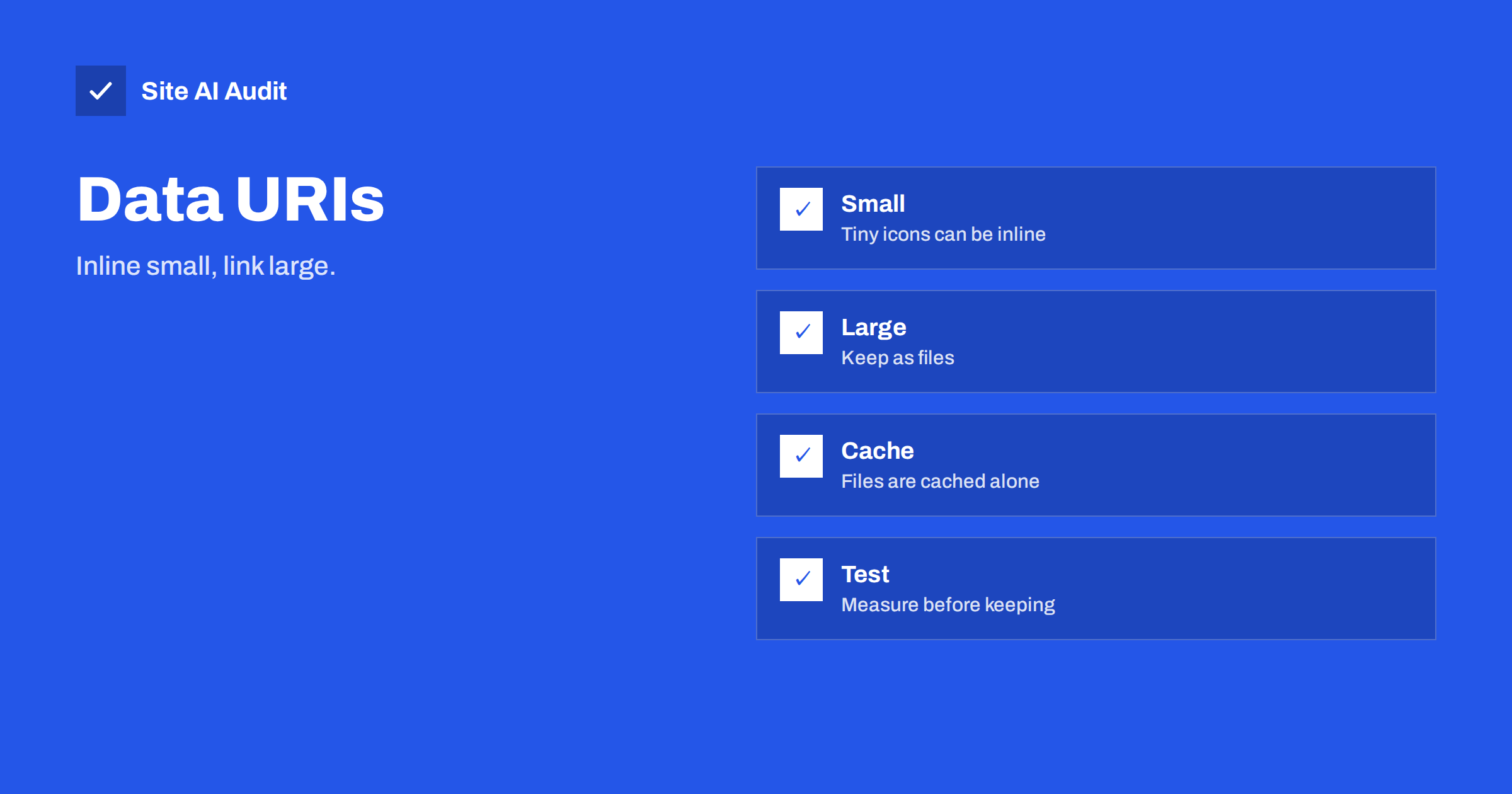
Inline only when all of these are true: the file is tiny, typically under 2 KB; it is used once or on a few pages; it matters for the first view; and it will rarely change. Otherwise keep it as a file. Anything over a few kilobytes, such as a photo or a large logo, is better as a separate, cached, compressed file. For photos, work on the format and quality instead, as described in JPEG and WebP quality settings and WebP, AVIF and JPEG.
SVG is a special case
Simple icons in SVG are text already, so they can be placed directly in the HTML as inline SVG without base64. They are small, sharp at any size and can be styled with CSS. A small set of icons used across the site is better delivered as an SVG sprite file that is cached, with each icon referenced where needed. Large or complex SVGs, such as detailed illustrations, should stay as files. Clean them first, as explained in optimising SVG files. When you embed SVG in CSS as a data URI, you can skip base64 and use the plain, escaped text, which is smaller.
Where it is used sensibly
- Tiny placeholders. A blurred, tiny version of a large image, a few hundred bytes, inline in the HTML while the full image loads.
- Critical small icons in the first screen of an important page.
- E-mail templates, where support for embedded images varies and external images may be blocked, though many clients do not display data URIs reliably. See emails with blocked images.
- Single-file documents, such as a report that must work offline, where one file is worth more than speed.
Where it is used badly: a page builder or a plugin that turns all images into base64 “for speed”. Pages then become several hundred kilobytes of HTML with no caching, which is the opposite of the goal. Check what your optimisation plugins do to your images before you accept their defaults.
Security rules can also interfere. A content security policy that restricts images may block data URIs unless the policy explicitly allows the data scheme, and allowing it widens what an attacker could load if they find a way to inject markup. If you have a strict policy, as described in the guide to Content Security Policy, check that the images you inlined still appear and that the policy is not loosened more than you intended just to make them work.
Build tools can automate the decision. Many bundlers inline files under a chosen size and leave larger ones as separate files, which is a reasonable default if the limit is low. If you use such a tool, check the threshold in the configuration. Some defaults are far too generous, and a limit of tens of kilobytes quietly turns a build into a pile of encoded text. Setting the limit to around two kilobytes keeps the benefit for small icons and avoids the harm for everything else.
How to check your own pages
- View the source of your page and search for “data:image”. Note how many matches you find and how long they are.
- Open your main style sheet and search for “base64”. A large style sheet with many embedded images is a warning sign.
- Compare the size of the HTML and the CSS with and without the embedded data, if you can, using the network panel of the browser.
- Test the load time and the first paint with and without the change, on a throttled mobile profile. See reading a waterfall chart.
- Keep the result only if it is clearly better.
Think also about what happens on repeat visits, because most real traffic includes returning visitors. A separate image file is stored in the browser cache and costs nothing on the next page. An embedded image costs its full size every time the containing file is downloaded again. A site whose visitors view five pages per visit pays that cost five times for a data URI in the HTML, and only once for a cached file. The more pages people view, the worse inlining looks, which is why it fits best on single-page landing pages and worst on content-rich sites with long visits.
A worked example
A shop’s style sheet weighs 380 KB, and about 240 KB of that is a set of product category icons embedded as base64 images by an older theme. Every page must download the style sheet before drawing anything, so the first paint on a mobile connection is delayed by more than a second. The developer replaces the embedded icons with a single small SVG sprite of 9 KB that is cached after the first visit, and keeps only a 600-byte logo mark inline. The style sheet falls to about 150 KB, and with compression to a fraction of that. The first paint comes earlier, and returning visitors no longer download the icons again. Two requests were added, but with HTTP/2 they cost little, and the result is a faster and easier-to-maintain site.
Find the heavy parts of your pages
An audit shows how large your pages are on mobile and what slows them. Run a free check with Site AI Audit and look at the speed findings, then decide which files deserve attention.
Related reading
- Page Weight: How Heavy Is Too Heavy and How to Trim It
- Critical CSS Explained: What It Is and Whether You Need It
- Browser Caching Explained: How to Set Cache-Control Headers
- CSS Background Images: Speed and SEO Pitfalls to Avoid
The bottom line
Inline images save requests, but they cost size, caching and flexibility. Use data URIs only for tiny, critical, rarely changing images, prefer inline SVG or a cached sprite for icons, and keep everything else as separate, compressed files.
BUJ
Does base64 make images smaller?
No. It makes the data about one third larger than the binary file, although compression of the surrounding text recovers part of that.
Are data URIs good for SEO?
They have no direct SEO benefit. Search engines cannot index an inlined image as a separate file for image search, so use real files for images you want to be found.
Do data URIs work in all browsers?
Modern browsers support them. E-mail programs are less reliable, so test before you depend on them in messages.
What is the maximum size I should inline?
A common guide is a couple of kilobytes. Beyond that, a cached file is usually better.
Is inline SVG better than a data URI?
For simple icons, yes. Inline SVG is plain text, can be styled and avoids the base64 overhead.