 ENEnglish
 LTLietuviškai
 DEDeutsch
 FRFrançais
 RUРусский
 ESEspañol
 PLPolski
 ITItaliano
 UKУкраїнська
 CSČeština
 PTPortuguês
 JA日本語
JA日本語 LVLatviešu valoda
 ETEesti
 HUMagyar
 IDBahasa Indonesia
 TRTürkçe
 HIहिन्दी
 ELΕλληνικά
 ARالعربية
 THไทย
THไทย VITiếng Việt
 RORomână
 MSBahasa Melayu
 BNবাংলা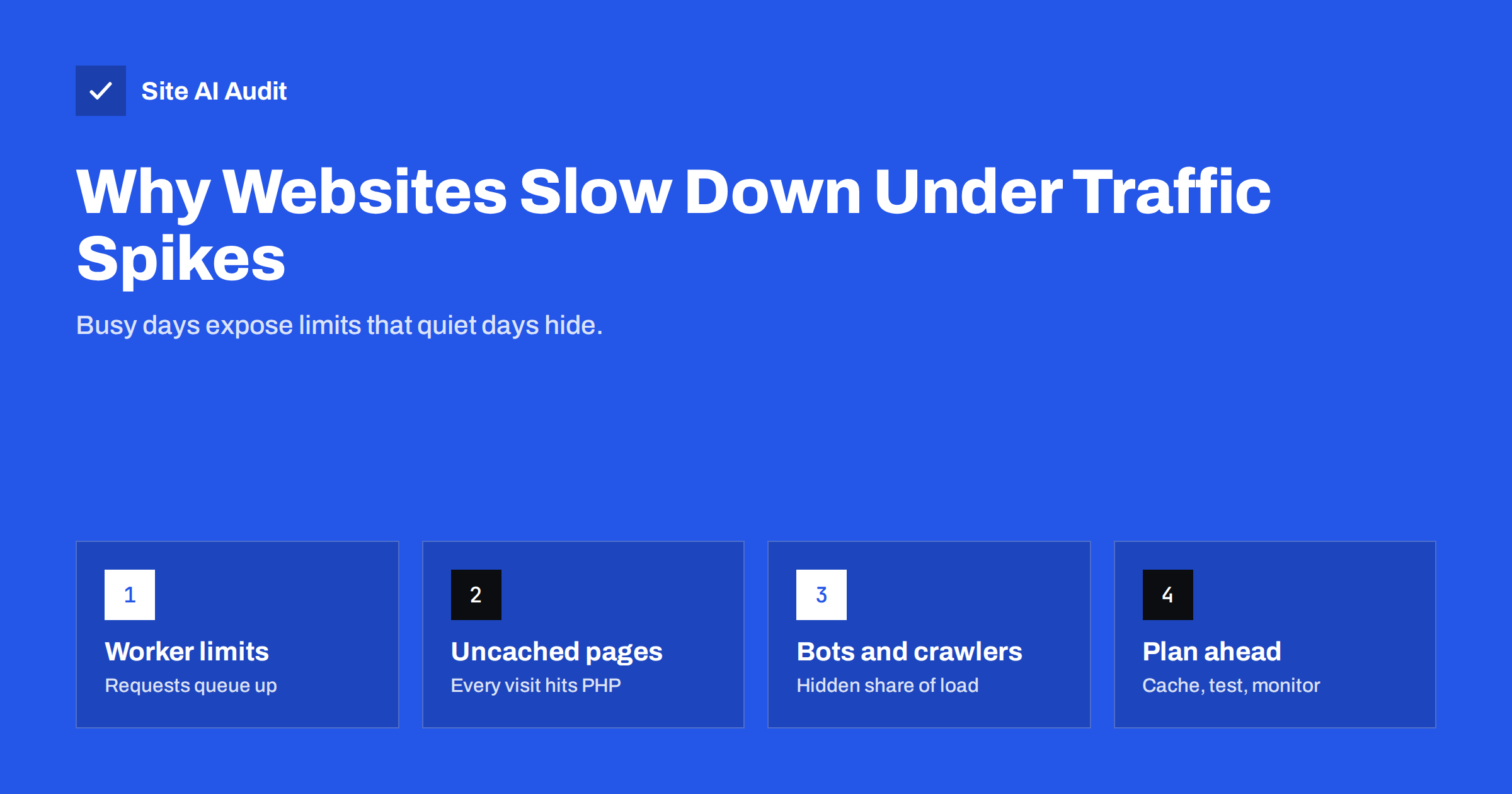
Short answer: Websites slow down or crash during traffic spikes because every server has a limit on how many requests it can process at once. When pages are built from scratch for each visitor, requests queue behind a small number of PHP workers, database connections or CPU cores, and visitors get slow pages or 502, 503 and 504 errors. The fixes are to serve cached pages to as many visitors as possible, reduce the work each uncached request needs, block abusive bots, and choose hosting that matches your peak traffic, not your average.
What happens inside a server during a spike
A typical CMS-based website builds each page on request: the web server passes the request to PHP (or another application runtime), which runs the CMS code, queries the database and returns HTML. Each of those steps has a limited capacity:
- Application workers. The server runs a fixed number of PHP processes. If each page takes half a second and there are four workers, the server can build about eight pages per second. Request number nine waits.
- Database connections and queries. Slow queries hold connections longer, so fewer requests are served per second.
- CPU and memory. Shared and entry-level hosting plans cap how much processing power and memory your site may use. Hitting the cap slows everything down or stops new processes.
- External calls. Pages that wait for a payment provider, a stock API or a social feed tie up a worker for as long as the other service takes to answer.
On a quiet day, these limits are never reached, so the site feels fast. During a spike, the queue grows faster than it drains. Response times rise from under a second to many seconds, and once timeouts are hit, visitors see error pages. This is why the same site can pass a speed test in the morning and fall over during a sale in the evening.
Typical symptoms and what they mean
| Symptom | Usual meaning |
|---|---|
| Pages load, but slowly, getting worse as traffic rises | Requests are queuing for workers or database |
| 502 Bad Gateway | The web server could not get a valid answer from the application, often because workers crashed or were exhausted |
| 503 Service Unavailable | The server or host is refusing new requests, often due to resource limits or maintenance mode |
| 504 Gateway Timeout | The application took too long to answer, typically slow queries or waiting for an external service |
| 508 Resource Limit Reached | A shared hosting plan’s process or CPU limit was hit |
| Home page fast, cart and checkout slow | Cached pages are fine; dynamic, uncached pages are the bottleneck |
Server response time (often measured as Time to First Byte) is the best early warning. If it climbs whenever traffic rises, the site is close to its limit. Our guide on reducing server response time explains how to measure and lower it.
Caching: the biggest single fix
The most effective protection against spikes is to avoid building the same page again and again. With full-page caching, the first visitor’s request builds the page, and the next thousand visitors receive the stored HTML almost instantly without touching PHP or the database.
- Enable full-page caching on the server or with a caching plugin, and confirm that it actually serves cached pages to logged-out visitors. The details are in page caching explained.
- Cache HTML at the edge if you use a CDN that supports it. Requests are then answered from locations near visitors and never reach your server.
- Check the cache hit rate. A cache that is bypassed by tracking parameters, cookies or mobile detection may serve only a fraction of visitors.
- Add an object cache for pages that cannot be fully cached, such as the cart, account pages and search. It stores the results of repeated database queries in memory; see object caching with Redis.
- Warm the cache before a campaign. Visit key pages after clearing the cache, so the first wave of visitors does not all hit uncached pages at once.
Reduce the work per uncached request
Some pages will always be dynamic. Making them cheaper to build raises the number of visitors the server can handle:
- Find slow plugins and queries. A single plugin that runs heavy queries on every page can halve capacity. See how to find which WordPress plugin is slowing your site.
- Upgrade PHP. Newer PHP versions run the same code noticeably faster, which directly increases throughput.
- Clean up the database. Large tables of expired sessions, logs and revisions slow down queries under load.
- Move slow tasks out of the request. Sending e-mails, generating PDFs and syncing stock should happen in background jobs, not while the visitor waits.
- Add timeouts to external calls. A slow third-party API should not be allowed to hold a worker for 30 seconds.
For online shops, where cart and checkout cannot be cached, these steps matter most; the guide to speeding up a WooCommerce store covers them in more detail.
Do not forget the bots
Not every spike comes from customers. Search engine crawlers, SEO tools, price scrapers, AI crawlers and malicious bots can together produce a large share of requests, and they often hit uncached URLs such as search results, filters and old pages.
- Check your access logs or hosting statistics for user agents and IP ranges making the most requests.
- Block or rate-limit abusive bots at the firewall or CDN level rather than inside the CMS, where each blocked request still costs a PHP worker.
- Use robots.txt to keep well-behaved crawlers out of endless filter and search URLs.
- Protect login pages and forms from automated attacks, which can consume capacity silently.
A web application firewall can filter much of this traffic before it reaches your server.
Choosing hosting for peaks, not averages
If a site regularly struggles on busy days even after caching and clean-up, the hosting plan is too small for its peak. Signs include frequent resource limit errors, slow dynamic pages under modest load and a host that suggests “upgrading your plan” whenever you ask for help.
- Look at worker and process limits, not just disk space. Ask the host how many simultaneous PHP processes your plan allows.
- Consider a VPS or managed hosting with dedicated resources if traffic is spiky and important. The trade-offs are covered in shared hosting vs VPS.
- Ask about temporary scaling. Some hosts can raise limits for a planned event.
- Use a CDN for static files so images, scripts and styles never compete with page generation for server resources.
A checklist before a big campaign
- Confirm full-page caching works for landing pages, and warm the cache.
- Test the key journey, from landing page to checkout, while the site is under some load, ideally on staging with a load-testing tool.
- Disable non-essential heavy features for the day, such as live search suggestions or complex related-product widgets.
- Schedule backups, imports and other heavy jobs outside the campaign window.
- Make sure the newsletter is not sent to the whole list in one second; many tools can send in batches.
- Set up uptime and response-time monitoring with alerts to someone who can act.
- Agree with your host or developer who is on call during the campaign.
What to do if the site is struggling right now
If a spike is happening and the site is already slow or showing errors, focus on quick measures that reduce load immediately rather than on long-term fixes:
- Check whether caching is working. A cache that was cleared by a recent update, or disabled during troubleshooting, is the most common reason a site that usually copes suddenly does not.
- Look at what is being requested. Hosting statistics or logs show whether the load comes from real visitors on a few pages or from bots hammering search and filter URLs. Block the bots first.
- Pause heavy background work. Stop imports, backups, image optimisation jobs and scheduled tasks until traffic calms down.
- Simplify the busiest page. Temporarily remove a heavy widget or live feature from the landing page everyone is visiting.
- Contact the host. Many hosts can raise limits temporarily or confirm which resource is exhausted.
Afterwards, write down what happened, when, and what helped. That record makes it much easier to prepare properly for the next campaign.
How Site AI Audit helps
Site AI Audit measures server response time, compression and page weight, along with Google PageSpeed data and Core Web Vitals for mobile. A slow server response in the report is often the first sign that a site will struggle under load. Paid plans add re-checks and weekly monitoring with alerts when something breaks, which helps you notice when a site gets slower over time; plans are on the pricing page.
Related reading
- Website Speed Monitoring: Catch Slowdowns Before Customers Do
- Do You Need a CDN? A Plain-Language Guide for Site Owners
- Why Upgrading PHP Makes Your Website Faster (and Safer)
The bottom line
Traffic spikes reveal how much work each visit costs your server. Serve cached pages to as many visitors as possible, make uncached pages cheaper, filter out abusive bots, and size your hosting for the busiest hour, not the average day. Test before big campaigns, and monitor response times so you see trouble before customers do.
DUK
Why does my website crash when traffic increases?
The server can process only a limited number of requests at the same time. When pages are not cached, requests queue for PHP workers and the database, and once timeouts or resource limits are hit, visitors get errors.
Will a CDN stop my site from crashing during a spike?
A CDN helps a lot for static files and, if configured, cached HTML pages. It does not help pages that must be built for each visitor, such as carts and checkouts, so server-side optimisation is still needed.
What does a 503 error during high traffic mean?
It usually means the server or hosting platform is refusing new requests because it has reached a resource limit. Caching, reducing heavy requests and increasing hosting resources are the usual fixes.
How can I test whether my site can handle a traffic spike?
Run a load test on a staging copy with realistic user journeys, and watch response times and errors as the number of simultaneous users rises. Avoid load testing production without your host’s agreement.
Do bots cause traffic spikes?
Often they do. Crawlers, scrapers and attack bots can generate many requests to uncached URLs. Checking logs and filtering abusive bots at the firewall or CDN frees capacity for real visitors.


