ENEnglish
 LTLietuviškai
 DEDeutsch
 FRFrançais
 RUРусский
 ESEspañol
 PLPolski
 ITItaliano
 UKУкраїнська
 CSČeština
 PTPortuguês
 JA日本語
JA日本語 LVLatviešu valoda
 ETEesti
 HUMagyar
 IDBahasa Indonesia
 TRTürkçe
 HIहिन्दी
 ELΕλληνικά
 ARالعربية
 THไทย
THไทย VITiếng Việt
 RORomână
 MSBahasa Melayu
 BNবাংলা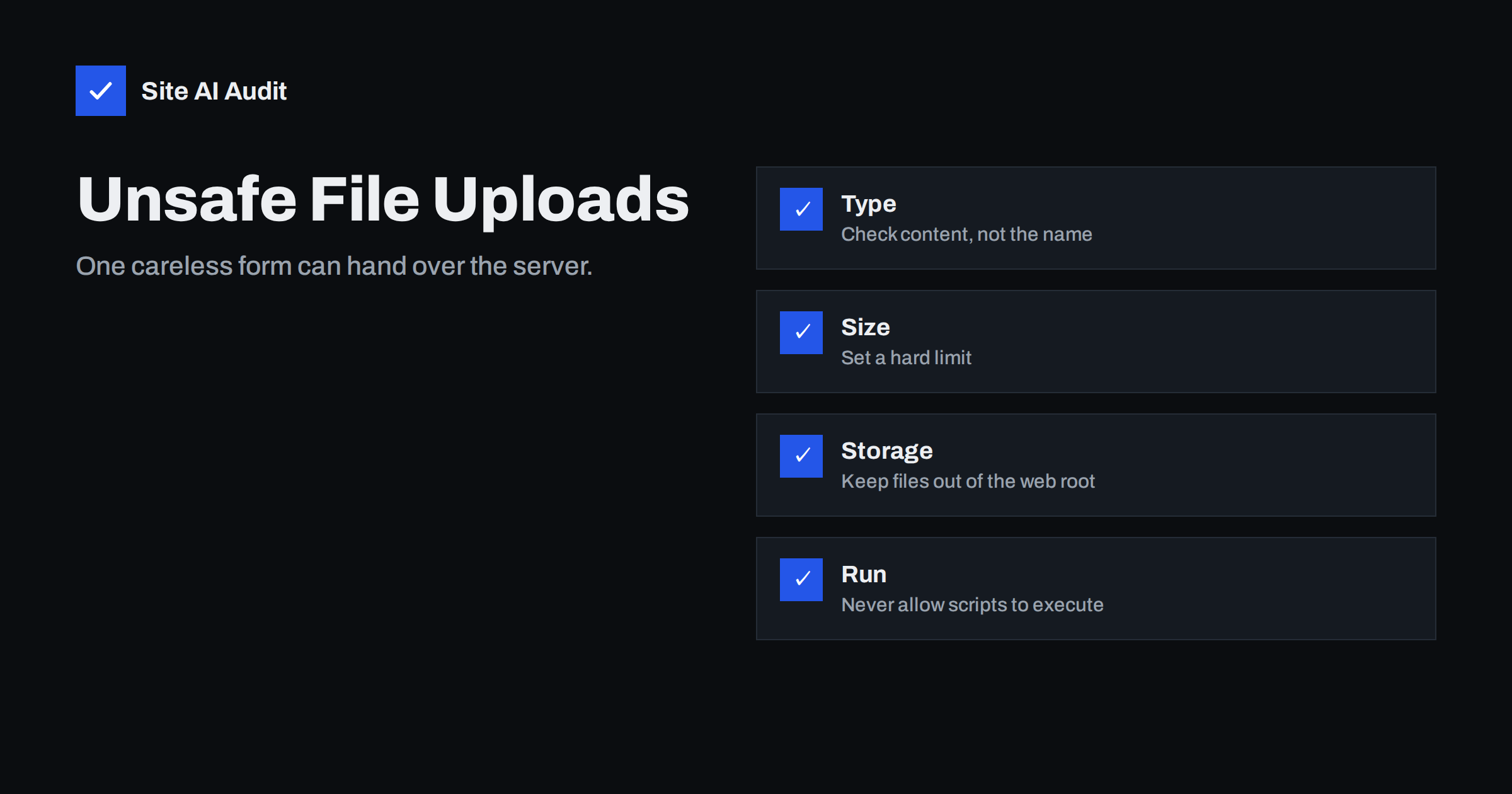
Short answer: An unrestricted file upload vulnerability exists when a website accepts files from visitors without properly checking what they are or where they end up. An attacker uploads a script disguised as a picture or a document, opens its address and gains control over the site. You prevent it by allowing only the file types you need, checking the real content, renaming files, storing them where scripts cannot run and limiting who may upload at all.
Why upload forms are attractive to attackers
Many websites let visitors send files. A job application form takes a CV, a support form takes a screenshot, a shop accepts a logo for printing, and a community site lets members change their avatar. Each of these forms is a door through which data enters your server, and any door can be abused.
The reason this flaw is so serious is the result it can produce. If an attacker manages to upload a file that the server treats as a program, for example a PHP file, and then requests that file in a browser, the server runs the attacker’s code with the permissions of your website. From there the attacker can read configuration files, steal customer data, send spam, add hidden links or install a permanent backdoor. We describe what such a backdoor looks like in our guide to web shells and backdoor removal.
How a typical attack works
The steps are usually simple. The attacker finds a form that accepts files, often a form that was built quickly and checks only the file name. They rename a malicious script to something that looks harmless, such as photo.jpg.php or image.php.png, or they change the declared content type in the request. If the form trusts these details, the file is stored in a public folder. The attacker then calls the file by its address and the code runs.
Other variants are quieter. A file with embedded script can be uploaded as an SVG image and used to run code in the browser of anyone who views it. A huge file can fill the disk and take the site down. A specially crafted archive can overwrite other files when it is unpacked. All of these come from the same root cause: the site accepted input it did not need and did not verify.
Common mistakes that make it possible
- Checking only the file extension. Extensions are chosen by the sender and can be changed freely.
- Trusting the content type sent by the browser. This value also comes from the visitor and can be faked.
- Keeping the original file name. Names can contain path tricks, double extensions or characters that confuse the server. Our explanation of path traversal attacks shows how a name such as ../../config can cause damage.
- Storing uploads inside a folder where scripts run. This is what turns a stored file into a working attack.
- No size limit. Large uploads can exhaust storage or memory.
- Allowing anonymous uploads when only logged-in users need them.
- Old plugins and scripts with upload features. Many real incidents on WordPress come from outdated plugins, not from the core software.
A defence you can apply in layers
No single check is enough, so combine several. Think of them as layers, where a failure of one still leaves the others in place.
- Allow only what you need. If the form is for CVs, accept PDF and maybe DOCX. Do not accept everything and try to block the bad types, because the list of dangerous types is long and changes.
- Check the real content. Look at the file signature, the first bytes that identify a format, and for images re-process them with an image library, which discards anything that is not a valid picture.
- Rename the file. Generate a random name and set the extension yourself based on the verified type. Never use the visitor’s file name in a file path.
- Store files outside the web root when possible, and serve them through a script that checks permissions. If they must be public, put them in a folder where script execution is switched off, as shown in our guide to blocking PHP execution in uploads.
- Limit size and count. Set a maximum file size in both the application and the server, and limit how many files one user can send per hour.
- Require login and protection against bots where possible, as described in our article on contact form spam protection.
- Scan uploads with an antivirus engine when the files will be opened by staff.
Special care for images, SVG and documents
Images look harmless, but there are traps. Some image formats can hold comments and metadata where code can hide. Re-encoding an image, which means opening it and saving a new copy, removes this extra content. SVG files deserve special attention because they are text files that can contain script. Unless you really need SVG uploads from visitors, do not accept them, or sanitise them with a trusted library.
Office documents and PDFs can contain macros and links. If staff open them on their own computers, treat them like email attachments and scan them. Do not display uploaded documents inside your own pages without checking them first.
WordPress and plugin specifics
WordPress already limits the types of files that logged-in users may upload through the media library, but a contact form, a membership plugin or a page builder add-on may have its own upload code. Check which plugins on your site accept files, and delete the ones you no longer use. Keep every plugin updated, and look at the changelog when an update mentions an upload vulnerability, because attackers start scanning for that flaw within hours of the announcement.
Also check file permissions. The folder where uploads land should be writable by the web server, but not the folders that hold your code. Our guide to file permissions on a web server lists safe values. If you suspect that something was already uploaded, look for PHP files inside the uploads folder, because a normal media library contains only images, documents and media.
What to do if you find a suspicious file
If you discover a file that should not be there, do not simply delete it and move on. The file is a symptom, and the way it arrived may still be open. Work through these steps calmly.
- Take a backup of the current state for later analysis, then remove the file from public access.
- Look at the server logs around the time the file was created. They show which address was used to upload it and which requests followed. Our guide to reading access logs explains what to look for.
- Search for other changes. Attackers rarely leave a single file. Check for new administrator accounts, modified theme files and unfamiliar scheduled tasks.
- Close the entry point. Update or remove the plugin or form that accepted the file, and change passwords and keys if there is any sign that configuration files were read.
- Restore from a clean backup if you cannot be sure that everything was removed.
Treat the incident as a chance to improve your routine. A short checklist, such as the one in our website security audit checklist, helps you find the next weak spot before an attacker does.
Questions to ask a developer or a plugin author
You do not need to write the code yourself to judge an upload feature. When a developer builds a form for you, or when you choose a plugin, ask a few direct questions. Which file types are allowed, and how are they verified? Where are the files stored, and can a script run there? What is the maximum size? Are files renamed, and is the original name ever used on the server? Who can upload, and is there a limit per user? Clear, specific answers are a good sign. Vague answers such as “it is secure” are a reason to look further.
For plugins, also check how recently the plugin was updated, how many sites use it and whether security problems were fixed quickly in the past. A plugin with an upload feature and no updates for two years is a risk you can avoid by choosing an alternative.
What Site AI Audit can and cannot tell you
Site AI Audit checks the security basics of your website from the outside: the SSL certificate and its expiry, the HTTP to HTTPS redirect, security headers and exposed software versions. It does not submit files to your forms, so it cannot say whether an upload feature is safe; that needs a manual review or a security test by a developer. It can show that your site exposes version information that helps attackers pick a known flaw in an old plugin. You can run a free check of your website or see the plans.
Related reading
- Uploads Folder Security: How to Block PHP Execution
- Web Shells and Backdoors: How to Find and Remove Them
- File Permissions on a Web Server: Safe Settings Explained
- Path Traversal Attacks Explained: How to Stop Them
The bottom line
Every upload form is a risk that you accept on purpose. Reduce it by accepting only the file types you need, checking the real content, renaming files, storing them where code cannot run and keeping plugins up to date. If a form is not needed any more, the safest improvement is to remove it.
DUK
Is checking the file extension enough?
No. The extension is chosen by the sender and can be changed. Check the real content as well, rename the file and store it where scripts cannot run.
Can an image file contain a virus or script?
Yes, an image can carry hidden data, and a file that only looks like an image can be a script. Re-encoding images and disabling script execution in the upload folder removes this risk.
Are WordPress media uploads safe by default?
The core media library restricts file types, but plugins and themes may add their own upload features with weaker checks. Review and update them regularly.
How can I find out if a malicious file was uploaded?
Look for unexpected PHP or other script files in the uploads folder and check recent file changes in your hosting panel or logs. A security scanner or your host can help.
Should visitors be allowed to upload files at all?
Only if there is a real need. If you can use a different method, such as asking for a link to a file stored elsewhere, you remove the risk completely.