ENEnglish
 LTLietuviškai
 DEDeutsch
 FRFrançais
 RUРусский
 ESEspañol
 PLPolski
 ITItaliano
 UKУкраїнська
 CSČeština
 PTPortuguês
 JA日本語
JA日本語 LVLatviešu valoda
 ETEesti
 HUMagyar
 IDBahasa Indonesia
 TRTürkçe
 HIहिन्दी
 ELΕλληνικά
 ARالعربية
 THไทย
THไทย VITiếng Việt
 RORomână
 MSBahasa Melayu
 BNবাংলা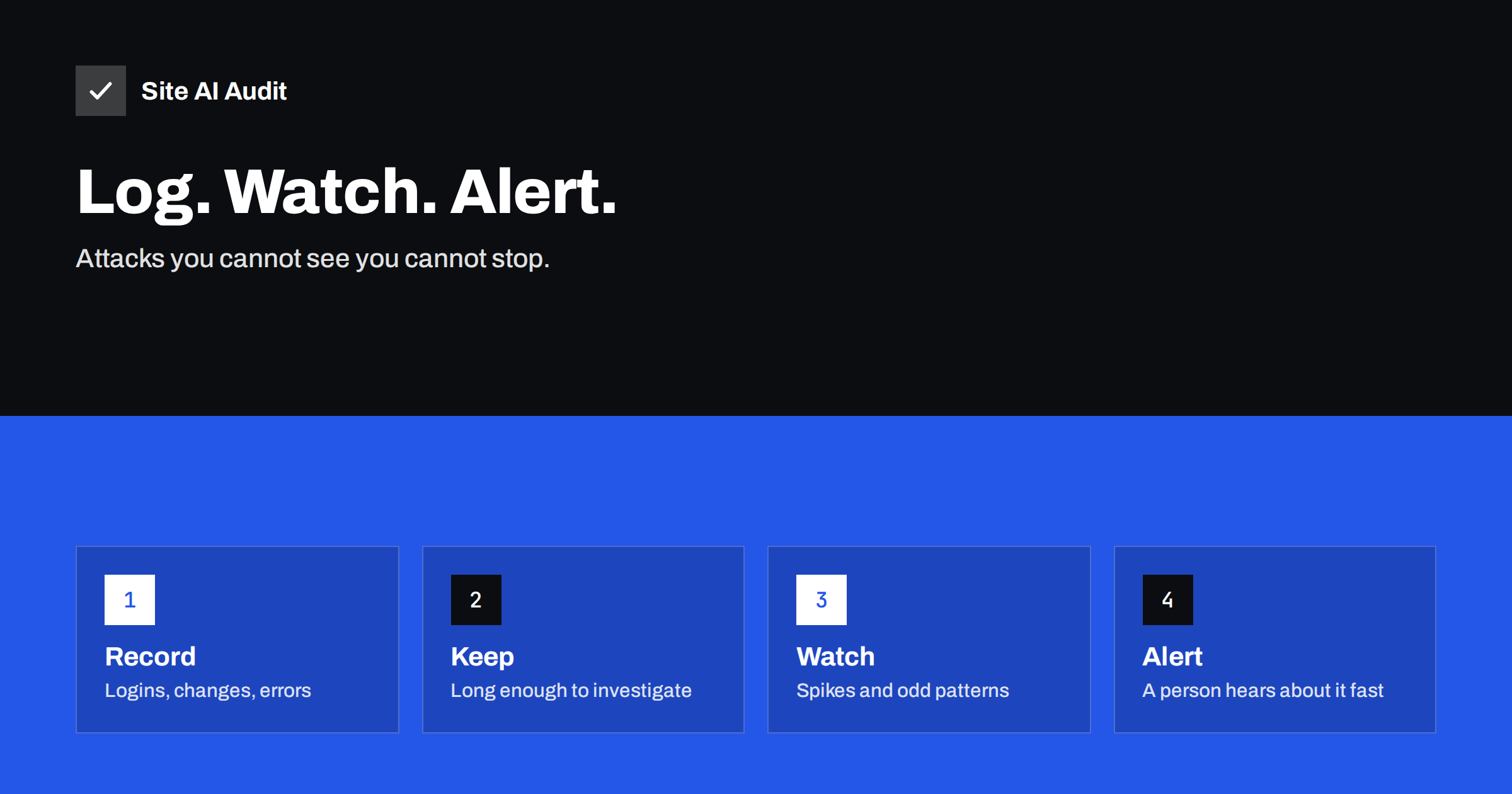
Short answer: A small website should record who logs in, what is changed, which requests fail and which errors the server reports, keep those records for at least a few months in a place the attacker cannot easily edit, and send an alert when something unusual happens, such as many failed logins or a new administrator. Logging does not stop an attack by itself, but without it you cannot tell when it started, what was touched or how to close the door.
Why logging and monitoring matter
Security teams often say that the question is not whether a site will be attacked but how quickly the owner will notice. Most small websites are attacked by automated tools that look for known weaknesses. When one succeeds, the visible damage may appear days later, while the real compromise started earlier. The attacker may have added a hidden administrator, planted a file, or begun to send spam from your server.
Without records, an investigation becomes guesswork. You cannot know whether customer data was read, whether the same flaw was used twice or whether a restored backup still contains the problem. Good logs turn a vague worry into a clear timeline. They also help with ordinary faults: a failed payment, a broken form or a slow page can be traced with the same records.
What a small site should record
You do not need an enterprise system. Start with a short list of events that tell the most about security.
- Web server access logs. Every request with its time, address, page, status code and visitor details. They reveal scanning, brute-force attempts and strange spikes. See our guide to reading access logs to spot attacks.
- Web server and PHP error logs. Repeated errors can show a probe for a vulnerable file or a broken plugin.
- Login events. Successful and failed sign-ins to the admin area, hosting panel, email and database, with time and address.
- Administrative changes. New users, role changes, plugin or theme installs, and edits to files. On WordPress, an activity log plugin can record these.
- Firewall and security plugin events. Blocked requests and warnings give early signs of trouble.
- Form and payment events. Unusual numbers of submissions or failed payments may point to abuse.
Do not record secrets. Passwords, full card numbers and tokens must never be written to logs, even by accident. Check what your plugins log, especially in debug mode, because careless logging can create a new risk instead of reducing one.
Where to keep the records
Logs are valuable to attackers too, because deleting them hides the trace. If logs live only on the same server as the website, a successful intruder can erase or change them. A better approach is to copy them to a second place, for example a log service, a separate storage account or a backup that the web server cannot write to.
Think about how long to keep them. Some attacks are discovered weeks or months after they started. Ninety days is a reasonable minimum for small sites, and a year is better if storage is cheap. Keep in mind that access logs contain visitor addresses, which can be personal data under privacy rules. Limit access to the logs, keep them only as long as you need and mention the purpose in your privacy notice if your lawyer advises it.
Make sure that time is correct. Records from different systems are only useful together if their clocks agree. Most servers synchronise time automatically, but verify it once.
What to watch for
Collecting logs is only half of the job. Someone or something must look at them. These patterns are worth attention:
- Many failed logins from one address or many addresses against the same account. See login brute-force protection.
- A successful login from a new country or at an unusual hour, right after a series of failures.
- A new administrator account or a changed role that nobody requested.
- Requests for files that do not exist on your site, such as admin panels from other systems, backup archives or configuration files.
- Sudden growth in traffic to one page, especially a form or a search.
- New or modified files in folders that should be static, such as uploads.
- Outbound email volume that is much higher than normal.
- A rise in server errors after an update.
None of these proves an attack alone, but each deserves a quick look. Over time you learn what normal looks like for your site, and unusual events stand out.
Alerts that people actually read
A flood of alerts is as useless as no alerts. Choose a few that matter and send them to a place that someone checks, such as email to the owner and a team chat. Good first alerts include a new administrator account, a file change in the core or theme folders, many failed logins in a short time, a certificate close to expiry and the site becoming unavailable.
Uptime monitoring is a simple starting point: a service that requests your home page every few minutes and tells you if it fails. Add checks for the certificate, as described in our article on SSL certificate monitoring, and for changes to your DNS records. Write down who receives each alert and what they should do first. During an incident there is no time to decide who is responsible.
Tools for small teams
Many hosts offer access to raw logs and basic statistics in the control panel, and some provide security scanning. A web application firewall filters bad requests and keeps its own log; see our guide to the web application firewall. On WordPress, security and activity plugins can record logins and changes. For larger needs, there are log management services that collect records from several servers and let you search them.
Choose tools that match your skills. A simple weekly review of the host’s logs and the activity plugin, done by a person who knows what to look for, is better than a complicated system nobody opens. If you work with an agency, ask what is logged, where the logs are kept and who reads them.
Using the logs when something goes wrong
When you suspect a problem, the logs answer practical questions. When did the first suspicious request arrive? Which account or plugin was used? Which files changed afterwards? Which other visitors came from the same address? Use these answers to close the entry point, not just to clean the symptom. Our guide to the signs of a hacked website helps you recognise an incident, and the recovery steps explain what to do next.
Keep a copy of the relevant records before cleaning, because restoring a backup can overwrite evidence. If customer data may have been affected, you may have legal duties to inform people and authorities within a short time. Logs make it possible to say what really happened, instead of what might have happened.
A simple weekly routine
Monitoring becomes real when it turns into a habit. A fifteen-minute routine once a week is enough for many small sites. Open the activity log and check for new users, role changes and plugin installs that you do not recognise. Look at the failed login summary and see whether one account or address stands out. Scan the error log for repeated messages. Confirm that the latest backup exists and can be opened, as described in our website backup strategy. Check that the uptime monitor and certificate alerts are still active and sent to the right people.
Write down what you found, even when the answer is “nothing unusual”. After a few weeks the notes show your normal level of noise, and a real change is easier to spot. Review the list of administrators every quarter and remove accounts of people who have left. Turn on two-factor sign-in for every account that can change the site; our guide to two-factor authentication for websites explains the options.
Common mistakes
- Turning logging on and never reading it. A record nobody opens protects nobody.
- Keeping logs only on the web server, where an intruder can remove them.
- Logging too little, such as errors without logins, or too much, such as full request bodies with passwords.
- Alerts sent to a mailbox nobody reads, for example a former employee.
- No owner. If everyone is responsible, nobody is. Name one person and a deputy.
- Debug mode left on in production, which can write sensitive data into files that anyone can open.
Avoiding these mistakes costs little and makes the difference between noticing an attack in hours and discovering it months later from a customer complaint or a warning in a search engine.
What Site AI Audit can and cannot tell you
Site AI Audit checks the security basics of your website from the outside: the SSL certificate and its expiry, the HTTP to HTTPS redirect, security headers and exposed software versions. It does not read your server logs or show who logged in, so logging and alerting must be set up in your hosting and application. An external check is still a useful signal, for example when a certificate is about to expire, and a repeat check shows whether something has changed. You can run a free check of your website or see the plans.
Related reading
- How to Read Web Server Access Logs to Spot Attacks
- 9 Signs Your Website Has Been Hacked (and How to Check)
- Brute-Force Login Attacks: How to Protect Your Website Logins
- Website Security Audit Checklist: What to Check and in What Order
The bottom line
You cannot respond to what you cannot see. Record logins, changes, errors and requests, store a copy away from the web server, keep it long enough to investigate and set up a few alerts that reach a real person. Start small, review regularly and improve the setup after every incident or near miss.
DUK
How long should I keep website logs?
Ninety days is a sensible minimum for a small site, and longer is better if you can afford the storage and handle the privacy side. Many incidents are found late.
Are server logs personal data?
They often contain visitor IP addresses, which can count as personal data. Limit who can read them, keep them only as long as needed and follow your privacy rules.
Do I need special software to monitor my site?
Not at the start. Host logs, an uptime monitor and an activity plugin cover the basics. Add more tools when your site and risks grow.
Can attackers delete the logs?
If logs are stored only on the hacked server, yes. Send a copy to a separate place that the web server cannot change.
What is the first alert I should set up?
An uptime alert plus a notice for new administrator accounts. Together they tell you when the site is down and when someone has gained control.