 ENEnglish
 LTLietuviškai
 DEDeutsch
 FRFrançais
 RUРусский
 ESEspañol
 PLPolski
 ITItaliano
 UKУкраїнська
 CSČeština
 PTPortuguês
 JA日本語
JA日本語 LVLatviešu valoda
 ETEesti
 HUMagyar
 IDBahasa Indonesia
 TRTürkçe
 HIहिन्दी
 ELΕλληνικά
 ARالعربية
 THไทย
THไทย VITiếng Việt
 RORomână
 MSBahasa Melayu
 BNবাংলা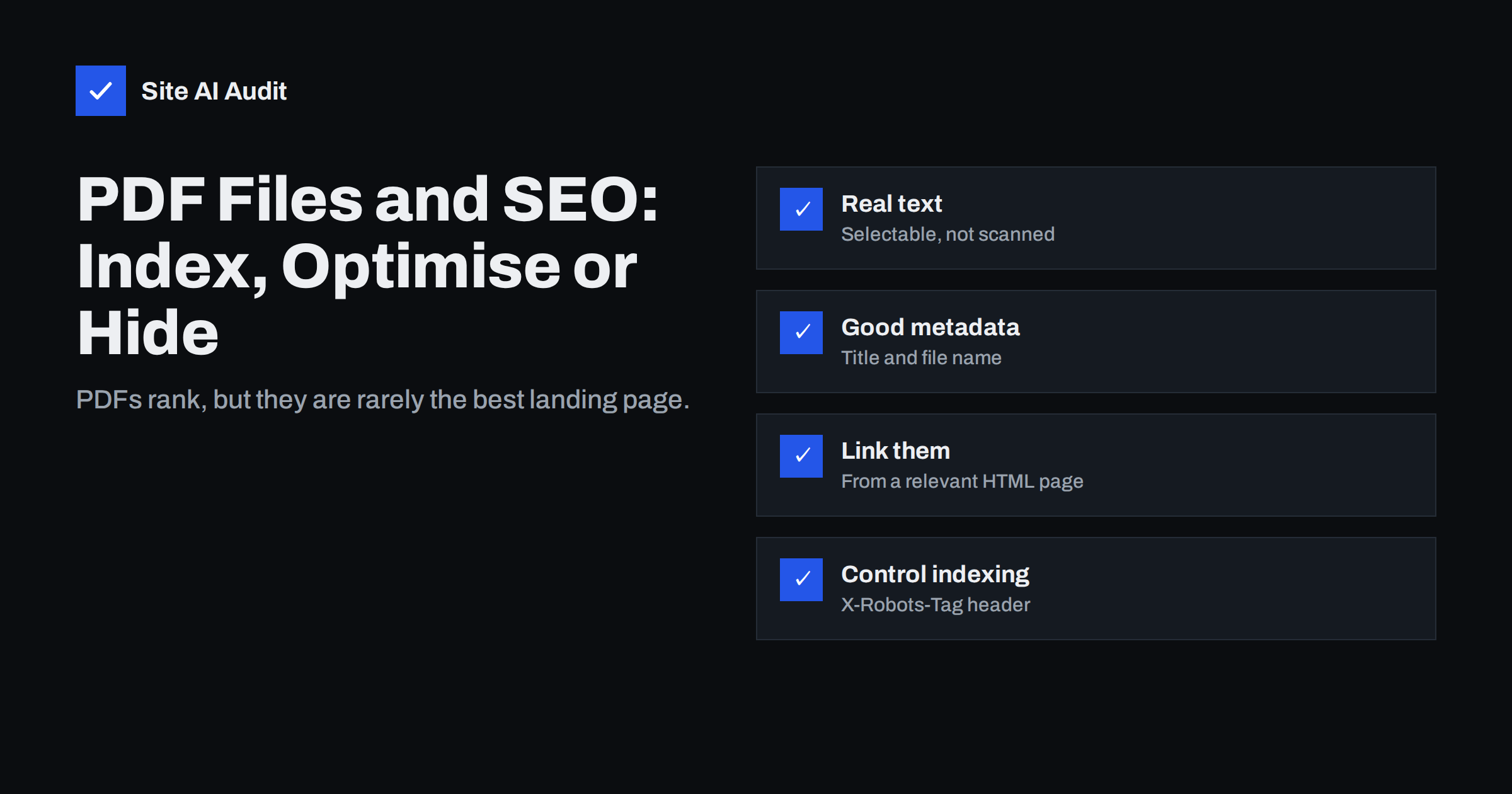
Short answer: Google crawls and indexes PDF files much like web pages, and they can rank in search results with a [PDF] label. To help them rank, use real selectable text rather than scanned images, set a descriptive document title and file name, structure the content with headings, and link to the PDF from a relevant HTML page. Because PDFs lack navigation and are hard to read on phones, important content usually works better as an HTML page with the PDF offered as a download. Keep unwanted PDFs out of search with an X-Robots-Tag noindex header.
How search engines handle PDFs
PDF is one of the file types Google lists as indexable, together with formats such as Word documents and plain text; the full list is in Google’s documentation on indexable file types. When Googlebot finds a PDF through a link or a sitemap, it extracts the text, the links inside the document and some metadata, and treats the file much like an HTML page.
- Text is indexed and used for ranking, as long as it can be extracted.
- Links inside PDFs can be followed and pass signals like links in HTML.
- The title shown in results often comes from the document’s Title property or its first prominent heading.
- Images in PDFs may be processed, but relying on text inside images is risky.
In search results, PDFs are marked with a [PDF] label, which tells searchers they will download a document rather than open a page.
Why PDFs are often a poor landing page
A PDF that ranks is not always a good result for your business:
- No navigation. Visitors who land on a PDF see no menu, no contact button and no links to your products. Many simply close it.
- Hard to read on phones. Fixed page layouts force zooming and scrolling sideways.
- Weak measurement. Standard analytics tags do not run inside PDFs, so visits from search are hard to track.
- Outdated copies. Old price lists, brochures and forms stay indexed for years after they were replaced.
- Duplicate content. A PDF that repeats a web page competes with it; see duplicate content causes and fixes.
For this reason, a common approach is to publish important content as an HTML page and offer the PDF as a download from that page. The page ranks, converts and tracks well; the PDF serves people who want to print or save it.
When a PDF is the right format
PDFs still have their place:
- Documents meant to be printed or signed: forms, contracts, certificates.
- Technical data sheets, manuals and safety documents that must keep an exact layout.
- Reports, white papers and catalogues that people save and share.
- Official documents where a fixed, unchangeable version matters.
If you publish these, it makes sense to optimise them so that people searching for a manual or data sheet actually find it. Customers often search for a model number plus “manual” or “PDF”, and a well-titled document from the manufacturer is exactly what they hope to find, rather than a copy on a third-party download site.
A practical pattern: HTML page plus PDF download
For most businesses, the best of both worlds is a short, searchable HTML page for each important document, with the PDF attached. A manufacturer publishing a product data sheet, for example, could create a page for the product that includes:
- A clear title and introduction naming the product and what the document covers.
- The key specifications as an HTML table, so they can be read on a phone and found in search.
- A prominent “Download the data sheet (PDF, 1.2 MB)” link, stating the format and size.
- Links to related products, installation guides and a contact form.
- The PDF itself, optimised as described below, and either indexable or set to noindex if it simply duplicates the page.
Visitors from search now land on a page with navigation and a clear next step, the download is still one click away, and analytics can count downloads as events. When the document changes, you update the page and replace the file at the same URL, and every link keeps working.
How to optimise a PDF for search
- Create it from a text source. Export from your word processor or design tool so the text is selectable. If you only have a scan, run text recognition (OCR) and check the result.
- Set the document Title property. In the export settings or document properties, write a clear title, just as you would for a title tag. “Untitled” or “Document1” may otherwise appear in results.
- Use a descriptive file name.
boiler-model-x200-installation-manual.pdfis better thanscan_0045.pdf, both for search and for people who save it. - Structure the content. Use real headings, lists and tables in the source document. Tagged, accessible PDFs keep this structure, which also helps screen reader users.
- Put key information early. The first page should say what the document is and who it is for.
- Add links back to your site. A link to the product page or contact page gives visitors a way forward.
- Keep file size reasonable. Compress images so the file opens quickly on mobile connections.
- Link to the PDF from a relevant page. Internal links with descriptive anchor text help search engines find and understand it; see the internal linking guide.
How to keep PDFs out of search results
Some PDFs should never appear in Google: internal documents, old price lists, customer-specific files and duplicates of web pages. Because PDFs cannot contain HTML meta tags, you control them with HTTP headers.
- X-Robots-Tag noindex. Configure the server to send
X-Robots-Tag: noindexfor specific PDF files or for a whole folder. Google then drops them after recrawling. The noindex guide explains the header in more detail. - Canonical via HTTP header. If a PDF duplicates an HTML page, a
Linkheader withrel="canonical"pointing to the page tells Google which version to prefer. - Do not rely on robots.txt alone. Blocking a PDF in robots.txt stops crawling, but a PDF that is already indexed can remain in results, and Google cannot see the noindex header. The difference is explained in robots.txt vs noindex.
- Protect confidential files properly. Anything private belongs behind a login, not in a public folder with an obscure name.
Managing old and replaced PDFs
| Situation | Best action |
|---|---|
| New version of the same document | Replace the file at the same URL, or 301 redirect the old URL to the new one |
| Document no longer relevant, no replacement | Remove it and return 404 or 410 |
| Document should stay available but not in search | Keep it and send X-Robots-Tag: noindex |
| PDF duplicates an HTML page | Canonical header to the page, or noindex |
| Sensitive document found in search | Remove or protect it, then request removal in Search Console |
Replacing a file at the same URL keeps links and rankings. Uploading a new file with a new name and deleting the old one breaks every link to it, including from other websites; see finding and fixing broken links.
How to see which PDFs Google has indexed
Search for site:yourdomain.com filetype:pdf to get a rough list. Search Console’s Performance report shows clicks to PDF URLs, which you can filter by entering “.pdf” in the page filter. Review the list for outdated, duplicate or confidential files, and check whether your most useful documents appear at all.
It is also worth looking at the files on your server. Upload folders in content management systems often contain years of PDFs that are no longer linked from anywhere but are still reachable and indexed. A periodic clean-up, deciding for each file whether to keep, replace, redirect or noindex it, prevents old information from reaching customers.
How Site AI Audit helps
Site AI Audit crawls your site the way a search engine does and checks the pages that link to your documents: titles, descriptions, headings, broken links, redirects, robots.txt, sitemaps and noindex rules. Broken links to removed PDFs and missing redirects show up as findings with a plain-language fix. You can run a free check of up to 50 pages.
Related reading
- Canonical Tags Explained: How to Handle Duplicate URLs
- Why Is My Page Not on Google? A Step-by-Step Checklist
- XML Sitemaps Explained: How to Create and Submit One
The bottom line
Google indexes PDFs and they can rank, but they make weak landing pages. Publish important content as HTML with the PDF as a download, optimise the PDFs you keep with real text, a good title and file name, and control unwanted PDFs with X-Robots-Tag headers and proper redirects when documents change.
DUK
Does Google index PDF files?
Yes. Google crawls and indexes PDFs, extracts their text and links, and can show them in search results with a [PDF] label.
How do I set the title Google shows for a PDF?
Set the Title property in the document’s properties or export settings, and start the document with a clear main heading. Google may use either when creating the search result title.
How do I stop a PDF from appearing in Google?
Configure your server to send an X-Robots-Tag: noindex HTTP header for that file. PDFs cannot contain meta tags, and robots.txt alone does not remove files that are already indexed.
Can a scanned PDF rank in Google?
It may, but it is much less reliable. Scanned pages are images, so run text recognition first or publish a text-based version to make the content searchable.
Should I publish content as a PDF or a web page?
For content you want people to find and act on, a web page is usually better because it has navigation, works on phones and can be tracked. Offer a PDF alongside it for printing or saving.


