 ENEnglish
 LTLietuviškai
 DEDeutsch
 FRFrançais
 RUРусский
 ESEspañol
 PLPolski
 ITItaliano
 UKУкраїнська
 CSČeština
 PTPortuguês
 JA日本語
JA日本語 LVLatviešu valoda
 ETEesti
 HUMagyar
 IDBahasa Indonesia
 TRTürkçe
 HIहिन्दी
 ELΕλληνικά
 ARالعربية
 THไทย
THไทย VITiếng Việt
 RORomână
 MSBahasa Melayu
 BNবাংলা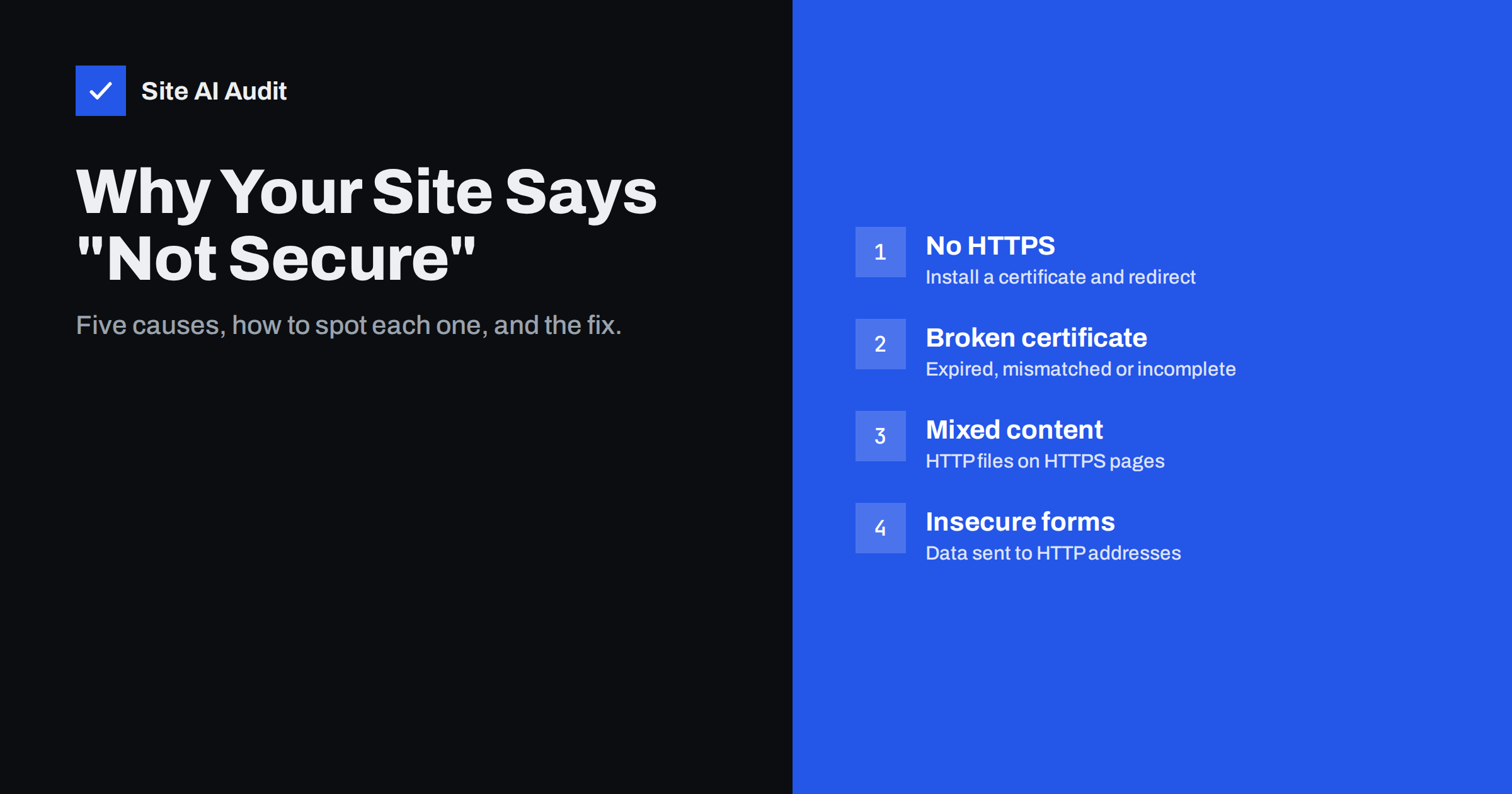
Short answer: Browsers show “Not secure” when a page is loaded over plain HTTP, when the HTTPS certificate is invalid (expired, issued for another name, self-signed or missing intermediates), or when an HTTPS page loads insecure content or submits forms to HTTP. The fix is to install a valid certificate that covers every hostname you use, redirect all HTTP traffic to HTTPS, and replace any http:// resources and form targets. Clicking the label in the address bar usually tells you which of these causes applies.
Few things damage trust as quickly as the words “Not secure” next to your address. Visitors do not know the technical difference between a missing certificate and an old image link; they just see a warning on the site where they were about to enter their e-mail or card number. The label is also one of the easiest problems to diagnose once you know the possible causes. This guide goes through them in order, from the most common to the rarest, with a quick test and a fix for each.
What the different warnings mean
Browsers use several levels of warning, and the level tells you a lot about the cause:
| What the visitor sees | Usual meaning |
|---|---|
| Grey “Not secure” text or an info icon | The page was loaded over HTTP, without encryption |
| Red “Not secure” with a crossed-out padlock or https | HTTPS was attempted but the certificate is not trusted, and the visitor clicked through |
| Full-page “Your connection is not private” | The certificate is invalid: expired, wrong name, untrusted issuer or incomplete chain |
| Padlock with a warning, or padlock missing on HTTPS | Mixed content: some resources on the page were loaded over HTTP |
| Warning when submitting a form | The form sends its data to an HTTP address |
Click the icon or text to the left of the address. Browsers show a short explanation there, and the certificate details are one more click away.
Cause 1: The site does not use HTTPS at all
Since 2018, Chrome has marked every HTTP page as “Not secure”, and other browsers followed with similar labels. If your address bar shows http:// at the start of the URL, this is your case.
Quick test: type https:// plus your domain. If you get a certificate error or a different site, you have no working certificate for the domain.
Fix:
- Get a certificate. Most hosts offer free, automatically renewed certificates in the control panel; on your own server, use Certbot or another ACME client.
- Make sure the certificate covers every hostname you use – usually both
example.comandwww.example.com. - Update your CMS settings to use the HTTPS address.
- Add a permanent redirect from HTTP to HTTPS so old links, bookmarks and typed addresses end up on the secure version.
Cause 2: HTTPS exists, but the redirect is missing
A surprisingly common situation: the certificate works fine, but the site still answers on HTTP without redirecting. Visitors who type your address or follow old links see “Not secure”, while you, testing with a bookmark to the HTTPS version, see a padlock.
Quick test: run curl -sI http://example.com and check that the answer is a 301 or 308 with a Location: https://… header. Repeat for the www version.
Fix: add a server-level redirect in Apache, Nginx, your hosting panel or CDN, keeping the full path and query string. Once it works everywhere, consider HSTS so browsers use HTTPS automatically on future visits.
Cause 3: The certificate is expired or invalid
If visitors see a full-page error, the browser does not trust the certificate. Chrome’s error code usually names the reason:
NET::ERR_CERT_DATE_INVALID– the certificate has expired, or the visitor’s clock is wrong.NET::ERR_CERT_COMMON_NAME_INVALID– the certificate does not cover the hostname in the address bar, for example it coversexample.combut notwww.example.com.NET::ERR_CERT_AUTHORITY_INVALID– the certificate is self-signed, issued by an untrusted authority, or the server does not send the intermediate certificate.
Fix: renew or reissue the certificate where it was issued, include every hostname, install it with the full chain (with Certbot, fullchain.pem), and reload the web server. Then find out why the problem happened – most expiries are caused by a renewal job that stopped working after a DNS or hosting change.
Cause 4: Mixed content
The page loads over HTTPS with a valid certificate, but some images, scripts, stylesheets, fonts or iframes still come from http:// addresses. Browsers block the risky ones and may remove the padlock or show a warning icon.
Quick test: open the page, press F12, and look at the Console. Mixed content messages name every insecure resource.
Fix: change the links to https://. For your own files, run a database search-and-replace from the old HTTP address to the new HTTPS address (with a backup first). For third-party files, use the provider’s HTTPS address or host the file yourself. As a safety net, the header Content-Security-Policy: upgrade-insecure-requests makes browsers try HTTPS for every resource.
Cause 5: Forms that submit to HTTP
A login, contact, newsletter or search form on an HTTPS page can still send its data to an http:// address, often because the form code was copied from an older page or an external service. Browsers warn visitors before submitting such forms, and the data would travel unencrypted.
Quick test: view the page source and search for action="http://. Also submit the form once with the Network tab open and check the request URL.
Fix: change the form action to HTTPS or to a relative path, and update the settings of any external form or newsletter service.
Rarer causes worth checking
- Antivirus or corporate proxies that inspect HTTPS traffic can cause certificate warnings only on specific computers. If only one office or one device sees the warning, test from a phone on mobile data.
- Wrong device clock makes valid certificates look expired or not yet valid.
- A CDN with its own certificate that does not include a newly added subdomain.
- Outdated TLS configuration – servers that only offer TLS 1.0 or 1.1 are rejected by modern browsers with a protocol error rather than a “Not secure” label.
- Old devices that lack newer root certificates may reject certificates that work everywhere else.
Who should fix it: you, your host or your developer?
Knowing where the problem lives saves time when you ask for help:
- Your hosting company can issue and renew certificates, switch on the HTTPS redirect and fix certificate chains on shared hosting. Mention the exact error code when you contact support.
- Your CDN or DNS provider is responsible when the certificate the visitor sees is the CDN’s edge certificate, or when a DNS change broke validation.
- Your developer or agency should handle mixed content in themes and templates, hard-coded form targets, server configuration and redirect loops.
- You or your editors can often fix mixed content in individual pages and posts by re-inserting images from the media library.
Send them the page address, a screenshot of the warning and the text shown when you click the label. That usually turns a vague “the site says not secure” into a ten-minute task.
After the fix: confirm it really works
Browsers cache a lot, so test carefully:
- Open the site in a private window and on a phone using mobile data, not office Wi-Fi.
- Check the home page, a deep content page, a form page and, for shops, the cart and checkout.
- Type the address with
http://and withoutwww, and with it, and confirm each ends on the HTTPS version. - Look at the console for any remaining mixed content messages.
- Clear CDN and page caches if old versions still appear.
Google’s own guidance on moving a site with URL changes is worth reading if you are switching an established site to HTTPS, because it covers redirects, sitemaps and monitoring from the search side.
How Site AI Audit helps
Site AI Audit checks the most common causes of a “Not secure” label in one run: whether the SSL certificate is valid and when it expires, whether HTTP redirects to HTTPS, which security headers are missing, and what the crawl finds on your pages. Each finding explains the problem in plain words with the fix. Paid plans add re-checks after you fix something and monitoring with an alert before the certificate expires. Check your site for free in about two minutes.
Related reading
- What Is an SSL Certificate and Why Does Your Website Need One?
- How to Redirect HTTP to HTTPS the Right Way (Without Loops)
- Mixed Content Errors: How to Find and Fix Them on Your Site
- SSL Certificate Expired: What Happens and How to Fix It Fast
The bottom line
“Not secure” always has a concrete, findable cause: no HTTPS, a missing redirect, an invalid certificate, mixed content or an insecure form. Click the label to see which one you have, fix it at the source, and test from a clean browser on another network. Then add monitoring so the warning does not return quietly when a certificate renewal fails.
DUK
Why does my site show “Not secure” even though I have an SSL certificate?
Usually because visitors reach the HTTP version without being redirected, because the certificate does not cover the hostname they used, or because the page loads some resources over HTTP. Clicking the label in the address bar shows which case applies.
Does “Not secure” mean my website has been hacked?
No. It means the connection is not encrypted or the certificate is not trusted. A hacked site can look perfectly secure in the address bar, so the label is about the connection, not about malware.
Does the “Not secure” warning affect SEO?
HTTPS is a lightweight ranking signal, and a browser warning makes visitors leave faster. Fixing it removes both problems, but it will not by itself move a page to the top of search results.
Why do only some visitors see the warning?
The certificate may cover only one hostname, a CDN may serve different certificates in different regions, or the visitors may have antivirus software, a company proxy or a wrong device clock. Testing from another device and network helps narrow it down.
How long does it take for the warning to disappear after the fix?
It disappears immediately for new page loads once the server serves the correct certificate and content. Cached pages, CDN copies and browser caches can show the old state for a while, so clear them after the fix.


