 ENEnglish
 LTLietuviškai
 DEDeutsch
 FRFrançais
 RUРусский
 ESEspañol
 PLPolski
 ITItaliano
 UKУкраїнська
 CSČeština
 PTPortuguês
 JA日本語
JA日本語 LVLatviešu valoda
 ETEesti
 HUMagyar
 IDBahasa Indonesia
 TRTürkçe
 HIहिन्दी
 ELΕλληνικά
 ARالعربية
 THไทย
THไทย VITiếng Việt
 RORomână
 MSBahasa Melayu
 BNবাংলা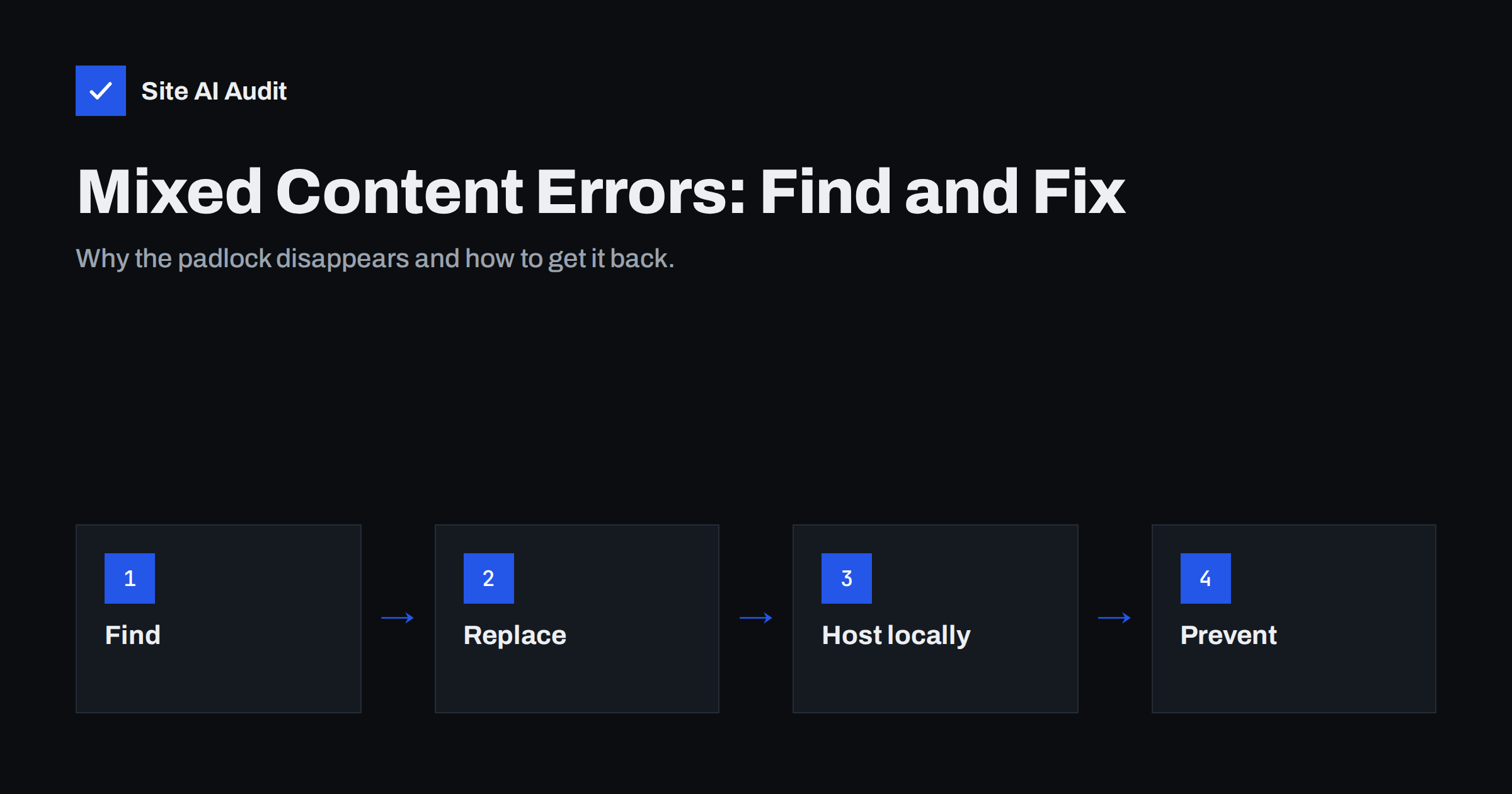
Short answer: Mixed content happens when a page loaded over HTTPS pulls images, scripts, styles, fonts or iframes over plain HTTP. Browsers block insecure scripts and styles outright, try to upgrade or flag insecure images, and may remove the padlock. To fix it, find every http:// resource (browser console, a site crawl, a database search), change it to https:// or a relative path, host the file yourself if the source has no HTTPS, and add a Content-Security-Policy rule to catch what remains.
You installed a certificate, set up the redirect, and yet the padlock is missing, a slider stopped working, or the browser console is full of red warnings. In most cases the reason is mixed content. It is one of the most common findings after a move to HTTPS, and it tends to come back whenever someone pastes an old link or adds a new widget. This guide explains what it is, why browsers care, and how to clean it up systematically.
What mixed content is
An HTTPS page promises the visitor that everything they see was delivered encrypted and unmodified. If part of the page – an image, a script, a stylesheet – is fetched over HTTP, that promise breaks. Someone on the network could replace the file. For a script this is serious: a modified script can read form fields, redirect the visitor or inject fake content, even though the address bar shows HTTPS.
Browsers divide mixed content into two groups:
- Active mixed content (sometimes called blockable): scripts, stylesheets, iframes, fonts, XHR and fetch requests. These can change the whole page, so browsers block them. Features that depend on them simply stop working.
- Passive mixed content (upgradable): images, audio and video. Modern browsers try to load these over HTTPS automatically and block them if that fails; older browsers load them but drop the padlock or show a warning.
Symptoms that point to mixed content
- The padlock is missing or shows a warning, while the certificate itself is valid.
- Menus, sliders, maps, forms or embedded videos stop working after the move to HTTPS.
- Fonts fall back to a default typeface or icons show as empty squares.
- The browser console shows messages like “Mixed Content: The page at ‘https://…’ was loaded over HTTPS, but requested an insecure script ‘http://…’. This request has been blocked.”
- Images are missing only on some pages or only in older posts.
How to find every insecure resource
Mixed content is rarely in one place. Use several methods together:
- Browser developer tools. Open the page, press F12, and look at the Console tab. Each blocked or upgraded request is listed with its URL. The Network tab, filtered by “http:”, shows what loaded insecurely. This is precise but covers only one page at a time.
- A site crawl. An audit tool or crawler that reads many pages can list insecure resources across the whole site, which is essential for blogs and shops with hundreds of pages.
- Search the source and database. Search theme files, templates and the database for
http://followed by your own domain, and for common third-party hosts. In WordPress, most old links live in post content, widget settings, theme options and page builder data. - Check CSS files. Background images and fonts referenced with
url(http://…)inside stylesheets are easy to miss, because they do not appear in the HTML. - Check third-party embeds. Old embed codes for maps, video players, chat widgets or tracking pixels sometimes still use HTTP.
Fixing mixed content, source by source
| Where the HTTP link lives | Fix |
|---|---|
| Your own files and images in content | Search and replace http://yourdomain with https://yourdomain in the database |
| Theme or template code | Change hard-coded URLs to https:// or build them with the CMS URL functions |
| CSS files | Update url() references; relative paths are safest for your own assets |
| Third-party script or font with HTTPS support | Change the URL to https://; most providers support it at the same address |
| Third-party resource without HTTPS | Download and host it yourself, replace it with a maintained alternative, or remove it |
| Embedded iframes and widgets | Get a fresh embed code from the provider |
Avoid protocol-relative URLs (//example.com/file.js) as a long-term fix. They used to be a common trick, but now that the whole site is HTTPS, explicit https:// is clearer and avoids surprises when a page is opened from a local file or an e-mail.
Forms, shops and logins deserve extra attention
A special kind of mixed content is a form on an HTTPS page that submits to an HTTP address. The page looks secure, but the data the visitor types – a password, an address, a card number – would travel unencrypted. Modern browsers warn about such forms before submission, and many visitors abandon them at that point. Check these places carefully:
- Form actions in contact forms, newsletter sign-ups and search boxes, especially forms copied from an e-mail marketing service years ago.
- Login and account pages, including links to password reset pages sent by e-mail.
- Checkout steps and payment return URLs configured in the shop or payment provider settings.
- AJAX endpoints used by filters, carts and live search, which may be stored in plugin or theme settings as full URLs.
Fix these first, before cosmetic images. They carry the data that matters most, and they are also where a missing padlock hurts conversions the most. After changing them, submit each form once over HTTPS and confirm in the Network tab that the request goes to an https:// address.
WordPress specifics
WordPress stores absolute URLs in the database, so a site that started on HTTP keeps thousands of http:// links in posts, image attachments and settings. The safest way to update them:
- Make a full backup of the database.
- Confirm that Settings → General uses the HTTPS address for both site fields.
- Run a search-and-replace that understands serialized PHP data, such as
wp search-replace 'http://example.com' 'https://example.com' --all-tables --dry-runwith WP-CLI. Review the dry-run counts, then run it without--dry-run. - Clear every cache: page cache plugin, server cache, CDN and browser.
- Check page builder data and theme customizer settings, which sometimes store URLs in their own formats.
Plugins that rewrite HTTP to HTTPS on the fly can hide the problem, but they add work to every page load and do not fix the stored data. Use them as a temporary bridge at most.
Use Content-Security-Policy as a safety net
Two CSP directives help with mixed content:
Content-Security-Policy: upgrade-insecure-requeststells the browser to request every HTTP resource on the page over HTTPS instead. If the resource exists on HTTPS, the problem disappears for visitors. If it does not, the request fails – which is still better than loading it insecurely.- A report-only policy with a reporting endpoint can tell you which insecure resources visitors’ browsers still encounter, so you can fix them at the source.
Treat these as a net, not as the fix. The underlying links should still be corrected, because other clients – feed readers, e-mail clients, some apps – do not apply your CSP. The MDN guide on mixed content lists exactly which resource types browsers block and upgrade.
Preventing mixed content from coming back
Mixed content often returns months later, when an editor pastes an image from an old page or a marketer adds a tracking snippet. A few habits keep it away:
- Use relative links or the CMS’s own media library for your own files.
- Check every new embed code or snippet for
http://before publishing it. - Keep a server-level HTTP to HTTPS redirect, so even missed links to your own domain end up secure.
- Add HSTS once the site is fully HTTPS, so browsers never make plain HTTP requests to your domain.
- Re-audit the site after redesigns, migrations and plugin changes.
How Site AI Audit helps
Site AI Audit crawls your pages the way a browser and a search engine see them, checks the certificate and the HTTPS redirect, and lists the problems it finds with the affected pages and a plain-language fix. Running a check after a migration or a redesign shows quickly whether the HTTPS move is complete. Paid plans allow re-checks after every fix and weekly monitoring, so regressions show up before customers notice. You can start with a free check.
Related reading
- How to Redirect HTTP to HTTPS the Right Way (Without Loops)
- What Is an SSL Certificate and Why Does Your Website Need One?
The bottom line
Mixed content means an HTTPS page still depends on insecure HTTP files. Browsers block the dangerous ones and flag the rest, which breaks features and costs you the padlock. Find the links with the console, a crawl and a database search, change them to HTTPS or host the files yourself, and use upgrade-insecure-requests as a safety net while you clean up.
DUK
Is mixed content a security risk or just a cosmetic issue?
It is a real risk. An insecure script or stylesheet can be modified in transit and change the whole page, which is why browsers block it. Insecure images are less dangerous but still let others see or swap what the visitor is viewing.
Why does my padlock disappear only on some pages?
Mixed content is page-specific. Older posts, pages built with a different template or pages with a particular widget often contain HTTP links that newer pages do not, so the padlock breaks only there.
Does upgrade-insecure-requests fix mixed content permanently?
It fixes the symptom in browsers that support CSP, as long as each resource is also available over HTTPS. The HTTP links remain in your content, so it is best used as a safety net while you correct them at the source.
Can mixed content affect SEO?
Mixed content is not a direct ranking factor, but blocked scripts and styles can break layouts and functionality that search engines render. Broken pages and browser warnings also hurt engagement and conversions.
What if a third-party resource has no HTTPS version?
Host a copy yourself if the licence allows it, switch to a provider that supports HTTPS, or remove the resource. Services that still do not support HTTPS are usually no longer maintained, which is a risk in itself.


