ENEnglish
 LTLietuviškai
 DEDeutsch
 FRFrançais
 RUРусский
 ESEspañol
 PLPolski
 ITItaliano
 UKУкраїнська
 CSČeština
 PTPortuguês
 JA日本語
JA日本語 LVLatviešu valoda
 ETEesti
 HUMagyar
 IDBahasa Indonesia
 TRTürkçe
 HIहिन्दी
 ELΕλληνικά
 ARالعربية
 THไทย
THไทย VITiếng Việt
 RORomână
 MSBahasa Melayu
 BNবাংলা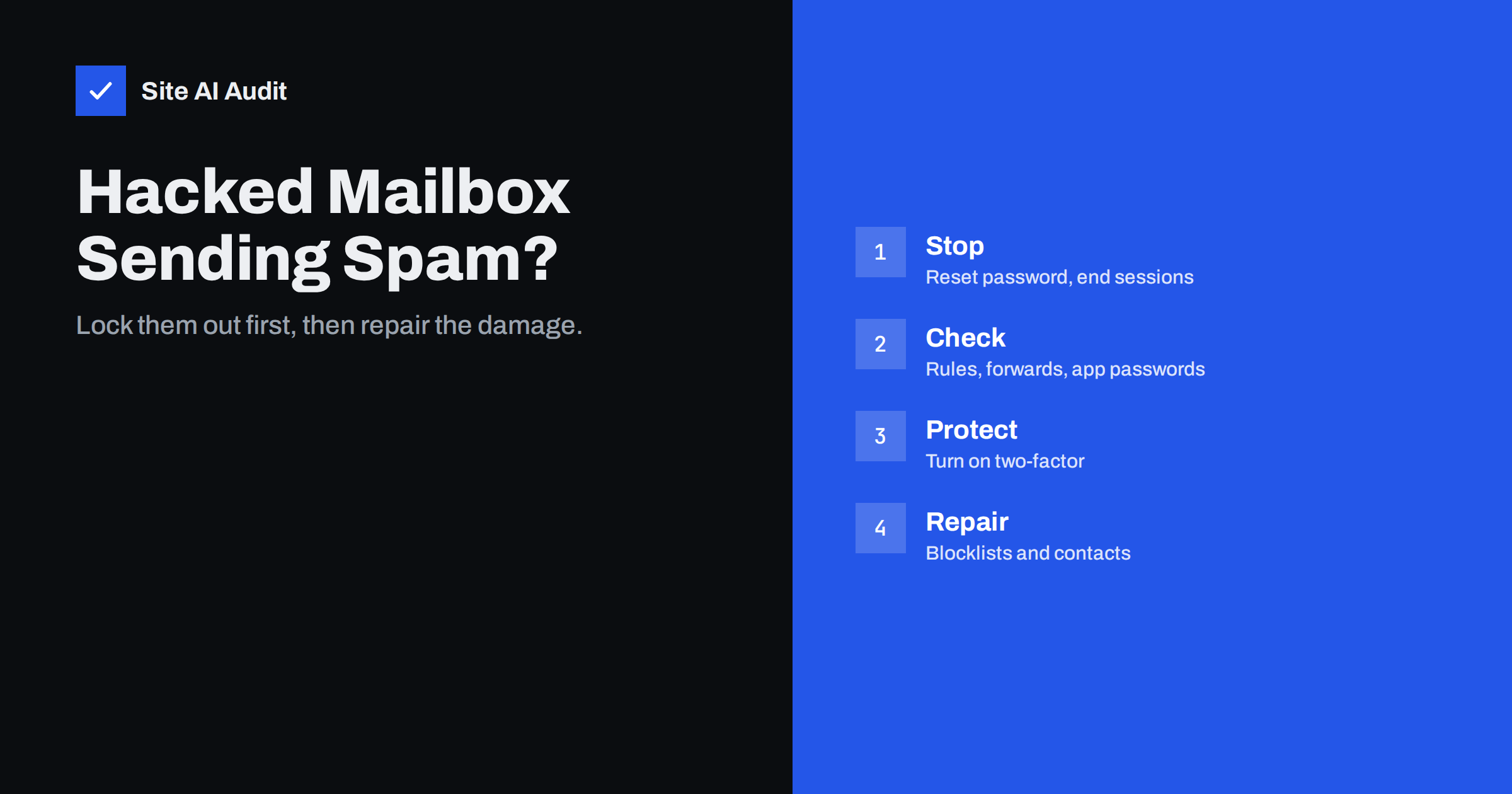
Short answer: If one of your mailboxes is sending spam or phishing, assume the account is compromised and act at once: reset the password, sign out all sessions, remove forwarding rules, filters and app passwords the attacker may have added, and turn on two-factor authentication. Then check whether your domain or mail server has landed on blocklists, warn the people who received the messages and look for the way the attacker got in. SPF, DKIM and DMARC do not stop this, because the messages really are sent from your account.
How to tell that an account is compromised
A compromised mailbox is different from spoofing. With spoofing, someone outside fakes your address and their messages fail authentication. With a compromised account, the attacker logs in as you and sends through your real mail server, so the messages pass SPF, DKIM and DMARC and look completely genuine. Typical signs:
- Contacts reply to messages you never sent, or ask whether an invoice or payment request is real.
- Hundreds of bounces arrive for addresses you have never written to.
- Your email provider blocks outgoing mail from the account or warns about unusual activity.
- The Sent folder contains unknown messages, or has suspiciously been emptied.
- Unknown sign-ins appear in the account’s activity log, often from other countries.
- New inbox rules move or delete replies, especially replies containing words like “invoice”, “payment” or “hacked”.
Bounces alone are not proof. If they arrive for messages you did not send and the headers show other servers, it may be spoofing or backscatter instead; our article on backscatter explains the difference. If the Sent folder or the sign-in log shows activity, treat it as a compromise.
First hour: lock the attacker out
- Change the password from a device you trust, to a new, long password not used anywhere else.
- Sign out all sessions. Most providers have an option to sign out everywhere or revoke sessions. A password change alone does not always end existing sessions.
- Remove app passwords and connected apps you do not recognise. Attackers often create them because they keep working after a password reset.
- Check forwarding and inbox rules. Delete forwards to unknown addresses and rules that hide, move or delete messages. Attackers use them to read your mail secretly and to hide replies from victims.
- Check recovery options, such as the backup phone number and email address, and signatures and auto-replies that may have been changed.
- Turn on two-factor authentication for the account, preferably with an authenticator app or security key.
In a company, an administrator can do most of this centrally and also suspend outgoing mail for the account while the cleanup takes place. If several accounts show signs of compromise, act on all of them at once and reset the administrator account too.
Find out how the attacker got in
If you do not close the entry point, the attacker comes back. The usual causes:
- Phishing. Someone entered their password on a fake login page, often after an email about a shared document or a full mailbox.
- Password reuse. The same password was used on another site that was breached, and attackers tried it on the mailbox.
- Weak passwords guessed by automated attacks, especially on mail servers that allow old protocols without two-factor authentication.
- Malware on a computer or phone that stole saved passwords or session cookies.
- Old protocols. IMAP, POP and SMTP with basic passwords bypass two-factor protection on some systems. Disable them where you do not need them, or use app-specific passwords only.
Run a malware scan on the devices that use the account, and ask the account owner whether they recently entered their password anywhere unusual. The sign-in log usually shows the first suspicious login, which helps you match it to a phishing message.
Contain the damage
Warn recipients. Send a short, plain message to the people who received the spam or phishing: what happened, that they should not open links or attachments from those messages, and that payment details have not changed. This matters most when the attacker sent fake invoices; our guide to invoice fraud by email explains the typical pattern.
Check other accounts. If the mailbox was used to reset passwords for other services, such as banking, the domain registrar, hosting or social media, check those accounts and change their passwords as well.
Data protection. If the attacker could read emails containing personal data of customers or staff, check your obligations under data protection law. In the EU, some breaches must be reported to the authority within 72 hours.
When the sender is not a person’s mailbox
Sometimes the spam does not come from anyone’s mailbox at all, but from another part of your setup that uses the same mail server or domain. Check these before you conclude that the cleanup is finished:
- Website contact forms. A form without spam protection can be abused to send messages to any address, with your server as the sender. Our guide to contact form spam shows how to close it.
- Hacked websites on the same hosting. A compromised plugin can install a script that sends mail through the server’s PHP mail function. The messages then come from your web server rather than your mailbox.
- SMTP credentials stored in applications. Shops, CRMs and printers often keep a mailbox password for sending. If one of them leaks, attackers can send through your server without touching the mailbox itself.
- Shared and service accounts. Addresses such as info@ or office@ used by several people are easy to forget when passwords are changed and two-factor authentication is rolled out.
The mail server’s logs, or your provider’s message trace, show which account or system authenticated for each outgoing message. That is the quickest way to find the real source.
Repair your sending reputation
A burst of spam damages the reputation of your domain and, if you run your own mail server, its IP address. Mailbox providers may now send your normal mail to spam or reject it.
- Check blocklists. Look up your mail server’s IP address and your domain on the major blocklists. Our guide to blocklist checks and delisting explains which lists matter and how to request removal once the problem is fixed.
- Check provider dashboards. If you send enough mail, Google Postmaster Tools shows how Gmail rates your domain’s reputation and spam rate.
- Clear the outgoing queue. On your own mail server, delete spam that is still waiting to be delivered, or it will keep going out after the account is secured.
- Send carefully for a while. Postpone newsletters and bulk mailings for a few days, and send only expected, wanted messages until the reputation recovers. Our article on domain and IP reputation explains how both recover.
Prevent the next compromise
- Require two-factor authentication for every mailbox, including shared and administrator accounts.
- Disable old authentication methods and protocols you do not use.
- Use a password manager and unique passwords.
- Set alerts for suspicious sign-ins and for new forwarding rules, if your provider supports them.
- Limit how many messages a single account can send per hour, if you run your own server.
- Train staff to recognise fake login pages and to report suspicious messages quickly.
- Remove mailboxes of former employees instead of leaving them active with old passwords.
Strong domain authentication is still important, even though it does not stop a compromised account. A strict DMARC policy prevents outsiders from impersonating your domain, so attackers are pushed towards the much harder route of stealing a real account, as explained in our guide to stopping email spoofing.
How Site AI Audit helps
Site AI Audit checks the DNS side of your email: whether SPF exists, is unique, does not allow every server with +all and stays within ten DNS lookups; whether a DMARC record exists, which policy it uses and whether it collects reports; whether DKIM keys are published at common selectors; and whether MX records are in place. It cannot see sign-ins to your mailboxes and does not check blocklists, so use your provider’s security tools and a blocklist lookup for that. You can check your domain for free, and the pricing page lists plans with daily email checks.
Related reading
- Two-Factor Authentication for Website Owners: What to Protect
- Email Sending Limits: Why Your Messages Get Throttled
- Why Are My Emails Going to Spam? 12 Causes and Fixes
The bottom line
A hacked mailbox sends spam that looks perfectly legitimate, because it is sent from your real account. Lock the attacker out in the first hour by resetting the password, ending sessions, removing rules, forwards and app passwords and turning on two-factor authentication. Then find the entry point, warn recipients, check other accounts that use the mailbox for recovery, clear blocklists and send carefully until your reputation recovers.
DUK
Is changing the password enough?
No. Also sign out all sessions, remove unknown app passwords and connected apps, delete suspicious forwarding and inbox rules and turn on two-factor authentication.
Why did SPF, DKIM and DMARC not stop the spam?
Because the attacker sent through your real account and server, so the messages passed authentication. These records stop outsiders from faking your domain, not stolen logins.
How do I know if my domain is on a blocklist?
Look up your mail server’s IP address and your domain with a blocklist checking tool, and check bounce messages, which often name the list that rejected your mail.
Should I tell the people who received the spam?
Yes, briefly. Tell them not to open links or attachments from those messages and confirm that your payment details have not changed.
How long does reputation take to recover?
After a short incident that is fixed quickly, usually days to a few weeks. Blocklist removal can be faster once you request it and the spam has stopped.