ENEnglish
 LTLietuviškai
 DEDeutsch
 FRFrançais
 RUРусский
 ESEspañol
 PLPolski
 ITItaliano
 UKУкраїнська
 CSČeština
 PTPortuguês
 JA日本語
JA日本語 LVLatviešu valoda
 ETEesti
 HUMagyar
 IDBahasa Indonesia
 TRTürkçe
 HIहिन्दी
 ELΕλληνικά
 ARالعربية
 THไทย
THไทย VITiếng Việt
 RORomână
 MSBahasa Melayu
 BNবাংলা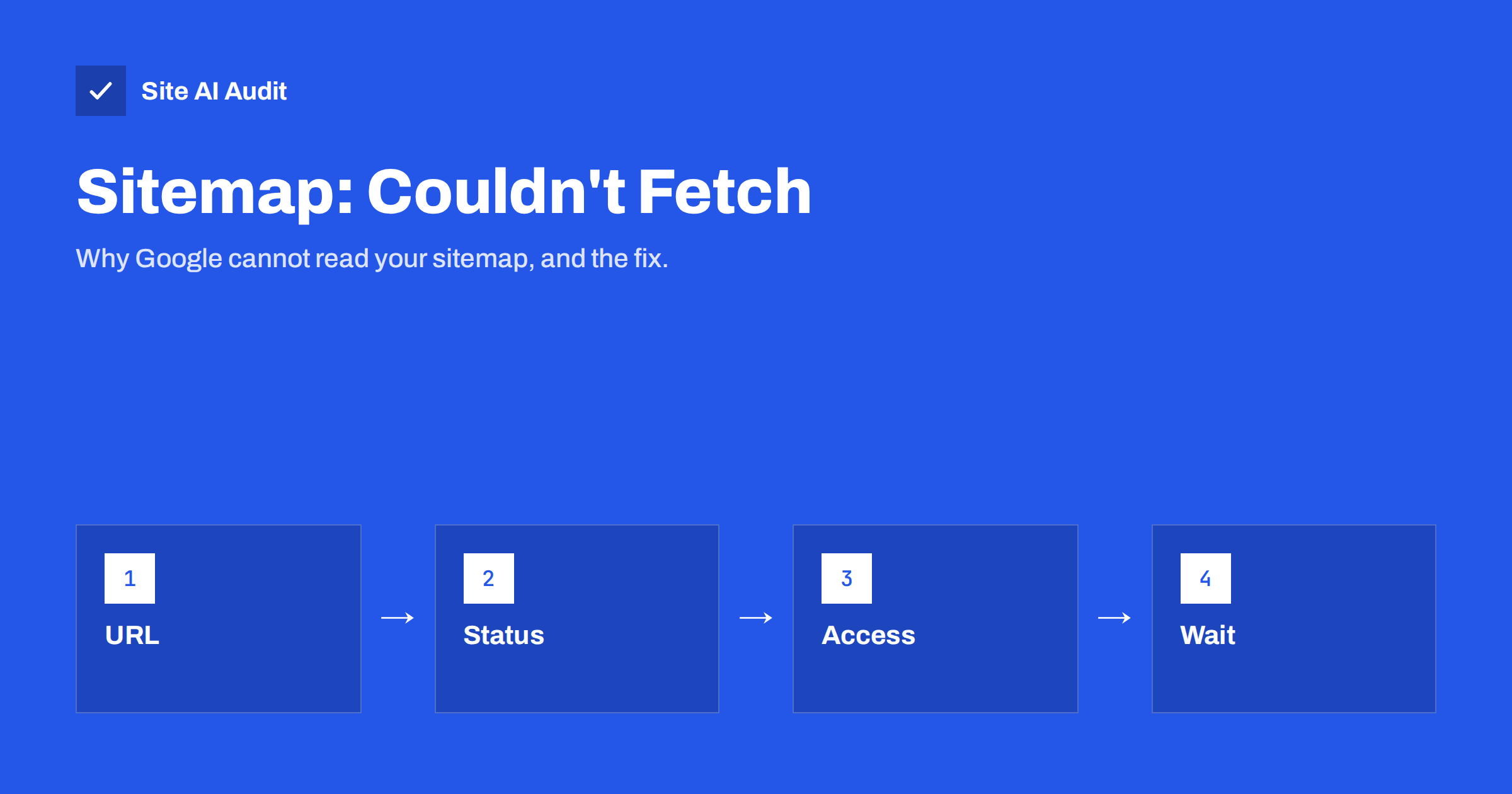
Short answer: “Couldn’t fetch” in the Search Console Sitemaps report means Google could not download the sitemap file at the address you submitted. Sometimes it is temporary and appears for a newly submitted sitemap that Google has not processed yet. If it stays, the usual causes are a wrong URL, a sitemap that does not return status 200, a robots.txt rule or firewall that blocks Googlebot, a login or redirect in the way, or a server that times out. Open the exact URL yourself, check the status code, test it with URL Inspection, then resubmit.
What “Couldn’t fetch” means
The Sitemaps report in Google Search Console lists every sitemap you submitted with a status:
- Success: Google downloaded and processed the file.
- Has errors: Google downloaded it, but parts of it could not be read, for example invalid XML or wrong URLs inside.
- Couldn’t fetch: Google could not download the file at all.
“Couldn’t fetch” says nothing about your pages themselves. Google can still find and index pages through links. But a sitemap that cannot be read loses its value: Google discovers new and changed pages more slowly, especially on large sites or sites with weak internal linking. Our XML sitemap guide explains what a sitemap does and how to create one.
First, rule out the temporary case
When you submit a sitemap for the first time, Search Console may show “Couldn’t fetch” for a while before Google has actually tried to download it. Many site owners have seen the status change to “Success” a day or two later without doing anything.
So before you change anything:
- Open the sitemap URL in a private browser window. If it loads and shows XML, the file is reachable for normal visitors.
- Note the date in the “Last read” column. If it is empty, Google may not have tried yet.
- Wait a few days. If the status is still “Couldn’t fetch” and the file opens fine for you, work through the causes below.
Do not submit the same sitemap again and again in the meantime. It does not speed things up.
Cause 1: the submitted URL is wrong
This is the most common cause, and the easiest to fix. Check the exact address in the report, character by character:
- Protocol and host. Submitting
http://when the site runs onhttps://, orwwwwhen the site uses the bare domain, adds a redirect or points to a different property. - File name. Plugins use different names:
sitemap.xml,sitemap_index.xml,wp-sitemap.xmland others. A sitemap that worked before can move when you switch SEO plugins. - Trailing slash or typo. A small difference can lead to a 404 page.
Find the real address in your SEO plugin settings or in the Sitemap: line of your robots.txt, then submit that exact URL and remove the wrong one from the report.
Cause 2: the sitemap does not return status 200
Google needs the file with HTTP status 200 and valid XML content. Check the status with an online header checker or with curl -I https://example.com/sitemap.xml. Problems to look for:
- 404 Not Found: the file does not exist at that address, often after a plugin change or migration.
- Redirects: a single redirect usually works, but chains or loops do not. See redirect chains and loops.
- 5xx errors or timeouts: very large dynamically generated sitemaps can take too long to build. Split them into several smaller files under a sitemap index, or cache them.
- An HTML page instead of XML: some themes return a styled page or a login form at the sitemap address.
A single sitemap file may contain at most 50,000 URLs and be at most 50 MB uncompressed. Larger sites need a sitemap index that lists several files, as described in Google’s sitemap documentation.
Cause 3: Googlebot is blocked
The file may open for you and still be blocked for Google. Check three places:
- robots.txt. A
Disallowrule that matches the sitemap path stops Googlebot from fetching it. Rules likeDisallow: /*.xmlor a blocked folder that contains the sitemap are typical. Our robots.txt guide shows how rules match. - Firewall, CDN or security plugin. Bot protection may challenge or block requests that look automated, including Googlebot, especially on XML files. Look at firewall logs for blocked requests to the sitemap and make sure verified search engine crawlers are allowed. Our article on controlling bad bots explains how to do that without opening the door to everything.
- Login or IP restrictions. A maintenance mode, a password-protected staging setup that became live, or an IP allowlist returns 401, 403 or a login page to Google.
Some hosts also block requests from certain countries. Googlebot crawls mostly from the United States, so a country block can make the sitemap and the whole site unreachable for it.
Test the sitemap the way Google sees it
You can check what Googlebot gets without waiting for the Sitemaps report:
- Paste the sitemap URL into the URL Inspection tool at the top of Search Console. It will report that the URL is not on Google, which is normal for a sitemap.
- Click “Test live URL”. If the live test shows that the page could be fetched, Googlebot can reach the file. If it shows a block by robots.txt, an error code or a failed fetch, you have found the cause.
- Use “View tested page” to see the HTTP response and the content Google received.
Also check the sitemap in a validator or simply view it in the browser. Invalid characters, an unescaped ampersand in a URL or a missing closing tag usually lead to “Has errors” rather than “Couldn’t fetch”, but they are worth fixing at the same time.
Fixes that work and fixes that do not
What helps:
- Submit the exact, final HTTPS address of the sitemap or sitemap index.
- Make sure the file returns 200 with XML, quickly, to anonymous requests.
- Allow verified search engine crawlers through firewalls and bot protection.
- List the sitemap in robots.txt with a full URL, so all search engines can find it.
- Remove old, wrong sitemap entries from the report so the status reflects reality.
What does not help:
- Submitting the same URL every day.
- Creating several duplicate sitemaps with different names.
- Adding the sitemap URL to the sitemap itself.
- Requesting indexing for the sitemap URL; it is not a page to index.
If the status finally changes to “Success” but the number of discovered pages is much lower than expected, the next step is the Pages report. Our guide to pages not indexed by Google covers the common reasons.
Sitemaps on WordPress and other CMS platforms
On WordPress, the sitemap usually comes from one of three places: the core sitemap at /wp-sitemap.xml, an SEO plugin, or a dedicated sitemap plugin. Problems often start when two of them are active at the same time, or when one is switched off and the old address stays in Search Console.
- Know which one is active. Most SEO plugins switch off the core sitemap when they add their own. Check the plugin settings and open both addresses to see which one returns XML.
- Clear the cache after changes. Page caching plugins and CDNs can keep serving an old sitemap, a 404 page or a redirect long after you changed the settings. Exclude sitemap files from aggressive caching, or purge them after each change.
- Check permalinks. On some servers, sitemaps generated by plugins only work after the permalink settings are saved again, because they depend on rewrite rules.
- Watch security plugins. Rules that block “suspicious” XML requests or rate-limit crawlers can block sitemaps too.
Shop systems and site builders also generate sitemaps automatically. If you cannot change the file, make sure you submit the address the platform documents and that no custom domain or redirect setup sits in front of it.
How Site AI Audit helps
Site AI Audit reads your robots.txt and sitemap the way a crawler does. It reports when no XML sitemap is found, when the sitemap is not listed in robots.txt, when robots.txt is missing or blocks the whole site, when pages hide themselves with noindex, and when internal links lead to broken pages or go through several redirects. Its crawler, SiteAuditBot, follows robots.txt, so a block that stops it is worth checking for search engines too. You can run a free check; the pricing page lists plans with re-checks and monitoring.
Related reading
- How to Set Up Google Search Console for a Small Business
- Indexed, Though Blocked by robots.txt: What It Means and Fixes
- Crawl Budget Explained: Does It Matter for Your Website?
- Website Migration SEO: How to Move a Site Without Losing Traffic
The bottom line
“Couldn’t fetch” means Google could not download your sitemap. Give a new submission a few days, then check the exact URL, the status code, robots.txt rules, firewalls and login walls, and test the address with URL Inspection’s live test. Once the file returns 200 with valid XML to Googlebot, resubmit it once and let Google process it.
FAQ
Does “Couldn’t fetch” mean my pages will not be indexed?
No. Google can still find pages through links. But without a readable sitemap, new and changed pages are often discovered more slowly, so fix the problem.
Why does my sitemap open in the browser but Google can’t fetch it?
Usually because Googlebot is treated differently: a robots.txt rule, a firewall or bot protection, a country block or a security plugin stops it. Test the URL with URL Inspection’s live test to see what Google receives.
How long should I wait after submitting a sitemap?
A new sitemap can show “Couldn’t fetch” for a day or two before Google processes it. If it does not change after several days and the file works, look for a technical cause.
Can I use URL Inspection on a sitemap?
Yes. It will say the URL is not on Google, which is normal, but the live test shows whether Googlebot can fetch the file and what response it gets.
Should the sitemap be listed in robots.txt?
It is a good idea. A Sitemap line with the full URL in robots.txt helps all search engines find it, not only Google, and documents the correct address.