ENEnglish
 LTLietuviškai
 DEDeutsch
 FRFrançais
 RUРусский
 ESEspañol
 PLPolski
 ITItaliano
 UKУкраїнська
 CSČeština
 PTPortuguês
 JA日本語
JA日本語 LVLatviešu valoda
 ETEesti
 HUMagyar
 IDBahasa Indonesia
 TRTürkçe
 HIहिन्दी
 ELΕλληνικά
 ARالعربية
 THไทย
THไทย VITiếng Việt
 RORomână
 MSBahasa Melayu
 BNবাংলা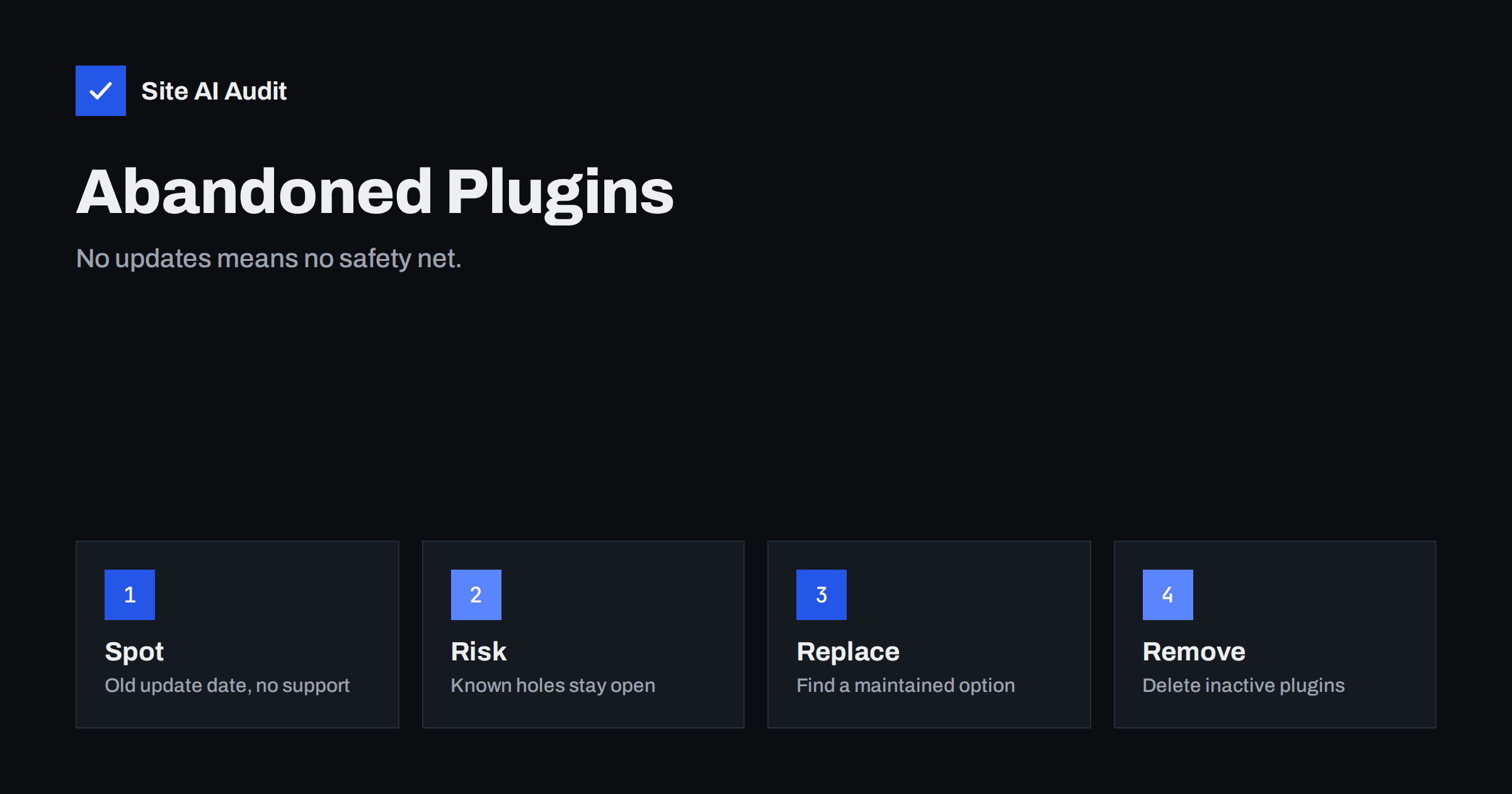
Short answer: An abandoned plugin is one whose developer no longer updates it or answers questions. When a security flaw is found in such a plugin, nobody fixes it, so the flaw stays open on every site that still uses it. Review your plugins at least every few months, look at the last update date, the supported WordPress version and the support forum, replace anything that is clearly unmaintained, and delete plugins that you do not use, even when they are switched off.
Why an abandoned plugin is a risk
Software contains mistakes, and security researchers and attackers keep finding them. A maintained plugin receives a fix when a flaw is reported, and site owners update. An abandoned plugin never gets that fix. The flaw becomes public knowledge, automated tools scan the internet for sites that run the plugin, and the site can be taken over without anyone targeting it personally.
Plugins matter because they run with the same permissions as the rest of the site. A flaw in a small contact form add-on can allow an attacker to upload files, create an administrator account or inject spam links. Recovery is covered in our guide to hacked website recovery steps, but prevention is far cheaper.
Abandonment also causes problems that are not about security: the plugin may break after a PHP or WordPress update, slow the site down, or stop working with newer features of the theme.
Signs that a plugin is abandoned
No single sign is decisive, so look at several together:
- Old last update date. On the plugin’s page in the official WordPress directory, the “Last updated” line shows when the author last released a version. WordPress also shows a notice on plugins that have not been updated in more than two years, warning that they may no longer be maintained or supported.
- “Tested up to” is far behind. If the plugin was last tested with a WordPress version from several years ago, nobody has confirmed that it still works properly.
- Unanswered support threads. Many open questions without replies, or replies saying “no longer supported”, are a clear signal.
- The plugin was closed. Plugins that the directory team closes for security or licence reasons show a closed notice and can no longer be downloaded.
- The developer’s website is gone. A dead product page or a company that stopped trading means support has ended.
- Expired licence for a premium plugin. Without a valid licence you may not receive updates, even though the plugin still runs.
- A security database lists unfixed problems. Public vulnerability databases for WordPress record flaws by plugin and version. A listing marked as having no fix is a strong warning.
An old date alone is not always a problem. A very small plugin that does one simple thing may stay unchanged for a long time and still be safe. Treat the date as a reason to look closer, not as proof.
How to review your plugins
- Make a list. In the admin area, open the plugin list and write down every plugin, active or not, with its version and purpose.
- Remove what you do not need. Switch-off is not enough; the files of an inactive plugin remain on the server, and some flaws can still be reached. Delete plugins that you have not used for months.
- Check each remaining plugin. Look at the directory page: last update, tested version, active installations, support forum activity and the changelog.
- Search for known problems. Look the plugin name and version up in a WordPress vulnerability database. Fix or replace anything with open issues.
- Check premium plugins. Confirm that the licence is valid and that updates still arrive.
- Mark the doubtful ones. Decide for each: keep, replace or remove, and set a date.
Include themes in the same review. Abandoned themes carry the same risks, and so do copies from unofficial sources. We explain the danger in the risks of nulled themes and plugins.
Keep the list in a shared document, with the date of each review and the name of the person responsible. Many sites collect plugins over the years as different people add features, and nobody remembers why a plugin is there. A short note beside each one, such as “contact form on the Contact page” or “needed for the shop shipping rules”, makes later decisions quick and prevents you from removing something that is really in use. If nobody can say what a plugin does, test the site without it on a staging copy before you delete it.
How to choose a replacement
Before you pick a new plugin, ask what you really need. Many sites run three plugins for tasks that one of them, or the theme, could handle. When you do need a plugin, favour one that:
- has been updated in the last few months and states compatibility with a recent WordPress version;
- has a good number of active installations and a responsive support forum;
- has a clear changelog that mentions security fixes;
- has an active company or developer behind it, with a documented way to report problems;
- does one job well rather than adding dozens of features you will not use.
Speed is also a factor, since heavy plugins slow every page; see how to find slow WordPress plugins.
How to replace a plugin without breaking the site
- Back up first. Take a full copy of files and database, as described in a backup strategy that works.
- Test on a copy. Install the new plugin on a staging site and check that it can do everything the old one did.
- Migrate the data. Check whether the new plugin can import settings, forms, entries or products from the old one. If not, plan the manual work.
- Switch over at a quiet time. Deactivate the old plugin, activate the new one, and test the main paths: forms, checkout, search and the pages that used the old plugin’s shortcodes.
- Delete the old plugin. Remove it completely, and clean up leftover settings or tables only when you are sure they are not needed.
The same careful approach is part of a safe website update strategy.
What if you cannot replace it yet?
Sometimes a plugin is deeply built into the site and replacing it takes weeks. In the meantime you can reduce the risk:
- limit who has an administrator account and turn on two-factor sign-in;
- keep tested backups so that you can recover quickly;
- add a web application firewall or a service that protects against known plugin attacks;
- watch for signs of trouble, such as new admin users or unfamiliar files; the article on signs that a website has been hacked lists them.
These measures lower the risk but do not remove it. Set a firm deadline for the replacement.
Keep the habit
Put a plugin review in the calendar every quarter, and after every major WordPress release. Update promptly, because many attacks target flaws that were fixed weeks earlier. Our WordPress security checklist and small business website security guide show where this fits into the wider routine.
Also pay attention to automatic updates. For small, well-known plugins, turning on automatic updates can close a hole within hours of a fix being released, while a manual monthly routine may leave it open for weeks. For plugins that handle payments or complex layouts, many owners prefer to test updates first on a copy. Choose the approach per plugin, and write it down in your list so the decision is clear.
What Site AI Audit can and cannot tell you
Site AI Audit does not list your installed plugins or read your admin area, so it cannot tell you which plugin is abandoned. It does look at the visible outside of the site: the SSL certificate and its expiry, the redirect to HTTPS, security headers and exposed software versions. Exposed versions are a clue that your stack is easy to fingerprint. Run a free check of your website, and use the paid plans for weekly monitoring and alerts.
Related reading
- Outdated JavaScript Libraries: Why Old jQuery Is a Risk
- Website Security Audit Checklist: What to Check and in What Order
- WordPress User Enumeration: What It Reveals and How to Stop It
The bottom line
Plugins that no longer receive updates are one of the most common ways that WordPress sites get into trouble. Review your list regularly, remove what you do not use, check the update date, tested version and support activity of what remains, and replace unmaintained plugins using a backup and a test copy. A short review each quarter is far cheaper than cleaning up a hacked site.
FAQ
How do I know if a WordPress plugin is abandoned?
Check its page in the plugin directory for the last update date, the tested WordPress version and the activity in the support forum. A notice about no updates in over two years, unanswered questions and a dead developer site are strong signs.
Is a deactivated plugin still a risk?
Yes. The files stay on the server, and some vulnerabilities can be reached even when the plugin is inactive. Delete plugins that you do not use rather than only switching them off.
How often should I review my plugins?
Every three months is a sensible routine for a business site, and again after major updates or when a plugin shows a problem. Update plugins as soon as fixes are released.
Can I keep using an old plugin if it still works?
It may work, but it is risky if it is no longer maintained. Plan a replacement, and meanwhile reduce exposure with backups, strong logins and a firewall. Simple, tiny plugins carry less risk than large ones.
Where can I find known vulnerabilities in plugins?
Public WordPress vulnerability databases list flaws by plugin name and version, and security plugins often alert you about them. Search for the plugin and version you use, and see whether a fix is available.