ENEnglish
 LTLietuviškai
 DEDeutsch
 FRFrançais
 RUРусский
 ESEspañol
 PLPolski
 ITItaliano
 UKУкраїнська
 CSČeština
 PTPortuguês
 JA日本語
JA日本語 LVLatviešu valoda
 ETEesti
 HUMagyar
 IDBahasa Indonesia
 TRTürkçe
 HIहिन्दी
 ELΕλληνικά
 ARالعربية
 THไทย
THไทย VITiếng Việt
 RORomână
 MSBahasa Melayu
 BNবাংলা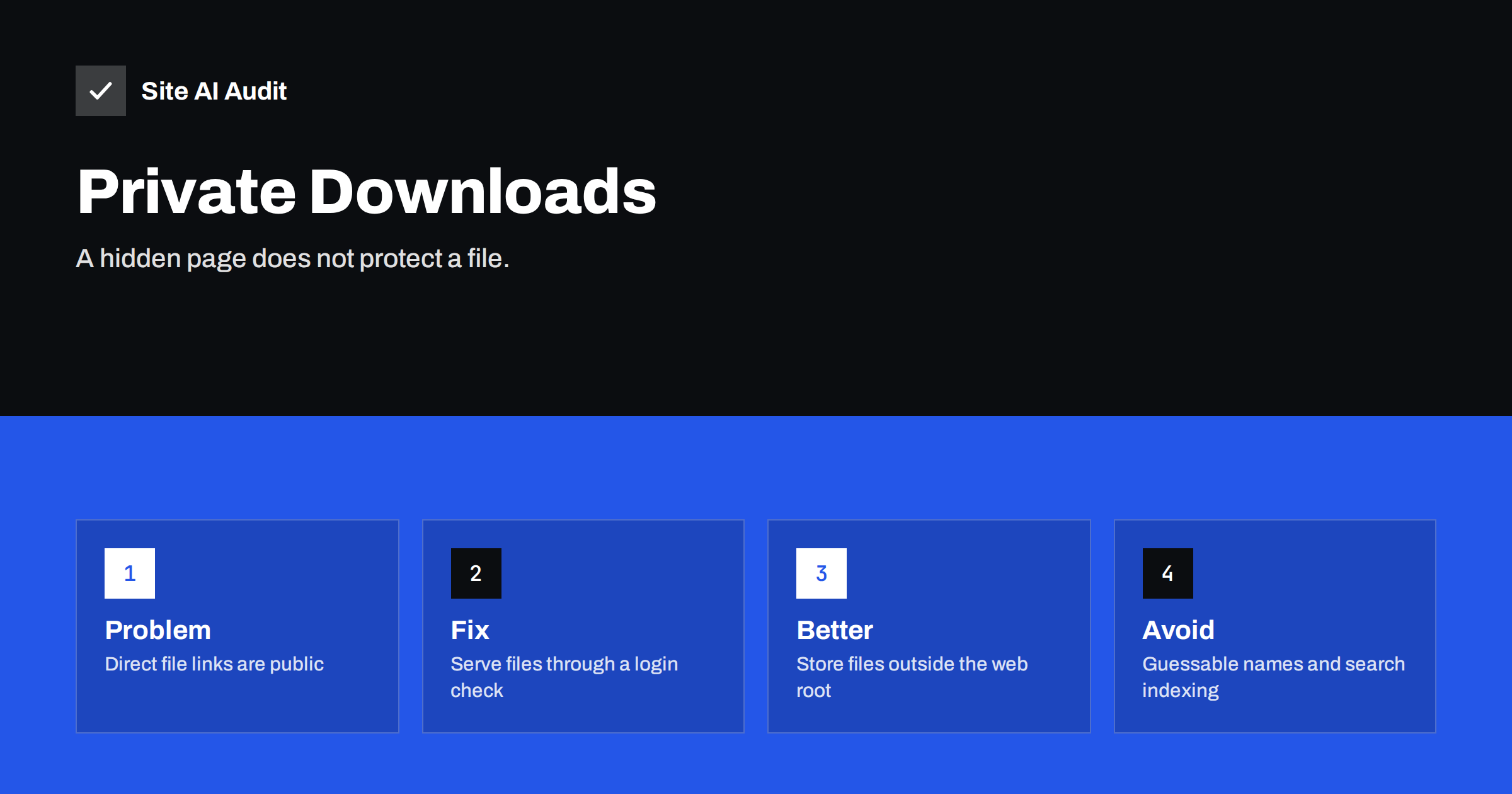
Short answer: A file that you upload to WordPress is normally stored in the public uploads folder, and anyone who has or guesses its address can download it, even if the page that links to it is hidden behind a login. To protect private downloads, keep the files out of the public folder or block direct access, and deliver them through a script that first checks who is asking. Do not rely on a secret-looking name or on a hidden page.
Why a protected page does not protect the file
Many site owners build a members-only page, place download links on it and assume the files are safe. The page is protected, but the file is not. WordPress saves uploaded files under /wp-content/uploads/, organised by year and month, and the web server delivers them directly, without asking WordPress whether the visitor is logged in.
That means a person who learns the address of a file can download it without logging in. They can learn it in many ways: a member shares the link, a browser history is exposed, a link is pasted into a chat or a forum, or a search engine indexes the file. The page was never the lock. It was only a door that leads to an unlocked room.
How private files leak in practice
Real leaks usually come from ordinary events, not from clever attacks. Typical paths include:
- Search engines. If a file is linked anywhere public, even once, crawlers can find and index it, and the contents may appear in search results.
- Guessable addresses. The uploads folder has a predictable structure. Names such as invoice-2025.pdf or price-list.pdf are easy to try.
- Shared links. A customer forwards a download address to a colleague or posts it in a public place.
- Folder listing. If a server shows the contents of a folder, an attacker simply browses it. See our guide to disabling directory listing.
- Leftover files. Old test uploads, backups and exports stay in the folder for years. Our article on exposed environment, git and backup files shows how often this happens.
Once a file is indexed or copied, taking the link away does not undo the exposure.
What counts as private
Before changing anything, make a list of what really needs protection. Typical examples are paid digital products, course materials for members, client reports, contracts, invoices, personal documents uploaded by customers and internal files. A brochure that you want people to find is not private, and protecting it only adds work.
The more sensitive the content, the stronger the method should be. A free members-only guide may need only a login check. A scanned passport or a medical document needs much more: access control, encryption where possible, a short retention time and a careful look at whether you should store it on the website at all.
Think about the people who are affected as well. If a file contains personal data about customers or staff, a leak is not only embarrassing but may also create legal duties, such as informing the people concerned. Knowing early which files carry that risk helps you decide how much effort the protection deserves.
Method one: keep files outside the public folder
The strongest basic approach is to store private files in a folder that the web server does not publish, outside the public web root, or in a protected storage area. A file in such a place has no address on the internet, so nobody can request it directly. Your site delivers it only through code that you control.
The code checks the visitor first. It confirms that the person is logged in, has the right role and, for personal files, owns that file. If the answer is yes, the script sends the file to the browser, and if not, it returns an error. Several well-maintained plugins for WordPress and for online shops handle this, and developers can build the same logic in a few dozen lines. Keep it simple and test with a logged-out browser.
Plan what happens to old files. A member who cancels should lose access, and a file that is no longer needed should be removed on a schedule. Private storage that is never cleaned becomes a growing pile of documents that nobody remembers, and every extra file is something that could leak later.
Method two: block direct access to a protected subfolder
If moving the files is not possible, you can keep them in a dedicated subfolder of the uploads folder and add a server rule that denies direct access to it. Requests then go through a plugin or a script that checks permissions and serves the file. Rules for Apache can be placed in a configuration file, and Nginx needs an equivalent setting in the server block. The details depend on your hosting, so ask your provider or developer if you are unsure.
Test the result carefully: request a file address directly while logged out, and confirm that the server denies it. Check that the download still works for a logged-in member. Also check that the rule survives updates and a change of host. A rule that is silently lost during a migration leaves the files open again, so add it to your checklist for site moves.
Method three: temporary signed links
For files that must be shared outside the site, for example a download for a customer who has no account, use time-limited links. The link contains a signature that proves it was issued by your system, and it expires after minutes or hours. Even if the address is forwarded or leaked, it stops working soon.
Cloud storage services and many download plugins support this approach. Choose a short expiry that fits the use, and a limit on the number of downloads where appropriate. Avoid permanent links in emails for sensitive files. A person who gets the email next month, or a colleague who forwards it, should not gain access for ever.
Keep protected files out of search results
Private files should never be indexed. Public files that you simply do not want in search results can be controlled with a header. Our guide to the X-Robots-Tag header shows how to send a noindex instruction for PDFs and other non-HTML files, and our PDF SEO guide explains when a PDF should rank at all.
The noindex header is a safety net, not a lock. It asks search engines to stay away, but it does not stop a person who has the link. For truly private material, access control comes first, and the header is an extra layer.
Watch the other weak points
Protecting the download is only part of the picture. Check that the script that serves files cannot be tricked into reading other files, a weakness described in our article on path traversal attacks. Make sure that one customer cannot open another customer’s file by changing a number in the address, the kind of flaw covered in broken access control. Review which accounts may upload and who may download, using the principle in least-privilege user roles.
If you let visitors upload files, validate type and size and do not allow the server to run them, as explained in our guide to unrestricted file upload risks. Finally, if a content delivery network sits in front of your site, make sure private responses are not stored and served to other people from its cache.
Finish with a short test routine. Once a quarter, pick three private files, try to open them while logged out, while logged in as a different member and from a search engine query. If any of the three attempts succeeds, you have found a gap before a stranger did.
How Site AI Audit helps
Site AI Audit checks the security basics of your website from the outside: the SSL certificate and its expiry, the HTTP to HTTPS redirect, security headers and exposed software versions. It does not test your download protection or look inside your uploads folder, so use the manual checks above for that. It will tell you whether your site is delivered over a valid HTTPS connection, which protects files in transit. You can run a free check of your website or see the plans.
Related reading
- Uploads Folder Security: How to Block PHP Execution
- File Permissions on a Web Server: Safe Settings Explained
- Website Security Audit Checklist: What to Check and in What Order
- WordPress Security Checklist: 20 Steps That Actually Matter
The bottom line
A hidden page is not a locked file. Decide which files are really private, keep them out of the public uploads folder or block direct access, deliver them through a login check or a short-lived signed link, and keep them out of search results. Test with a logged-out browser, and your private downloads will stay private.
FAQ
Are files in WordPress uploads private if the page is password protected?
No. Password protection covers the page, not the files. Anyone with the direct file address can download the file.
Can search engines find my private PDF?
Yes, if the file is linked publicly or its address becomes known. Control access first, and use a noindex header as an extra layer.
Do I need a plugin to protect downloads?
Not always, but a well-maintained plugin is the easiest route for most small sites. A developer can also build the check directly.
Is a long random file name enough?
No. A random name makes guessing hard, but a leaked or shared link still works for ever. Combine it with access control.
How do I test that my files are protected?
Open the direct file address in a private browser window while logged out. You should get an error, not the file.