 ENEnglish
 LTLietuviškai
 DEDeutsch
 FRFrançais
 RUРусский
 ESEspañol
 PLPolski
 ITItaliano
 UKУкраїнська
 CSČeština
 PTPortuguês
 JA日本語
JA日本語 LVLatviešu valoda
 ETEesti
 HUMagyar
 IDBahasa Indonesia
 TRTürkçe
 HIहिन्दी
 ELΕλληνικά
 ARالعربية
 THไทย
THไทย VITiếng Việt
 RORomână
 MSBahasa Melayu
 BNবাংলা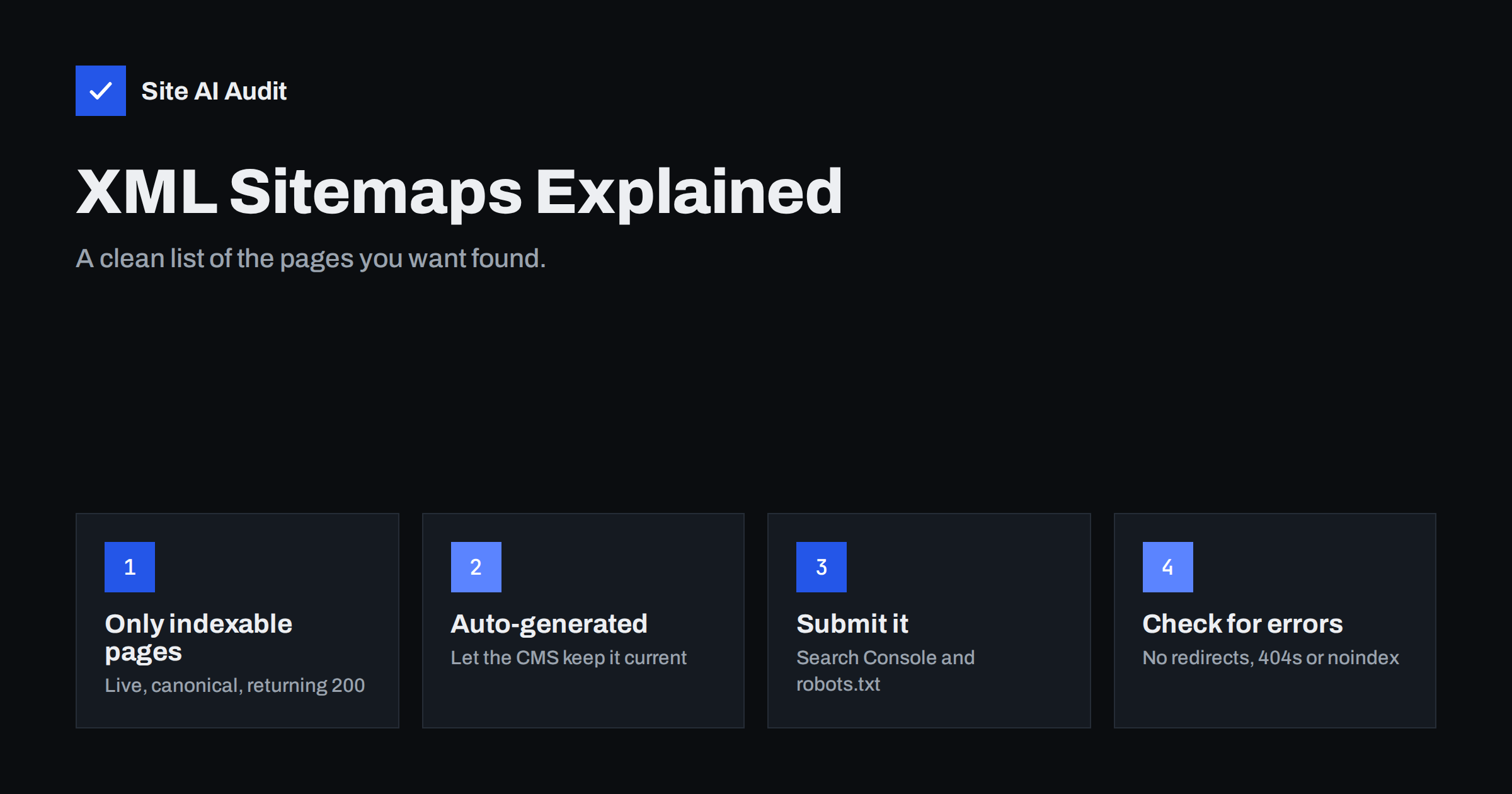
Short answer: An XML sitemap is a file that lists the URLs you want search engines to find and index. It helps discovery, especially on new, large or poorly linked sites, but it does not guarantee indexing. A good sitemap is generated automatically, contains only live, canonical, indexable pages that return a 200 status, and is submitted in Google Search Console and referenced in robots.txt.
What an XML sitemap is
An XML sitemap is a machine-readable list of pages on your website. It usually lives at an address such as /sitemap.xml or /sitemap_index.xml and looks like this:
<url><loc>https://example.com/bookkeeping-services/</loc><lastmod>2026-05-14</lastmod></url>
Each entry contains the full URL of a page and, optionally, the date it was last modified. The format is defined by the sitemaps protocol that all major search engines support. It is not meant for people; that is what an HTML sitemap page or a good menu is for.
Think of the XML sitemap as a delivery note you hand to search engines: “these are the pages I consider important and ready to be indexed.” Search engines still decide for themselves what to crawl and index, but a clean list makes their job easier and shows them pages they might otherwise miss.
Do you need a sitemap?
Search engines primarily discover pages by following links. If your site is small, every page is linked from the menu, and the site has existed for a while, search engines will likely find everything without a sitemap. Even so, a sitemap costs almost nothing and helps in many common situations:
- New websites with few or no links from other sites.
- Large websites, such as shops with thousands of products, where some pages sit deep in the structure.
- Sites with weak internal linking, where some pages are reachable only through search or filters.
- Sites that change often, where new pages should be found quickly.
- Sites with media or news content, which can use dedicated image, video or news sitemaps.
Google’s sitemap overview describes these situations and the supported formats. For almost every business website, the practical answer is simple: yes, have one, and keep it clean.
What belongs in a sitemap and what does not
The most important rule is that a sitemap should only list pages you actually want in search results. Every URL in it should be:
- Aktif, returning a 200 status code, not a 404 or a server error;
- Final, not redirecting anywhere else;
- Canonical, meaning it is the preferred version of the page, not a duplicate that points elsewhere with a canonical tag;
- Indexable, without a noindex tag and not blocked by robots.txt;
- Valuable, a real page with content you would be happy for a customer to land on.
Pages that usually should not be in the sitemap include:
- thank-you pages, cart, checkout and account pages;
- internal search results;
- filtered or sorted versions of category pages with URL parameters;
- tag or author archives that you have set to noindex;
- test pages, staging URLs and old drafts;
- attachment pages that only show a single image.
When a sitemap lists pages that redirect, return errors or are marked noindex, it sends mixed signals: you ask search engines to index a page and then tell them not to. Search engines cope, but they may trust the sitemap less, and the reports become harder to read.
How to create an XML sitemap
You almost never need to write a sitemap by hand. The usual options are:
- Your CMS. WordPress has generated a basic sitemap at
/wp-sitemap.xmlsince version 5.5. Most SEO plugins replace it with their own, more configurable sitemap, often at/sitemap_index.xml. Shopify, Wix and Squarespace create a sitemap automatically at/sitemap.xml. - Plugin or module settings. Use the settings to exclude content types you do not want indexed, such as tags or attachment pages. Excluding a content type from the sitemap should go together with a noindex setting if you do not want it in search at all.
- A generator for static or custom sites. Custom-built sites should generate the sitemap from the database or build process so it updates automatically whenever pages change.
A few technical limits apply. One sitemap file can hold up to 50,000 URLs or 50 MB uncompressed. Larger sites split their URLs across several files and list those files in a sitemap index. Most CMS tools do this automatically, often with one file per content type.
About the optional fields: lastmod is useful if it is accurate, meaning it changes only when the page content really changes. Google has said it ignores the priority and changefreq fields, so there is no need to tune them.
How to submit your sitemap
Once your sitemap exists, tell search engines where it is:
- Google Search Console. Open the Sitemaps report, enter the sitemap URL and submit. Search Console then shows when it was read, how many URLs were discovered and whether there were errors.
- Bing Webmaster Tools. Submit the same URL there. Bing’s index also feeds several other search services.
- robots.txt. Add a line such as
Sitemap: https://example.com/sitemap_index.xmlto your robots.txt file. Any crawler that reads robots.txt can then find the sitemap without a manual submission.
You only need to submit once. Search engines re-read the sitemap on their own schedule. Resubmitting the same sitemap every day does not speed anything up.
Common sitemap errors and how to fix them
Sitemap problems are among the most frequent findings in technical audits. The typical ones:
- No sitemap at all, or not referenced anywhere. Create one through your CMS or plugin and add it to robots.txt and Search Console.
- URLs that redirect. Often caused by HTTP instead of HTTPS, www instead of non-www, or missing trailing slashes. The sitemap should list the exact final URL.
- URLs that return 404. Deleted pages that the sitemap still lists, usually in hand-made or outdated static sitemaps. Switch to an automatically generated sitemap.
- Noindex pages listed. Pages marked noindex in the SEO plugin but still included in the sitemap. Exclude them or reconsider the noindex.
- Blocked by robots.txt. Either the sitemap file itself or the URLs in it are disallowed. Remove the conflicting rule.
- Staging or old domain URLs. After a migration, some sitemaps still list the development or old domain. Regenerate the sitemap on the live site.
- Several competing sitemaps. A theme, a plugin and the CMS core all generate their own. Keep one and disable the others.
- Invalid XML. A stray character or a PHP warning printed before the XML can make the whole file unreadable. Open the sitemap in a browser; if it shows an error instead of a list, the file needs fixing.
Reading the Sitemaps report in Search Console
After you submit a sitemap, Search Console shows a status for it. “Success” means the file was read. “Couldn’t fetch” usually means the address is wrong, the server blocked the request or the file was temporarily unavailable. “Has errors” points to invalid XML or unsupported entries.
The more useful view is the page indexing report filtered by that sitemap. It shows how many of the submitted URLs are indexed and why the rest are not. A few reasons deserve attention:
- “Page with redirect” or “Not found (404)” means the sitemap lists URLs it should not.
- “Excluded by noindex tag” means the sitemap and your indexing rules disagree.
- “Duplicate, Google chose different canonical” suggests the listed URL is not the version Google prefers.
Filtering by sitemap is a good reason to split a large sitemap by content type: you can immediately see whether products, categories or articles have the lowest share of indexed pages.
What a sitemap cannot do
It is easy to expect too much from a sitemap. A sitemap:
- does not guarantee that listed pages will be indexed;
- does not improve rankings on its own;
- does not replace internal links, which remain the main way search engines understand how important each page is;
- does not override noindex tags, canonical tags or robots.txt rules.
If important pages listed in the sitemap are “Discovered – currently not indexed” or “Crawled – currently not indexed” in Search Console, the sitemap has done its job. The page was found; the decision not to index it is about quality, duplication or internal linking, not about the sitemap.
How Site AI Audit checks your sitemap
Site AI Audit reads your robots.txt and sitemap early in every check, before crawling your pages. Its SEO section covers the sitemap, robots.txt and noindex rules, so it can point out problems such as a missing sitemap or pages that are hidden from search engines, together with a plain-language explanation of how to fix them. Start a free check to see how your sitemap and indexing rules look.
Related reading
The bottom line
An XML sitemap is a simple, low-effort way to help search engines find your important pages. Let your CMS generate it automatically, include only live, canonical, indexable URLs, submit it in Search Console and reference it in robots.txt. Then check it regularly for redirects, errors and noindex pages, and remember that internal links still do most of the work.
FAQ
Where is my website’s sitemap?
Try /sitemap.xml, /sitemap_index.xml or /wp-sitemap.xml on your domain. You can also open /robots.txt, which often contains a Sitemap line with the exact address.
Does a sitemap help my site rank higher?
Not directly. A sitemap helps search engines discover and recrawl pages, which is a precondition for ranking. How well pages rank depends on their content, relevance and many other factors.
How often should the sitemap be updated?
It should update automatically whenever you publish, change or delete a page. Automatically generated sitemaps from your CMS or SEO plugin handle this without any manual work.
Should I include images in my sitemap?
For most sites it is not necessary, because search engines find images on the pages themselves. Image sitemaps help mainly when images are important for traffic and loaded in ways crawlers may miss.
Is an HTML sitemap the same as an XML sitemap?
No. An HTML sitemap is a page for visitors that lists links to sections of the site. An XML sitemap is a file for search engines. A small site with a clear menu rarely needs an HTML sitemap.


