ENEnglish
 LTLietuviškai
 DEDeutsch
 FRFrançais
 RUРусский
 ESEspañol
 PLPolski
 ITItaliano
 UKУкраїнська
 CSČeština
 PTPortuguês
 JA日本語
JA日本語 LVLatviešu valoda
 ETEesti
 HUMagyar
 IDBahasa Indonesia
 TRTürkçe
 HIहिन्दी
 ELΕλληνικά
 ARالعربية
 THไทย
THไทย VITiếng Việt
 RORomână
 MSBahasa Melayu
 BNবাংলা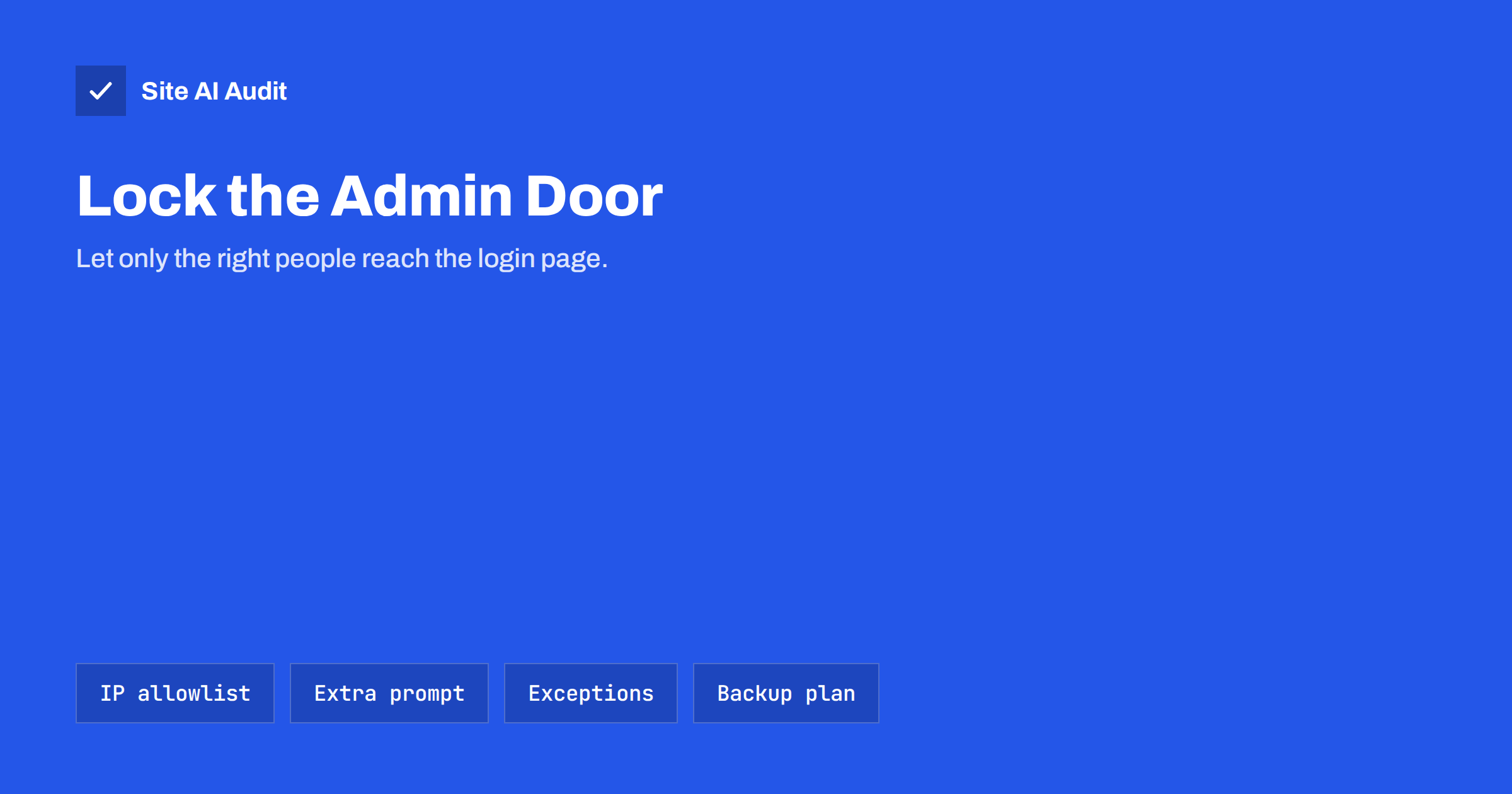
Short answer: You can put a second lock in front of your admin area at the web server, before your CMS even loads. An IP allowlist lets only chosen addresses reach the login page, and an extra password prompt (HTTP basic authentication) asks for a separate username and password first. Both stop bots and stolen passwords from reaching the real login, but you must plan exceptions and a way back in.
Why a second lock helps
The login page of a website is public by design. Anyone can open it, and automated programs do so all day, trying common passwords, leaked credentials and known weaknesses. Strong passwords and two-step verification, as covered in two-factor authentication for website owners, protect the account. They do not stop the flood of requests, which waste server time and give attackers unlimited chances to look for a hole.
A restriction at the web server level works earlier. The request is stopped before the CMS, the plugins and the database get involved. Even if a plugin on the login screen has a security flaw, the attacker cannot reach it. This adds a layer of defence without changing the site itself, and it is cheap compared with the damage from a stolen admin account.
It is not a replacement for good habits. Think of it as a second lock on the door, next to the one you already have.
Option one: an IP allowlist
With an allowlist, the server accepts requests to the admin area only from addresses that you name, such as your office, your home connection or your company VPN. Everyone else receives an error before they see anything.
On an Apache server, a rule placed in the .htaccess file of the admin folder can look like this, using the sample address 203.0.113.10:
<RequireAny>
  Require ip 203.0.113.10
</RequireAny>
On nginx, the same idea uses allow and deny lines in the location block for the admin path. Hosting control panels and security plugins often offer the same thing as a setting. The exact syntax depends on your server and version, so follow your host’s documentation and test on a copy first.
The strengths of this method are that it is invisible to authorised users and very strong against bots. The weakness is that home connections often have dynamic addresses that change, so someone who works from several places or travels will be locked out. A fixed address from the internet provider, or a VPN with a fixed exit address, solves most of these cases.
Option two: an extra password prompt
HTTP basic authentication makes the server ask for a username and password in a browser dialog before it shows anything. These credentials are separate from your CMS accounts and are stored in a password file on the server. Many hosts create this for you in the control panel under a name such as “password protected directories”.
- Works from anywhere. You do not need a fixed address, so it suits people who move around.
- Stops anonymous scanning. Without the credentials, the server returns an authentication error, and no CMS page is shown.
- Use only over HTTPS. The browser sends the credentials in an easily decoded form, so a secure connection is essential.
- Use a strong, unique password. Treat it as seriously as the real login, and store it in a password manager, as in password managers for website teams.
The two options can be combined: for example, allow your office address without a prompt and require the password from everywhere else.
Plan the exceptions
This is where most problems start. Some parts of an admin path serve public features, and blocking them breaks the site for visitors.
- WordPress and admin-ajax.php. The file /wp-admin/admin-ajax.php is used by public features, such as forms, filters and live search on many themes. Blocking the whole /wp-admin folder can break them. Allow that one file, as discussed in admin-ajax.php high usage.
- Login for customers. If visitors log in to buy or to read members’ content, do not lock the login page that they use. Limit only the administrator panel, or use a different protection for the public login, like login brute-force protection.
- Background services. Payment notifications, mobile apps, backup tools, uptime monitors and the REST API may call admin-related addresses. Test each of them.
- Preview and staging. A password prompt is a good way to keep a test copy private, see staging sites indexed by Google.
List every integration before you start, apply the rule, and then test each one. A rule that works on your laptop but breaks the shop’s payment callback is worse than no rule.
Think also about who holds the credentials. A shared prompt password known to five people, two of whom have left, is a weak lock. Give each person their own entry in the password file where your server allows it, and remove entries when people leave, just as you would for a user account on the site itself.
Other admin areas to protect
The same approach applies beyond the CMS login. Database tools, hosting panels, installers and monitoring dashboards deserve the same treatment. Setup pages that remain after installation are a common weak point, covered in default passwords and setup pages. Protecting these with an allowlist or a prompt costs minutes.
Avoid locking yourself out
- Test in a private window first, while you still have a working session in another browser.
- Keep a copy of the original file so you can restore it quickly. A mistake in a server rule can take the whole site down, not just the admin area.
- Know your recovery route. File access through your host’s panel or SFTP lets you remove the rule, even when the website will not open.
- Add every address you really use, including a backup connection such as a mobile hotspot, if the address is stable enough.
- Watch for proxies and CDNs. If your site sits behind one, the server may see the proxy’s address, not the visitor’s. Configure the real-address header correctly, or the rule will block everyone, or allow everyone.
- Document the rule. Write down what it does and who to ask, so that a new colleague does not break it by accident.
What this does not do
An extra lock at the front does not protect against everything. If an attacker already runs code on your site through a vulnerable plugin, or steals a session from an allowed computer, the restriction does not help. Keep software updated, limit user roles as in least privilege for website user accounts, and review the other items in the WordPress security checklist. For general traffic control, see web application firewalls and rate limiting.
Also check your access logs after the change. If the rule works, you should see far fewer requests to the login path reach the CMS, and a steady number of blocked attempts at the server, as explained in reading access logs to spot attacks.
A safe rollout in five steps
- Take a backup of the site and of the server configuration files you are about to change. The advice in website backup strategy applies here.
- Choose the method that fits how you work: an allowlist for fixed addresses, a prompt for people on the move, or both.
- Apply it on a test copy or at a quiet hour, with a second browser session still logged in.
- Test everything that matters: the admin login, a contact form, the shop checkout, search, a backup run and any mobile app or monitor that talks to the site.
- Record and review. Note the date and the rule. Review it when staff change, when an office moves or when you switch hosting, because addresses and paths change with them.
Most owners find that the whole job takes less than an hour, and that the quieter logs afterwards are a visible benefit. If your host offers this as a ticked option in the control panel, prefer that to hand-written rules, because the host keeps the syntax up to date for the server in use.
How Site AI Audit helps
Site AI Audit does not test your login page or your server rules. It checks the outside of your website for related basics: SSL certificate and expiry, the HTTP to HTTPS redirect, security headers and exposed software versions, along with SEO, speed and e-mail authentication. The first check is free, covers up to 50 pages and needs no sign-up. You can run a free check of your website or see the plans, where weekly monitoring sends e-mail alerts when something breaks.
Related reading
- wp-config.php Security: How to Protect and Harden It
- WordPress User Enumeration: What It Reveals and How to Stop It
- WordPress xmlrpc.php: What It Does and When to Disable It
- Uploads Folder Security: How to Block PHP Execution
The bottom line
An IP allowlist or an extra password prompt keeps the admin area out of reach of bots before your CMS even starts. Use an allowlist when your addresses are stable, a password prompt when they are not, make exceptions for features that need public access, and always keep a recovery route. It is a strong extra layer, but only an addition to updates, strong passwords and two-step verification.
FAQ
Is restricting wp-admin by IP safe for WordPress?
Yes, if you leave admin-ajax.php available for public features and test forms, shops and integrations after the change.
Which is better: IP allowlist or basic authentication?
The allowlist is smoother when your address is fixed. Basic authentication works from any place. You can combine them.
Does basic authentication replace my CMS password?
No. It adds a second login in front of it. Keep a strong password and two-step verification on the CMS account too.
What if my IP address changes?
You may be locked out. Use a fixed address or VPN, or choose a password prompt, and keep file access to the server for recovery.
Will it affect SEO?
Not if you protect only the admin paths. Public pages remain open, so search engines can still crawl them normally.