 ENEnglish
 LTLietuviškai
 DEDeutsch
 FRFrançais
 RUРусский
 ESEspañol
 PLPolski
 ITItaliano
 UKУкраїнська
 CSČeština
 PTPortuguês
 JA日本語
JA日本語 LVLatviešu valoda
 ETEesti
 HUMagyar
 IDBahasa Indonesia
 TRTürkçe
 HIहिन्दी
 ELΕλληνικά
 ARالعربية
 THไทย
THไทย VITiếng Việt
 RORomână
 MSBahasa Melayu
 BNবাংলা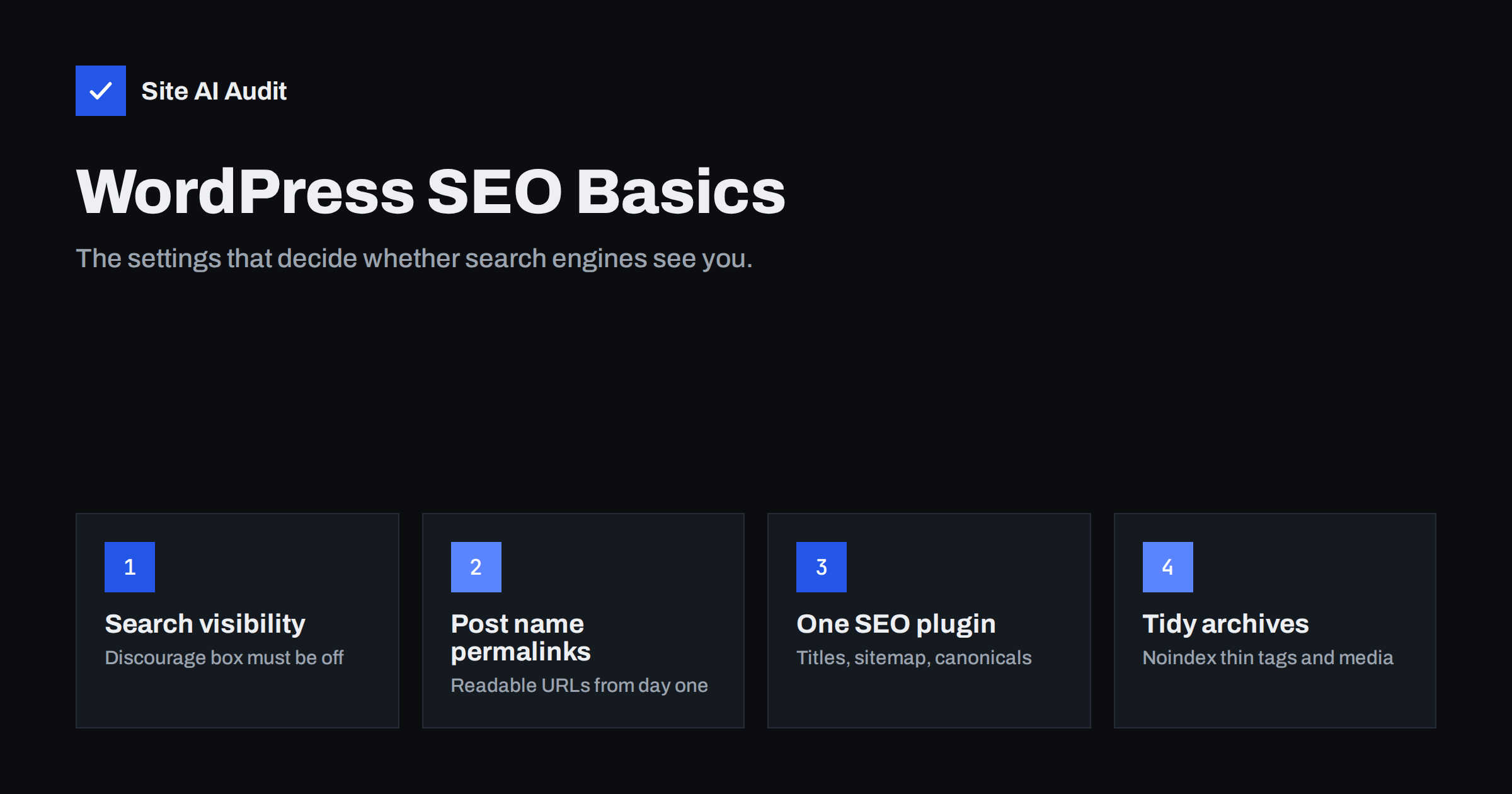
Short answer: WordPress is search-friendly out of the box, but a few settings decide whether that potential is used. Make sure “Discourage search engines” is off, set permalinks to “Post name”, install one SEO plugin to manage titles, descriptions, canonicals and the XML sitemap, noindex thin archives and attachment pages, and keep the theme’s heading structure clean. Then maintain it: update carefully, remove unused plugins and re-check after every major change.
Why WordPress needs a settings review
WordPress powers a large share of the web, and search engines crawl WordPress sites every day without trouble. It produces clean HTML, handles basic canonical tags and, since version 5.5, generates a simple XML sitemap. Out of the box, it is a good foundation.
The problems come from defaults that suit a blog but not a business site, settings left over from development, themes that output poor heading structures, and plugins that overlap. None of them are difficult to fix, but they are easy to overlook because the site looks fine to visitors. The checks below take less than an hour on most sites.
1. Search engine visibility
Go to Settings › Reading and look at “Search engine visibility”. If “Discourage search engines from indexing this site” is ticked, WordPress asks search engines not to index the site. This box is often ticked during development and forgotten at launch.
Untick it on the live site. On staging sites, keep it ticked, but also protect staging with a password, because the setting is only a request and staging copies can still be found.
While you are there, check the homepage setting. Business sites usually show a static page as the homepage and a separate page for blog posts.
2. Permalinks
Under Settings › Permalinks, choose “Post name”. This produces readable URLs like /winter-tyre-storage/ instead of /?p=123 or date-based paths that make evergreen content look old.
Set this before publishing content if you can. Changing permalinks on an established site changes every post URL. WordPress redirects some old formats automatically, but not all, so a change on a live site needs a redirect plan and testing.
When writing posts and pages, edit the slug to keep it short and descriptive. WordPress generates slugs from titles, which can produce long URLs full of filler words.
3. Choose one SEO plugin
WordPress core does not provide fields for custom titles and meta descriptions, and its sitemap is basic. An SEO plugin fills these gaps. Several well-known plugins do the job; which one you pick matters less than:
- Using only one. Two SEO plugins, or an SEO plugin plus a theme with its own SEO features, often output duplicate titles, descriptions, canonicals and structured data.
- Configuring it. Default settings are a start, but review titles templates, content types, archives and sitemaps as described below.
- Using its per-page fields for titles and descriptions on important pages.
After installing, check the source of a page and search for <title>, name="description" and rel="canonical". Each should appear exactly once.
4. Titles and meta descriptions
In your SEO plugin, set title templates for each content type, such as “Post title | Site name”. Then write custom titles and descriptions for the pages that matter most: home, services, main categories, top products and key guides.
- Every title should be unique and start with the page’s main topic.
- The home page title should state what the business does, not just “Home”.
- Descriptions should summarise what the visitor gets, in about 120 to 160 characters.
5. Archives, tags and attachment pages
WordPress creates several kinds of automatic pages. Some are useful; others produce thin or duplicate pages:
- Category archives can be valuable if categories are well organised. Keep them indexable and add a short introduction to important ones.
- Tag archives are often thin, with one or two posts each. Either use tags sparingly and meaningfully, or set tag archives to noindex.
- Author archives on a single-author site duplicate the main blog listing. Noindex or disable them.
- Date archives rarely have search value. Noindex or disable them.
- Media attachment pages are pages WordPress can create for each uploaded image, with little more than the image. Most SEO plugins can redirect them to the file or parent post. Make sure this is enabled.
Exclude noindexed content types from the XML sitemap too, so the sitemap and your indexing rules agree.
6. The XML sitemap
WordPress core provides /wp-sitemap.xml, and most SEO plugins replace it with their own, often at /sitemap_index.xml. Make sure only one is active and that it:
- lists posts, pages, products and useful categories;
- excludes noindexed types such as tags or attachments;
- uses the live HTTPS domain, not a staging address;
- is submitted in Google Search Console and referenced in robots.txt.
7. Theme structure and headings
Themes decide much of the HTML. Check a few pages for:
- One H1 per page, containing the page or post title. Some themes wrap the logo or site name in an H1 on every page.
- Headings used for structure, not styling. Widget titles in sidebars and footers marked as H2 or H3 clutter the outline.
- Real text, not text baked into slider images.
- Mobile usability and reasonable speed. Heavy page builders and multipurpose themes can add a lot of code.
If the theme gets these wrong, a child theme or a small template change can fix them. Avoid switching themes on a live site without checking titles, headings, structured data and URLs afterwards.
8. Images and media
- Add alt text in the media library and when inserting images. Alt text added later in the library does not always update images already placed in content.
- Rename files before uploading so they are descriptive.
- Upload images at sensible dimensions and compress them. WordPress creates several sizes automatically and adds responsive
srcsetattributes, but it cannot fix an oversized original.
9. Plugins, updates and maintenance
Every plugin adds code and potential conflicts. For SEO and stability:
- remove plugins you no longer use;
- avoid overlapping plugins, such as two caching or two redirect plugins;
- keep WordPress, the theme and plugins updated, ideally testing major updates on staging first;
- use one redirect method, either a plugin or server rules, and keep it tidy;
- re-check titles, noindex settings and sitemaps after major plugin updates or plugin changes, because defaults can change.
10. WooCommerce and other large plugins
If the site runs a shop or another plugin that creates its own pages, extra checks apply:
- Shop pages. Cart, checkout and account pages should be noindexed and kept out of the sitemap. Most shop plugins and SEO plugins do this, but confirm it.
- Product categories and tags. Product categories are usually valuable; product tags are often thin. Treat them like blog categories and tags.
- Sorting and filter parameters. Layered navigation widgets create URLs such as
?orderby=priceor?filter_color=blue. Make sure they canonicalise to the main category and consider blocking pure sorting parameters in robots.txt. - Product structured data. Shop plugins typically output Product markup. If your SEO plugin also adds it, check that there is one consistent block.
- Other page-generating plugins, such as events, directories, forums or portfolios, create their own archives. Decide for each whether it should be indexed and appear in the sitemap.
Common WordPress SEO mistakes
- “Discourage search engines” left ticked after launch.
- Permalinks changed on a live site without redirects.
- Two SEO plugins, or a theme and a plugin, both outputting meta tags.
- Hundreds of thin tag pages indexed.
- Attachment pages indexed for every image.
- Logo marked as H1 on every page.
- Staging domain left in links, canonicals or the sitemap after migration.
- Demo content from the theme still published.
How Site AI Audit helps
Site AI Audit checks a WordPress site from the outside, the way search engines see it: titles and descriptions, headings and alt texts, broken links and redirects, sitemap, robots.txt and noindex rules, plus speed, SSL, security headers such as exposed software versions, and e-mail authentication. It needs no plugin and nothing to install. Run a free check after reviewing these settings to confirm they work as intended.
Related reading
- How to Fix a Slow WordPress Site: A Step-by-Step Guide
- The Noindex Tag: When to Use It and How to Check It
- XML Sitemaps Explained: How to Create and Submit One
- Heading Tags for SEO: How to Use H1, H2 and H3 Properly
The bottom line
WordPress gives you a solid SEO foundation if the key settings are right. Keep search engine visibility on, use “Post name” permalinks, run one well-configured SEO plugin, write unique titles and descriptions for important pages, noindex thin archives and attachment pages, keep one clean sitemap, and fix theme heading problems. Re-check after launches, theme changes and major plugin updates.
GYIK
Is WordPress good for SEO?
Yes. It produces clean, crawlable HTML and is easy to optimise with an SEO plugin. Results depend on configuration, content and the quality of the theme and plugins.
Do I need an SEO plugin?
For most sites, yes. WordPress core does not let you set custom titles and meta descriptions, and plugins add better sitemaps, canonical control and structured data.
Can I use two SEO plugins together?
It is not recommended. They often output duplicate or conflicting titles, descriptions and canonical tags. Choose one and remove the other.
Should WordPress tag pages be indexed?
Only if they are genuinely useful, with several posts and ideally a short description. Thin tag pages with one or two posts are better set to noindex.
What happens if I change permalinks on a live site?
Every post URL changes. WordPress redirects some old formats, but not all. Plan redirects, test old URLs and check for broken links afterwards.


