 ENEnglish
 LTLietuviškai
 DEDeutsch
 FRFrançais
 RUРусский
 ESEspañol
 PLPolski
 ITItaliano
 UKУкраїнська
 CSČeština
 PTPortuguês
 JA日本語
JA日本語 LVLatviešu valoda
 ETEesti
 HUMagyar
 IDBahasa Indonesia
 TRTürkçe
 HIहिन्दी
 ELΕλληνικά
 ARالعربية
 THไทย
THไทย VITiếng Việt
 RORomână
 MSBahasa Melayu
 BNবাংলা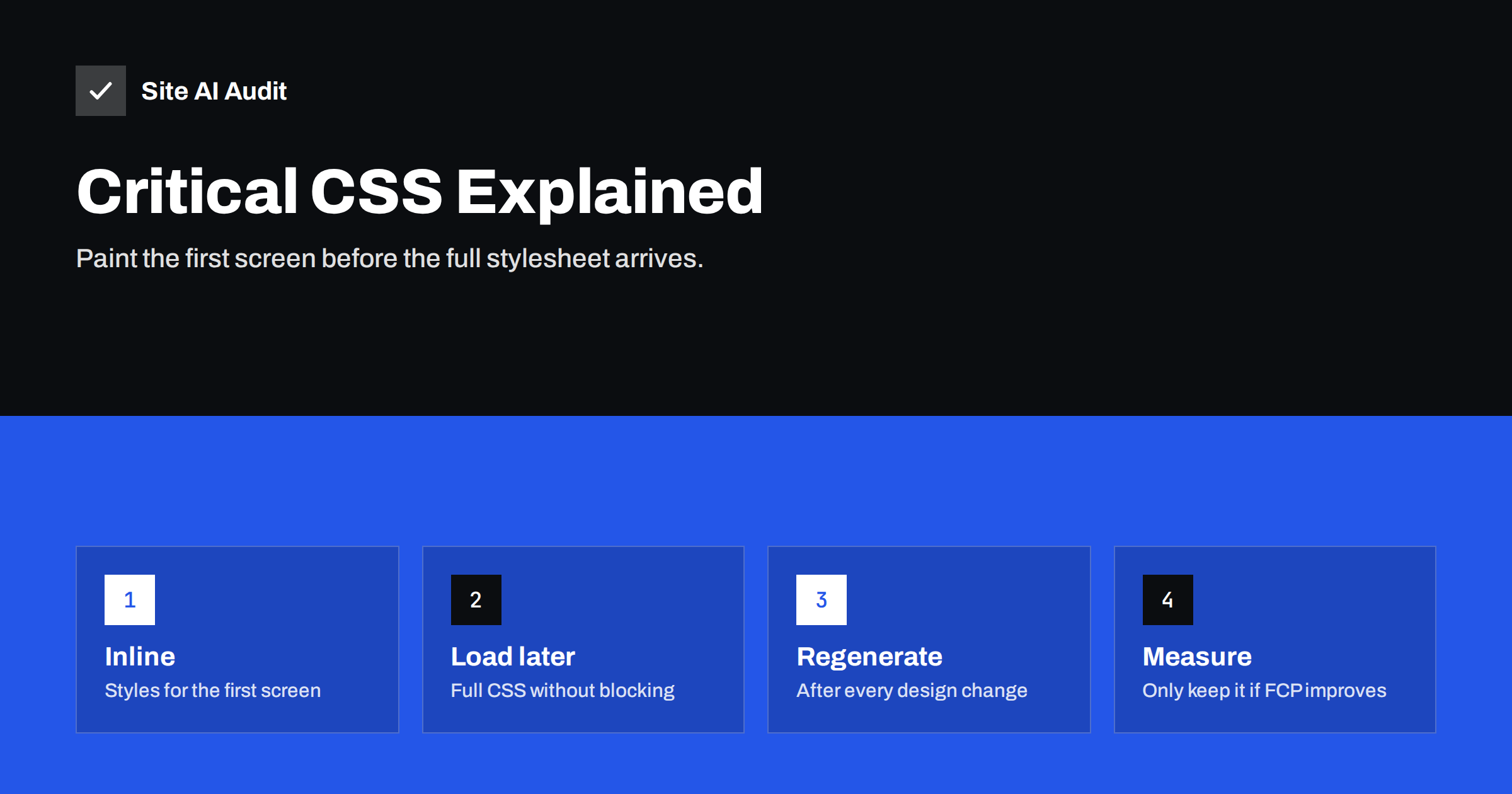
Short answer: Critical CSS is the small set of style rules needed to render the part of a page visible without scrolling. It is inlined in the HTML head so the browser can paint immediately, while the full stylesheet loads without blocking rendering. It can noticeably improve First Contentful Paint and sometimes Largest Contentful Paint on sites with large, render-blocking stylesheets. It adds complexity, must be regenerated when the design changes, and is worth it mainly when CSS is a proven bottleneck after simpler fixes like removing unused CSS.
If you have followed the “Eliminate render-blocking resources” advice in PageSpeed Insights, you have probably met critical CSS. Optimisation plugins offer it as a checkbox, developers debate it, and it can make a slow first paint fast. It can also cause a flash of unstyled content, broken layouts on some templates, and a maintenance task that nobody remembers. This guide explains what it actually does so you can decide whether your site needs it.
Why CSS blocks rendering
Browsers will not paint a page until they have downloaded and processed the stylesheets referenced in the head. That is deliberate: painting without styles and then re-painting with them would produce a jarring flash of unstyled content. The cost is that the first paint waits for every blocking stylesheet, however large, and for each network round trip needed to fetch them.
On many sites built with themes and page builders, the main stylesheet contains styles for every component the theme supports: sliders, galleries, forms, shop pages, footers, pop-ups. A visitor opening a blog post needs a small fraction of it for the first screen, but the browser waits for all of it.
How critical CSS works
- A tool loads the page in a headless browser at one or more viewport sizes and determines which CSS rules apply to elements visible in the first screen.
- Those rules are extracted and inserted into a
<style>block in the page’s head. - The full stylesheet is loaded in a way that does not block rendering, for example with a preload link that switches to a stylesheet when loaded, or a stylesheet with a non-matching media attribute that is changed after loading.
- The browser paints the first screen using the inline rules as soon as the HTML arrives, then applies the full stylesheet when it finishes downloading.
Because the inline CSS travels with the HTML, no extra round trip is needed before the first paint.
When critical CSS helps
- The page has large render-blocking stylesheets, and PageSpeed Insights shows significant estimated savings for them.
- First Contentful Paint is slow while server response time is fine.
- Visitors are mainly on mobile networks, where each round trip is expensive.
- The CSS cannot easily be reduced at the source, for example because it comes from a theme or page builder you cannot change.
When it helps little or not at all
- The server is slow. If Time to First Byte is the bottleneck, inlining CSS changes little; fix the server first.
- The LCP element is a large image. Painting the layout earlier does not make the hero image download faster.
- The stylesheet is already small. A lean, cached stylesheet costs little; inlining adds complexity for almost no gain.
- JavaScript dominates. If scripts block rendering or the page is rendered in the browser by JavaScript, critical CSS will not solve that.
- Repeat visitors. On repeat visits the stylesheet is usually cached, so the render-blocking cost is already low; inlining then adds bytes to every HTML response.
The costs and risks
| Cost | What happens | Mitigation |
|---|---|---|
| Flash of unstyled content | Elements below the first screen appear unstyled until the full CSS loads | Generate for correct viewports; include slightly more than the fold |
| Layout shift | Styles applied late move elements | Include layout rules for all above-the-fold elements |
| Stale critical CSS | Design changes are not reflected in the inline styles | Regenerate automatically on theme or content changes |
| Per-template differences | One critical CSS for all pages misses styles on some templates | Generate per template or page type |
| Larger HTML | Every page carries the inline CSS, uncached | Keep critical CSS small |
Try simpler CSS fixes first
Before generating critical CSS, check whether the stylesheets themselves can shrink. These steps are often simpler and have no maintenance cost:
- Remove unused CSS. Disable styles from plugins on pages where they are not used, turn off theme features you do not use, and remove leftovers from old designs.
- Split stylesheets by page type. Shop, blog and landing page styles can load only where needed.
- Remove
@importchains that force the browser to download stylesheets one after another. - Load print and special-purpose styles with media attributes so they do not block screen rendering.
- Make sure CSS is compressed and cached with long lifetimes and versioned file names.
If the first paint is still slow after these steps, critical CSS becomes a reasonable next move.
How to generate critical CSS
- Optimisation plugins. Several WordPress performance plugins generate critical CSS automatically, often via an external service, per page type. This is the easiest option for most sites.
- Build tools. For custom themes and static sites, open-source tools can extract critical CSS during the build for defined pages and viewports.
- Frameworks. Some modern frameworks inline the CSS needed for each page by design, which achieves a similar result without a separate step.
- Manual. For a small site with a stable design, a developer can write a small inline stylesheet for the header and hero by hand. It is simple but must be kept in sync.
How to test whether it worked
- Record First Contentful Paint, LCP and CLS on mobile for several page types before enabling critical CSS.
- Enable it, clear all caches, and test the same pages again several times.
- Watch the filmstrip in PageSpeed Insights or the Performance panel for flashes of unstyled content or jumping elements.
- Check pages of each template: home, article, category, product, contact, and pages built with different layouts.
- Keep the change only if FCP or LCP improved without making CLS worse.
An example decision
Take a service business site built with a popular theme and page builder. PageSpeed Insights on mobile shows a server response well under half a second, a hero image already converted to WebP and loaded eagerly, but a First Contentful Paint that still lags, with two large stylesheets listed as render-blocking. The Coverage tab shows that most of those stylesheets are unused on the home page. The team first disables the builder’s styles for widgets the site never uses and removes a slider stylesheet from pages without sliders. The stylesheets shrink considerably and First Contentful Paint improves, but the builder’s core stylesheet remains large and cannot be split. At that point, enabling critical CSS per template in their optimisation plugin is a reasonable step. They test home, service, blog and contact templates for flashes and shifts, keep the change because first paint improved further, and add “regenerate critical CSS” to their checklist for design updates.
Keeping it up to date
The most common failure is not the initial setup but what happens months later. A new header design, a new banner or a theme update changes what appears in the first screen, but the inline critical CSS still reflects the old design. Visitors then see a brief flash of an incorrectly styled header or layout shifts. If you use critical CSS, make regeneration automatic after theme updates and design changes, or add it to your release checklist.
How Site AI Audit helps
Site AI Audit runs Google PageSpeed for mobile as part of each check and reports Core Web Vitals together with server response time, compression and page weight. That helps you see whether CSS is really what holds your first paint back, or whether the server, images or scripts matter more, before you add critical CSS. Findings come with plain-language fixes; paid plans let you re-check after every change.
Related reading
- How to Eliminate Render-Blocking Resources on Your Website
- How to Improve Largest Contentful Paint (LCP) on Any Website
- How to Fix Cumulative Layout Shift (CLS) on Your Website
The bottom line
Critical CSS lets the browser paint the first screen before the full stylesheet arrives. It helps when large render-blocking stylesheets delay the first paint and the server is already fast. Try removing and splitting CSS first, generate critical CSS per template if you still need it, test for unstyled flashes and layout shift, and make sure it is regenerated whenever the design changes.
GYIK
What is critical CSS?
It is the minimum CSS required to style the content visible in the first screen of a page. It is inlined in the HTML head so the browser can paint without waiting for external stylesheets. The rest of the CSS loads without blocking.
Does critical CSS improve Core Web Vitals?
It can improve First Contentful Paint and sometimes Largest Contentful Paint when render-blocking CSS is the main delay. It does not help INP and can worsen CLS if generated incorrectly. Measure before and after.
Is critical CSS worth it for a small website?
Often not, if the stylesheet is small or the server and images are the real bottleneck. Removing unused CSS and fixing server response and images usually gives more for less effort. Consider it after those basics are done.
Why does my page flash unstyled content after enabling critical CSS?
The inline critical CSS does not include styles for some visible elements, often because it was generated for a different template or viewport, or the design changed. Regenerate it for the affected page types and viewports.
How often should critical CSS be regenerated?
Whenever the design of the first screen changes, after theme updates and when new page templates are added. Automated regeneration through a plugin or build process is the most reliable approach.


