ENEnglish
 LTLietuviškai
 DEDeutsch
 FRFrançais
 RUРусский
 ESEspañol
 PLPolski
 ITItaliano
 UKУкраїнська
 CSČeština
 PTPortuguês
 JA日本語
 LVLatviešu valoda
 ETEesti
 HUMagyar
 IDBahasa Indonesia
 TRTürkçe
 HIहिन्दी
 ELΕλληνικά
 ARالعربية
 THไทย
 VITiếng Việt
 RORomână
 MSBahasa Melayu
 BNবাংলা
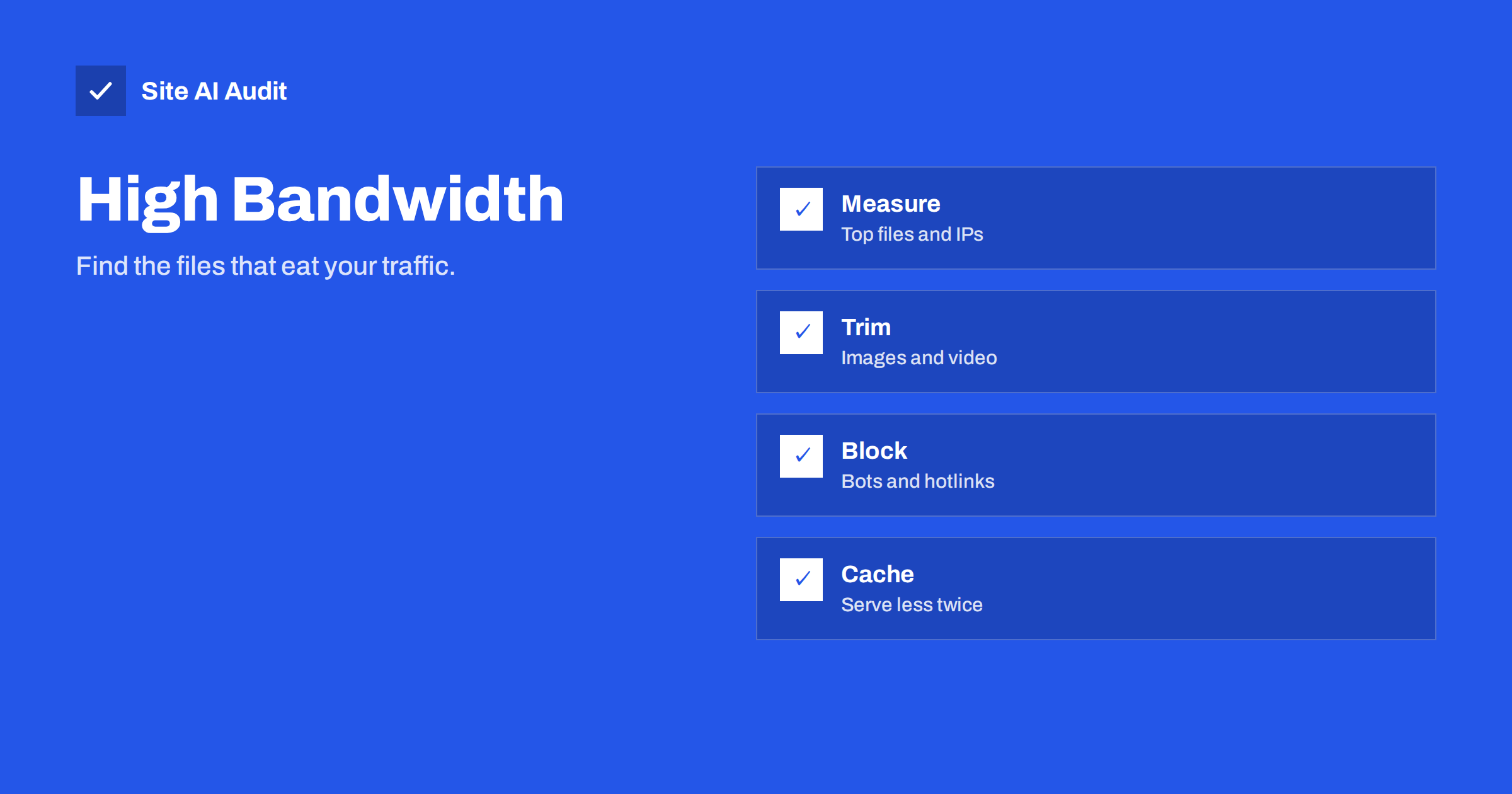
Short answer: When a hosting plan reports high bandwidth use, the cause is usually a small number of things: very large files, traffic from bots and scrapers, other sites loading your images, or pages that are not compressed or cached. Find the biggest files and the busiest visitors in your logs, then reduce file sizes, block abusive traffic and let browsers and a CDN keep copies.
What bandwidth usage means
Bandwidth, in hosting, is the amount of data your server sends out in a period, often measured in gigabytes per month. Every page, image, script, video and download uses some. Hosting plans set limits or charge for extra use, and some slow down or suspend a site that goes over. A sudden rise can mean either a real success, such as a popular post, or a problem you do not want, such as scraping.
Note that bandwidth is not the same as speed. The word is also used for the capacity of a connection, but here it means total data transferred. A site can have very good speed for each visitor and still use far more transfer than it should.
Common causes
- Oversized images. A photo straight from a camera can weigh several megabytes, and a page with ten of them sends tens of megabytes to every visitor. See the guide to image optimization.
- Video and large downloads. A video file hosted on your server uses transfer each time it is watched, and some visitors download the whole file. Video is usually better served by a specialised host. See how to embed videos without slowing your site.
- Animated GIFs. These are far heavier than the equivalent video, as the article on replacing animated GIFs explains.
- Hotlinking. Other sites embed your images and files directly, and your server pays for their traffic. See hotlinking protection.
- Bots and scrapers. Automated visitors can account for a large part of the requests on a small site. The guide to bad bots and aggressive crawlers shows how to control them.
- No compression. Text files such as HTML, CSS and JavaScript shrink greatly when compressed. See Gzip and Brotli.
- No browser caching. Without caching headers, returning visitors download the same files again and again. See browser caching.
- Exposed backups and archives. A large backup file in a public folder can be downloaded repeatedly by scanners.
- Feeds polled too often. RSS feeds that are requested every few seconds by many readers or tools.
- An attack. A flood of requests, sometimes for a heavy page or file, can use a month of transfer in a day.
Step 1: Look at what your host shows
Most hosting control panels display a graph of bandwidth by day, and some give a breakdown by domain, by type of file or by visitor address. Check the shape of the graph first.
- A steady rise points to growth, heavier pages or an accumulating cause, such as more hotlinking.
- A sharp spike on one day suggests a bot, a scan, an attack or a post that went viral.
- A regular pattern, such as a peak at the same hour, points to a scheduled job or a crawler.
Note the dates, so that you can compare them with your logs and with changes that you made.
Step 2: Find the biggest files and visitors in the logs
Access logs record every request with its size. They are the best source of answers. Ask three questions.
- Which files send the most bytes? Add up the response sizes by address. The top few entries are often a handful of images, videos or downloads.
- Which visitors use the most? Group by IP address and user agent. A single address that requests thousands of files is a scraper or a bot.
- Where do the requests come from? Look at the referrer. If your images are requested with another site as the referrer, they are being hotlinked.
Many hosts offer a log analyser in the control panel, and a content delivery network shows similar reports. If you work with the raw files, the guide to reading access logs shows useful searches. Be careful when you share logs, because they contain visitor addresses.
Step 3: Shrink what you send
- Resize and compress images. Serve images at the size they appear, not at the original size. Use modern formats where possible, as compared in WebP, AVIF and JPEG, and use responsive images, described in srcset and sizes.
- Move video elsewhere. Use a video platform or a streaming service that is built for it.
- Turn on compression for text, and check that it works with a test.
- Remove unused files. Old uploads, test downloads and large archives in public folders should go.
- Reduce page weight. Check the biggest assets on each page. The article on page weight shows how to set a target.
Step 4: Stop wasteful and unwanted traffic
- Block hotlinking with a server rule that allows images only when the request comes from your own pages.
- Limit abusive bots. Block the worst offenders by address or user agent, and use rate limits for the rest. See rate limiting explained.
- Use a firewall or a CDN with bot rules, which can filter much of the noise before it reaches your server.
- Protect large downloads. If a file is meant for customers, require a login or a time-limited link.
- Slow polling. Set sensible cache times on feeds, so that readers do not reload them constantly.
Be careful not to block search engines and legitimate services by mistake. Check the result in your logs after a change.
Step 5: Let caches do the work
A cache keeps a copy of a file so that your server does not need to send it again. Browser caching works for returning visitors, and a CDN works for everyone near its servers. The guide to whether you need a CDN explains when it pays off, and the article on CDN cache hit ratio shows how to check that it works. Set long cache lifetimes for files that rarely change, such as images and fonts, and use versioned file names so that you can update them when needed.
Set an alert, not a surprise
Do not discover a bandwidth problem when the plan is suspended. Ask your host for an alert at a set percentage of the limit, check the graph monthly and compare it with your traffic statistics. If the data grows faster than the visits, something is wasting transfer. Also consider the effect on your plan. A site that regularly touches its limit may need a different plan, but fix waste first, because a larger plan only pays for the waste. If the host reports resource limits rather than transfer, see the article on resource limit errors.
A worked example
Imagine a small shop that receives a warning at eighty percent of its monthly transfer, with ten days still to go. The owner opens the log analyser and sorts requests by bytes sent. The top entry is a 48 megabyte product video, downloaded several thousand times. The second is a group of banner images that weigh more than three megabytes each. Further down, one address from a data centre has requested every product page eleven thousand times in a day.
Each finding has a clear remedy. The video moves to a streaming platform and is embedded. The banners are resized and converted to a modern format, which cuts them to a fraction of their size. The scanning address is blocked, and a rate limit is added for the rest. Within a day, the graph flattens, and nobody needed a larger plan. The method is always the same: sort by size, sort by visitor, fix the top three, and measure again.
Keep a note of the numbers before and after. A record of what each change saved shows which measures are worth repeating and helps you to explain the cost of hosting to colleagues or clients.
How Site AI Audit helps
Site AI Audit does not read your server logs or your host’s bandwidth graphs, so it cannot name the visitor that is using your traffic. It does measure the page side of the problem: page weight, compression, server response time, the Google PageSpeed score and Core Web Vitals, and it lists findings ranked by impact. A report that shows heavy pages or missing compression points to files to trim first. The free check covers up to 50 pages and needs no sign-up. You can run a free check of your website or see the plans for weekly monitoring and alerts.
Related reading
- Hotlinking: Stop Other Sites Using Your Images and Bandwidth
- Page Weight: How Heavy Is Too Heavy and How to Trim It
- Gzip vs Brotli: How to Enable Text Compression on Your Server
- Do You Need a CDN? A Plain-Language Guide for Site Owners
The bottom line
High bandwidth use is almost always traceable. Look at the graph, find the biggest files and visitors in your logs, shrink what you send, block what is unwanted and let caches serve repeat requests. Then set an alert, so that the next spike does not catch you by surprise.
FAQ
How much bandwidth does a small website need?
It depends on page weight and visits. Multiply the average page size by the number of page views, and add downloads and video. A light site with moderate traffic uses far less than a gallery or a video site.
Can bots really use most of my bandwidth?
Yes, on small sites, automated traffic can be a large share. Logs show it clearly, because the same few addresses and user agents repeat.
Will a CDN lower my hosting bandwidth?
Usually, because the CDN serves cached files from its own network. The effect depends on the cache hit ratio, so check it after setting up.
Is hotlinking still common?
Yes. Images and files are often embedded by other sites, forums and scrapers. A simple server rule stops most of it.
What if my host suspends the site for bandwidth?
Ask the host for the logs or the usage report, find the cause, fix it and then ask for reinstatement. Do not simply buy a bigger plan without finding the cause.