ENEnglish
 LTLietuviškai
 DEDeutsch
 FRFrançais
 RUРусский
 ESEspañol
 PLPolski
 ITItaliano
 UKУкраїнська
 CSČeština
 PTPortuguês
 JA日本語
JA日本語 LVLatviešu valoda
 ETEesti
 HUMagyar
 IDBahasa Indonesia
 TRTürkçe
 HIहिन्दी
 ELΕλληνικά
 ARالعربية
 THไทย
THไทย VITiếng Việt
 RORomână
 MSBahasa Melayu
 BNবাংলা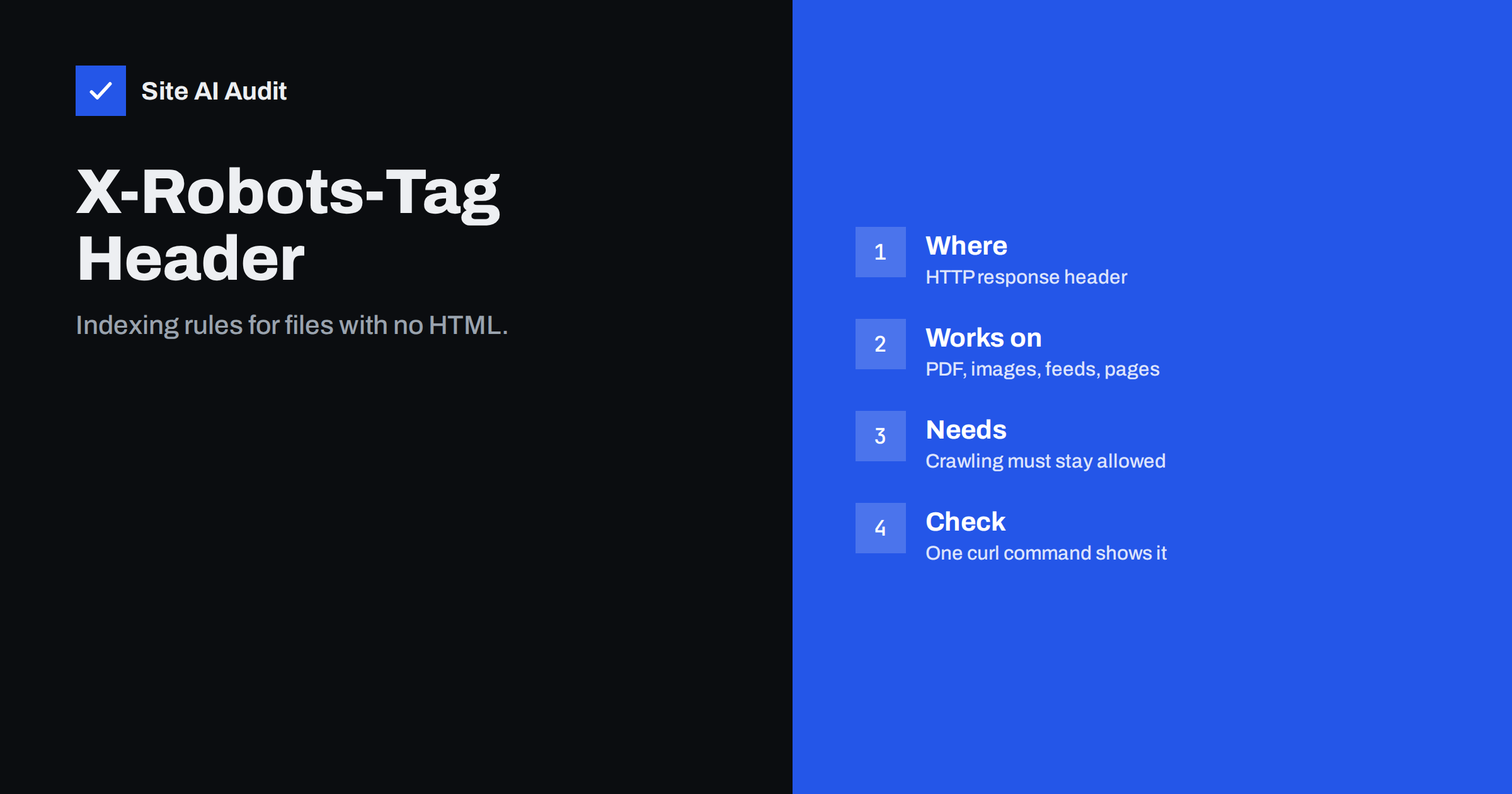
Short answer: The X-Robots-Tag is an HTTP response header that gives search engines the same instructions as a robots meta tag, such as noindex or nosnippet, but for any type of file. It is the only practical way to keep a PDF, an image or a downloadable document out of search results, because those files have no HTML head to hold a meta tag. You set it in your web server configuration, and the file must remain crawlable so that Google can actually see the header.
Why a meta tag is not always enough
Most owners learn about indexing control through the robots meta tag, a short line in the head of a page that says noindex. It works well for ordinary pages, and our noindex tag guide explains when to use it. The problem is that a large part of a typical website is not HTML. Price lists are saved as PDF files, brochures are Word documents, product photos are images, and some sites publish feeds or text files. None of these can carry a meta tag.
Search engines still index many of those files. A forgotten PDF with an old price list can appear in search results for years, and a staff-only document placed in a public folder can be found with a simple query. The X-Robots-Tag solves this by moving the instruction out of the file and into the response that the server sends along with it.
What the header looks like
Every time a browser or a crawler requests a URL, the server answers with a block of headers before the content. One of those headers can be X-Robots-Tag. A basic example looks like this:
X-Robots-Tag: noindex, nofollow
The crawler reads it and applies the rule to that single URL. The directives are the same ones you know from the meta tag. The most useful are:
- noindex keeps the file out of search results.
- nofollow tells the crawler not to follow links inside the file, which matters for HTML-like formats.
- noarchive asks search engines not to show a cached copy.
- nosnippet and max-snippet limit the text excerpt shown under the result.
- noimageindex keeps images on the page out of image search.
- unavailable_after followed by a date removes the file from results after that date.
You can also address one crawler only, for example X-Robots-Tag: googlebot: noindex. When you send several headers, search engines combine them and follow the most restrictive result.
How to add it on Apache and Nginx
The header is added in the server configuration, not in your content. The exact place depends on your hosting, so ask your host if you are unsure. These are the two common patterns.
On Apache, with the headers module enabled, you can match file types in your configuration or in the .htaccess file:
<FilesMatch "\.(pdf|docx?)$"> Header set X-Robots-Tag "noindex, noarchive" </FilesMatch>
On Nginx, you add a header inside the location block that serves those files:
location ~* \.(pdf|docx?)$ { add_header X-Robots-Tag "noindex, noarchive"; }
On WordPress you can also send the header from a small piece of code or from an SEO plugin that offers the option, but a server rule is more reliable because it covers files that never pass through WordPress. If your site sits behind a content delivery network, remember that the header must survive the trip. Most networks pass response headers through, but some caching rules strip or override them, so test the final result rather than trusting the configuration.
The most common mistake: blocking the file in robots.txt
A crawler can only read a header if it is allowed to request the file. If you block the folder in robots.txt and also add an X-Robots-Tag, Google never fetches the file, never sees the header and may still list the bare URL in results because other pages link to it. This is the same trap that causes the warning described in our guide to pages that are indexed though blocked by robots.txt.
The rule is simple: robots.txt controls crawling, and the header controls indexing. To remove a file from search results, allow crawling and send noindex. After Google has dropped the file you may decide whether to block it as well. Our comparison of robots.txt and noindex explains this difference in more detail.
Good uses for the header
The header is most valuable in a few specific situations:
- Duplicate PDFs. If a catalogue exists both as a web page and as a PDF, you may want only the page in search results. Our PDF SEO guide covers the cases where the PDF deserves to rank and the cases where it does not.
- Private or outdated documents. Contracts, price lists for old seasons and internal forms should not be found through search.
- Images you do not want in image search, such as proof-of-delivery photos or customer uploads.
- Temporary material. The unavailable_after directive removes a promotional file automatically on a chosen date.
- Whole sections of a staging or test environment. A single server rule can mark every response as noindex, although password protection is still the safer choice.
Avoid sending noindex for a whole live site by accident. A rule copied from a test server to production is a classic way to make a business disappear from search within days, and it is easy to miss because the pages still look normal in a browser.
A short rollout plan
Changing server rules affects many URLs at once, so treat it like any other change to a live site. First make a list of the file types you want to control and open a few real examples in a browser to confirm what they are. Then write the narrowest rule that matches them, for instance only PDF files in one folder rather than every file on the site. Apply the rule on a test copy if you have one, and request one affected file and one unaffected page to confirm that only the intended responses carry the header.
Write down what you changed and why. Months later, someone may wonder why a catalogue no longer appears in search, and a one-line note in your change log saves hours of guessing. Finally, add a reminder to review the rule when you redesign the site or move to a new host, because server configuration is often lost in a migration while the content is carried over carefully.
How to check that it works
Because the header is invisible on the page, you need to look at the response itself. The quickest way is the command line. Run curl -I https://example.com/files/price-list.pdf and look for the X-Robots-Tag line in the output. Browser developer tools show the same thing on the Network tab: click the request and open the response headers.
For Google’s view, use the URL Inspection tool in Search Console. It reports whether indexing is allowed and, if not, which rule blocked it. Our guide to the URL Inspection tool shows how to read the result. Remember that the status code of the file matters too: a file that returns an error will not be indexed whatever the header says, as explained in our overview of HTTP status codes for SEO.
After you add a noindex header, be patient. Google has to crawl the file again before the change takes effect, and for rarely visited files this can take weeks. If something must disappear quickly, combine the header with a removal request in Search Console.
What Site AI Audit can and cannot tell you
Site AI Audit crawls up to 50 pages of your website and reports titles, descriptions, broken links, redirects, the XML sitemap, robots.txt and pages blocked by noindex. It is a good way to spot a page that is unexpectedly marked noindex. It does not scan the response headers of every PDF or image on your site, so a file with a missing or wrong X-Robots-Tag needs the manual check described above. You can run a free check of your website or see the plans.
Related reading
- The Noindex Tag: When to Use It and How to Check It
- Robots.txt vs Noindex: Which One Should You Use?
- PDF Files and SEO: How Google Indexes and Ranks Your PDFs
- Indexed, Though Blocked by robots.txt: What It Means and Fixes
The bottom line
The X-Robots-Tag header gives you the same control over indexing for PDFs, images and other files that the meta tag gives you for pages. Add it in the server configuration, keep the files crawlable so the header can be read, and verify the response with a quick request. Used carefully, it keeps outdated and private files out of search results without touching the rest of your site.
KKK
Is X-Robots-Tag better than a robots meta tag?
Neither is better. For normal web pages the meta tag is simpler. The header is the right choice for files that have no HTML, and for rules that should apply to many URLs at once.
Can I use X-Robots-Tag and robots.txt together?
You can, but not for the same files while you want them removed. If robots.txt blocks a file, Google cannot read the header. Allow crawling until the file has dropped out of the index.
How long does a noindex header take to work?
It takes effect when Google next crawls the file. For popular files that can be a few days, for rarely visited ones several weeks.
Does the header work for all search engines?
Major search engines such as Google and Bing support it. Support for less common directives can differ, so keep your rules simple.
How do I see whether my site already sends it?
Request a file with curl -I or open the Network tab in your browser developer tools and read the response headers. The X-Robots-Tag line appears only if the server sends it.