 ENEnglish
 LTLietuviškai
 DEDeutsch
 FRFrançais
 RUРусский
 ESEspañol
 PLPolski
 ITItaliano
 UKУкраїнська
 CSČeština
 PTPortuguês
 JA日本語
JA日本語 LVLatviešu valoda
 ETEesti
 HUMagyar
 IDBahasa Indonesia
 TRTürkçe
 HIहिन्दी
 ELΕλληνικά
 ARالعربية
 THไทย
THไทย VITiếng Việt
 RORomână
 MSBahasa Melayu
 BNবাংলা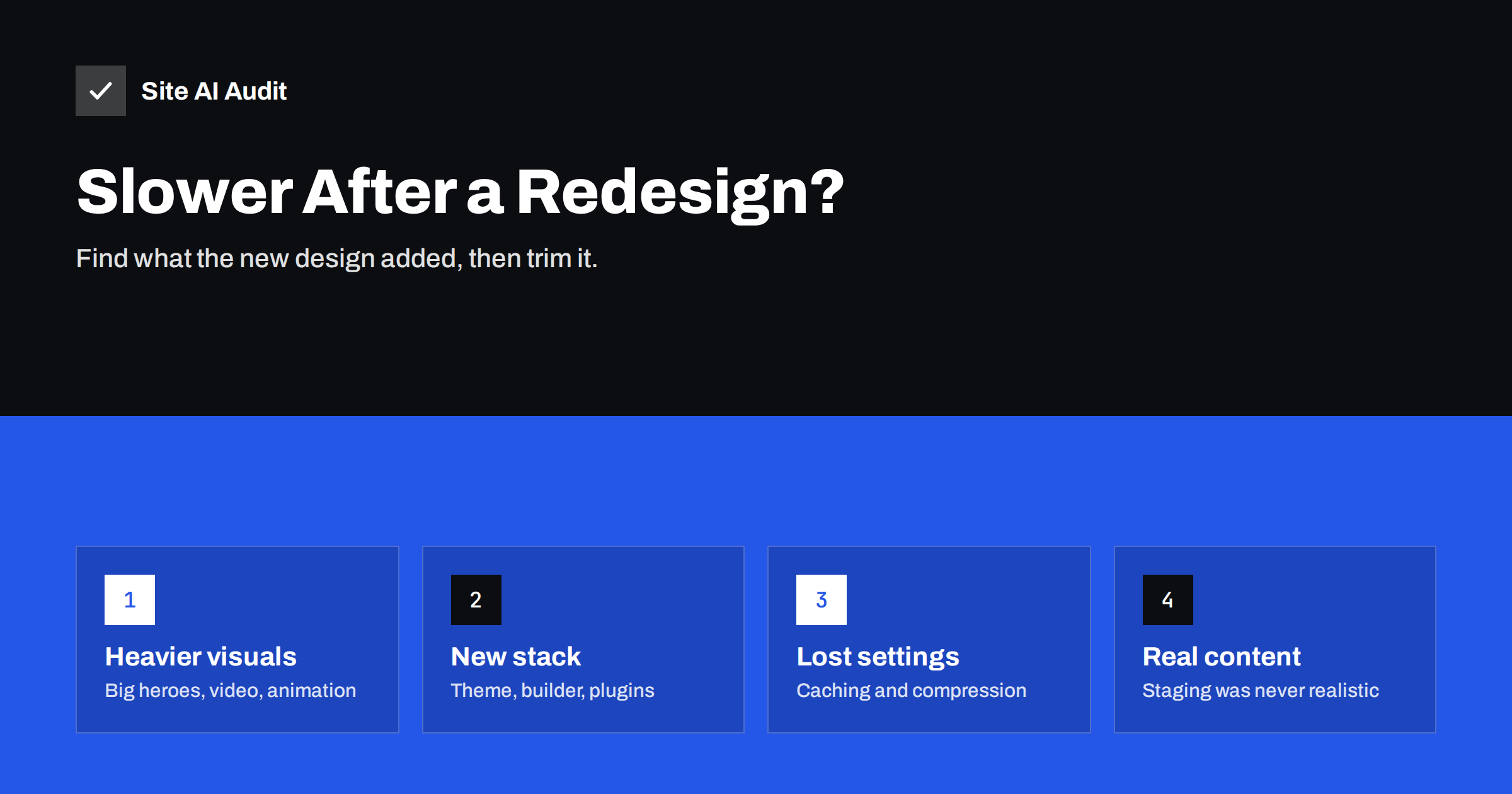
Short answer: Websites often get slower after a redesign because the new design adds heavier visuals (large hero images, background video, animations, sliders), the new theme or page builder loads more CSS and JavaScript, server settings such as caching, compression and cache headers were not carried over, and the site was tested on staging with placeholder content rather than real images and tracking tags. To fix it, compare old and new measurements on the same pages, check server configuration first, then trim the heaviest new elements and scripts, and add speed checks to the launch process for next time.
A redesign is supposed to make a website better. Yet a common story goes like this: the new site launches, everyone likes the look, and a few weeks later someone notices that PageSpeed scores have dropped, the Core Web Vitals report in Search Console is turning red, or customers mention the site feels slow on their phones. The good news is that post-redesign slowdowns usually have a small number of identifiable causes, and most can be fixed without undoing the design.
Step 1: Compare old and new properly
Before fixing anything, establish what actually changed. Ideally you measured the old site before launch. If not, you can often still find data:
- Search Console’s Core Web Vitals report shows history, including the period before the launch.
- PageSpeed Insights field data covers the last 28 days, so it gradually shifts from old to new.
- Web archive snapshots of the old site can sometimes be tested for page weight, though not for server speed.
- Your analytics may show changes in bounce rate or pages per session on mobile after launch.
Then test the same page types on the new site with consistent settings: home, a key landing page, an article, a product or service page, and the contact or checkout page. Note which metrics got worse: server response, LCP, CLS, TBT, page weight.
Step 2: Check what the migration may have lost
Many redesigns include a move to a new theme, a new server or a rebuilt site. Server-level settings are easy to lose in the process:
- Page caching not enabled on the new setup, or disabled during development and never switched back on.
- Text compression (Gzip or Brotli) missing on the new server.
- Cache headers for static files missing or short.
- Old PHP version on the new hosting.
- CDN not configured for the new site, or pointing at the old origin.
- Development settings left on: debug mode, query logging, disabled caching in the CMS, or a staging “noindex” setting that also affects SEO.
These are quick to check and often explain a large part of the slowdown, particularly if server response time got worse.
Step 3: Look at what the design added
Modern designs tend to be more visual, and visuals cost bytes and processing:
| Design element | Typical cost | Lighter alternative |
|---|---|---|
| Full-screen hero image | Large LCP image | Properly sized WebP or AVIF, high priority, responsive sizes |
| Background video | Megabytes on load | Poster image on mobile, short compressed clip on desktop |
| Hero slider | Several images, script before first paint | Single static hero |
| Scroll and entrance animations | JavaScript, delayed content, TBT | Subtle CSS transitions, fewer animated sections |
| Several font families and weights | Many font files, text reflow | One or two families, few weights, self-hosted |
| Large icon library | Full font or sprite for a few icons | Inline SVG for used icons |
| Embedded video and maps | Heavy third-party players | Facades that load on click |
Step 4: Check the new theme, builder and plugins
A new visual design often comes with a new technical stack. Common sources of extra weight:
- A multipurpose theme or page builder that loads CSS and JavaScript for many features the site does not use.
- Builder add-on packs installed for one or two widgets.
- New plugins for forms, galleries, pop-ups and animations, loading their assets on every page.
- Performance options in the builder left at their defaults, which are often the least optimised.
Enable the builder’s performance features, remove add-ons you barely use, and restrict plugin assets to pages that need them.
Step 5: Account for real content and real tags
Designs are usually built and approved on staging with placeholder images and without marketing tags. After launch, three things change:
- Editors upload real images, often straight from cameras or stock libraries, far larger than the placeholders.
- Marketing adds tracking: analytics, advertising pixels, heatmaps, chat and consent tools, frequently via a tag manager.
- Content grows: longer pages, more products, more embeds.
The staging site was fast; the real site is not the same site. Test after launch with everything in place, and set up automatic image optimisation so new uploads do not undo the work.
Step 6: Fix in order of impact
- Restore server-level basics: caching, compression, cache headers, current PHP.
- Optimise the hero image on each template and load it first.
- Replace or tame sliders, background videos and heavy animations above the fold.
- Remove unused plugins and add-ons; restrict remaining assets.
- Review and trim third-party tags.
- Reduce fonts and icon libraries.
- Fix layout shifts from banners, images and embeds.
- Re-measure and compare with the pre-launch baseline.
An example recovery
A consultancy launches a redesigned website with a full-screen hero video, animated section headings, three font families and a new page builder. Within a month, Search Console shows most mobile URLs moving from good to needs improvement for LCP, and several to poor for INP. The investigation finds four causes. Page caching was switched off on staging and never re-enabled. The hero video downloads several megabytes on phones before anything else. The builder loads its full animation library on every page. And the marketing team added a heatmap tool and two advertising pixels at launch. The recovery plan keeps the look: caching goes back on, phones get the video’s poster image instead of the video, animations are limited to a few subtle CSS transitions, fonts are reduced to two families, and the heatmap tool runs only during a two-week research period. Within a few weeks, the field data returns to good, and the design team agrees on a speed budget for future changes. Nothing about the brand or the layout had to be given up; only the parts that cost the most and added the least were changed.
Preventing it next time
Speed problems are far cheaper to prevent during design than to fix after launch. For the next redesign:
- Record a baseline of the old site before starting.
- Set a speed budget for key templates, such as a maximum page weight and LCP target on mobile.
- Review designs for performance before development: every video, slider, animation and font has a cost.
- Test staging with realistic content and the actual tags that will run in production.
- Include speed in the launch checklist alongside redirects, SEO and forms.
- Re-test one and four weeks after launch, including field data in Search Console.
Don’t forget SEO during the fix
Redesigns often coincide with URL changes, new templates and new navigation. While working on speed, make sure redirects from old URLs are in place, titles and descriptions were carried over, and no page is accidentally set to noindex. A fast site that lost its search visibility is not an improvement.
How Site AI Audit helps
Site AI Audit is useful right after a redesign because it checks speed and the most common launch mistakes in one run: Google PageSpeed for mobile with Core Web Vitals, server response time, compression and page weight, plus crawling up to 50 pages for broken links, redirects, titles, noindex and sitemap problems, SSL, security headers and e-mail records. Findings are ranked by impact with plain-language fixes. Check your new site for free.
Related reading
- Website Speed Checklist: 30 Checks Before and After Launch
- Are Page Builders Slowing Down Your WordPress Website?
- Hero Sliders and Carousels: The Hidden Cost to Page Speed
- Website Migration SEO: How to Move a Site Without Losing Traffic
The bottom line
Post-redesign slowdowns usually come from lost server settings, heavier visuals, a heavier theme or builder, and real content and tags that staging never had. Compare old and new on the same pages, restore server basics first, then trim the heaviest new elements. Next time, set a speed budget and test with realistic content before launch.
KKK
Why is my new website slower than the old one?
Common reasons are missing server settings such as caching and compression, larger images and videos, sliders and animations, a heavier theme or page builder, more plugins, and marketing tags added after launch. Compare the same pages before and after to find which applies.
Can a redesign hurt SEO through speed?
Speed is one of many signals, so a slower site can be at a small disadvantage, especially if it now fails Core Web Vitals. URL changes, lost redirects and noindex mistakes during a redesign usually have a bigger SEO impact and should be checked at the same time.
How do I compare speed before and after a redesign?
Use the Core Web Vitals history in Search Console for real-user data, and test the same page types with consistent lab settings. If you recorded a baseline before launch, compare against it directly.
Should I roll back the redesign if it is slower?
Rarely. Most slowdowns can be fixed by restoring server settings, optimising images and trimming heavy elements and scripts. Roll back only if the new site is broken in ways that cannot be fixed quickly.
How can I prevent speed problems in the next redesign?
Set a speed budget for key templates, review design choices for their performance cost, test staging with real content and tags, and include speed checks in the launch checklist.


