ENEnglish
 LTLietuviškai
 DEDeutsch
 FRFrançais
 RUРусский
 ESEspañol
 PLPolski
 ITItaliano
 UKУкраїнська
 CSČeština
 PTPortuguês
 JA日本語
JA日本語 LVLatviešu valoda
 ETEesti
 HUMagyar
 IDBahasa Indonesia
 TRTürkçe
 HIहिन्दी
 ELΕλληνικά
 ARالعربية
 THไทย
THไทย VITiếng Việt
 RORomână
 MSBahasa Melayu
 BNবাংলা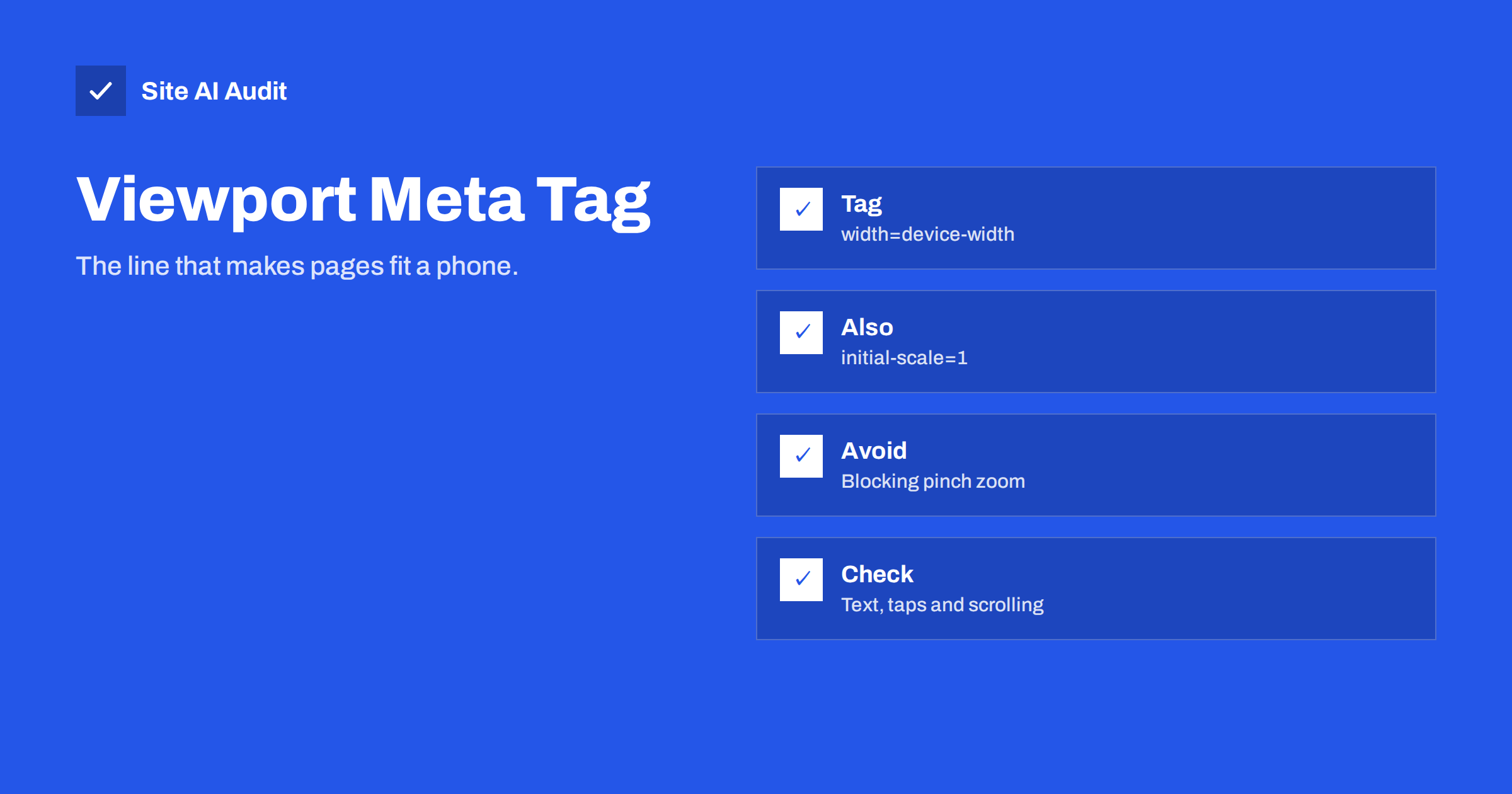
Short answer: The viewport meta tag tells a phone browser to match the page width to the screen width instead of pretending to be a wide desktop screen. Without it, a mobile visitor sees a tiny, zoomed-out page. The standard line is a single tag in the page head, and it is the first thing to check when a site looks wrong on phones. After that, check text size, tap targets and horizontal scrolling.
What the viewport tag does
When smartphones first arrived, most websites were built for wide computer screens. To show them properly, phone browsers invented a virtual width of around 980 pixels, rendered the page at that size and then shrank it to fit the screen. The result was a miniature page that visitors had to zoom to read.
The viewport meta tag turns this behaviour off. It tells the browser to use the real width of the device and to start at normal size. A responsive design, with layouts that adapt to the width of the screen, only works properly when this tag is present. Without it, your carefully written mobile styles may never apply.
You can see the effect yourself. Open a page on a phone with and without the tag, or use the responsive mode of your browser’s developer tools and compare. With the tag, headings wrap, menus collapse and columns stack. Without it, you get the full desktop layout squeezed into a postage stamp. This is the quickest way to explain the tag to a colleague or a client who does not work with code.
The standard tag
The usual version is short and goes inside the head section of every page:
<meta name="viewport" content="width=device-width, initial-scale=1">
The first part, width=device-width, makes the page as wide as the screen. The second part, initial-scale=1, sets the starting zoom level to normal. Together they give a page that fits and reads at a natural size. In WordPress, almost every modern theme includes the tag already, but older or hand-built themes sometimes do not, and a page builder or a custom template can occasionally drop it.
Settings to avoid
Some older guides recommend adding more options, and a few of them cause harm. The most common problem is blocking zoom with user-scalable=no or a very low maximum-scale. This stops visitors from pinching to enlarge text, which is a serious accessibility problem for people with weak eyesight. Browsers and testing tools flag it, and it gains you nothing.
Another frequent mistake is setting a fixed width such as width=1024. On a phone this recreates the zoomed-out desktop page that the tag is supposed to prevent. Stay with device-width and leave scaling to the user.
Why it matters for search
Google crawls most websites with a mobile browser first and uses the mobile version of the page for indexing and ranking. A site that does not fit on a phone gives that crawler a poor page, and visitors who land on it leave quickly. Our article on mobile-first indexing explains what Google sees and what your site needs to provide.
Google used to offer a Mobile-Friendly Test and a Mobile Usability report in Search Console, and both were retired in 2023. The need for mobile-friendly pages did not go away. The checks now rely on tools such as Lighthouse in the browser and on your own testing with real devices. A missing viewport tag still shows up as a failed check there.
Remember also that visitors judge a site in seconds. A page that is hard to read on a phone raises the number of people who leave straight away, and every lost visitor is a lost enquiry or sale, no matter how well the page ranks.
Beyond the tag: what makes a page usable on a phone
The tag is only the starting point. A page can have a perfect tag and still be hard to use. Check these basics on a real phone:
- Text size. Body text of around 16 pixels is comfortable. Anything much smaller forces visitors to zoom.
- Tap targets. Buttons and links need room around them. Touch targets of roughly 48 pixels with some spacing prevent accidental taps.
- No sideways scrolling. If you have to drag the page left and right, something is wider than the screen, such as an image, a table or a fixed-width block.
- Readable contrast. Light grey text on a white background is hard to read in sunlight.
- Forms that work. Fields should use the right keyboard type and should not be covered by sticky bars.
Common causes of a broken mobile layout
When a page looks wrong on a phone, the usual suspects are easy to list. A fixed-width element, such as an old embed code, a wide table or an image with a hard-coded size, pushes the page wider than the screen. A pop-up or cookie banner covers the content and cannot be closed. A sticky header takes up a third of the screen. Fonts that are too small appear after a theme update that changed the base size.
Search for the cause with the browser’s responsive mode, which simulates different screen widths on a computer. Open the developer tools, choose a phone size and look for the element that sticks out. Fix that element, for instance by letting images scale to the width of their container, rather than adding the viewport tag again.
How to test your own pages
Start with a quick look at your site on a real phone, on a normal mobile connection, not on your office wifi. Open the home page, a blog post, a contact page and, for a shop, a product page and the checkout. Try to complete the main action, such as sending a message or buying something, and note every moment of friction.
Then use Lighthouse, which is built into the Chrome browser, to run a mobile report. It checks the viewport tag and several usability points. Our guide to reading the PageSpeed Insights report shows how to use the same engine online. Speed matters here too: a page that fits the screen but takes ten seconds to load is still a bad mobile experience, as we describe in why websites are slow on mobile.
Repeat the test after every redesign, theme update or new plugin. Mobile problems often arrive silently with a change that looked harmless on a desktop screen, and a five-minute routine catches them before your customers do. Keep a short list of the pages and actions you always check, so that the test stays quick and consistent.
Tables, embeds and images that refuse to shrink
Even with a correct tag, three kinds of content regularly break a mobile layout. Wide tables are the first. A pricing table with six columns cannot fit a narrow screen, so let it scroll inside its own box or restructure it into stacked blocks on small screens. Embedded content such as videos, maps and forms is the second. Old embed codes carry a fixed width and height, so choose the responsive option or wrap the embed in a container that keeps its proportions.
Images are the third. An image uploaded at a large size and placed with a fixed width will push the page sideways. Modern themes make images fluid by default, which means they never grow beyond the width of their container, but custom code and older posts may not follow that rule. Our guide to responsive images explains how to give each device a file of the right size, which also saves loading time.
When you find one of these problems, fix the content, not the tag. Hiding the overflow with a global style may remove the scrollbar but also cuts off text and buttons that visitors need.
What Site AI Audit checks
Site AI Audit’s speed results include the Google PageSpeed score, LCP, CLS and INP, server response time and the compression and weight of your pages,. It does not report whether the viewport tag is present or review tap targets, so use the manual checks above for those. It does show whether slow loading or layout shifts hurt your mobile visitors. You can run a free check of your website or see the plans.
Related reading
- Mobile-First Indexing Explained: What Your Site Needs
- Why Your Website Is Slow on Mobile and How to Fix It
- How to Fix Cumulative Layout Shift (CLS) on Your Website
- Responsive Images with srcset and sizes: A Practical Guide
The bottom line
The viewport meta tag is a single line, but without it a responsive site cannot do its job on a phone. Use width=device-width with initial-scale=1, never block zoom, and then test text size, tap targets and sideways scrolling on a real device. Most mobile problems are found in five minutes of honest testing.
KKK
Where do I put the viewport meta tag?
Inside the head section of each page. In WordPress it is normally added by the theme, so check the page source before adding a second copy.
Is the viewport tag a ranking factor?
Not directly. It makes your page usable on phones, and Google evaluates the mobile version of your site, so a missing tag can hurt indirectly.
Why does my page look zoomed out on a phone?
Most often the tag is missing or set to a fixed width. Check the source of the page and replace it with width=device-width, initial-scale=1.
Should I disable pinch zoom?
No. Blocking zoom is an accessibility problem and is flagged by testing tools. Let visitors enlarge the page when they need to.
Do I still need to test after the tag is fixed?
Yes. The tag only allows the layout to adapt. Text size, tap targets and wide elements still need a check on a real device.