ENEnglish
 LTLietuviškai
 DEDeutsch
 FRFrançais
 RUРусский
 ESEspañol
 PLPolski
 ITItaliano
 UKУкраїнська
 CSČeština
 PTPortuguês
 JA日本語
JA日本語 LVLatviešu valoda
 ETEesti
 HUMagyar
 IDBahasa Indonesia
 TRTürkçe
 HIहिन्दी
 ELΕλληνικά
 ARالعربية
 THไทย
THไทย VITiếng Việt
 RORomână
 MSBahasa Melayu
 BNবাংলা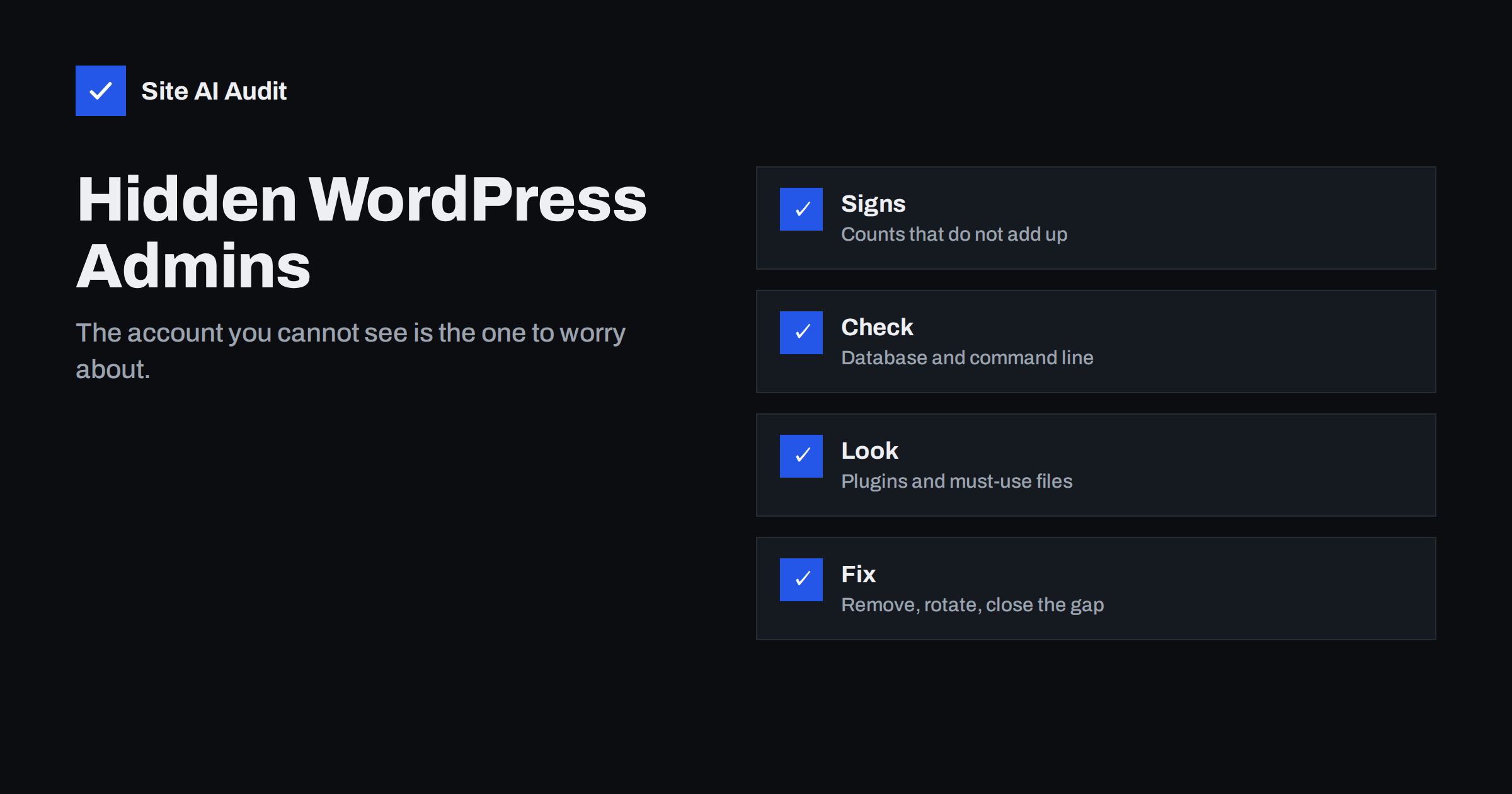
Short answer: After breaking into a WordPress site, attackers often create an extra administrator account so they can return later, and sometimes add code that hides that account from the Users screen. You can find it by comparing what the screen shows with what the database or the command line shows, by checking who has the administrator role, and by looking for code that filters user lists. Removing the account alone is not enough: you must also close the hole they used.
Why attackers create admin accounts
A hacker who gets into a site through a vulnerable plugin, a stolen password or an exposed file wants to keep access even if the first problem is fixed. An administrator account is the simplest way to do that. With it, they can install plugins, edit theme files, change settings and add more malicious code at any time, using the normal login page, with no further exploit needed.
A visible new admin is easy to catch, so many attackers hide it. If you clean the malware but never find the hidden account, the attacker simply logs in again and the infection returns. This is one reason that a site can be reinfected soon after a cleanup, as described in our article on hacked website recovery steps.
Warning signs
- User counts that do not match. The Users screen shows a number for administrators next to the total. If the total is larger than the sum of the roles, or if you know there should be two admins and the screen shows one, something is being hidden.
- Unexpected changes that you or your team did not make: new plugins, edited theme files, changed settings, new content.
- Password reset or new-user emails you did not request, or notification emails that stopped arriving.
- Strange logins in your logs, from unknown addresses or at odd times, for usernames you do not recognise. Our guide to security logging and monitoring explains what to record.
- Plugins that appear and disappear, or that exist in the folder but not on the Plugins screen.
- Other signs of a hack, such as spam pages, redirects or warnings from search engines, covered in our list of signs your website is hacked.
How accounts get hidden
WordPress builds the Users list by asking the database for all users. A small piece of malicious code can alter this request so that one username, or any account with a certain property, is left out. It can also change the user counts shown at the top of the screen so the numbers add up and nothing looks odd. Where does that code live? Common places are:
- The theme’s functions file, which loads on every request.
- A must-use plugin folder, where files load automatically and do not appear on the normal Plugins screen unless you open the “Must-Use” tab.
- A normal plugin with an innocent name, or a modified copy of a real plugin.
- The main configuration file or other core files, modified to include extra code.
- The database, through options that store code to be run.
Because the code works inside WordPress, the admin screen cannot be trusted to reveal it. You need a view from outside: the database or the command line.
How to find hidden administrators
Back up the site and the database first. Then work through these checks, ideally with the help of your host or a developer if you are not comfortable with a database.
- Use the command line if available. The WordPress command-line tool can list users by role and show their registration dates. The result comes straight from WordPress code, but hiding code in a plugin usually only affects the admin screen, so this often reveals the extra account. Ask your host whether you have access.
- Query the database directly. Using the database tool offered by your host, look at the users table and the user metadata table. Sort the users by registration date and look for names or emails you do not recognise, especially accounts created around the time problems started. The capabilities entry in the metadata shows who has the administrator role. Remember that the table prefix is not always the default.
- Compare the counts. Count the users in the table, compare with the number shown on the Users screen, and investigate the difference.
- Check the Must-Use tab and the plugins folder. Look for files you do not recognise, recently modified files or plugins with odd names.
- Search the code for functions that modify the user query or the user counts. A developer or a security scanner can do this quickly. Treat any match as suspicious until you understand it.
- Check recent file changes. Files with modification dates that do not match your update history are suspects. Our article on web shell and backdoor removal describes what to look for.
Do not trust the Users screen alone, and do not delete the first thing that looks odd without noting it down. Record usernames, emails and dates, because they help you work out how the attacker got in.
What to do when you find one
- Preserve evidence. Take a backup and note the account details, creation date and any related log entries.
- Remove the account, and the code that hides it. If you delete the user and keep the hiding code, you might not notice the next one.
- Find the way in. Look for an outdated or abandoned plugin, an exposed backup file, a weak password or leaked credentials. Our articles on abandoned WordPress plugins and nulled themes and plugins describe common entry points.
- Reset all passwords for administrators, hosting, database, FTP or SFTP, and email accounts connected to the site. Change the secret keys in the configuration file as well, which logs out every session.
- Update everything that is outdated, and remove plugins and themes you do not use.
- Scan and clean the files. Replace core files with fresh copies and compare plugins and themes with original versions. If the infection is deep, restoring a clean backup from before the problem may be the safest choice.
- Turn on two-factor login for administrators, using the advice in our guide to website two-factor authentication.
If customer data may have been accessed, take advice on your obligations to inform people, and tell your host, who can help check server logs.
Preventing the next one
- Keep few administrators, and give everyone else a lower role. See our guide to least-privilege user roles.
- Use a unique, strong password for each person, stored in a password manager. Our article on password managers for website teams explains how to share access safely.
- Remove access when people leave, using the checklist in developer access offboarding.
- Review the list of administrators every few months, comparing it with the people who really need access.
- Get an alert when a new user is created or when a role changes, using a security plugin or logging tool.
- Keep WordPress, themes and plugins updated, as recommended in our WordPress security checklist.
- Limit information that helps attackers guess usernames. Our article on WordPress user enumeration explains how usernames leak.
A quick routine you can repeat
You do not need a full investigation every time. A five-minute check every month catches most problems early. Open the Users screen and note the number of administrators. Compare it with your written list of people who should have that role. Look at the newest users and the last logins if you have a logging plugin. Check that the Must-Use tab shows only files you recognise, and that the list of plugins matches what you installed.
Once or twice a year, go one level deeper and ask your host or developer to compare the user count in the database with the count on the screen, and to scan the files for changes. Keep the results in a short note with dates. If something looks wrong, act at once rather than waiting for the next check: a hidden account that stays for weeks gives an attacker plenty of time to work. A calm, regular routine is cheaper than recovering from a serious hack.
How Site AI Audit helps
Site AI Audit checks the visible side of security on your website: the SSL certificate, HTTP to HTTPS redirects, security headers and exposed software versions. It does not log in to WordPress or read your user list, so it cannot find a hidden administrator. Use the database, the command line or a security scanner for that, and use the audit to keep the visible basics in good shape. You can run a free check of your website or see the plans.
Related reading
- 9 Signs Your Website Has Been Hacked (and How to Check)
- Website Hacked? A Step-by-Step Recovery Plan for Owners
- WordPress Security Checklist: 20 Steps That Actually Matter
- wp-config.php Security: How to Protect and Harden It
The bottom line
A hidden administrator is a back door that survives ordinary cleanups. Do not rely on the Users screen. Compare it with the database or the command line, search for code that hides accounts, remove both the account and the way in, rotate every credential and keep the number of administrators low. Regular reviews make a hidden account much harder to miss.
KKK
Can an admin user be hidden from the WordPress Users screen?
Yes. Malicious code can filter the user list and the counts, so the screen looks normal while the account exists in the database.
How can I check the list of administrators safely?
Use the database tool from your host, or the WordPress command-line tool, and compare the results with the Users screen. Take a backup first.
Is deleting the unknown admin enough?
No. The attacker got in somehow and probably left other code. Find the entry point, clean the files, reset credentials and update everything.
How often should I review administrators?
Every few months, and whenever someone joins or leaves the team or an agency finishes a project.
Should I ask my host for help?
Yes. Hosts can provide logs, backups and sometimes scanning tools, which makes finding the entry point much easier.