ENEnglish
 LTLietuviškai
 DEDeutsch
 FRFrançais
 RUРусский
 ESEspañol
 PLPolski
 ITItaliano
 UKУкраїнська
 CSČeština
 PTPortuguês
 JA日本語
JA日本語 LVLatviešu valoda
 ETEesti
 HUMagyar
 IDBahasa Indonesia
 TRTürkçe
 HIहिन्दी
 ELΕλληνικά
 ARالعربية
 THไทย
THไทย VITiếng Việt
 RORomână
 MSBahasa Melayu
 BNবাংলা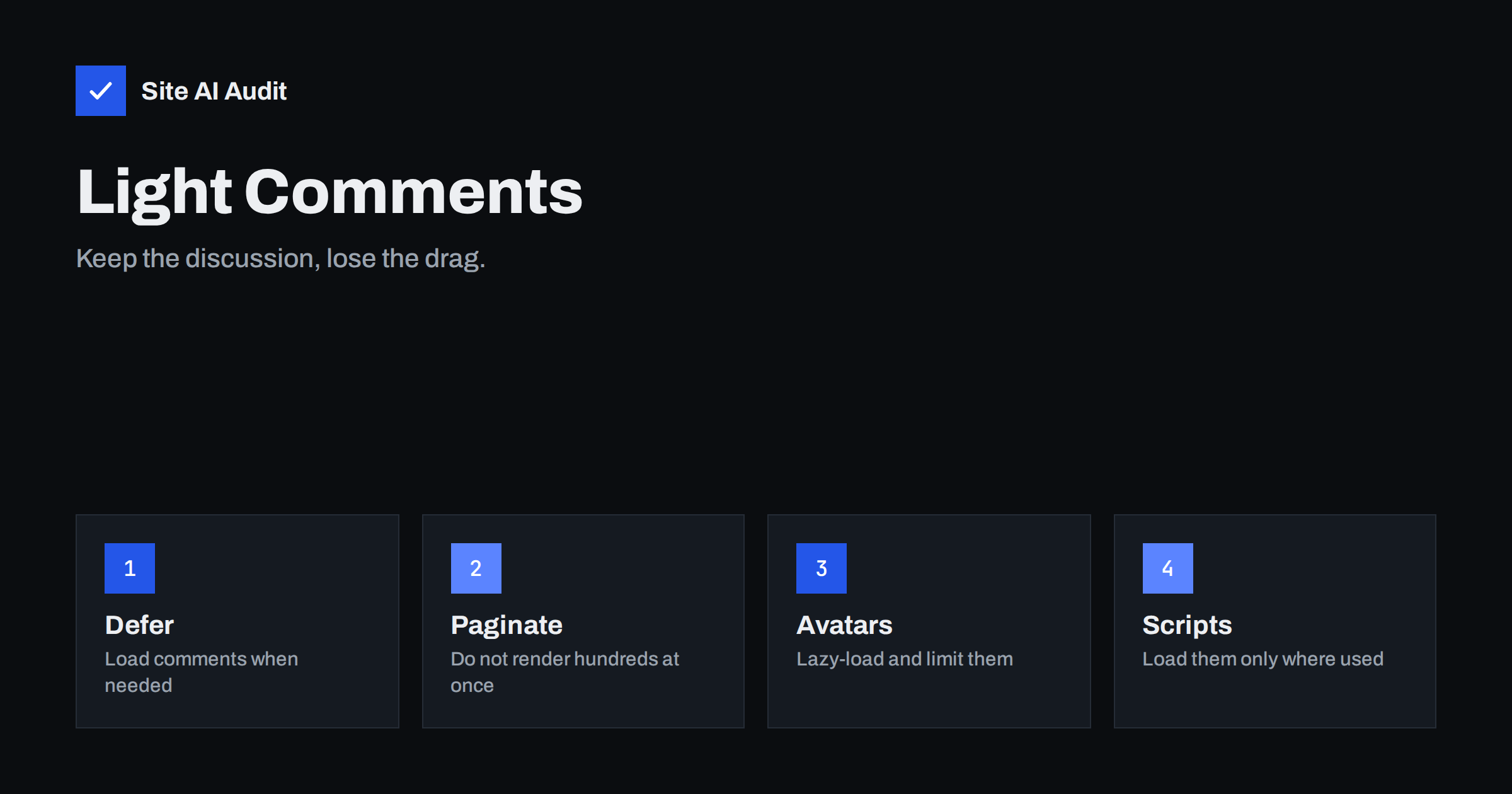
Short answer: A comments section can quietly become the heaviest part of an article. It adds database queries, avatar images, form and reply scripts, anti-spam tools and sometimes a whole third-party system. To keep pages quick, load comments only when readers need them, split long threads into pages, lazy-load avatars, load comment scripts only on pages where comments are open, reserve space to avoid layout shifts and close discussions on old posts.
What comments add to a page
A short article with a few comments looks light, and on a quiet blog it is. The cost grows with popularity. Every comment is a row in the database that must be fetched, formatted and printed in the HTML. Every commenter may have an avatar image that the browser must download. The form needs fields, scripts and often a spam protection tool. A threaded layout adds another script that moves the form when someone clicks reply.
On a popular post, the text of the discussion can be longer than the article itself. Visitors who came to read the article pay for all of it, even if they never scroll to the comments. That is the first thing to fix: make the cost depend on whether the reader wants the discussion.
Where the speed goes
- Database and server time. Loading hundreds of comments, their metadata and their authors slows the server response. Pages with many comments may also be harder to cache.
- Large HTML. A long thread produces a large document that the browser must download and parse before it finishes rendering.
- Avatars. Each commenter’s picture may come from an external service. A hundred comments can mean a hundred image requests and extra connections.
- Scripts. Reply scripts, spam checks and third-party discussion tools add JavaScript that competes with the main content.
- Third-party embedding. External comment systems load their own libraries, styles, fonts and tracking, often more than a native system would.
- Layout shifts. Comments, avatars and widgets that arrive late can push the page around and make buttons move under a finger.
- Main thread work. Heavy scripts can delay response to taps and scrolls, which hurts interaction to next paint.
Load comments on demand
The biggest saving usually comes from not loading comments until they are needed. There are three common approaches.
- A “Show comments” button. Display the number of comments and a button. The thread loads only after a click. This is the simplest and most predictable method.
- Load when scrolled into view. The thread loads when the reader approaches the end of the article. Use a placeholder with reserved height so that the page does not jump.
- Load on idle. Wait until the main content and key scripts are finished, then fetch the comments quietly.
Whichever you choose, keep the comment count and the link to the form visible in the HTML, and make sure the content is still accessible to people who use keyboards or assistive technology. A button should be a real button, and the loaded area should be announced properly. Search engines may not click buttons, so decide whether you want comment text to be indexed. For most business blogs it makes little difference, and the speed gain matters more.
Paginate long threads
If a post has dozens or hundreds of comments, do not print them all at once. WordPress offers a setting to break comments into pages with a fixed number per page and to show either the newest or the oldest first. Check it in the discussion settings. A smaller first page means less database work, smaller HTML and quicker rendering.
Also limit threading depth. Deeply nested replies add complicated markup and make the thread harder to read on a phone. Two or three levels are usually enough. For very active discussions, consider a dedicated forum instead of a post thread, because forums are built to handle volume.
Tame avatars
- Lazy-load them. Avatar images are below the fold and should not compete with the main picture; see the lazy loading guide.
- Set the size. Give every avatar a fixed width and height in the markup so that the layout does not move.
- Request a small image. A 48-pixel avatar does not need a file ten times larger.
- Consider turning them off. A simple default or no picture at all removes hundreds of requests. The setting is in the discussion options.
- Mind privacy. Avatars from an external service reveal visitor information to that service. Fewer requests help speed and reduce exposure.
Control the scripts
Comment scripts often load on every page of the site, including pages without comments. That is wasteful. Load the reply script only on single posts that have comments open. Many themes already do this, but plugins may not. A tool that lists scripts per page will show where they come from, and the guide to loading plugin assets only where needed explains how to restrict them safely.
The same applies to spam protection. A challenge that appears on every page for no reason adds weight. Load it only when a visitor starts to fill in the form, or only on pages with a form. If you use a third-party service for comments, count what it loads, compare it with the native system and read the advice in third-party scripts and performance. Sometimes the best fix is to drop the external tool, as with other embeds discussed in social media embeds and page speed.
Protect layout stability
- Reserve the height of the comments area before it loads, so the footer does not jump.
- Give avatars, icons and emoji fixed sizes.
- Do not insert banners or notices above the form after loading.
- Keep the form in a stable position and avoid animations that move fields while someone types.
These steps help the stability score; the basics are in fixing cumulative layout shift.
Decide what comments are for
Comments are not free. If a post receives no real discussion, closing the thread saves speed, moderation time and spam. Close comments on old posts after a set period, and keep them open where questions are likely, such as guides and announcements. Clean out spam and unneeded data from time to time, as in WordPress database cleanup. If you want engagement without the weight, point readers to a contact form, an e-mail address or a social profile. A short, well-managed discussion beats a heavy, neglected one.
To find out how much your own comments cost, test an article twice: once as it is, and once with comments disabled for a moment on a staging copy or in a test post. Compare the page weight, the number of requests and the server response time. If the difference is small, leave the system alone and spend your effort elsewhere. If the difference is large, you now have a number to justify the change and a baseline to check against after you apply the fixes above.
Finally, remember the reader. Many visitors never open the comments, and those who do are often looking for one answer. Show the newest or most useful comments first, keep the form simple and avoid asking for more information than you need. A lighter, clearer thread is faster to load and also easier to use.
If you use caching, check how it treats pages with comments. Some setups skip the cache for visitors who have left a comment, so that they can see their message awaiting approval. That is reasonable, but it means that active commenters may see a slower version of the page than everyone else. Make sure the rest of your visitors still receive the cached copy.
How Site AI Audit helps
Site AI Audit does not change your comment settings. It measures how your pages perform on a phone, including the speed of the main content, layout stability, server response time, compression and page weight, and it explains each finding in plain words, ranked by impact. If a heavy comments area slows your articles, the report points you toward the cause. The first check is free, covers up to 50 pages and needs no sign-up. You can run a free check of your website or see the plans for regular monitoring.
Related reading
- How Third-Party Scripts Slow Down Your Website (and Fixes)
- Page Caching Explained: How to Speed Up a Dynamic Website
- How to Reduce Unused JavaScript and Speed Up Your Pages
- How to Improve Largest Contentful Paint (LCP) on Any Website
The bottom line
Comments can bring a site to life, but they must not slow it down. Load them on demand, paginate long threads, tame avatars, restrict scripts to the pages that need them, reserve space for the area and close old discussions. Measure your article pages before and after, and keep only the parts of the system that earn their weight.
KKK
Do comments hurt page speed?
They can, especially on busy posts, because of database work, long HTML, avatars and scripts. A small number of comments with a lean setup has little effect.
Is it bad for SEO to load comments with a button?
Not usually. The article is the main content. If the comments contain valuable text, you may prefer to render the first page of them with the article and load the rest on demand.
Are third-party comment systems slower than WordPress comments?
Often they load more scripts and external resources. Test your page with and without the system, and compare real numbers before you decide.
Should I turn off avatars?
If speed or privacy matter more than looks, yes. Otherwise lazy-load them, request small sizes and give them fixed dimensions.
How many comments per page is sensible?
There is no fixed number, but a few dozen per page is usually a comfortable balance between convenience and speed. Adjust it according to your traffic and server.