ENEnglish
 LTLietuviškai
 DEDeutsch
 FRFrançais
 RUРусский
 ESEspañol
 PLPolski
 ITItaliano
 UKУкраїнська
 CSČeština
 PTPortuguês
 JA日本語
JA日本語 LVLatviešu valoda
 ETEesti
 HUMagyar
 IDBahasa Indonesia
 TRTürkçe
 HIहिन्दी
 ELΕλληνικά
 ARالعربية
 THไทย
THไทย VITiếng Việt
 RORomână
 MSBahasa Melayu
 BNবাংলা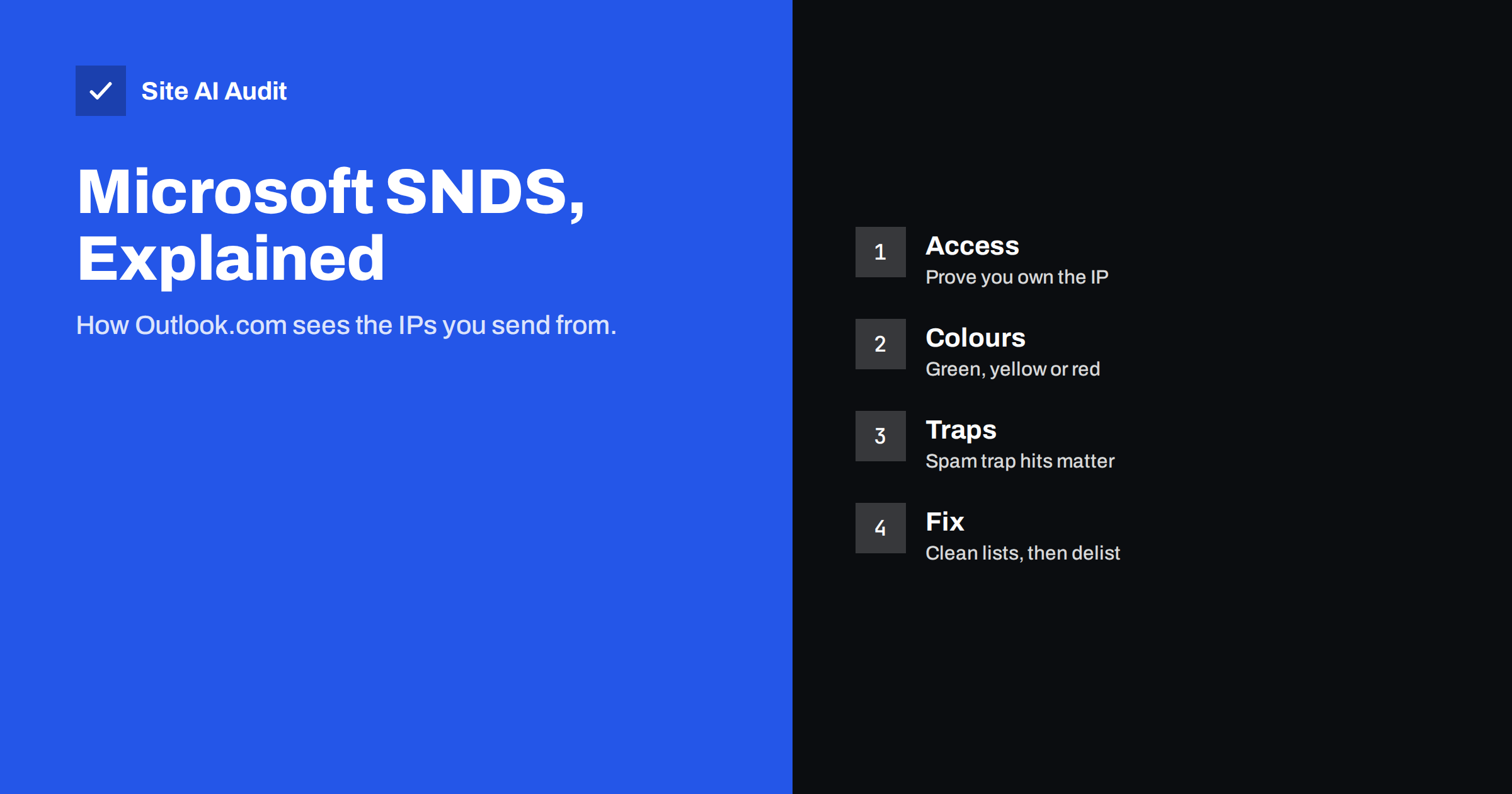
Short answer: Smart Network Data Services (SNDS) is Microsoft’s free portal that shows how Outlook.com, Hotmail and Live.com judge the IP addresses your mail comes from. You register the IP addresses you control, prove ownership, and then see daily data: how much mail reached Microsoft, what share its filters classed as spam (green, yellow or red), complaint rates and spam trap hits. It only helps if you send from your own or dedicated IP addresses; on shared sending services the provider watches it for you.
What SNDS is and who it is for
When you send email to an Outlook.com, Hotmail.com or Live.com address, Microsoft’s filters decide whether the message goes to the inbox, the Junk folder or is rejected. A large part of that decision depends on the reputation of the IP address that delivered the message. SNDS gives the owner of that IP address a view into the same data Microsoft uses.
It is useful if you:
- run your own mail server, for example on a VPS or dedicated server;
- have a dedicated IP address from your email service provider;
- are a hosting company or agency that manages mail servers for clients;
- send newsletters or transactional mail from your own infrastructure.
It is not useful if you send through a shared pool, which is how most small businesses send: Microsoft 365, Google Workspace, and the standard plans of most newsletter tools. You cannot register IP addresses you do not control, and the reputation of a shared pool is the provider’s responsibility. In that case your domain reputation and authentication matter more than any single IP.
SNDS covers Microsoft’s consumer mailboxes. Business mailboxes on Microsoft 365 use their own filtering, but problems with your IP reputation usually show up in both places.
How to get access
Access is free, and it takes a few minutes plus a confirmation email.
- Go to the SNDS portal and sign in with a Microsoft account. A dedicated account for your team works better than a personal one.
- Request access for an IP address or range. Enter it in the usual format, a single address or a range in CIDR notation.
- Microsoft sends an authorisation email to an address it considers responsible for that IP. These addresses are taken from the WHOIS record of the IP block, or built from the reverse DNS name, for example
postmaster@at the domain the IP points to. - Open the link in that email to confirm. From then on, data for those IP addresses appears in your account.
The most common reason access fails is that nobody can receive mail at any of the offered addresses. If your server’s reverse DNS points to a host name under your own domain, make sure postmaster@ or abuse@ at that domain is a working mailbox. Our guide to postmaster and abuse addresses explains why these role addresses are worth having anyway. If the IP belongs to your hosting provider, they may need to authorise you or forward the email.
Reading the SNDS data
The main view lists one row per IP address per day. The columns that matter most are:
| Field | What it shows | What to watch for |
|---|---|---|
| Activity period | First and last time mail arrived that day | Mail at times you do not send can mean a compromised account or script |
| RCPT and DATA commands | How many recipients and messages your server tried to deliver | Sudden jumps you cannot explain |
| Filter result | Green, yellow or red, based on how much of your mail the filters judged as spam | Any yellow or red day |
| Complaint rate | Share of messages that recipients marked as junk | A rising trend, even if the colour is still green |
| Trap hits | Messages sent to spam trap addresses | Any number above zero on a regular basis |
Green means the filters considered only a small share of your mail to be spam. Yellow means a substantial share, so some mail is landing in Junk. Red means most of your mail was judged as spam; at that point delivery to Outlook.com mailboxes is poor or blocked.
SNDS also has an IP status page that shows whether an address is currently blocked or restricted. If a bounce from Microsoft says your IP is on its block list, often with a code such as S3150 in the message, this page confirms it.
The data is not real time. It appears with a delay of about a day, so use SNDS to spot trends and confirm problems, not to watch a campaign as it goes out.
Why your IP turned yellow or red
A poor SNDS colour is a symptom. The causes are almost always among these:
- Old or bought lists. Addresses that were abandoned years ago become invalid or are turned into spam traps. Trap hits in SNDS are the clearest signal of this. Our article on spam traps explains the types.
- Complaints. People mark mail as junk when they do not remember signing up, receive too much, or cannot find the unsubscribe link.
- A sudden volume jump. A new IP, or an IP that normally sends little, suddenly delivering thousands of messages looks like a spammer. New IPs need a gradual warm-up.
- A compromised account or form. A hacked mailbox, a website contact form abused to send spam, or a malicious script on the server can send far more mail than you do yourself. Activity at unusual hours is a clue.
- Missing or broken authentication. Mail without valid SPF, DKIM and DMARC is treated with more suspicion.
- Infrastructure basics. No reverse DNS record, or a generic one that looks like a home connection, makes an IP look untrustworthy. See our guide to reverse DNS for email.
How to fix a poor reputation
Fix the cause first, then ask for help. Microsoft will not lift a block for an IP that is still sending the same mail.
- Stop the source. If volume or timing looks wrong, check mail logs for the account, script or form that sends it. Change passwords, remove malicious code and add protection to forms.
- Clean your lists. Remove addresses that bounced, addresses that have not opened or clicked for a long time, and any source you cannot explain. Use confirmed opt-in for new subscribers.
- Make leaving easy. A visible unsubscribe link and one-click List-Unsubscribe headers turn would-be complaints into quiet unsubscribes.
- Check authentication. SPF must include the sending IP, DKIM must sign the mail and DMARC must pass with alignment.
- Reduce and rebuild volume. Send only to your most engaged recipients for a while, then increase step by step.
- Request mitigation. If the IP is blocked, use Microsoft’s sender support request form, linked from the SNDS site, and describe what you changed. Answers usually come by email; a first reply may be automated.
Watch the daily data afterwards. A recovering IP moves from red to yellow to green over days or weeks as clean mail replaces the bad history.
Microsoft’s requirements for bulk senders
Since 2025 Microsoft has applied stricter rules to domains that send large volumes to Outlook.com, Hotmail.com and Live.com addresses, following similar moves by Gmail and Yahoo. High-volume senders, which Microsoft defined as more than 5,000 messages a day, need SPF and DKIM to pass, a DMARC record with at least a p=none policy that aligns with SPF or DKIM, working unsubscribe links and valid sender addresses. Mail that does not meet the rules can be rejected.
Smaller senders benefit from meeting the same rules anyway. They are the baseline that every major mailbox provider now expects, and they protect your domain from spoofing. Our Microsoft 365 authentication guide walks through the records if you send from Microsoft 365.
SNDS compared with other reputation tools
SNDS is one view among several, and each covers a different mailbox provider or angle:
- Google Postmaster Tools shows domain and IP data for Gmail, but works per domain rather than per IP. See our Postmaster Tools guide.
- Public blocklists show whether your IP or domain is listed by independent services that many mail servers consult. Our blocklist guide covers checks and removal.
- Your own bounce logs show the exact rejection reasons from every provider, including smaller ones that offer no portal at all.
Use them together. Good results at one provider and bad results at another usually point to list quality or engagement differences, not to a technical fault.
How Site AI Audit helps
SNDS tells you how Microsoft sees your IP. Site AI Audit checks the DNS side that every mailbox provider reads first: whether your domain has an SPF record, whether there is more than one, whether it allows any server to send as you or needs more than ten DNS lookups, whether a DMARC record exists and is still in monitoring mode, whether DMARC reports are collected, whether a DKIM key is found at common selectors, and whether the domain has MX records. It does not log in to SNDS or check IP blocklists, so use both. You can check your domain for free, and paid plans on the pricing page repeat the checks with monitoring.
Related reading
- Emails Going to Junk in Outlook and Hotmail? How to Fix It
- Shared vs Dedicated IP for Email: Which One Do You Need?
- How to Reduce Spam Complaints and Keep Your Spam Rate Low
- Email List Hygiene: How to Clean Your List Without Losing Buyers
The bottom line
If you send from IP addresses you control, register them in SNDS today, before there is a problem. Check the colours, complaint rates and trap hits weekly, investigate anything unusual, and treat yellow or red as a sign to clean lists, stop abuse and fix authentication before asking Microsoft for mitigation. If you send through a shared service, focus on authentication, list quality and complaints instead.
FAQ
Is Microsoft SNDS free?
Yes. SNDS is free. You need a Microsoft account and the ability to receive an authorisation email at an address associated with the IP address you register.
Can I use SNDS if I send from Microsoft 365 or Google Workspace?
No. You can only register IP addresses you control. Shared sending infrastructure is monitored by the provider, so focus on your domain’s authentication and complaint rates instead.
What does a yellow SNDS status mean?
Yellow means Microsoft’s filters judged a substantial share of the mail from that IP to be spam on that day. Some of your messages are likely landing in Junk, so check list quality, complaints and unusual sending.
How long does it take to recover from red?
It depends on the cause and on how quickly clean mail replaces the bad history. Once the cause is fixed, recovery typically takes days to a few weeks of steady, low-complaint sending.
Why do I see trap hits in SNDS?
Trap hits mean mail went to addresses that exist only to catch senders with poor list practices. They usually come from old, bought or scraped lists, so remove inactive and unverified addresses.