ENEnglish
 LTLietuviškai
 DEDeutsch
 FRFrançais
 RUРусский
 ESEspañol
 PLPolski
 ITItaliano
 UKУкраїнська
 CSČeština
 PTPortuguês
 JA日本語
JA日本語 LVLatviešu valoda
 ETEesti
 HUMagyar
 IDBahasa Indonesia
 TRTürkçe
 HIहिन्दी
 ELΕλληνικά
 ARالعربية
 THไทย
THไทย VITiếng Việt
 RORomână
 MSBahasa Melayu
 BNবাংলা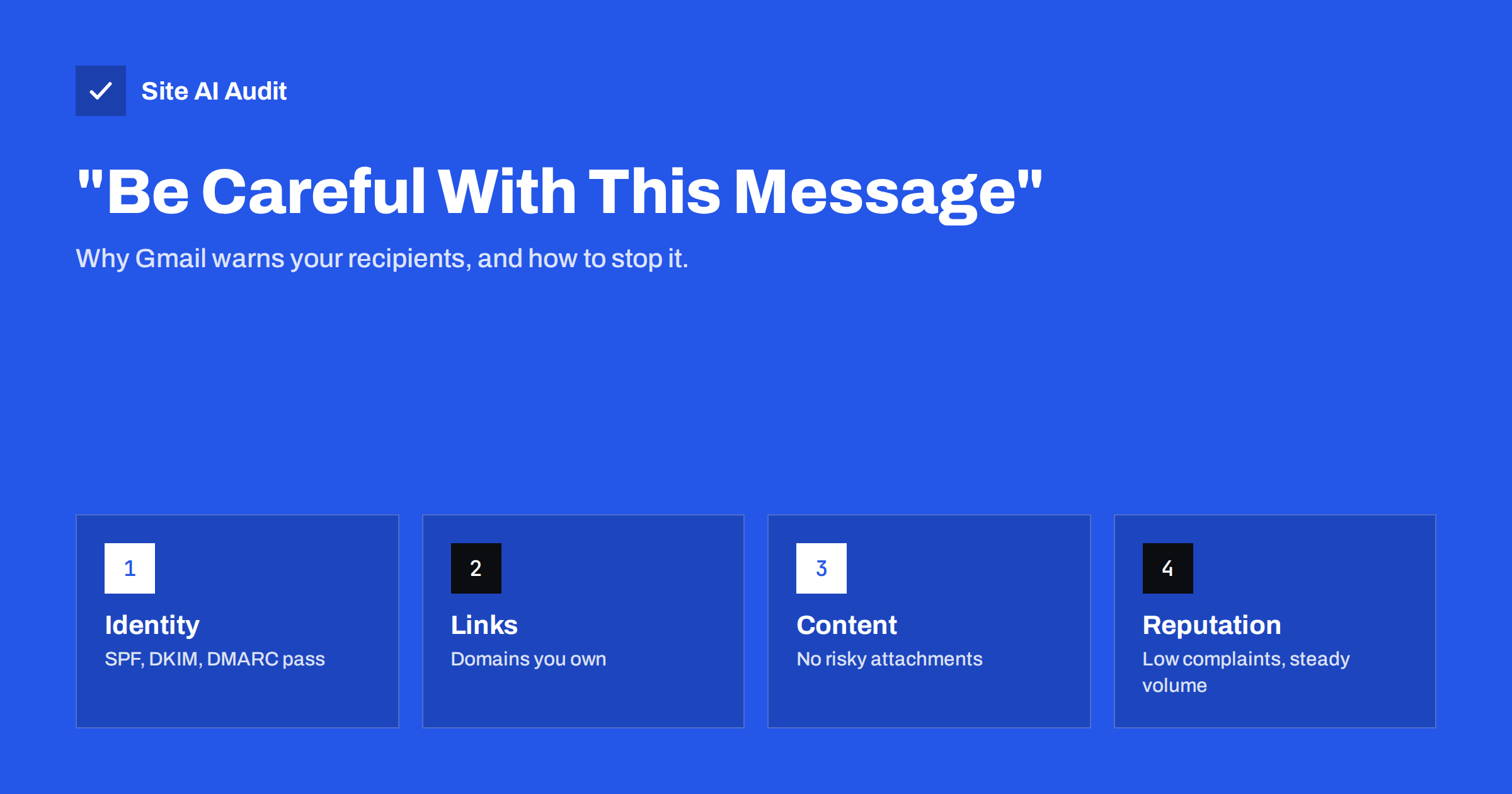
Short answer: Gmail shows a yellow or red “Be careful with this message” banner when it cannot confirm who sent an email, or when the message looks like the kind used for phishing. The most common causes for legitimate senders are missing or failing authentication (SPF, DKIM and DMARC), links that point to unfamiliar or shortened domains, risky attachments and a weak sending reputation. Authenticate every service that sends in your name, use link domains you control, avoid attachments that hide content, and the warning usually stops.
What the warning looks like and what it means
The banner sits at the top of an opened message, above the text. Its exact wording changes from time to time, but the variants fall into a few groups. One says that Gmail could not verify that the message actually came from the domain it claims. Another says that similar messages were used to steal personal information. The red version says that the message seems dangerous and that links or attachments may be harmful. Next to the sender, Gmail may also show a grey question mark instead of a profile picture, which is its sign for an unauthenticated sender.
The banner is different from the spam folder. A message with a warning can still land in the inbox, and a message in spam may have no banner at all. But the effect on the reader is often worse than spam placement: a customer opens your invoice or order confirmation and is told, in bold, not to trust it. Many will not click, will not pay and may report the message as phishing, which in turn damages your sending reputation.
It also helps to know what the banner is not. It is not a block. Gmail has accepted the message and delivered it. The warning is a judgement about trust that Gmail shows to the recipient, and that judgement is built from signals you can influence.
Cause 1: the message is not authenticated for your domain
The most frequent cause for real businesses is plain authentication. Gmail checks whether SPF or DKIM passes for a domain that matches the From address, and whether that result satisfies your DMARC record. When neither passes, Gmail has no proof that your domain sent the message, so it shows the “could not verify” style of warning or the question mark avatar.
Typical situations that lead here:
- A website contact form or shop plugin sends mail through the web server, which is not in your SPF record and does not sign with your DKIM key.
- A newsletter, CRM or invoicing tool sends in your name without domain authentication set up.
- Your SPF record is broken, for example because the domain has two SPF records or the record needs more than ten DNS lookups.
- Mail is forwarded through a server that breaks the DKIM signature, so only an unaligned result is left.
Open the message in a Gmail account, choose “Show original” and look at the SPF, DKIM and DMARC lines. If they say fail or show a domain other than yours, you have found the starting point. Our guide to reading email headers explains each line, and the article on authenticating third-party senders shows how to fix each service without breaking your SPF record.
Cause 2: someone else is spoofing your domain
Sometimes the warning appears on messages you did not send. Fraudsters put your domain in the From address and send fake invoices or payment requests to your customers or staff. If your domain has no DMARC record, or only p=none, Gmail still delivers some of these messages and adds a warning because they fail authentication.
In that case the banner is doing its job, but you can make it unnecessary. Once all your real senders pass DMARC, move your policy towards p=quarantine and then p=reject. Spoofed messages will then be filtered or refused before your customers ever see them. The steps are covered in our guide on how to stop email spoofing.
Cause 3: links and content that look like phishing
Even a perfectly authenticated message can get a warning if its content resembles phishing. Gmail’s filters are not public, but the patterns that commonly cause trouble are well known:
- Link text that does not match the destination. A button that says “yourshop.com/account” but leads to a long tracking domain looks like a trick, even when it is not.
- URL shorteners and newly registered domains. Public shorteners are used heavily by spammers, and a domain that was registered last week has no reputation yet.
- Login or payment requests with urgency. “Your account will be closed today, confirm your password” is the classic phishing pattern, and filters weigh it heavily.
- Changed bank details. Messages announcing new payment details are a favourite of invoice fraud and get extra scrutiny.
- Attachments that hide their content. Password-protected archives, macro-enabled office files and executable files are frequent malware carriers.
Use link and tracking domains that belong to you, ideally a subdomain of your main domain. Our article on tracking domains and shorteners explains how to set this up in most sending tools. Send documents as normal PDFs or, better, as links to a page on your own website.
Cause 4: weak or damaged sending reputation
Gmail also looks at the history of the domain and the IP addresses that send for it. A new domain sending its first bulk campaign, a sudden jump in volume, or a high rate of recipients pressing “Report spam” all lower trust. When trust is low, borderline signals that would normally pass can be enough for a warning.
Reputation is slow to build and quick to lose. Warm up new domains gradually, send only to people who asked for your mail, remove addresses that bounce, and keep the spam complaint rate well under the limits Gmail publishes for bulk senders. Google Postmaster Tools shows your domain reputation and spam rate as Gmail sees them, once you send enough volume.
Cause 5: the recipient’s own settings and history
Not every warning is about you. In company accounts, an administrator can enable stricter safety settings, such as extra warnings for messages from outside the organisation or for unusual attachments. Gmail also learns from the individual recipient: if someone has reported similar messages before, or has never corresponded with your address, the threshold for a warning can differ from another reader’s.
This is why one customer may see a banner while another does not. Treat a single report as a reason to check your setup, not as proof that everything is broken. If several unrelated recipients see it, the cause is almost certainly on the sending side.
A step-by-step fix
- Collect an example. Ask a recipient to forward the message as an attachment, or send the same message to your own Gmail address and reproduce the warning.
- Read the authentication results. In “Show original”, check that SPF or DKIM passes for your domain and that DMARC passes.
- Fix the sender that failed. Set up domain authentication with DKIM for that service, and correct SPF if the record is missing, duplicated or over the lookup limit.
- Review links and attachments. Replace shorteners, use your own tracking domain and remove archive or macro attachments.
- Check reputation. Look at spam complaints and bounce rates in your sending tool, and at Postmaster Tools if you send in volume.
- Test again. Send a fresh message to a Gmail account that has never seen your address before and check that the banner is gone.
- Tighten DMARC. Once your own mail passes, move the policy step by step towards reject so that spoofed copies stop arriving.
Messages that were already delivered keep their warning. The changes apply to new messages only.
How Site AI Audit helps
Site AI Audit checks the email side of your domain together with the website: whether an SPF record exists, whether there is more than one, whether it allows any server to send, and how many DNS lookups it needs; whether a DMARC record exists and which policy it uses; whether DKIM keys are published at common selectors; and whether MX records are in place. Each problem comes with a plain-language explanation and a fix, ranked by impact. The audit reads your DNS from the outside, so it cannot see how a particular message was signed; use “Show original” for that. You can check your domain for free, and paid plans add re-checks and monitoring, as listed on the pricing page.
Related reading
- Why Gmail Shows “via” Next to Your Sender Name and How to Fix It
- SPF vs DKIM vs DMARC: What Each One Does and Why You Need All
- Invoice Fraud by Email: How Small Businesses Stay Protected
- Google Postmaster Tools: How to Set It Up and Read the Data
The bottom line
Gmail’s “Be careful with this message” banner is a trust warning, not a delivery failure. For legitimate senders it almost always comes down to authentication that does not pass for their own domain, links and attachments that look like phishing, or a weak reputation. Make every service that sends in your name pass SPF or DKIM with alignment, publish DMARC and tighten it over time, use link domains you own, and your recipients will see your message instead of a warning about it.
FAQ
Does the warning mean my email went to spam?
No. A message with the banner has been delivered, often to the inbox. The banner is a separate trust signal shown to the reader, although the causes behind it can also push mail into spam.
Why do only some recipients see the warning?
Gmail combines signals about the message with signals about the recipient, such as their past reports and their organisation’s safety settings. If many unrelated recipients see it, the cause is on the sending side.
Will setting up DMARC remove the warning?
DMARC helps only when your messages actually pass SPF or DKIM for your domain. Publish DMARC after fixing authentication for every sender, then tighten the policy to block spoofed copies.
Can I ask Gmail to remove the warning from my messages?
There is no request form for this. Recipients can mark a message as safe, which helps for them, but the lasting fix is correct authentication, clean links and a good sending reputation.
How quickly does the warning disappear after a fix?
Authentication fixes apply to new messages as soon as DNS changes are live and the sending service uses them. Reputation problems take longer and improve over weeks of clean sending.