ENEnglish
 LTLietuviškai
 DEDeutsch
 FRFrançais
 RUРусский
 ESEspañol
 PLPolski
 ITItaliano
 UKУкраїнська
 CSČeština
 PTPortuguês
 JA日本語
JA日本語 LVLatviešu valoda
 ETEesti
 HUMagyar
 IDBahasa Indonesia
 TRTürkçe
 HIहिन्दी
 ELΕλληνικά
 ARالعربية
 THไทย
THไทย VITiếng Việt
 RORomână
 MSBahasa Melayu
 BNবাংলা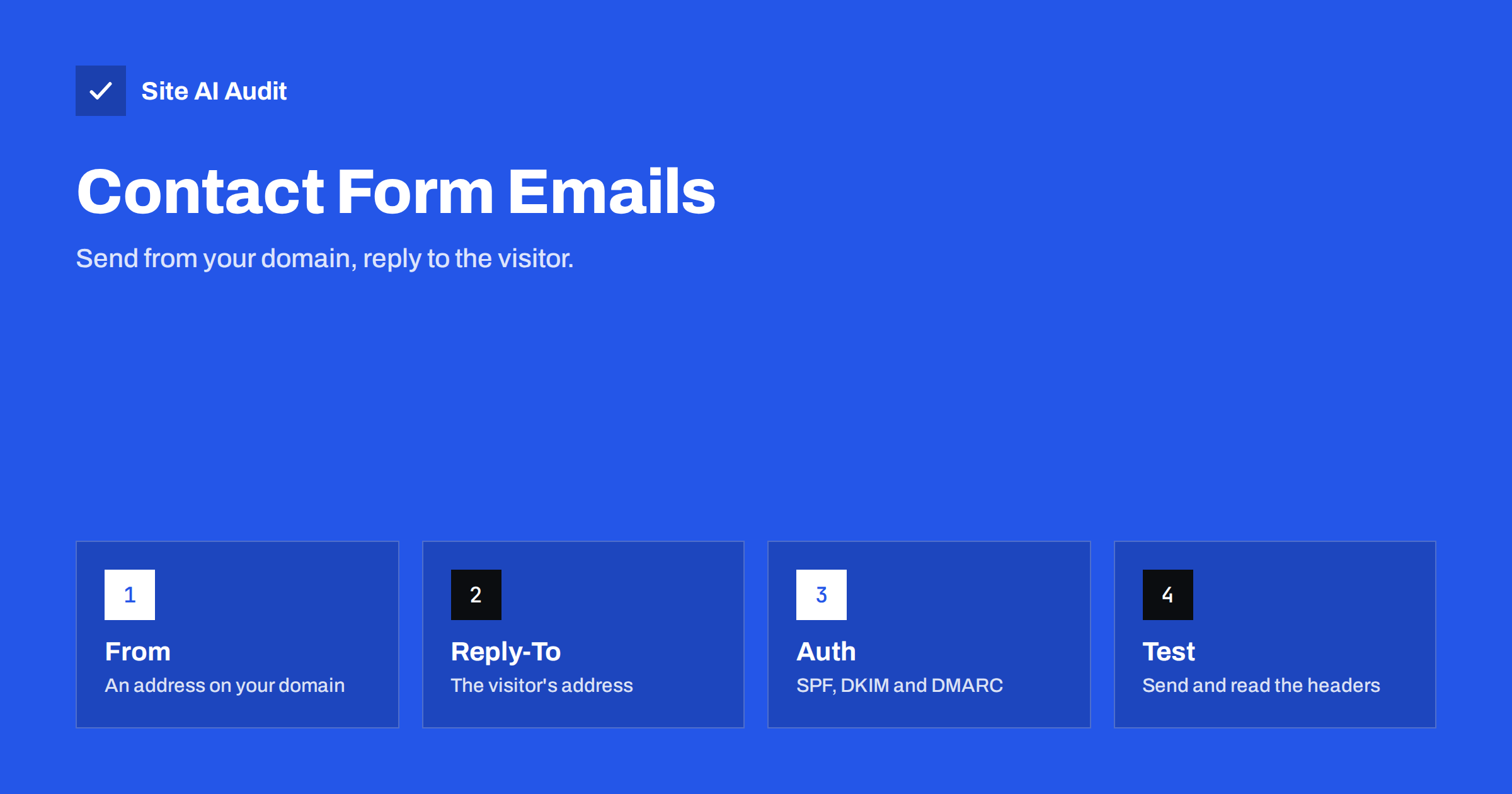
Short answer: Contact forms often fail because the website sends the notification with the visitor’s email address in the From line. The message comes from your server but claims to be from, say, a free mail provider, so SPF and DMARC checks fail and the message is rejected or sent to spam. Send from an address on your own domain, put the visitor’s address in Reply-To, and send through an authenticated mail service.
Why contact form emails disappear
When someone fills in a form on your website, the site creates an email to you with their message. The easy way to build it is to put the visitor’s name and address in the From field, so that when you press Reply the answer goes to them. Many form plugins do this by default.
The result looks harmless in the inbox and is a problem for the receiving server. Imagine that the visitor uses a large free mail provider. Your web server, with a different address and no connection to that provider, sends a message that says it is from that provider’s domain. A receiving system checks whether your server is allowed to send for that domain. It is not, so SPF does not pass in alignment, there is no matching DKIM signature, and DMARC fails.
The domain owner may have a strict DMARC policy, and then the receiving system may reject the message or place it in spam. That is not a fault in your form, but in the way the message is built. It also explains why the same form works on one mailbox and not on another.
Spoofing is exactly what these checks are designed to stop, and our article on how to stop people sending mail as your domain explains why. A form that sends in the name of a visitor looks like spoofing, even though your intentions are good.
The correct From and Reply-To setup
The fix is to separate two ideas. The From address says who sent the message, and it should be an address you control. The Reply-To address says where replies should go, and it can be the visitor’s address.
- From: an address on your own domain, for example [email protected]. The name can be the site name or the visitor’s name, so the notification is easy to recognise.
- Reply-To: the email address the visitor typed in the form. Pressing Reply in your mail program then answers the visitor.
- To: the mailbox or group of mailboxes that handle the enquiries, ideally on your own domain.
- Subject: a clear and consistent text, such as “New message from the contact form”, with the visitor’s subject added where needed.
Most form plugins have a setting for this. Look for options such as From email, Force from email or Reply-To, and set the From to your domain and the Reply-To to the visitor’s field. Our guide to From name and address explains how these details build trust with filters and people.
Send through an authenticated service
Using your own domain in the From line is only half of the solution. The message also has to be authenticated as coming from that domain.
- SPF. The server that sends the message must be listed in your SPF record. If your website sends mail directly from the web server, add that server, or better, send through a mail service and list that service.
- DKIM. The message should be signed with a key published in your DNS. Mail services and mail platforms provide the record to add.
- DMARC. With SPF or DKIM aligned to your domain, DMARC passes, and a policy can protect you from abuse.
The most dependable setup is to send website mail through an SMTP service or a transactional email provider with your domain verified, instead of the web server’s default mail function. We compare the options in SMTP relay versus direct sending. Many hosts limit or flag mail sent directly from shared servers, so the SMTP route also avoids those problems.
Other common reasons for missing form emails
- The mailbox is full or the address is misspelled. Test with a simple address you can see.
- The hosting provider blocks outgoing mail or limits the number of messages. Ask support or check the plan.
- The form sends to a free mail address and that provider treats the message as bulk. A mailbox on your own domain is easier to manage.
- The spam folder. Check it, and mark the first messages as not spam.
- A security or anti-spam plugin blocks the message before it is sent. Disable it temporarily to test.
- Wrong or missing DNS records after a change of provider. Read our checklist on switching email providers if you recently moved.
For problems that affect WordPress mail in general, see WordPress emails going to spam or not sending. And if your forms attract many fake submissions, the guide on contact form spam shows how to reduce them without losing real leads.
Do not rely on email alone
Even a perfect setup can fail now and then. A mailbox may be full, a provider may have an outage, or a filter may make a wrong decision. A contact form is a way to receive customers, so losing a message can cost money.
- Keep a copy of every submission in the website database or in a lead tool, so you can find messages that never arrived.
- Show a clear confirmation page after the form is sent, and include a phone number or a second contact route.
- Consider sending an automatic reply to the visitor, from your domain, with the text of their message. It confirms that you received it and shows quickly whether email is working.
- Set up an alert if the form has not produced a message for a long time on a busy site.
How to test the fix
- Submit the form with an address at a different provider from your own mailbox. Use one you can open.
- Check whether the notification arrives and where it lands.
- Open the full headers and look for the results of SPF, DKIM and DMARC. They should say pass for your domain. We show how in how to read email headers.
- Press Reply and check that the reply goes to the visitor and not to the website address.
- Repeat with a mailbox at a second provider, since filters differ.
Write the test down as a short routine and repeat it every time something changes: a new form plugin, a new mail service, a different host, a change of DNS records or a redesign that rebuilds the form. A form can stop sending without any visible error, and the first sign is often a customer who says that nobody replied to them. A monthly test message, sent from a real mailbox at an outside provider, costs a minute and finds most of these problems early. It is also useful to ask a colleague to try the form from a phone on mobile data, since that checks the whole path from a different network.
What Site AI Audit can and cannot tell you
Site AI Audit checks the email setup of your domain from the outside: SPF and its lookup limit, DKIM signatures, the DMARC policy and MX records. It can show a missing or weak record that would make your form notifications fail alignment. It cannot submit your contact form or see what your plugin puts in the From line, so you still need the test above. You can run a free check of your domain or see the plans if you want regular re-checks.
Related reading
- WordPress Emails Going to Spam or Not Sending? How to Fix It
- SMTP Relay vs Direct Sending: Which Should Your Website Use?
- From Name and Address: Email Sender Details That Build Trust
- Order Confirmation Emails Not Arriving? Fix Your Shop’s Mail
The bottom line
A contact form should never pretend to be your visitor. Send the notification from an address on your domain, put the visitor in Reply-To, authenticate the sending service with SPF, DKIM and DMARC, and keep a copy of every message outside email. Then test it with real mailboxes, and test again after any change to your host or DNS.
FAQ
Why do my contact form emails go to spam?
The most common reason is that the message uses the visitor’s address in the From line while it is sent from your server. Authentication fails, so filters treat it as suspicious. Use your own domain in From, and authenticate the sending service.
What is the difference between From and Reply-To?
From shows who the message is sent by and is checked by authentication. Reply-To tells your mail program where to send an answer. Set From to your domain and Reply-To to the visitor, and both goals are met.
Do I need an SMTP plugin for my form?
It is the most dependable approach for most WordPress sites, because it sends through an account that is set up for email and authenticated for your domain. Some hosts handle this well, but check by testing and reading the headers.
Should the form send to a free mail address?
You can, but a mailbox on your own domain is easier to control and monitor. If you do use a free address, add the sending service to your SPF record and keep the From address on your domain.
How can I be sure I never lose an enquiry?
Store every submission in the website or a lead tool as well as sending an email. Test the form regularly, show a confirmation message and offer another way to reach you, for example a phone number.