ENEnglish
 LTLietuviškai
 DEDeutsch
 FRFrançais
 RUРусский
 ESEspañol
 PLPolski
 ITItaliano
 UKУкраїнська
 CSČeština
 PTPortuguês
 JA日本語
 LVLatviešu valoda
 ETEesti
 HUMagyar
 IDBahasa Indonesia
 TRTürkçe
 HIहिन्दी
 ELΕλληνικά
 ARالعربية
 THไทย
 VITiếng Việt
 RORomână
 MSBahasa Melayu
 BNবাংলা
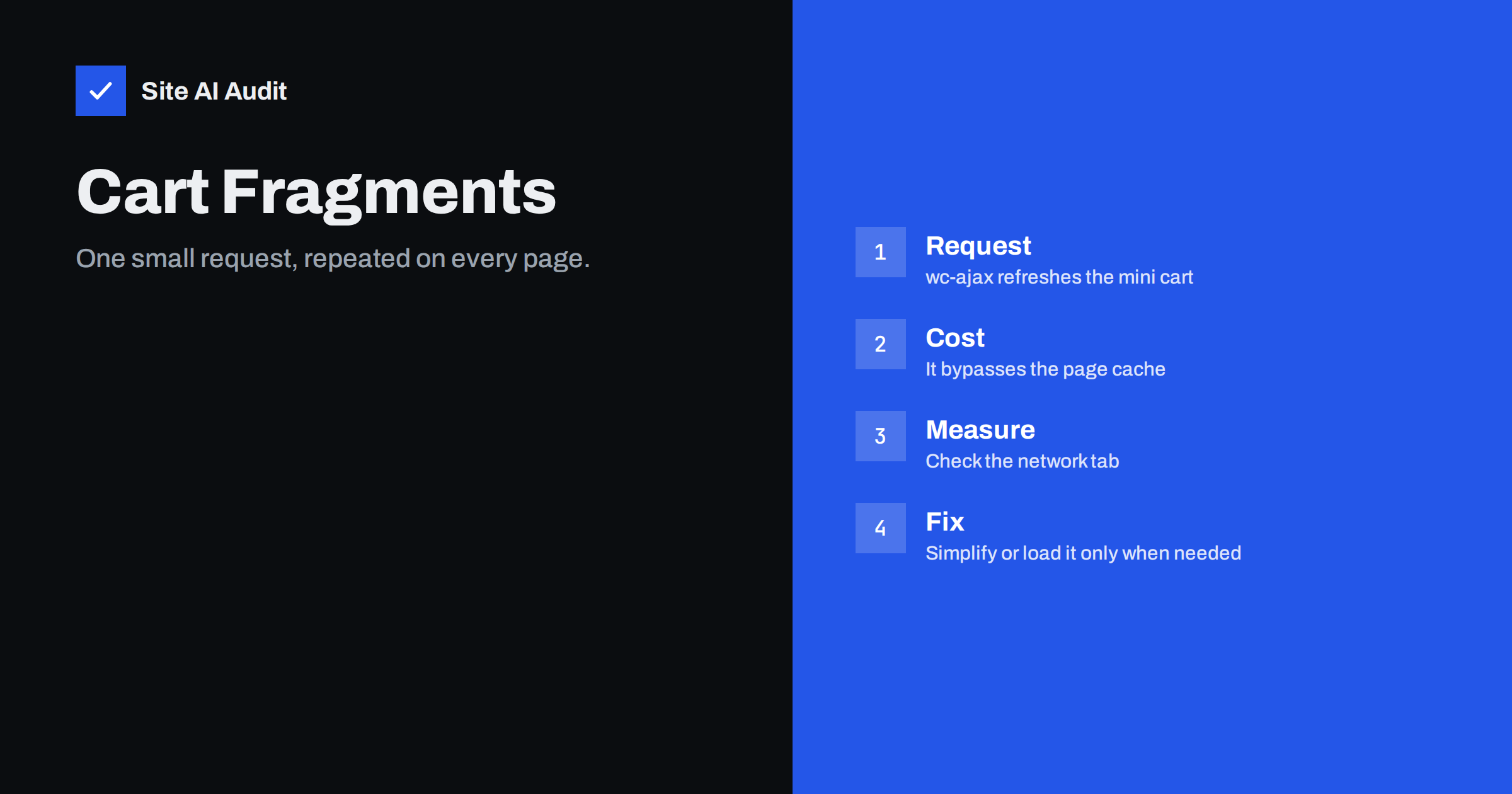
Short answer: Cart fragments are a WooCommerce feature that updates the mini cart in your header through a background request named get_refreshed_fragments. The request cannot be served from a page cache, so on a busy shop it can use a surprising share of server power. You can measure it in the browser, and then reduce it by simplifying the header cart, limiting where the script loads or improving the server behind it.
What cart fragments are
A shop page is usually stored in a cache so that it can be served quickly to many visitors. A cart, however, is personal. One visitor has two items, another has none. If the cached page contained a cart count, the next visitor would see someone else’s number.
WooCommerce solves this with a script, called cart fragments. The page itself is the same for everyone. After it loads, the script asks the server for the current cart contents through a request to an address ending in ?wc-ajax=get_refreshed_fragments, and it replaces the small cart area in the header with the result. The answer is also stored in the browser’s session storage, so repeated visits to pages do not always need a new answer.
Why it can slow a shop down
- It bypasses the page cache. The request is dynamic. It starts WordPress, loads plugins, reads the session and builds the answer. That is far more work than serving a stored page.
- It can run on every page. If your theme shows a mini cart in the header on all pages, the script is needed everywhere, even on blog posts that have nothing to do with shopping.
- It adds up under traffic. A thousand visitors can create thousands of extra dynamic requests. On shared or small servers they compete with real orders for the same limited processes, as explained in the article on PHP workers and a busy site.
- It delays the cart display. The number in the header appears after the request completes, which can cause a visible jump or a layout shift.
Recent WooCommerce versions have reduced how often the script loads, but themes that show a cart widget in the header still rely on it. Test your own site instead of assuming.
How to measure it
- Open a normal page of your site in a private window, so that no cart exists.
- Open the developer tools and go to the network tab. Filter for “wc-ajax”.
- Reload the page. If you see a request named get_refreshed_fragments, note its time. A fast shop answers in well under a second. A slow one takes one or two seconds or more.
- Add a product to the cart and reload. The request may run again, and the answer will contain more data.
- Open a page that has nothing to do with shopping, such as a contact page. If the request still appears, the script loads everywhere.
On the server side, look at the access log for requests to wc-ajax. If they make up a large share of all requests, they deserve attention. The article on admin-ajax.php high usage shows a similar way to investigate background requests, and the guide to the waterfall chart helps to read the timing.
Options to reduce the load
Simplify the header cart
Often the best fix is a design change. Replace the mini cart drop-down with a simple link to the cart page. If the link does not need a live count, no extra request is required. Some stores keep a small count that is updated only after a visitor adds something, which uses far fewer requests.
Load it only where it is needed
A developer can stop the script from loading on pages that do not show the cart or are not part of the shopping flow, such as blog posts and information pages. Several performance plugins offer this as a setting. Test carefully: if the count disappears or does not update after an addition, the change is too aggressive.
Make the answer faster
- Persistent object cache. It speeds up repeated database reads, as described in the guide to object caching with Redis.
- Fewer and lighter plugins. Every active plugin loads during the request. Remove those that you do not need and find slow ones with the method in the article on finding the plugin that slows your site.
- A current PHP version. Newer versions run the same code faster.
- Better hosting for the shop. If requests queue up because there are too few workers, a larger plan may be the honest answer.
Avoid unsafe shortcuts
Do not exclude the wrong pages from caching or disable the script on the cart and checkout pages. Those pages must stay dynamic and accurate, and breaking them costs sales. A change that makes the home page faster and the checkout unreliable is not an improvement.
What to cache and what not to cache
A shop needs a careful caching setup. Product, category and information pages can be cached for visitors without a cart. The cart, checkout and account pages must never be served from a shared page cache, and your caching plugin should exclude them by default. Check that the cookies that WooCommerce sets for visitors with a cart are respected. The general idea is explained in the article on page caching, and the broader checklist in the guide to speeding up a WooCommerce store.
A practical order of work
Shop owners often try everything at once and learn nothing. A calmer sequence gives clearer results and protects sales.
- Record a baseline. Note the response time of the fragments request and the load time of two typical pages: the home page and a product page. Save the numbers with the date.
- Take a backup and use a staging copy. Changes to scripts and caching rules should be tried away from the live shop first.
- Change the design before the code. If a simple cart link is acceptable to your brand, that single change removes the request on most pages and needs no maintenance.
- Limit where the script loads. If you must keep the mini cart, restrict the script to the pages where it is visible and test the whole path from product page to payment.
- Improve the server answer. Add an object cache, update PHP and remove plugins you do not use.
- Measure again. Repeat the same tests under the same conditions. Keep the change only if the numbers improved and the shop works.
- Watch real orders. For a week after the change, compare the number of carts created and orders completed with the previous week. A faster shop that sells less is a bad trade.
Document the result in a few lines for whoever maintains the shop next. Theme or plugin updates can bring the old behaviour back, and a short note saying what you changed and why makes it easy to repeat the fix.
If you run a very small shop, you may find that the request costs little and that the best use of your time is elsewhere, such as compressing product images or removing an unused slider. The aim is a faster experience for buyers, not a perfect list of requests. Fix the largest cause of slowness first, and stop when the pages feel quick on a phone.
Common mistakes
- Disabling the script everywhere. The cart count then stays wrong, and some themes break.
- Testing only while logged in. Logged-in users often bypass caching. Test as a visitor.
- Judging by a speed score alone. A page can score well and still send slow requests after loading. Look at the timing of the real requests.
- Adding more plugins to fix plugin load. Another optimisation plugin adds its own overhead. Change one thing at a time and measure.
- Ignoring mobile visitors. A slow answer matters more on a slower connection. Test with a phone.
- Forgetting scripts that load everywhere. Cart fragments are one of many assets that load site-wide. See the article on loading plugin assets only where needed.
How Site AI Audit helps
Site AI Audit does not look inside your shop’s AJAX requests. It measures the visitor-facing result: the Google PageSpeed score, loading metrics such as LCP, CLS and INP, server response time, compression and page weight, so you can see whether pages are slow before and after a change. The first check is free, covers up to 50 pages and needs no sign-up. You can run a free check of your website or see the plans for weekly monitoring and alerts.
Related reading
- How to Speed Up a Slow WooCommerce Store Without Breaking It
- admin-ajax.php Slowing WordPress? How to Find the Cause
- PHP Workers Explained: Why a Busy Site Slows Down
- How to Reduce Server Response Time (TTFB) for Faster Pages
The bottom line
Cart fragments solve a real problem, but they can cost a lot when they run on every page. Measure the request, simplify the header cart where you can, load the script only where it matters and keep cart and checkout pages dynamic and correct.
FAQ
What does wc-ajax=get_refreshed_fragments do?
It returns the current mini cart contents for the visitor, so that cached pages can still show a correct cart count.
Is it safe to disable cart fragments?
On pages without a cart widget, usually yes. Where a mini cart is shown, disabling it can leave a wrong count. Test adding a product afterwards.
Why is the request slow on my site?
It starts WordPress and runs plugins. Many plugins, slow hosting or a missing object cache make it slower.
Does a page cache fix it?
No. The request is dynamic by design and is not served from a page cache. You can only reduce how often it runs or make it faster.
Will removing the mini cart hurt sales?
A clear cart link and a visible add-to-cart confirmation are usually enough. Test with real visitors and watch your orders.