 ENEnglish
 LTLietuviškai
 DEDeutsch
 FRFrançais
 RUРусский
 ESEspañol
 PLPolski
 ITItaliano
 UKУкраїнська
 CSČeština
 PTPortuguês
 JA日本語
JA日本語 LVLatviešu valoda
 ETEesti
 HUMagyar
 IDBahasa Indonesia
 TRTürkçe
 HIहिन्दी
 ELΕλληνικά
 ARالعربية
 THไทย
THไทย VITiếng Việt
 RORomână
 MSBahasa Melayu
 BNবাংলা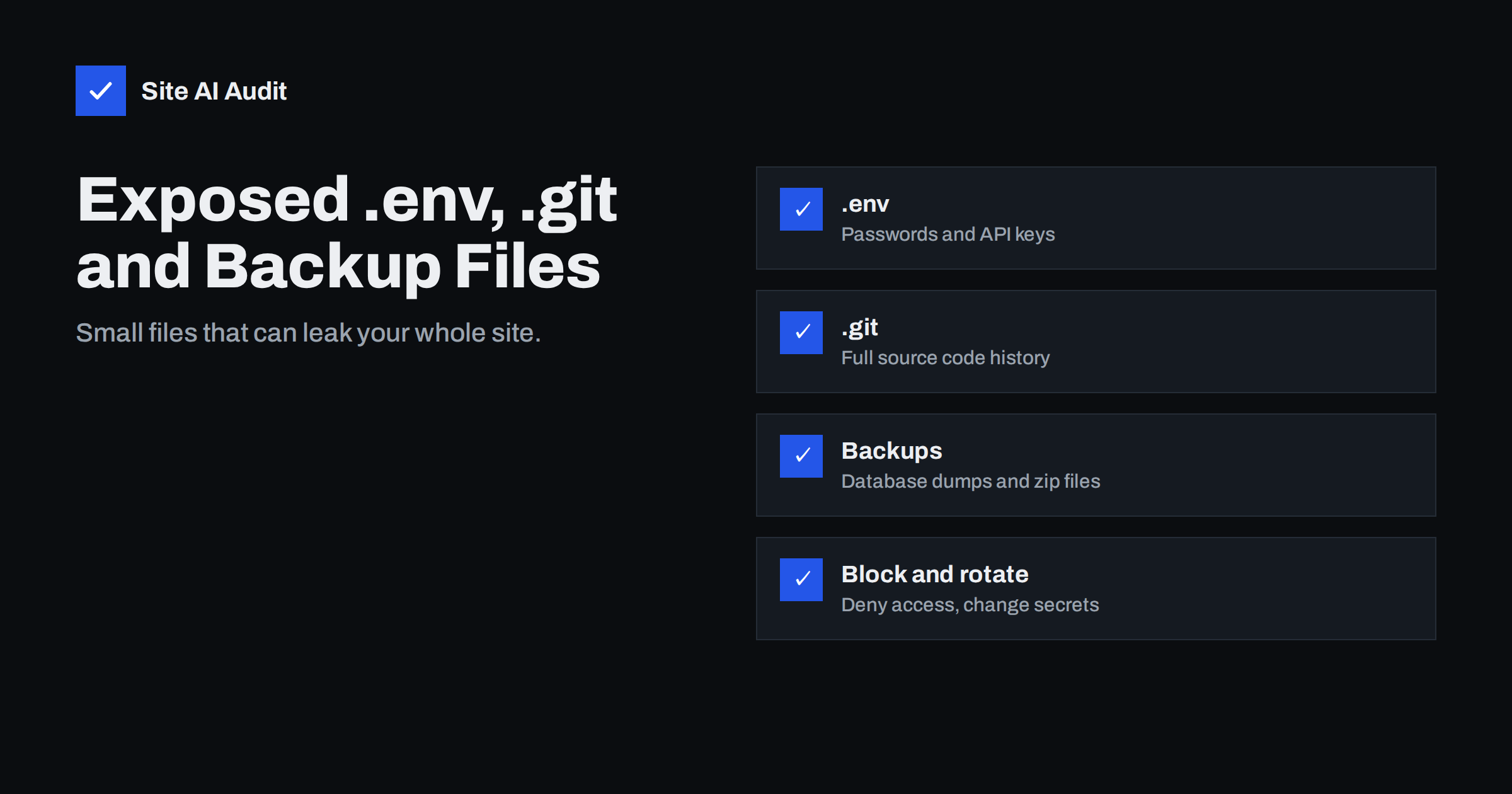
Short answer: Files such as .env, the .git folder, database dumps (.sql), zip archives of the site, editor backups (wp-config.php.bak, index.php~) and phpinfo.php often end up in the public web folder by accident. Automated scanners request them constantly, and one exposed file can reveal database passwords, API keys or your complete source code. Check for them, move them out of the web root, block hidden files and backup extensions at the server level, and change any secret that may have been exposed.
Many serious website breaches do not start with a clever exploit. They start with a file that should never have been downloadable: a configuration file with the database password, a full backup left in the web root “for a moment” during a migration, or a version control folder that contains the entire history of the site’s code. Bots scan the internet for these paths all day long. This guide lists the files that matter most, shows how to check your site, and explains how to block them reliably.
Why these files end up public
Web servers deliver any file inside the document root unless told otherwise. Files end up there for ordinary reasons:
- A developer deploys by running
git cloneorgit pulldirectly in the web folder, bringing the.gitdirectory along. - A framework expects its
.envfile outside the public folder, but the host’s document root was pointed at the project root instead of thepublic/subfolder. - Someone creates
backup.ziporsite.sqlbefore an update or migration and forgets to delete it. - A text editor or a quick manual edit leaves copies such as
wp-config.php.bak,.save,.oldor~files. Because these no longer end in.php, the server delivers them as plain text – including passwords. - A test file such as
phpinfo.php,info.phportest.phpis left behind after troubleshooting.
The files that matter most
| File or path | What it can reveal | Severity |
|---|---|---|
| .env | Database credentials, API keys, mail passwords, app secrets | Critical |
| .git/ folder | Complete source code and history, often including old secrets | Critical |
| *.sql, *.sql.gz, dump files | Entire database: users, password hashes, orders, personal data | Critical |
| backup.zip, site.tar.gz | All files including configuration | Critical |
| wp-config.php.bak, config.php.old | Database credentials and security keys in plain text | Critical |
| phpinfo.php, info.php | Server paths, software versions, environment variables | High |
| error_log, debug.log | File paths, errors, sometimes personal data | Medium to high |
| .htpasswd, .DS_Store, composer.json | Password hashes, folder structure, library versions | Low to high |
How to check your site
Start with a simple manual check. Request each path and look at the status code – a 200 response with content means the file is public:
for p in .env .git/HEAD .git/config backup.zip backup.sql site.sql db.sql \
  wp-config.php.bak wp-config.php.old phpinfo.php info.php \
  wp-content/debug.log error_log .DS_Store; do
  printf "%s %s\n" "$(curl -s -o /dev/null -w '%{http_code}' https://example.com/$p)" "$p"
done
A 403 or 404 is what you want. Be careful with sites that return 200 for every URL (for example with a custom “not found” page): open any 200 result in the browser to see whether it is the real file.
Then look on the server itself. List hidden files and archives in the web root and its subfolders: find /path/to/webroot -name ".*" -o -name "*.sql*" -o -name "*.zip" -o -name "*.bak" -o -name "*.old" -o -name "*~". The server view is more complete, because you may not guess every file name from outside.
Step 1: Move files out of the web root
The best protection is that sensitive files are simply not inside the public folder:
- Frameworks: set the document root to the framework’s public folder (for example
public/in Laravel or Symfony), so.env, source code and vendor libraries sit above it. - Deployments: deploy built files with a deployment tool, rsync with exclusions or CI artefacts, instead of running git inside the live web folder.
- Backups: store them outside the web root and ideally off the server. Delete temporary backups as soon as a migration is done.
- Test files: remove phpinfo and test scripts immediately after use.
Step 2: Block access at the server level
Add rules that deny sensitive patterns even if a file slips through in the future.
Apache (virtual host or .htaccess):
<FilesMatch "^\.">
    Require all denied
</FilesMatch>
<FilesMatch "\.(sql|gz|zip|tar|bak|old|orig|save|swp|log|ini)$|~$">
    Require all denied
</FilesMatch>
RedirectMatch 404 /\.git
Nginx (server block):
location ~ /\.(?!well-known) { deny all; }
location ~* \.(sql|gz|zip|tar|bak|old|orig|save|swp|log|ini)$ { deny all; }
location ~ ~$ { deny all; }
The exception for .well-known keeps certificate validation and other standard files such as security.txt working. Adjust the extension list if your site legitimately serves downloadable zip files – in that case, restrict the rule to specific folders instead.
Step 3: Assume exposure and rotate secrets
If you find a sensitive file that was publicly reachable, assume it has been downloaded. Bots scan these paths constantly, and access logs often show that they have. Blocking the file today does not undo that. Therefore:
- Change every password and key in the file: database, mail, payment, cloud storage, API tokens and application secrets.
- For WordPress, generate new security keys and salts in
wp-config.php. - For an exposed
.gitfolder, check the history for secrets committed in the past, not only the current version, and rotate them. - For an exposed database dump, consider whether personal data was affected, which may create notification obligations under data protection law.
- Check access logs for requests to the file to understand when and by whom it was accessed.
What your access logs can tell you
Your web server’s access logs show how much attention these paths get. Search them for requests to sensitive names, for example grep -E "\.env|\.git/|\.sql|backup|wp-config" access.log. On almost any public website you will see a steady stream of such requests from many different addresses – that is normal background scanning, and it shows why “nobody knows the file is there” is not a protection.
The important detail is the status code in each line. Requests answered with 403 or 404 were blocked or found nothing. Requests answered with 200, together with a response size that matches the real file, mean the file was actually delivered. Note the dates and addresses of those requests: they tell you how long the exposure lasted and help decide which secrets must be rotated and whether a data protection assessment is needed.
Step 4: Make it part of your routine
- Add a check of sensitive paths to your post-deployment and post-migration checklist.
- Include a
.gitignorethat excludes.env, logs and backups from the repository in the first place. - Configure backup tools to write outside the web root.
- Run external audits regularly; exposure often appears after a hosting move that lost the old server’s protective rules.
The OWASP Top 10 lists security misconfiguration among the most common web application risks, and exposed files are one of its most typical forms.
Real-world examples of how this goes wrong
A few common patterns illustrate the risk without any exotic attack. An agency migrates a shop to a new server and leaves shop-backup.zip in the web root for a day; a bot downloads it within hours and later uses the database password it contains. A developer deploys a framework application with the document root set to the project folder instead of public/; the .env file with mail and payment keys is readable by anyone. A small change is made directly on the live server with an editor that saves wp-config.php~; the tilde copy is served as text. In each case, the fix takes minutes, and the only defence against the next accident is a server rule that blocks these patterns automatically.
How Site AI Audit helps
Site AI Audit checks your site from outside, like a visitor or a scanner would, and reports security findings such as the SSL certificate, HTTPS redirect, security headers and exposed software versions, each with a plain-language fix. Re-checks on paid plans let you confirm changes after a deployment or migration, and monitoring alerts you when something breaks. Run a free check.
Related reading
- Exposed Software Versions: How to Hide Server and CMS Details
- WordPress Security Checklist: 20 Steps That Actually Matter
- Website Hacked? A Step-by-Step Recovery Plan for Owners
The bottom line
Configuration files, version control folders and backups do not belong in the public web folder. Check for them from outside and on the server, move them out of the web root, block hidden files and backup extensions with server rules, and treat anything that was exposed as compromised by rotating its secrets. A few lines of configuration prevent one of the simplest and most damaging mistakes a website can make.
FAQ
How do attackers find exposed .env or .git files?
Automated scanners request well-known paths such as /.env, /.git/config and /backup.zip on huge numbers of websites every day. They do not need to know anything about your site in advance.
Is an exposed .git folder really dangerous if my code is not secret?
Yes. The history often contains configuration files, passwords or API keys that were committed at some point, and the code helps attackers find vulnerabilities. Treat it as a critical finding.
I blocked the file. Do I still need to change passwords?
Yes, if it was publicly reachable. You cannot know whether it was downloaded before you blocked it, and bots scan these paths constantly, so rotate every secret it contained.
Will blocking dot files break my site?
Not if you keep an exception for /.well-known/, which is used for certificate validation and standard files like security.txt. Other hidden files should never need to be served to visitors.
Where should website backups be stored?
Outside the public web folder and preferably on separate storage or with a separate provider, so they cannot be downloaded through the website and survive if the server is compromised.


