ENEnglish
 LTLietuviškai
 DEDeutsch
 FRFrançais
 RUРусский
 ESEspañol
 PLPolski
 ITItaliano
 UKУкраїнська
 CSČeština
 PTPortuguês
 JA日本語
 LVLatviešu valoda
 ETEesti
 HUMagyar
 IDBahasa Indonesia
 TRTürkçe
 HIहिन्दी
 ELΕλληνικά
 ARالعربية
 THไทย
 VITiếng Việt
 RORomână
 MSBahasa Melayu
 BNবাংলা
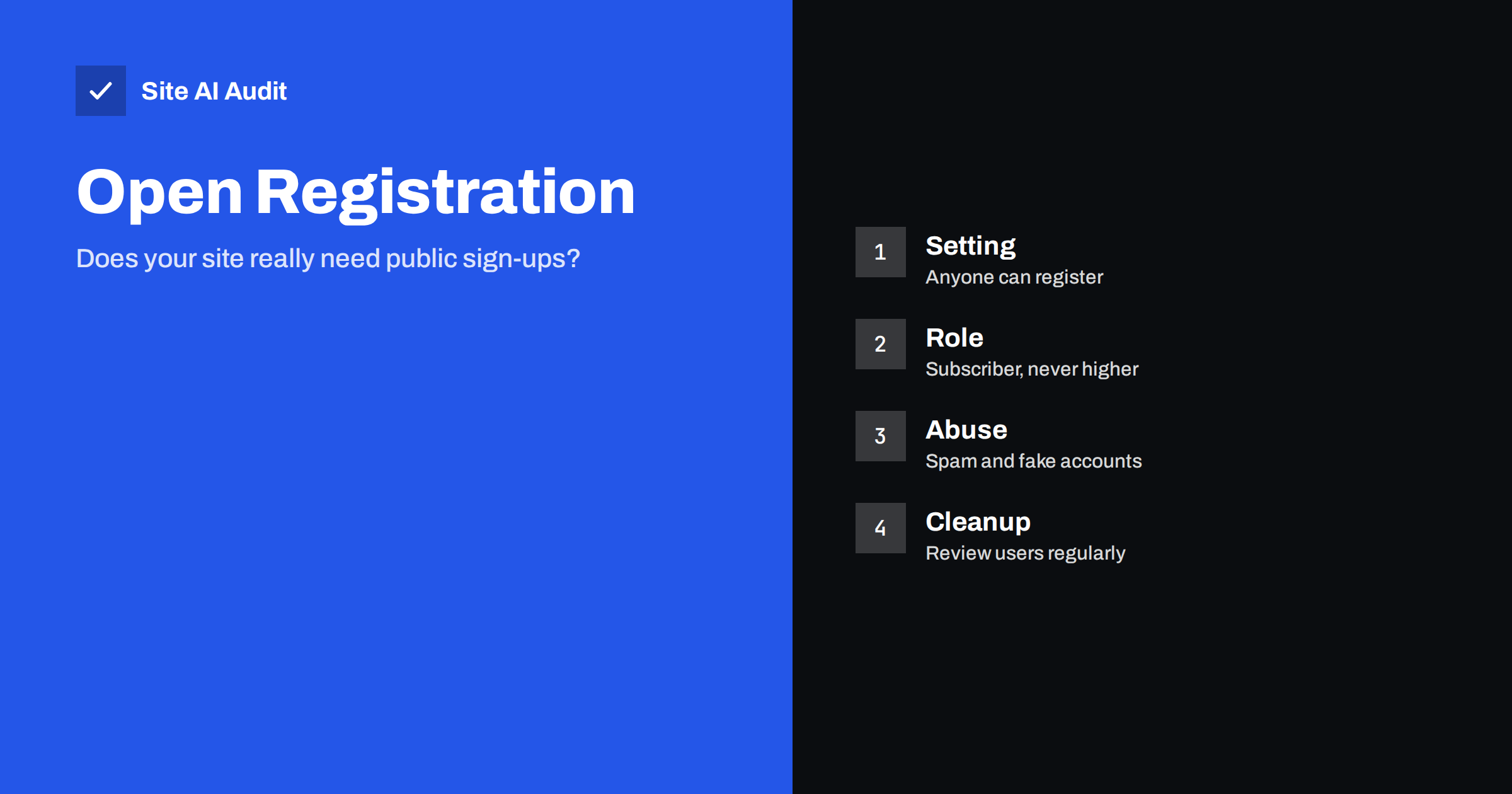
Short answer: If your WordPress site has no members, shop customers or forum users, switch off public registration. If it does need it, make sure that the default role for new users is the lowest one that works, protect the sign-up form from bots and review the user list from time to time. Open registration is a convenience feature that many sites turn on once and forget, and it is a common starting point for spam and for attacks that need any logged-in account.
What the setting does
In the WordPress settings, under General, there is a Membership option labelled “Anyone can register”. When it is on, the registration page at wp-login.php?action=register is open to everyone. Each person who fills in the form receives an account with the role chosen in a second option, “New User Default Role”. Without more controls, anyone on the internet, human or automated, can create an account in seconds.
Some plugins add their own registration forms for shops, courses or communities. These forms do not always follow the core setting, so a site can accept registrations even when the checkbox is off. Check both places.
Why open registration causes trouble
- Spam accounts. Bots register in large numbers, either to post links in profiles and comments, or to use your site as a way to send mail. Your user table grows, and so does the cost of cleaning it.
- Email abuse. Each sign-up sends a confirmation or a welcome message to the address entered. Attackers can use your form to send mail to other people, which can hurt your sender reputation. The article on subscription bombing describes this pattern.
- A foothold for attackers. Many flaws in plugins and themes can only be used by someone who is logged in, even with the lowest role. If anyone can get an account, those flaws become reachable by anyone.
- Privilege mistakes. If the default role was changed to something higher than needed, every new account has more power than you intended.
- Extra data to protect. More accounts mean more personal data, which brings legal duties and more to lose in a breach.
The default role matters most
WordPress offers roles from Subscriber, which can only read and edit a profile, up to Administrator, which controls the whole site. The safe default for public registration is Subscriber, or Customer on a shop. Never choose Contributor, Author, Editor or Administrator for open sign-ups. A contributor can write posts and, with some plugins, insert code or upload media. An editor can publish and change other people’s content. An administrator can install plugins, which means total control.
The setting is easy to change by accident, by a plugin or by someone who wanted to test something. Look at it whenever you review your site. The principle behind roles is explained in the article on least privilege for website users.
Watch out for plugins that change the default role for their own purposes. A membership or learning plugin may create a custom role and set it as the default for new users. That can be fine, but read what the role can do. Some custom roles include permissions to upload files or edit pages, which is far more than a registered reader needs. If you are not sure, compare the permissions of the custom role with those of Subscriber, and remove anything the role does not need.
It is also worth checking whether registration is open on other parts of your site, such as a separate shop or a staging copy. Test sites are often forgotten, and they are easy targets because they run older code and weaker protection.
How to check your site
- Open the settings. Go to Settings, then General, and look at the Membership checkbox and the default role.
- Try the registration page. In a private browser window, visit the registration address of your site. If a form appears, registration is open.
- Sort the user list. In the Users screen, sort by registration date and look for bursts of new accounts, odd names, random email addresses and addresses from disposable mail services.
- Review roles. Filter by role and check each Administrator and Editor. Remove or demote anyone you do not recognise. The guide on hidden admin users shows how attackers hide extra administrators.
- Check plugin forms. Look at your shop, membership, forum and course plugins for registration pages and their role settings.
How to make registration safer
If you need public sign-ups, add several layers of protection, because no single one stops everything.
- Use a CAPTCHA or a honeypot field. These stop most simple bots. The article on CAPTCHA options compares the choices.
- Require email confirmation. The account becomes active only after the person clicks a link sent to their address. This removes many fake addresses.
- Approve accounts manually when volume is low. A moderation plugin can hold new users until an administrator accepts them.
- Limit the rate. Allow only a few registrations from one address in a period. The guide to rate limiting shows how.
- Block disposable email domains if you do not need them.
- Use a different login address and protect the old one if bots hit the default registration page again and again.
- Validate addresses at sign-up to avoid bounces, as described in the guide to email validation.
When you should turn registration off
Many small business sites have no reason for visitors to have accounts. If you do not run a shop, a membership area or a community, the checkbox should be off. Comments do not require a registered user either, as long as you allow comments from names and addresses with moderation. After you switch registration off, existing accounts remain, so clean them up. Take a backup first, check which accounts have published content, and remove spam accounts in batches. Do not delete users who own posts without choosing where to move the content.
If you only need accounts for a few people, such as staff or contractors, create them yourself and keep registration closed.
Special cases: shops, forums and membership sites
Sites that really need accounts have extra things to watch.
- Online shops. Customers often can check out as guests or create an account at checkout. Guest checkout reduces the number of accounts you must protect. If you keep accounts, send a verification email and do not give customers any role that can edit the site.
- Forums and communities. Spam is a daily task. Use approval for the first post of each new member, limit links in early posts and ban repeat offenders quickly.
- Courses and memberships. A paid plan acts as a filter, since spammers rarely pay. Free trials open the door again, so apply the same protections you would to any open form.
- Staff and clients. Create these accounts yourself. Do not let them register, and protect them with two-factor authentication, as described in the guide to two-factor authentication for website owners.
In every case, ask a simple question about each role you give out: what is the worst thing a person with this role could do, if their password were stolen? If the answer is uncomfortable, choose a lower role or add a control.
Cleaning up after spam registrations
- Export the user list before you delete anything, so you can restore it if you remove a real person by mistake.
- Filter by role Subscriber and by registration date, and look for patterns in names and addresses.
- Delete in small batches and check the site after each one.
- Remove spam profiles, comments and posts left by those accounts, and check pages for hidden links. If spam pages appear in search, see the article on the Japanese keyword hack.
- Turn on logging for new registrations so that future bursts are easy to see.
How Site AI Audit helps
Site AI Audit does not look inside your WordPress settings or user list, so it will not tell you if registration is open. It checks the outside of your site: SSL certificate and expiry, the redirect to HTTPS, security headers and exposed software versions, along with SEO, speed and email authentication. The free check covers up to 50 pages with no sign-up. You can run a free check of your website and read about the plans for weekly monitoring and alerts.
Related reading
- WordPress Security Checklist: 20 Steps That Actually Matter
- WordPress User Enumeration: What It Reveals and How to Stop It
- Brute-Force Login Attacks: How to Protect Your Website Logins
- Contact Form Spam: How to Stop Bots Without Losing Leads
The bottom line
Open registration is a feature that should be on only when your site needs it. Check the setting today, keep the default role at the lowest level, protect the form and review your users on a schedule. An account that nobody needed is a risk that costs you nothing to remove.
FAQ
Should I turn off registration on a normal business website?
Yes, unless visitors need accounts. A brochure site, a blog or a portfolio can work without public registration, and closing it removes a common source of spam.
What is the safest default role?
Subscriber for ordinary sites, or Customer for shops. These roles have very few permissions. Avoid Contributor and higher for public sign-ups.
Do spam accounts hurt my SEO?
They can, if bots publish profile pages, comments or posts with links. Pages with spam links harm quality and trust, so remove them and close the source.
Can I allow comments without registration?
Yes. WordPress lets visitors comment with a name and email address. Use moderation and a spam filter to keep the discussion clean.
How often should I review users?
Monthly is a good rhythm for active sites, and every few months for quiet ones. Check administrators more often than other roles.