ENEnglish
 LTLietuviškai
 DEDeutsch
 FRFrançais
 RUРусский
 ESEspañol
 PLPolski
 ITItaliano
 UKУкраїнська
 CSČeština
 PTPortuguês
 JA日本語
JA日本語 LVLatviešu valoda
 ETEesti
 HUMagyar
 IDBahasa Indonesia
 TRTürkçe
 HIहिन्दी
 ELΕλληνικά
 ARالعربية
 THไทย
THไทย VITiếng Việt
 RORomână
 MSBahasa Melayu
 BNবাংলা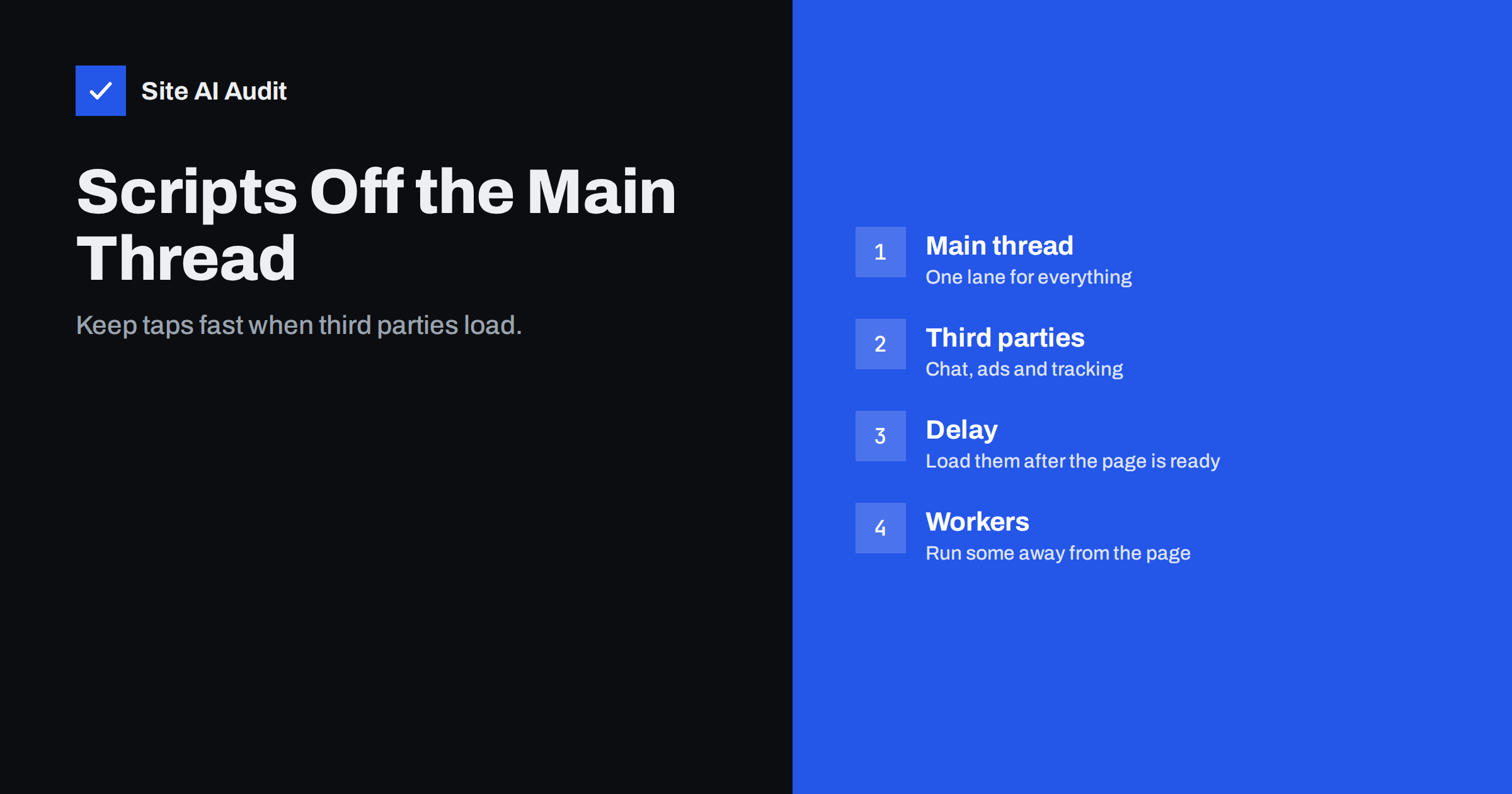
Short answer: Browsers run most page code on one main thread, and every third-party script for chat, ads or tracking competes there with your own code. When the thread is busy, taps and scrolling feel slow. You can ease the load by removing scripts you do not need, delaying the rest until the page is usable, loading them asynchronously and, for suitable tools, running them in a web worker so the main thread stays free.
What the main thread is
A web page is handled by a single main thread in the browser. It builds the page from the HTML, applies the styles, runs JavaScript, draws the result and reacts to what the visitor does. These jobs take turns. While one job runs, nothing else on the page can happen, which is why a long script can make the page feel frozen even though the connection is fast.
Developers describe this problem as long tasks. A task that runs for more than fifty milliseconds can delay a tap, and several of them in a row make a page sluggish. The guide to long tasks and main thread work explains how to find them. This article focuses on one common source: code that comes from other companies.
Why third-party scripts cause trouble
Third-party scripts are small programs that you add from other services: analytics, advertising pixels, chat widgets, consent banners, heat maps, review badges, social buttons and video players. Each one is useful in itself. Together they often account for a large share of the work that a page does.
- They run on the main thread. The browser treats them like your own code.
- They load more code. One script often fetches several others, so the cost grows beyond what you can see in the tag.
- They are outside your control. The provider can change them at any time, and a new version may be heavier.
- They run on every page. A tool that is only needed on the checkout may be added to the whole site.
- They compete for the network. They share bandwidth with your images and styles, which delays the main content.
The article on third-party scripts and performance gives an overview, and the guide to the effect of Google Tag Manager on speed looks at the container that often loads them all.
Step 1: take stock
Before changing how scripts load, find out what you have. Open a speed test, look at the request list and group the requests by domain. Note which domains are not yours, how much each one transfers and how long it blocks the page. Many owners are surprised to find tools that nobody remembers adding.
- List every third-party domain on your most important pages.
- Write beside each one why it is there and who uses the data.
- Mark the ones that are essential, useful or unused.
- Remove the unused ones first. The fastest script is the one that is not loaded.
Step 2: load only where needed
A chat widget on a blog article, a review badge on the contact page and a conversion pixel on every page rarely make sense. Load each tool only on the pages where it adds value. Most tag managers allow rules based on the page address, and many plugins have a setting for specific pages. The article about loading plugin assets only where needed shows the same idea for plugins.
Step 3: delay what can wait
Many tools do not need to start at once. A chat button can appear a few seconds after the page is ready, or when the visitor first moves the mouse or scrolls. An analytics script may wait until the main content has appeared. Delaying has two benefits: the page becomes usable sooner, and the work is spread out so that it does not block the first taps.
- Use async or defer so that the script does not block the page from being built. The article on defer and async explains the difference.
- Wait for interaction for tools such as chat, which are needed only when someone wants them.
- Use a facade for heavy embeds: show a simple picture and load the real player or map only when it is clicked. See embedding videos without slowing the site.
- Keep delays honest. Do not delay consent or legal tools in a way that breaks your obligations.
Step 4: run suitable scripts in a web worker
A web worker is a separate thread that runs a script away from the main thread. It cannot touch the page directly, which is why it cannot run everything. Some libraries use this idea to move third-party code, such as analytics and tag scripts, into a worker, and they pass messages back to the page only when needed. When it works, the main thread stays free, and the page responds faster.
The approach has limits, and you should be honest with yourself about them.
- Scripts that must read or change the page, such as chat widgets and visual tools, often cannot run there without special support.
- The tools that do work this way are young. Test carefully, because a script that silently fails can lose data.
- Check the results on a real phone. A lab test may look better while the data in your reports is missing.
- Keep a simple way to switch back to normal loading if something breaks.
For most small sites, the first three steps give the largest gain with the least risk. Treat workers as an advanced option, to be tried after the easy changes have been made.
Step 5: set limits and test again
A script budget keeps the problem from returning. Agree on the number of third-party domains per page type and on a maximum transfer size. Whenever someone wants to add a tool, they should say which page it is for, who will check the data and which script it replaces. After each change, repeat the same speed test and compare the results with the previous ones. The routine in the guide to performance budgets fits well here, and Interaction to Next Paint is the metric to watch, as explained in the INP guide.
When you test, use the same pages, the same device settings and several runs. Look at the total blocking time and the time to interactive in the lab, and at real visitor data when you have it. If the numbers improve and the reports still show correct visits, orders and messages, the change was a success.
Common mistakes
- Hiding the script cost by moving it to a tag manager without reducing it.
- Adding a second tool that does the same job as the first one.
- Delaying everything so long that the data loses the first seconds of the visit.
- Forgetting to remove scripts of services that you cancelled.
- Testing only on a fast desktop connection.
- Ignoring the cookie banner, which is itself a script and often a heavy one.
A practical way to begin is to pick the single heaviest third-party script on your busiest page, decide whether it is still needed and, if so, whether it can wait. One careful change followed by one test teaches more than a long plan. Once you have seen the effect on your own pages, the next steps become easy to justify to colleagues and clients, who often ask for new tools without knowing what each one costs the visitor. Share the numbers with them in plain words, such as how many seconds a tool adds on a mid-range phone, and the conversation about priorities becomes much calmer.
How Site AI Audit helps
Site AI Audit does not list your third-party scripts one by one, but it shows what they do to the page. The report uses Google PageSpeed data for mobile speed and Core Web Vitals, and it checks server response time, compression and page weight, so that you can see when a page becomes heavy. The first check is free, covers up to 50 pages and needs no sign-up. You can run a free check of your website or look at the plans for re-checks after every change and weekly monitoring.
Related reading
- How Third-Party Scripts Slow Down Your Website (and Fixes)
- Live Chat Widgets and Page Speed: Load Them Without the Cost
- Cookie Consent Banners and Page Speed: How to Keep Both
- How to Reduce Unused JavaScript and Speed Up Your Pages
The bottom line
Every script from another company shares your visitor’s phone with your own page. Remove what is unused, load tools only where they are needed, delay what can wait, and try workers only for tools that suit them. Then measure again. A short list of scripts that you understand will always beat a long list that nobody owns.
FAQ
What is the main thread?
It is the single lane in the browser where most page work happens, including running scripts and responding to taps. When it is busy, the page feels slow.
Which scripts slow a site the most?
Advertising, chat, tag managers and heat map tools are common causes. Measure your own pages, because the effect depends on how each tool is set up.
Is a web worker right for every script?
No. Workers cannot change the page directly, so tools that need to draw or read the page often will not work. Test each tool, and keep a fallback.
Will delaying analytics lose data?
It can if the delay is too long or visitors leave early. Use short delays, compare the numbers before and after and check that conversions are still counted.
How many third-party scripts are too many?
There is no magic number. Count the cost of each one in time and weight, and keep only those whose value clearly outweighs it.