ENEnglish
 LTLietuviškai
 DEDeutsch
 FRFrançais
 RUРусский
 ESEspañol
 PLPolski
 ITItaliano
 UKУкраїнська
 CSČeština
 PTPortuguês
 JA日本語
JA日本語 LVLatviešu valoda
 ETEesti
 HUMagyar
 IDBahasa Indonesia
 TRTürkçe
 HIहिन्दी
 ELΕλληνικά
 ARالعربية
 THไทย
THไทย VITiếng Việt
 RORomână
 MSBahasa Melayu
 BNবাংলা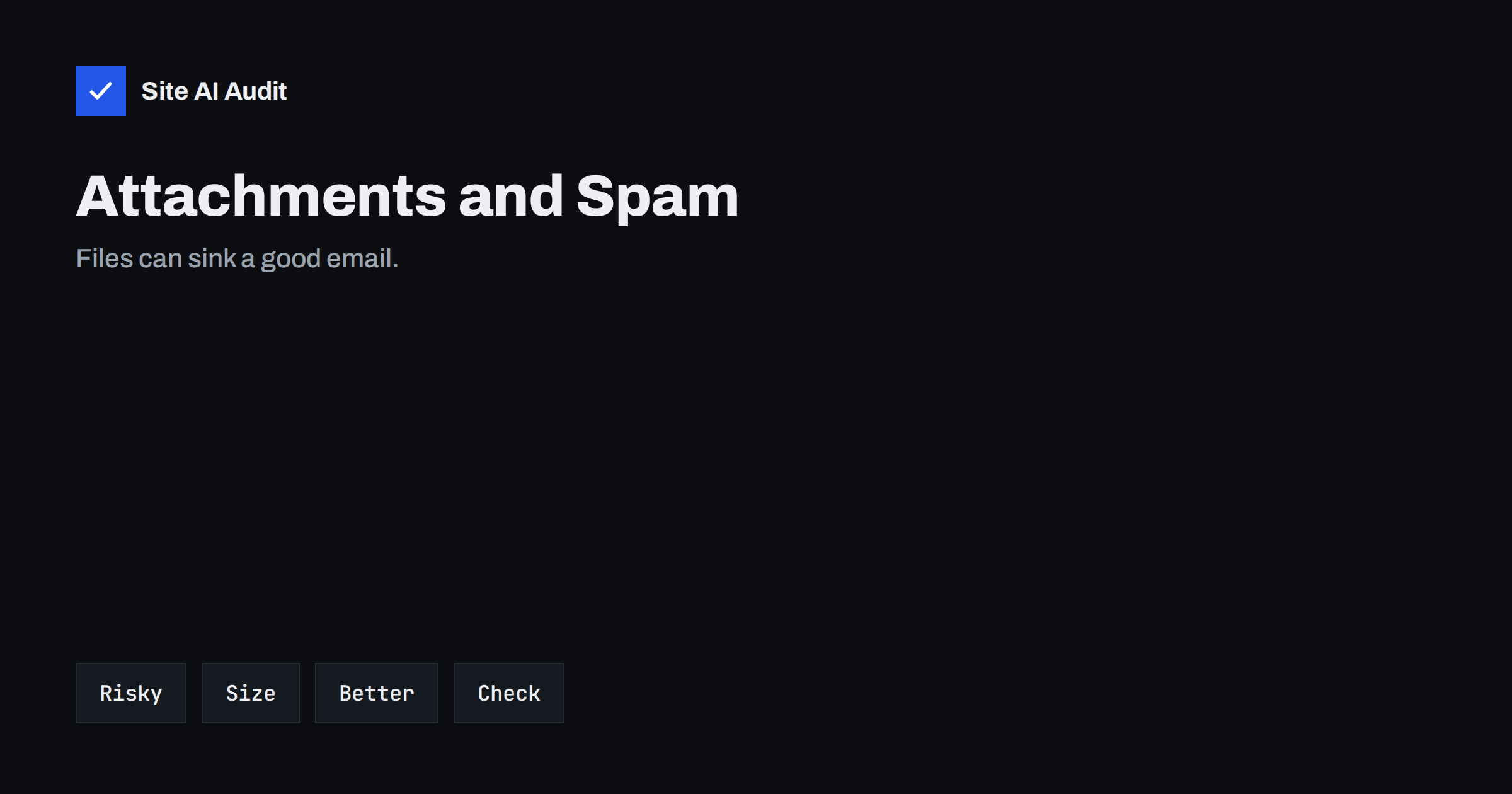
Short answer: Attachments make an email riskier in the eyes of mailbox providers. Some file types are blocked outright, large files can be refused, and mass emails with attachments are filtered harder than plain messages. For one-to-one business email a small PDF is usually fine. For newsletters and automatic emails, a link to the file on your website is the safer choice.
Why attachments worry mailbox providers
Email is one of the most common ways to spread malware and fake invoices. A file arriving from a stranger is a classic attack, so Gmail, Outlook and other providers treat attachments with extra suspicion. They scan the file, look at its type and size, and compare the sender with what they already know about it.
A trusted sender with a clean history and correct authentication can attach a normal document without any trouble. A new or unknown sender attaching the same document may be sent to the spam folder. The attachment is rarely the only reason; it adds weight to a score that already includes your reputation, your records and the content of the message. That is why a good setup matters first, as we describe in our guide to what email deliverability is.
File types that cause trouble
Providers do not publish exact lists, and the rules change, but some groups are consistently treated as dangerous:
- Executable files. Programs and installers, such as files ending in .exe, .scr or .bat, are blocked by most large providers, even inside a compressed folder.
- Scripts. Files that run code, for example .js, .vbs or .ps1, are blocked or flagged for the same reason.
- Office files with macros. Documents that can run macros are a common way to deliver malware. Many companies block them completely.
- Compressed folders. A ZIP file is normal, but it hides its content from simple scanners, so it carries more suspicion than a plain PDF. Password-protected archives are worse, because the scanner cannot open them at all.
- Disk images and shortcuts. Files such as .iso or .lnk are rarely needed in business email and are often blocked.
- HTML attachments. An HTML file attached to an email is a favourite tool of phishing, because it can show a fake login page offline.
The safest everyday formats are PDF for documents, and JPG or PNG for pictures. If a recipient needs to edit something, ask yourself whether a shared document link would do the job.
Size limits and the hidden 33 percent
Every provider limits the size of a message. For major services the limit for a sent message is usually around 20 to 25 MB, and some company servers set much lower limits. When a message is too large, it is refused and you receive a bounce, a topic we cover in email bounce codes explained.
One detail surprises many senders: attachments are encoded before sending, which makes them about a third larger than the file on your disk. A 15 MB file can therefore count as roughly 20 MB. If the message must stay under a limit, leave generous room.
Large messages also fail more often in the middle of the journey, because any server along the way may have a lower limit than the first one. Keeping attachments small is a simple way to avoid mystery failures.
Marketing email and attachments
For newsletters and promotions, attachments are a poor idea. A message that goes to thousands of people, carries a file and comes from a domain with no long history looks like malware distribution. Filters are far stricter with bulk email than with a single personal message.
There are practical reasons too. Attachments make every copy large, which slows sending, and they can trigger the 102 KB display limit in some cases when files are embedded in the code. Read about it in the Gmail clipping limit. Readers on mobile data also dislike downloading a file they did not ask for.
The better method is to upload the file to your website and put a clear link in the email. This keeps the message light, lets you replace the file later, and shows you how many people opened it. Make sure the link goes to a page on your own domain, so that it matches the sender, rather than to an unknown file-sharing address.
Automatic emails with attachments
Invoices, tickets and reports are legitimate reasons to attach a file. If your website or shop sends these, keep the attachment a small PDF, name it plainly (for example, invoice-1042.pdf) and mention it in the message text, so the email makes sense even if the file is removed by a filter. Send these messages from a properly authenticated address, ideally through a service built for transactional email, as explained in SMTP relay versus direct sending.
A file name matters more than people think. Names such as “document.pdf.exe”, “invoice.zip” with no explanation, or random strings of numbers look like malware. Use names a human would choose.
Good habits when you must attach a file
- Keep it small. Compress images before attaching them and aim for well under 10 MB.
- Use common formats. A PDF opens everywhere and cannot run code.
- Avoid archives and passwords. If a password is unavoidable for confidential data, send it by another channel, such as a phone message.
- Explain the file. Say in the text what the attachment is and why you are sending it. A message with only the words “see attached” resembles typical fraud.
- Do not mix many attachments with a thin message. A lot of files and very little text is a spam pattern.
- Send from an authenticated domain. Without correct records the same message is far more likely to be treated as suspicious.
- Test. Send the real message, with the real file, to a Gmail and an Outlook address before a larger send. Our guide on how to test email deliverability shows what to look at.
The trust behind the attachment
Whether a provider lets an attachment through depends heavily on whether it trusts the sender. Three records on your domain tell it who you are: SPF lists the servers allowed to send for you, DKIM signs the message, and DMARC says what to do when those checks fail. Without them, even a harmless PDF may be filtered. See the differences between SPF, DKIM and DMARC for a clear overview.
A sender that is forged is also a danger to your customers. Criminals often copy a company name and attach a fake invoice. Strong authentication makes it harder for them to use your domain, which helps your real messages and protects the people who receive them.
When a customer says the file never arrived
Do not just send it again in the same way. First ask the person to check the spam and quarantine folders, because some company filters hold messages with attachments for review. If the message is not there, look at the bounce or delivery report in your email service, which often shows whether the remote server accepted it.
If the problem repeats, send the file as a link or through a shared folder, and tell the recipient to expect a short message from you. Over time, check whether replies and clicks on your normal emails are healthy. A sudden rise in complaints or bounces after you started attaching files is a sign that the change has hurt your reputation, and it is a good reason to go back to links.
What Site AI Audit can and cannot tell you
Site AI Audit checks the email setup of your domain from the outside: SPF and its lookup limit, DKIM signatures, the DMARC policy and MX records. It does not read your messages or inspect your attachments, so it cannot tell you whether a particular file will be blocked. What it can show is whether the foundation is in place, so that your attachments are judged by a sender with a clear identity. You can run a free check of your domain or look at the pricing page if you want regular re-checks.
Related reading
- Spam Trigger Words: What Really Gets an Email Filtered
- Email Sending Limits: Why Your Messages Get Throttled
- Invoice Fraud by Email: How Small Businesses Stay Protected
The bottom line
Attachments add risk to every email. Executable files, scripts, macros and password-protected archives are blocked or filtered, large files cause refusals, and bulk email with files is judged harshly. Use small PDFs for personal and transactional messages, link to files instead of attaching them in newsletters, and make sure your domain is properly authenticated.
FAQ
Do attachments make an email go to spam?
Not by themselves. A small, common file such as a PDF sent from a well-authenticated domain is normally fine. Risky file types, large sizes, thin message text and a poor sender reputation together are what push a message toward the spam folder.
What is the safest file type to attach?
A PDF is the safest and most widely accepted choice for documents, and JPG or PNG for pictures. Avoid executables, scripts, macro-enabled Office files, HTML files and password-protected archives.
How large can an email attachment be?
Large providers usually allow about 20 to 25 MB per message, but company servers may set lower limits. Because attachments grow by about a third when they are encoded, keep files well below the limit and preferably under 10 MB.
Should I attach files to a newsletter?
No. Upload the file to your website and add a link in the email. This keeps the message small, avoids bulk-email filters and lets you update the file later without sending again.
Why was my email with an attachment rejected?
Common reasons are a blocked file type, a message that is too large for the recipient server, or failed authentication of the sending domain. Read the bounce message, because it normally names the reason.