ENEnglish
 LTLietuviškai
 DEDeutsch
 FRFrançais
 RUРусский
 ESEspañol
 PLPolski
 ITItaliano
 UKУкраїнська
 CSČeština
 PTPortuguês
 JA日本語
JA日本語 LVLatviešu valoda
 ETEesti
 HUMagyar
 IDBahasa Indonesia
 TRTürkçe
 HIहिन्दी
 ELΕλληνικά
 ARالعربية
 THไทย
THไทย VITiếng Việt
 RORomână
 MSBahasa Melayu
 BNবাংলা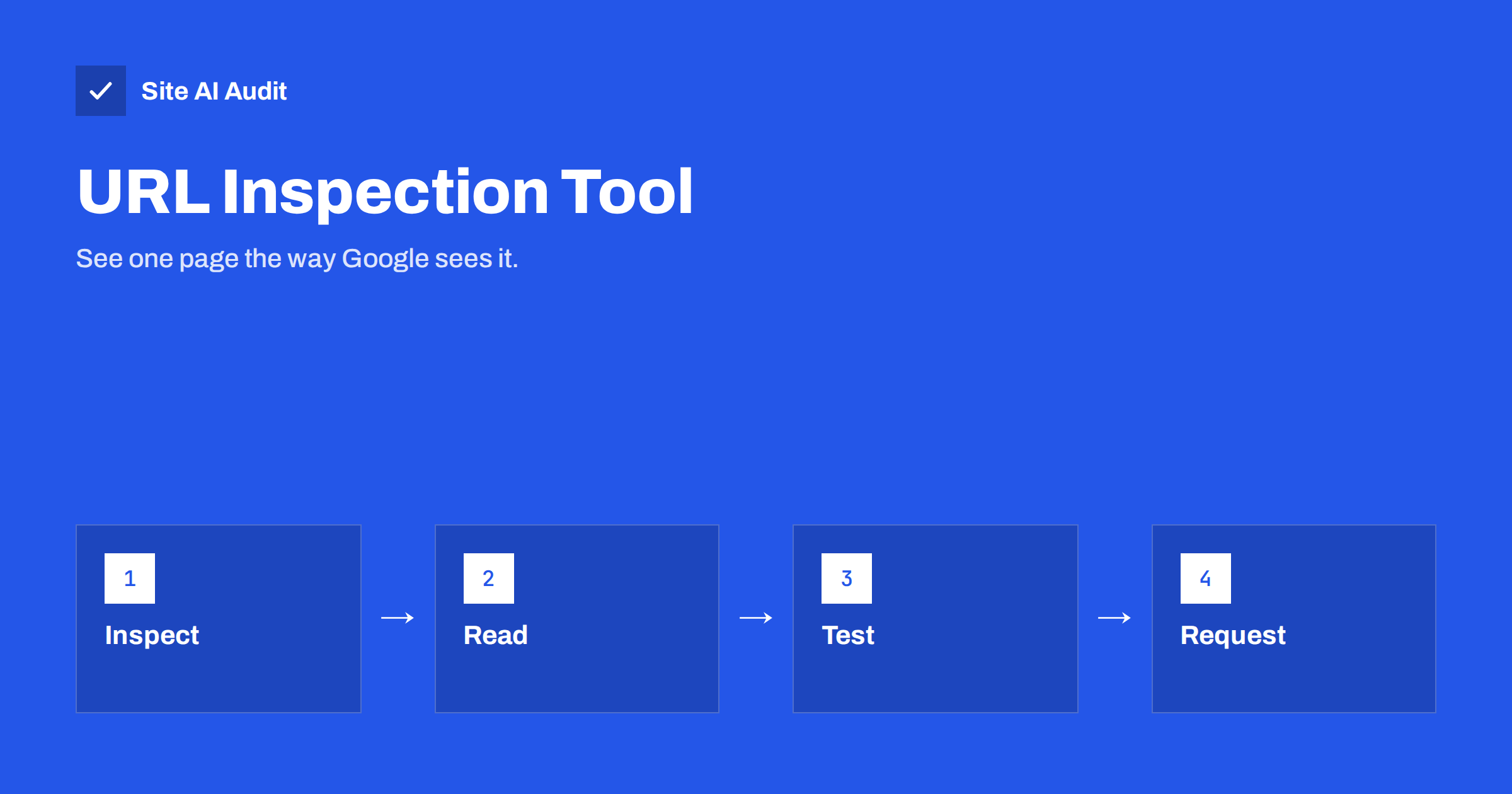
Short answer: The URL Inspection tool in Google Search Console shows what Google knows about one specific page: whether it is in the index, when it was last crawled, which canonical address Google chose, and whether anything blocks it. You can also test the live page and request indexing. It is the best first stop whenever a single page does not appear in search as you expected.
What the tool does
Most Search Console reports talk about groups of pages: how many are indexed, how many have errors, how many clicks they received. The URL Inspection tool works the other way around. You paste one address and Google tells you what it has stored about exactly that page.
It answers practical questions. Is this page in Google at all? When did Googlebot last visit it? Did it find a noindex tag? Which version of the address does Google treat as the main one? Can Google fetch the page right now? Because it shows Google’s own view, it is more reliable than guessing from the page source or from a search.
You need a verified property for the site before you can inspect its pages. If you have not set that up yet, follow our guide to setting up Google Search Console for a small business. You can only inspect addresses that belong to a property you have access to.
How to run an inspection
- Open Search Console and choose the right property in the top-left menu.
- Paste the full address of the page into the search bar at the top of the screen, including the correct
https://andwwwor non-www version, and press Enter. - Wait a few seconds while Google fetches its stored information.
- Read the result summary, then open the sections underneath for details.
The address must match your property. If you use a domain property, any version of the address is allowed. If you use a URL-prefix property, only addresses that start with that prefix will work.
Reading the main result
The first line is the verdict. It usually says one of three things:
- URL is on Google. The page is in the index and can appear in results. This does not mean it ranks, only that it is eligible.
- URL is on Google, but has issues. The page is indexed, but something related to it, such as structured data, has a problem that you may want to fix.
- URL is not on Google. The page is not in the index. The section below gives the reason, for example a noindex tag, a redirect, a block in robots.txt or a status that says the page was found but not indexed yet.
The reason is the useful part. It tells you which of the many indexing problems you have, and each has its own guide. If the page was seen but not indexed, read crawled or discovered, currently not indexed. If it is a plain missing page, the checklist in why your page is not on Google will help.
The page indexing details
Open the page indexing section and you will find a short list of facts:
- Discovery. Which sitemaps and which referring pages led Google to this address. If the page has no sitemap and no referring page, it may be an orphan, which we describe in how to find pages with no internal links.
- Last crawl. The date of the latest visit and the type of crawler that made it. If the date is old, Google may not consider the page important or may have trouble reaching it.
- Crawl allowed. Whether your robots.txt file lets Google fetch the page. See our robots.txt guide for what to check.
- Page fetch. Whether the request worked or returned an error such as 404, 403 or a server problem.
- Indexing allowed. Whether a noindex rule is present, either in the page or in the response header.
- User-declared canonical and Google-selected canonical. The address you named as the main version, and the one Google actually chose.
The last pair is worth special attention. If the two differ, Google has decided that another address is the better main version of the page. That is not always bad, but it can explain why your preferred address does not show up. Our article on what to do when Google chose a different canonical shows how to respond.
Testing the live URL
The first result shows the stored version, which can be days or weeks old. After you fix something, you need to see the current state. Use the button to test the live URL. Google fetches the page now and shows whether it can be crawled and indexed in its present form.
From the live test you can open the crawled page and look at the HTML Google received, a screenshot and, in the more details tab, resources that did not load and messages from the page’s scripts. This is very helpful when content is added by JavaScript, because you can check whether Google really sees it. Our article on JavaScript SEO basics explains why that matters.
Keep in mind that the live test is a check of the page, not a promise. A page that passes the test can still be left out of the index because Google judges it low in value or because it duplicates another page.
Requesting indexing, and its limits
After a successful live test, you can press the button to request indexing. This places the address in a queue for crawling. It is useful for a new page, or for an important page after a big fix.
It is not a command. Google decides whether and when to index, repeating the request does not speed it up, and there is a daily quota for requests. Do not use it for hundreds of pages. For many pages, a clean XML sitemap and good internal links are the right tools. If your sitemap gives you trouble, see sitemap could not be fetched in Search Console.
A simple routine for a new or changed page
A short routine turns the tool into a habit. When you publish an important page, or change one in a major way, follow these steps:
- Open the page in a private browser window and check that it loads without a login and shows the content you expect.
- Inspect the address in Search Console and read the verdict. A new page will often say that it is not on Google yet; that is normal in the first days.
- Run the live test and check that crawling and indexing are allowed, and that the canonical points to the page itself.
- Request indexing once, and write down the date.
- Come back after a week. If the page is still missing, read the reason again and compare it with your sitemap and internal links.
This takes only a couple of minutes per page and avoids weeks of waiting for a problem that was visible on day one, such as a leftover noindex tag from a staging site.
Common mistakes
- Inspecting the wrong version. A page with and without
www, or with and without a slash, can be treated as two addresses. Test the one you want to rank. - Trusting the stored result after a fix. Use the live test to check the new state.
- Requesting indexing instead of fixing the cause. If a noindex tag or a block is still there, the request will not change the outcome.
- Treating “on Google” as “will rank”. Indexing is only the first step; ranking depends on relevance and quality.
- Ignoring the canonical line. Many puzzling cases are solved by comparing the two canonical fields.
What Site AI Audit can and cannot tell you
Site AI Audit crawls up to 50 pages on the free check and looks at titles, descriptions, headings, broken links, redirects, the sitemap, robots.txt and noindex rules. That helps you find pages with indexing problems in bulk, before you inspect them one by one. It cannot tell you what Google has stored for a page or when Googlebot last visited, because that information exists only in Search Console. Use the two together: run a free check to find suspect pages, then inspect the important ones. See the plans for regular re-checks.
Related reading
- The Noindex Tag: When to Use It and How to Check It
- Indexed, Though Blocked by robots.txt: What It Means and Fixes
- How to Read the Search Console Performance Report
The bottom line
The URL Inspection tool turns guessing into evidence. Paste an address, read the verdict and the reason, compare the two canonical fields, test the live version after a fix and request indexing only when the page is ready. Use it for single important pages and use sitemaps and internal links for everything else.
FAQ
Why does the tool say the URL is not on Google?
The reason is shown directly below the verdict. Typical causes are a noindex tag, a redirect, a robots.txt block, a missing page or a page that Google has found but decided not to index. Fix the stated cause and then test the live page again.
How long does indexing take after I request it?
There is no fixed time. It can take from a few hours to several days or longer, and Google may choose not to index the page at all. Requesting again does not make it faster.
Is the live test the same as what Google has in its index?
No. The live test fetches the page now, while the main result shows the stored version from the last crawl. They can differ if you changed the page recently.
Can I inspect a page on a site that I do not own?
No. You can only inspect addresses inside properties for which you have access in Search Console.
Does the tool show where my page ranks?
No. It shows indexing and crawling information. To see queries, clicks and positions, use the Performance report.