 ENEnglish
 LTLietuviškai
 DEDeutsch
 FRFrançais
 RUРусский
 ESEspañol
 PLPolski
 ITItaliano
 UKУкраїнська
 CSČeština
 PTPortuguês
 JA日本語
JA日本語 LVLatviešu valoda
 ETEesti
 HUMagyar
 IDBahasa Indonesia
 TRTürkçe
 HIहिन्दी
 ELΕλληνικά
 ARالعربية
 THไทย
THไทย VITiếng Việt
 RORomână
 MSBahasa Melayu
 BNবাংলা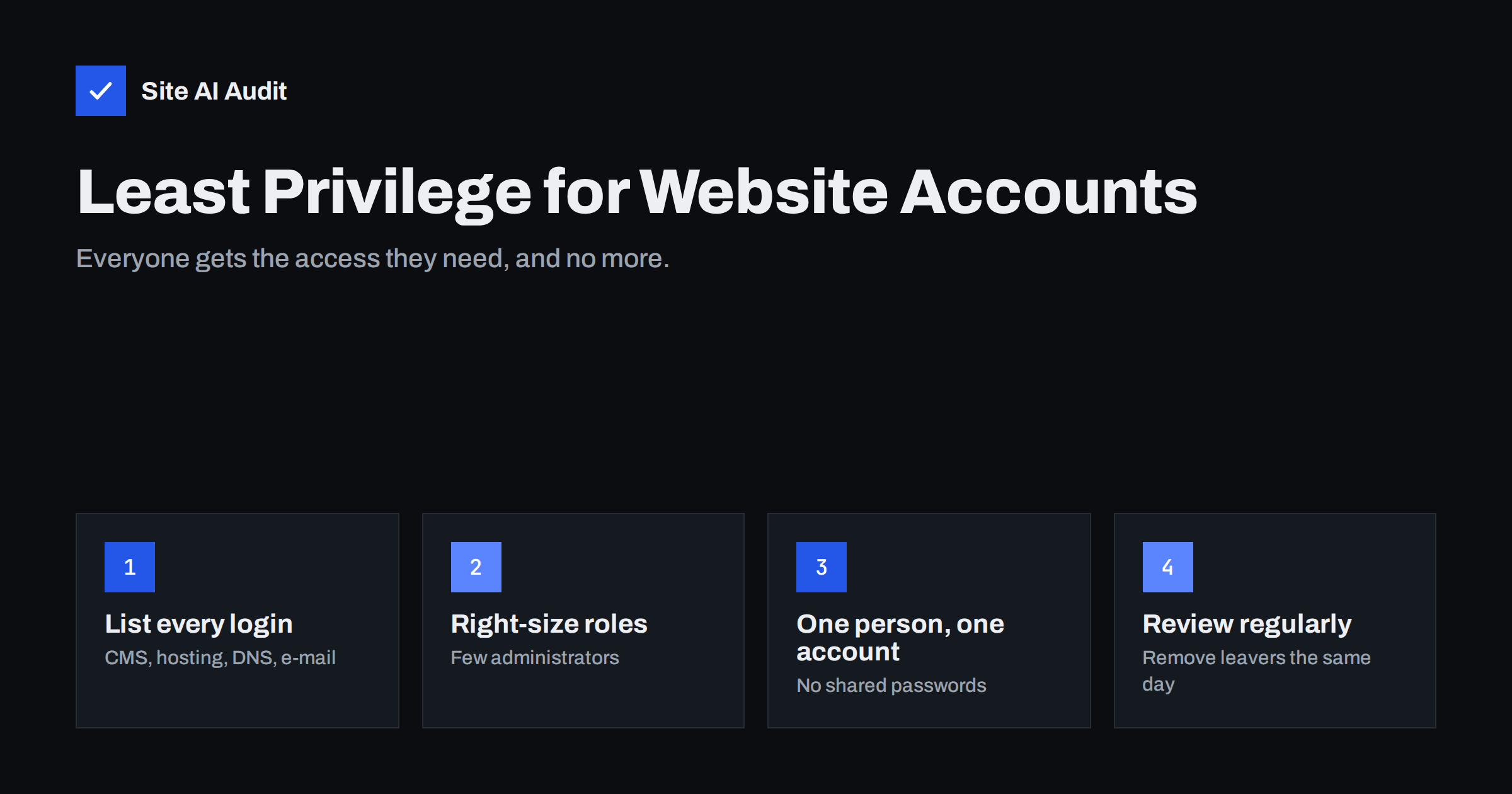
Short answer: Least privilege means every person and tool that can log in to your website gets only the access needed for their job, and nothing more. In practice that means few administrator accounts, editors and authors for content work, one personal account per person instead of shared logins, and removing access the day someone leaves. Apply the same rule to hosting, domain, DNS and e-mail accounts, and review the list every few months.
Why user accounts are a security problem
When small business websites are broken into, the attacker often does not need a clever exploit. They log in. Stolen, guessed or reused passwords give them the same power the account had, and if that account is an administrator, they can install plugins, add users, change files and redirect visitors.
The risk grows quietly over the years:
- A web designer from the first version of the site still has an administrator login.
- Three former employees still have accounts because nobody removed them.
- The marketing agency, the SEO freelancer and the developer all use one shared “admin” account.
- Plugins and integrations hold API keys with full access that nobody remembers creating.
Every one of these accounts is a door. Least privilege reduces both the number of doors and the damage anyone can do after getting through one. Combined with the measures in protecting website logins from brute-force attacks, it removes the easiest path into most sites.
What least privilege means in practice
The principle is simple: give each account the lowest level of access that still lets the person do their work. For a website, that translates into a few concrete rules:
- Administrators are rare. Usually one or two people who are responsible for the site. Everyone else gets a lower role.
- Content work uses content roles. Writing and editing posts does not require the ability to install plugins or change settings.
- One person, one account. Shared logins make it impossible to know who did what, and impossible to remove one person without changing the password for everyone.
- Temporary access is temporary. A developer fixing a bug gets access for the job and loses it afterwards.
- Machines get narrow keys. Integrations use API keys or application passwords limited to what they need, not a human administrator login.
Least privilege also helps with mistakes, not only attacks. An editor who cannot deactivate plugins cannot accidentally take the shop offline.
Choosing roles in WordPress and similar systems
Most content management systems have built-in roles. WordPress, for example, ships with five on a normal site:
| Role | Can do | Give it to |
|---|---|---|
| Administrator | Everything: plugins, themes, users, settings, code editing | The site owner and the person responsible for maintenance |
| Editor | Publish and manage all posts and pages, including others’ content | Content managers and marketing leads |
| Author | Write, publish and edit their own posts, upload files | Regular in-house writers |
| Contributor | Write and edit own drafts, cannot publish or upload | Guest writers and freelancers |
| Subscriber | Manage own profile only | Registered readers or members |
Online shop plugins add roles such as shop manager, which can handle orders and products without full administrator rights. Membership, learning and booking plugins add their own. Before creating a new administrator, check whether one of these narrower roles already fits the job.
If none of the built-in roles fits, a role editor plugin can create a custom role with exactly the needed capabilities. Keep custom roles simple and documented, so the next person understands them.
Beyond the CMS: the accounts people forget
The website’s admin panel is only one of the places where someone can take over your site. Attackers and mistakes can also come through:
- Hosting control panel. Full access to files, databases, backups and often e-mail.
- SFTP, SSH and database logins. Direct access to files and data, bypassing the CMS entirely.
- Domain registrar. Whoever controls the registrar account can move the domain or change its name servers. See how to protect your domain from hijacking.
- DNS provider and CDN. Changing a single record can redirect the website or e-mail.
- E-mail admin console. Control over mailboxes, forwarding rules and password resets for everything else.
- Analytics, Search Console, tag manager and ad accounts. A tag manager with publish rights can inject scripts into every page.
- Payment and shop integrations. API keys that can read orders or issue refunds.
Apply the same rules everywhere: personal accounts, the lowest role that works, and multi-factor authentication for anything that controls the domain, hosting or e-mail. Many of these services offer user management with roles, so you rarely need to share the owner’s login.
A simple access review, step by step
A review takes an hour or two the first time and much less afterwards. Do it at least twice a year, and whenever someone leaves or an agency relationship ends.
- Make a list of systems. CMS, hosting, registrar, DNS, CDN, e-mail, analytics, tag manager, shop and payment integrations, backups.
- Export the users of each. Note the name, e-mail address, role and last login where the system shows it.
- Match every account to a real person and a current job. Accounts with generic names such as “admin” or “test”, or with e-mail addresses from old suppliers, need an explanation or removal.
- Lower roles where possible. An administrator who only writes blog posts becomes an editor or author.
- Remove or disable leavers. In WordPress, when deleting a user, reassign their content to another user so posts are not lost.
- Rotate shared secrets. Change any password or API key that was shared with someone who no longer needs it.
- Write down the result. Date, who reviewed, what changed. The next review then starts from a clean list.
Agencies managing many client sites can build this into a regular routine; the process in website security checks for agencies fits well with an access review.
Handling freelancers, agencies and developers
External help is where least privilege most often breaks down, usually because giving full access is the quickest way to get started. A few habits keep it under control:
- Create a named account for each external person instead of sharing yours, and use their work e-mail address so it is clear who it belongs to.
- Start with the lowest role that allows the job. Raise it only if they genuinely need more, for example to install a plugin.
- Prefer staging for development work. Developers can test on a copy and deliver finished changes, with production access limited to the deployment.
- Set an end date. Put a reminder in your calendar to remove or downgrade access when the project ends.
- Keep ownership of core accounts. The domain, hosting and e-mail should be registered to your business, with agencies added as users, not the other way round.
Integrations, API keys and application passwords
Not every login belongs to a person. Backup services, mobile apps, marketing tools, shop connectors and deployment scripts all need some way to talk to your website, and they are easy to forget because nobody logs in with them by hand.
- Use dedicated credentials for each integration. In WordPress, application passwords can be created per user and revoked individually, so one leaked key does not require changing the main password.
- Attach integrations to a low-privilege user. A tool that only publishes posts can run under an author or editor account rather than an administrator.
- Limit API key scopes. Many services let you choose read-only access or restrict a key to one function, such as sending mail or reading orders.
- Record where each key is used. A short list of key, service, owner and creation date makes rotation and removal straightforward.
- Revoke keys for tools you stopped using. An abandoned integration with full access is just as dangerous as an abandoned administrator account.
Signs your access control needs attention
- More than two or three administrator accounts on a small business site.
- Users with names like “admin”, “webmaster” or “test” that nobody can explain.
- Accounts belonging to people who left months or years ago.
- A single password known by several people or stored in a shared document.
- Unknown administrators appearing, which can indicate a compromise. In that case, follow a proper hacked website recovery plan rather than simply deleting the account.
How Site AI Audit fits in
User accounts live inside your CMS and service providers, so no outside scan can list them; the access review above has to be done by someone with owner rights. What Site AI Audit checks from the outside are the related basics visitors and attackers can see: the SSL certificate and HTTPS redirect, security headers and exposed software versions, which reveal outdated systems. Together with a regular access review, that covers the most common ways small business websites are taken over. You can run a free check of your website.
Related reading
- WordPress Security Checklist: 20 Steps That Actually Matter
- Website Security for Small Businesses: Where to Start
- Outdated Plugins and CMS Versions: A Safe Update Strategy
The bottom line
Least privilege keeps a single stolen password from becoming a full takeover. Keep administrators rare, give content people content roles, use one account per person, limit integration keys, and remove access the day it is no longer needed. Review every system that controls your website, not just the CMS, at least twice a year.
الأسئلة الشائعة
How many administrator accounts should a website have?
As few as possible, usually one or two for the people responsible for the site. Everyone else should use a role that matches their work, such as editor or author.
Is it safe to share one admin login with my team?
No. Shared logins make it impossible to tell who changed what, and you cannot remove one person without changing the password for everyone. Create a personal account for each person.
What role should I give a freelance writer?
In WordPress, contributor lets them write drafts that an editor publishes, and author lets them publish their own posts. Neither can change plugins, themes or settings.
What should I do when an employee leaves?
Remove or disable their accounts in every system the same day, reassign their content, and change any shared passwords or keys they knew. Check the domain, hosting and e-mail accounts as well as the website.
How often should I review website user accounts?
At least twice a year, plus whenever someone leaves or a project with an external agency or developer ends.


