 ENEnglish
 LTLietuviškai
 DEDeutsch
 FRFrançais
 RUРусский
 ESEspañol
 PLPolski
 ITItaliano
 UKУкраїнська
 CSČeština
 PTPortuguês
 JA日本語
JA日本語 LVLatviešu valoda
 ETEesti
 HUMagyar
 IDBahasa Indonesia
 TRTürkçe
 HIहिन्दी
 ELΕλληνικά
 ARالعربية
 THไทย
THไทย VITiếng Việt
 RORomână
 MSBahasa Melayu
 BNবাংলা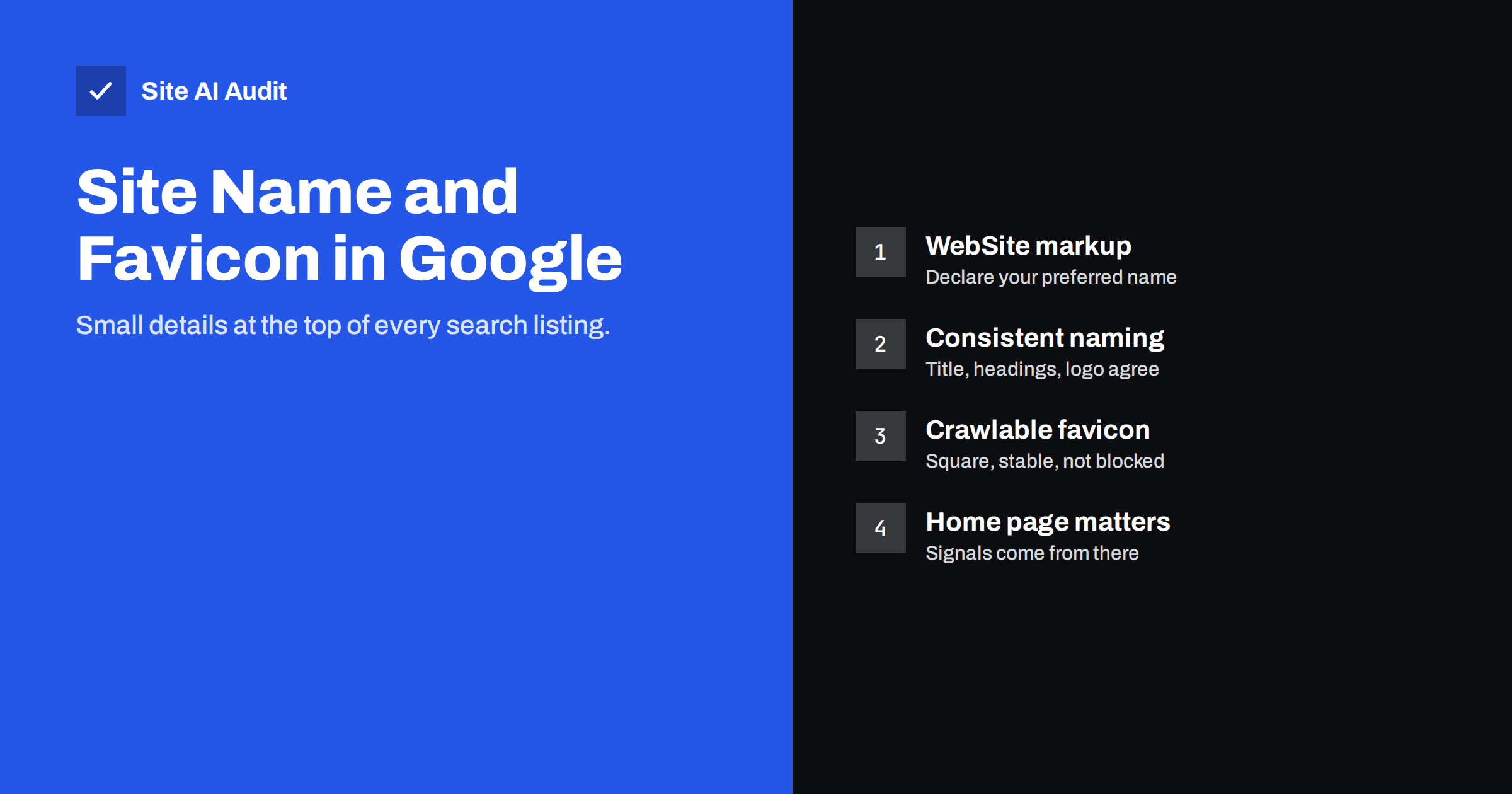
Short answer: Google shows a site name and a small favicon above the title of most search results. It chooses the site name mainly from WebSite structured data on your home page, the home page title and headings, and other signals, and it takes the favicon from the icon linked in your home page’s HTML. To control them, add WebSite structured data with your preferred name, use the same name consistently, and link a square, crawlable favicon from the home page. Changes appear only after Google recrawls the home page.
Why the site name and favicon matter
On mobile and desktop, each organic result usually starts with a small icon and the site name, followed by the URL or breadcrumb, then the page title. These elements help searchers recognise a brand they know and trust before they even read the title. A missing icon, a generic globe icon or a site name that is a bare domain, an old brand or a random phrase from your page looks less trustworthy and can cost clicks.
They are also a sign of how well search engines understand your site. If Google shows the wrong name, it often means your site gives mixed signals about what it is called.
How Google chooses the site name
Google generates site names automatically, using several sources from the home page and elsewhere. According to Google’s documentation on site names, the strongest signal you control is WebSite structured data on the home page. Other signals include:
- the title tag of the home page;
- headings and prominent text on the home page;
- Open Graph metadata such as
og:site_name; - how other sites and pages refer to your site.
Site names work at the domain or subdomain level, not for subfolders. A section at example.com/shop/ shares the name of example.com, while shop.example.com can have its own.
Step 1: Add WebSite structured data
Add a JSON-LD block to the home page declaring the site’s name. A minimal version:
{"@context": "https://schema.org", "@type": "WebSite", "name": "Rosa's Bakery", "alternateName": "Rosa's", "url": "https://example.com/"}
- name is your preferred site name. Use a concise, recognisable name that is commonly used for your business.
- alternateName is optional and gives an alternative, such as an acronym or shorter form, in case Google does not use the first.
- url is the home page URL of the domain or subdomain.
Many SEO plugins add WebSite markup automatically, using the site title from your settings. Check that the name it outputs is the one you want, not a tagline or an old brand.
Step 2: Make your naming consistent
Structured data works best when the rest of the home page agrees with it. Check:
- The home page title tag contains the same name, for example “Rosa’s Bakery – Sourdough and Pastries in Bristol”.
- The visible header or logo uses the same name, with the name available as text or as alt text of the logo image.
- Open Graph site name, if present, matches.
- Your business profiles and directories use the same name.
- Old brand names are removed from templates, footers and metadata after a rebrand.
Google may still choose a different name if the signals are inconsistent or if the preferred name is not used widely. Using the same name everywhere is the most reliable way to get it shown.
How Google chooses the favicon
The favicon is the small icon shown in browser tabs and, in Google, next to your site name. Google finds it through a link element in the <head> of your home page:
<link rel="icon" href="/favicon.png" type="image/png">
Google’s guidelines for favicons in search include a few requirements:
- The favicon must be linked from the home page with a
rel="icon"(or similar) link element. - Both the home page and the favicon file must be crawlable by Google; do not block them in robots.txt.
- The icon should be square (1:1) and at least 8×8 pixels, but in practice larger than 48×48 pixels is recommended so it looks sharp on high-resolution screens.
- The URL of the icon should be stable; changing it frequently slows updates.
- The icon should represent your brand and must not be inappropriate.
Supported formats include common image formats such as PNG, ICO, SVG and others that browsers support.
Step 3: Set up your favicon properly
- Create a square icon from your logo mark, simplified if needed so it is recognisable at tiny sizes. Detailed logos with text often become unreadable at 16 or 32 pixels.
- Export it at a generous size, such as 192×192 or 512×512 pixels in PNG, or as SVG. Browsers and Google scale it down.
- Link it from the home page head. In WordPress, set the Site Icon under Appearance › Customize › Site Identity, which adds the link tags automatically. Other platforms have a similar favicon setting.
- Check it is reachable by opening the icon URL directly in a browser. It should load without redirects to a login page or errors.
- Check robots.txt does not block the folder where the icon is stored.
Icons beyond Google: browsers and phones
While setting up the favicon for search, it is worth covering the other places where your icon appears:
- Browser tabs and bookmarks use the same
rel="icon"link. Providing a 32×32 PNG or an SVG keeps it crisp. - iPhone and iPad home screens use an
apple-touch-icon, typically 180×180 pixels, when someone saves your site to the home screen. - Android and installable web apps read icons from a web app manifest file, usually in 192×192 and 512×512 sizes.
- Dark mode. A black logo on a transparent background can disappear on dark browser themes. A solid background square or an SVG icon that adapts to the colour scheme avoids this.
WordPress’s Site Icon setting generates most of these sizes automatically from one square image of at least 512×512 pixels.
Special cases: rebrands, subdomains and languages
After a rebrand, update the name in structured data, title tags, logos, footers, social profiles and directories at the same time. Google weighs how widely a name is used, so an old name that still appears in many places can linger in results for a while.
Subdomains such as a shop or help centre can have their own site name and favicon. Add WebSite structured data to the subdomain’s home page if you want a different name, or reuse the main brand for consistency.
Multilingual sites on one domain share a site name. If your brand is written differently in some languages, the alternateName property can hold the other form.
Why the wrong name or icon appears
- No WebSite structured data, so Google guesses from the title or other text.
- Conflicting names between structured data, title tag, logo and profiles.
- A tagline used as the site title in WordPress settings, which then appears in structured data.
- A generic name, such as “Home” or “Welcome”, that Google does not consider a name.
- The favicon is blocked, missing or not square, so Google shows a default icon.
- The favicon is linked only on inner pages or loaded by a script instead of a link tag on the home page.
- The home page has not been recrawled since the change.
How long changes take
Google updates site names and favicons after it recrawls and reprocesses the home page. That can take days to several weeks. You can speed up the first step by inspecting the home page in Search Console and requesting indexing. Do not change names and icons repeatedly while waiting, because that resets the process.
If the correct name still does not appear after a reasonable time, review the consistency of your signals again. Google may keep using a different name when it believes another is more commonly used for your site.
How Site AI Audit helps
Site name and favicon signals live on your home page, and they depend on basics that Site AI Audit checks: a clear, unique title, one proper H1, alt text on images such as the logo, a robots.txt that does not block important files, and working links. The report explains each finding in plain words. Run a free check of your home page and up to 50 pages.
Related reading
- Structured Data for Small Business Websites: A Beginner Guide
- How to Write Title Tags: A Practical Guide for Small Sites
- Robots.txt Explained: A Beginner’s Guide With Safe Examples
The bottom line
The site name and favicon are small, but they appear at the top of every search listing and shape first impressions. Add WebSite structured data with your preferred name, use that name consistently in the home page title, logo and profiles, link a square, crawlable, stable favicon from the home page, and give Google time to recrawl. Inconsistency is the most common reason the wrong name appears.
الأسئلة الشائعة
How do I change the site name Google shows?
Add WebSite structured data with your preferred name on the home page, use the same name in the title tag and headings, then request indexing of the home page in Search Console and wait for Google to recrawl it.
Why does Google show my domain instead of my brand name?
Usually because it has no clear, consistent name signal. WebSite structured data and a consistent name across the home page and profiles often fix it.
What size should my favicon be?
It must be square. Use a size larger than 48×48 pixels, such as 192×192, or an SVG, so it looks sharp on all screens. Browsers and Google scale it down.
Why is Google showing a generic globe icon?
Google could not find or use your favicon. Check that it is linked from the home page head, is square, loads without errors and is not blocked by robots.txt.
Can each subfolder have its own site name?
No. Site names apply to domains and subdomains. A subfolder shares the site name of its domain.


