ENEnglish
 LTLietuviškai
 DEDeutsch
 FRFrançais
 RUРусский
 ESEspañol
 PLPolski
 ITItaliano
 UKУкраїнська
 CSČeština
 PTPortuguês
 JA日本語
JA日本語 LVLatviešu valoda
 ETEesti
 HUMagyar
 IDBahasa Indonesia
 TRTürkçe
 HIहिन्दी
 ELΕλληνικά
 ARالعربية
 THไทย
THไทย VITiếng Việt
 RORomână
 MSBahasa Melayu
 BNবাংলা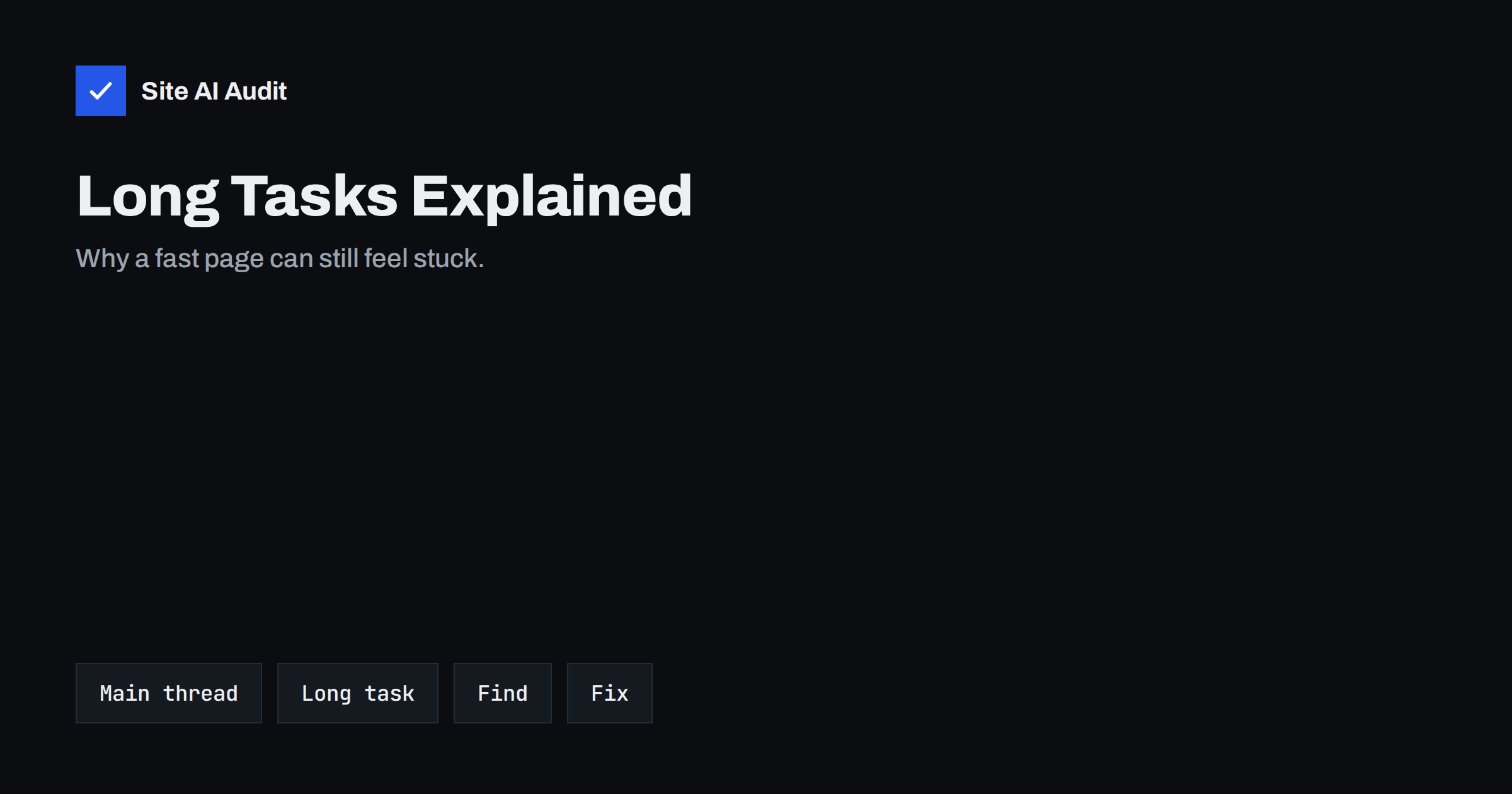
Short answer: The browser runs most of a page’s work on one main thread. Any task that keeps this thread busy for more than 50 milliseconds is called a long task, and while it runs the page cannot respond to taps or clicks. Find long tasks in the Chrome DevTools Performance panel, then shorten them by removing or deferring scripts, splitting heavy work into smaller pieces and moving non-visual work away from the main thread.
What the main thread does
When a browser loads a page, one thread does most of the work that you can see and interact with. It parses the HTML, builds the layout, runs JavaScript, handles clicks and taps and paints the result on the screen. Because it is a single lane, these jobs take turns. If a script occupies the lane for a long time, everything else waits: the browser cannot draw the next frame, scroll smoothly or respond to a button.
That is why a page can appear to be loaded and still feel frozen. The images are there and the text is visible, but a tap on the menu does nothing for a second or two. Visitors do not blame JavaScript. They simply decide that the site is slow.
Modern phones are quick, but they are far slower than the laptop on which a page was designed. A script that needs 100 milliseconds on a developer machine can need several hundred on a mid-range phone, particularly when the phone is warm or on battery saving mode.
What counts as a long task
A task is a unit of work that the browser runs without interruption: executing a script, handling an event or running a layout calculation. By convention, any task that takes more than 50 milliseconds is a long task. The threshold exists because users perceive a delay of about 100 milliseconds between an action and a response as instant. If the main thread is blocked for 50 milliseconds when the user taps, there is still time to react and respond within that limit. Beyond it, the interface starts to feel sluggish.
Long tasks matter for two of the numbers that Google reports:
- Total Blocking Time (TBT) adds up the time above 50 milliseconds of every long task between first paint and the point when the page is interactive. It is a lab metric that predicts responsiveness, and we explain it in our article on Total Blocking Time.
- Interaction to Next Paint (INP) measures how quickly the page responds to real taps, clicks and key presses. Long tasks that overlap with an interaction are a main cause of poor INP. Our guide on improving INP covers the field data side.
Where long tasks come from
On most small business sites, long tasks come from a few familiar sources:
- Third-party scripts. Chat widgets, tag managers, analytics, advertising pixels, review badges and social feeds all run on the main thread. Several together add up quickly. See our article on third-party scripts and performance.
- Page builders and themes. Large bundles of JavaScript that power sliders, animations and popups are often loaded on every page, even when the page does not use them.
- Plugins that ship scripts everywhere. A contact form plugin that loads its script on the whole site is a typical example.
- Big layout recalculations. Very large pages with thousands of elements take longer to lay out each time something changes. Our guide to excessive DOM size explains this.
- Heavy initial JavaScript execution. Parsing and running a large script bundle can block the thread for hundreds of milliseconds, even before any of your own code runs.
- Cookie banners and consent tools. They often run work during start-up and again after each choice.
How to find long tasks in Chrome DevTools
You do not need to be a developer to see the problem. The Performance panel in Chrome DevTools shows what the main thread did and for how long.
- Open the page in an incognito window, so that extensions do not interfere.
- Open DevTools and go to the Performance panel.
- Turn on CPU throttling, for example 4x slowdown, to imitate a mid-range phone.
- Click the record and reload button, let the page load and stop the recording after a few seconds.
- Look at the Main track. Tasks that exceed 50 milliseconds are marked with a red corner.
- Click a long task and read the summary at the bottom. It shows which scripts and functions spent the time and which file they belong to.
Group the results by domain if the panel allows it. It quickly shows how much of the work belongs to your own code and how much to third parties. Repeat the recording while you interact, for example by opening the menu, because that is the moment when visitors notice a delay. Lighthouse and PageSpeed Insights also list the main-thread work and the scripts that contribute most to it. Our guide on how to read a PageSpeed Insights report shows where to find it.
Fixes that free the main thread
Start with the biggest contributors, and remember that the fastest script is the one that never runs.
- Remove what you do not need. Delete old tracking tags, unused plugins and widgets nobody uses. This is often the biggest single gain.
- Load scripts only where needed. Load a contact form script on the contact page, not across the site. Many optimisation plugins can unload scripts per page.
- Defer and delay. Use
deferfor scripts that need not block parsing, and delay non-essential third-party scripts until the first user interaction or until the page is idle. Our article on defer and async explains the difference. - Split long work into smaller tasks. Developers can break a heavy loop into chunks and yield back to the browser between them, so that input can be handled. Newer browsers offer a dedicated yielding method for this, and a timeout-based fallback works elsewhere.
- Move non-visual work off the main thread. Calculations, parsing or data processing that need no access to the page can run in a web worker.
- Ship less JavaScript. Minify, remove unused code and avoid heavy libraries for simple effects. See reduce unused JavaScript.
- Keep the DOM small. Fewer elements make layout and style calculations quicker.
A sensible order of work for a small site
If you do not know where to begin, use this order. First, list every script that loads on your most important pages and write down what each one is for. Second, remove anything that has no clear owner or purpose. Third, delay the scripts that serve marketing, such as chat, heatmaps and social widgets, until after the visitor has interacted. Fourth, look at your theme and page builder settings for options that disable unused features. Only then ask a developer to look at custom code. This sequence gives most of the benefit for the smallest cost, and it avoids spending developer hours on code that could simply be deleted.
How to confirm the improvement
Measure before and after under the same conditions. Use the same device profile, the same throttling and the same page, and repeat the test several times because results vary. Look at Total Blocking Time and the number and length of long tasks in the recording. Then check real-user data, for example the Core Web Vitals report in Search Console or field data in PageSpeed Insights, which can take a few weeks to reflect a change.
Test on a real mid-range phone whenever you can. A fix that looks good on a fast laptop can still feel slow on the devices your visitors use. Interact with the page: open menus, scroll, use filters and submit forms. If those actions feel immediate, you have fixed the problem that matters.
What Site AI Audit can and cannot tell you
Site AI Audit measures your website the way Google does: the PageSpeed score, Core Web Vitals such as LCP, CLS and INP, server response time, compression and page weight. It shows when a page performs poorly on mobile and which findings matter most, and that helps you decide whether script work is worth your time. It does not record a profile of the main thread or name the individual function that blocks it, so use DevTools for that step. You can run a free check of your website or see the plans.
Related reading
- Total Blocking Time Explained: What It Means and How to Cut It
- Interaction to Next Paint (INP): How to Fix Slow Interactions
- How Third-Party Scripts Slow Down Your Website (and Fixes)
- How to Reduce Unused JavaScript and Speed Up Your Pages
The bottom line
Long tasks are the reason a loaded page can still feel stuck. Find them with the Performance panel, remove or delay scripts that are not essential, split heavy work into smaller pieces and measure again on a realistic device. A free main thread makes every tap feel instant, and that is what visitors remember.
الأسئلة الشائعة
What is a long task?
A long task is any piece of work that keeps the browser’s main thread busy for more than 50 milliseconds. While it runs, the page cannot react to taps, clicks or scrolling, so visitors notice a delay.
How are long tasks related to INP?
Interaction to Next Paint measures how quickly a page responds to real interactions. If a long task is running when a visitor taps, the response waits until the task is finished, which increases INP. Fewer and shorter long tasks usually improve it.
Can a plugin cause long tasks?
Yes. Plugins and themes often add JavaScript that runs on every page. Sliders, forms, popups and tracking tools are common examples. Unloading their scripts from pages that do not need them is one of the most effective fixes.
Do I need a developer to fix main-thread work?
Not always. Removing unused plugins, deleting old tags and delaying third-party scripts can be done in settings. Splitting long tasks in custom code and moving work to web workers usually needs a developer.
Why is my page slower on my phone than on my computer?
Phones have slower processors and less memory, so the same script takes longer to run. CPU throttling in DevTools helps you imitate this, and testing on a real mid-range phone gives the most realistic picture.