ENEnglish
 LTLietuviškai
 DEDeutsch
 FRFrançais
 RUРусский
 ESEspañol
 PLPolski
 ITItaliano
 UKУкраїнська
 CSČeština
 PTPortuguês
 JA日本語
JA日本語 LVLatviešu valoda
 ETEesti
 HUMagyar
 IDBahasa Indonesia
 TRTürkçe
 HIहिन्दी
 ELΕλληνικά
 ARالعربية
 THไทย
THไทย VITiếng Việt
 RORomână
 MSBahasa Melayu
 BNবাংলা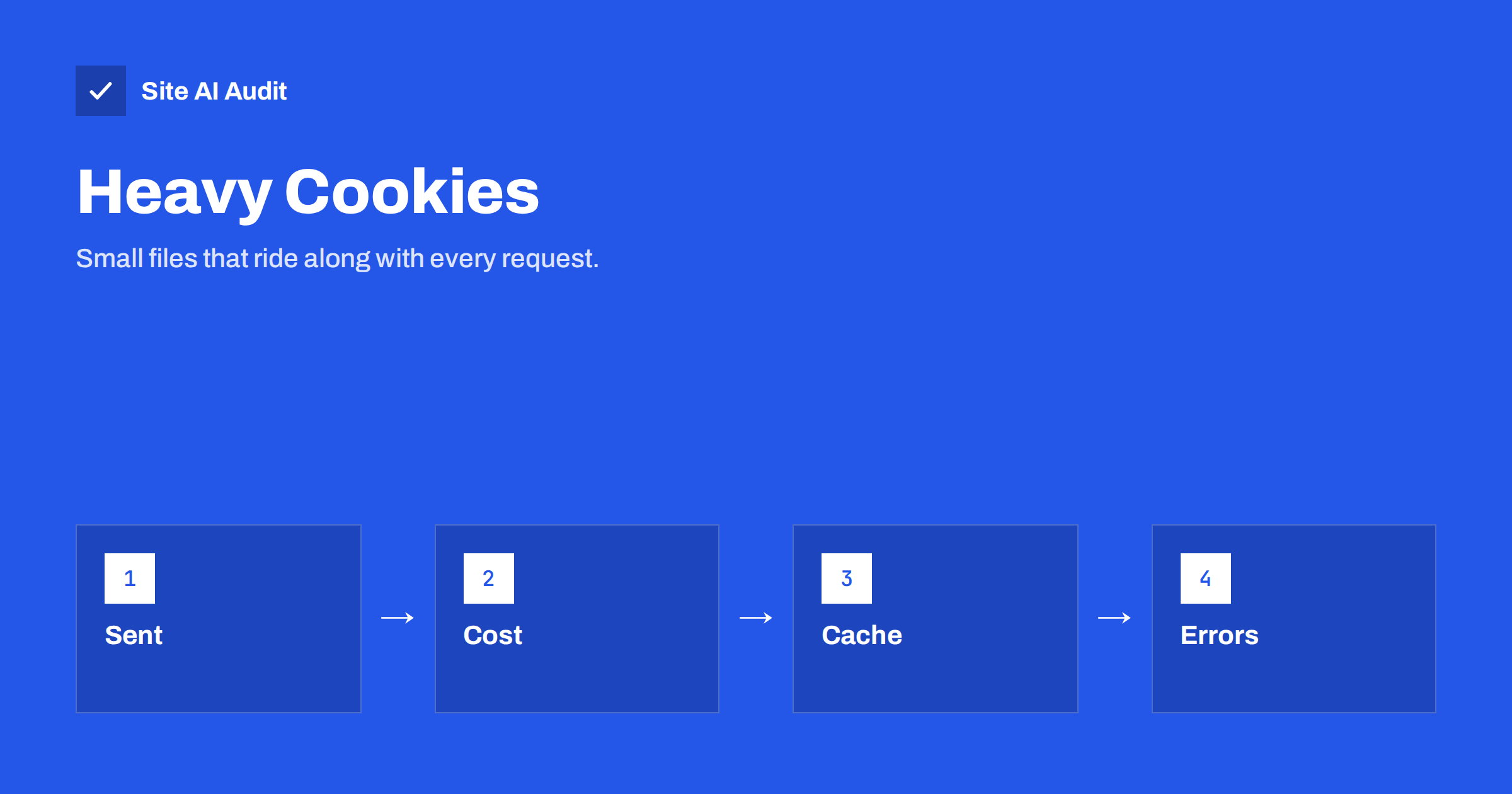
Short answer: Browsers attach every cookie for your domain to every request to that domain, including images, scripts and style sheets. If your cookies are large or numerous, each request carries extra bytes and some caches skip the page entirely. Extreme cases end in a “Request Header Or Cookie Too Large” error. Audit your cookies, remove what is not needed, keep values short and keep large data on the server.
What cookies do on every request
A cookie is a small piece of text that your website or a script asks the browser to store. The browser then sends it back to the same domain with each later request, inside the Cookie header. That is how a shop remembers a basket, how a login stays active and how analytics tell a returning visitor from a new one.
The detail that matters for speed is the word “every”. A page may need fifty requests: the page itself, style sheets, scripts, fonts and images. If these files are served from your own domain, the browser attaches the cookies to all fifty. A site with 4 KB of cookies therefore sends about 200 KB of extra data upstream for one page view, on top of everything else.
On a fast office connection this is invisible. On a phone with a weak signal, upload speed is usually much lower than download speed, and every extra byte in a request delays it. Small cookies are harmless. Large ones are a cost that you pay on each file.
Why headers grow without anyone noticing
Nobody decides to build a huge cookie. It happens by accumulation over the years.
- Analytics and advertising tags set several cookies each, and many have long lifetimes. See Google Tag Manager and page speed and third-party scripts and performance.
- Testing and personalisation tools store the variant a visitor has seen, sometimes as long text.
- Consent tools save the visitor’s choices, and some write a long record for each vendor. See cookie consent banners and page speed.
- Plugins and page builders store recently viewed items, form drafts, popups already seen and similar data in cookies, because it is easy to do.
- Shops add cookies for the basket, session, currency, language and recently viewed products.
- Old cookies from earlier setups remain in visitors’ browsers because they were set with a long lifetime and nobody removed them.
Cookies may also come from several levels of the same domain. A cookie set for the main domain is sent to every subdomain too, so a blog, a shop and a help centre can all receive each other’s cookies.
Three ways large cookies hurt
1. Slower requests
More bytes must be sent before the server can start to respond. Modern protocols reduce the cost by compressing headers and reusing connections, as discussed in HTTP/2 versus HTTP/3 and HTTP keep-alive, but the cookie values still have to be sent whenever they change, and the first requests on a connection pay the full price.
2. Missed caches
This is often the bigger problem. Many page caches and CDNs decide whether to serve a stored copy by looking at cookies. A cookie that signals a logged-in user, a basket with items or a personalised session tells the cache to skip its copy and ask your server instead. If a plugin sets a unique cookie for every visitor, the cache may treat every request as different. The result is a slow, uncached page for everyone. Read page caching explained and CDN cache hit ratio for the effect.
3. Errors when headers get too big
Servers limit the size of request headers to protect themselves. When the combined size of the headers, mostly cookies, goes over the limit, the server refuses the request. Visitors may see messages such as “400 Bad Request: Request Header Or Cookie Too Large” or a 431 status. Sometimes only some visitors are affected: those who have visited often and carry many cookies. Support may suggest clearing cookies, which fixes it until it happens again.
How to see your own cookies
- Open your website in a private window, so that you start without cookies.
- Open the browser developer tools and find the section that lists stored data, usually called Application or Storage, and then Cookies.
- Note each cookie: name, domain, size, expiry and the item that set it.
- Browse a few pages, accept or reject the consent banner, add a product to the basket, and look again. Watch how the list and the sizes change.
- In the Network tab, click on an image or script request and read the request headers. Look at the length of the Cookie header.
Sort the list by size. A handful of cookies above 500 bytes each are usually responsible for most of the weight. Look for names that you can link to a plugin or a tool, and check whether that tool is still in use.
How to trim cookies
- Remove tools you no longer use. An abandoned tag or plugin may still set cookies. Delete the script, not just the visible feature.
- Keep only an identifier in the cookie. Store the data on the server and send only a short session ID. Large JSON in a cookie is almost always a design mistake.
- Shorten lifetimes. A cookie that needs to live for a day should not be set for two years.
- Limit the scope. A cookie needed only on checkout pages can be restricted to that path, and one that belongs to the shop does not need to reach the blog subdomain.
- Review the consent setup. Choose a tool that stores the choice compactly.
- Serve static files from a different host. Images, scripts and styles loaded from a CDN domain do not receive your site’s cookies. A CDN is often a simple way to do this, see do you need a CDN.
Be careful to keep the security flags on the cookies that remain, as described in Secure, HttpOnly and SameSite cookie flags. Trimming should not weaken protection.
Check that cookies are not breaking your cache
If your pages are slow even though a caching plugin is active, look at the response headers. Many caches add a header that shows whether a page was a hit or a miss. A page that is always a miss may have a cookie that tells the cache to bypass it. Compare a request with no cookies to one with all of them. If only the first is fast, find the cookie that causes the bypass and ask the plugin vendor whether it can be excluded from the cache rules. Related techniques are in browser caching and Cache-Control and the Server-Timing header.
Finally, set a limit for the future. Agree that every new tool must list the cookies it sets and their size before it goes live, and re-run the audit after major plugin updates. A few minutes of review can save months of slow pages.
Who is affected most
Small brochure sites with a single analytics tag rarely have a problem. The trouble builds up on sites with many moving parts: online shops with extensions for currency, reviews, wishlists and recommendations, membership sites with personalised content, and marketing-heavy sites with several advertising and testing tools. These sites combine many cookies with many requests per page, and they often rely on caches that are easy to break.
Visitors who return often are hit hardest, because their browsers hold the largest collection. This is one reason why the owner, who visits the site daily, may see the error while a new visitor does not, or the other way around. When a complaint cannot be reproduced, ask the person to try a private window and then compare the cookie lists.
How Site AI Audit helps
Site AI Audit does not list or measure your cookies. It reports Google PageSpeed measurements for your site, including LCP, CLS and INP, along with server response time, compression and page weight, together with SEO, security headers, SSL and e-mail authentication. A slow server response on pages that should be cached is a useful hint to look at cookies. The first check is free, covers up to 50 pages and needs no sign-up. You can run a free check of your website or see the plans for weekly monitoring.
Related reading
- How to Reduce Server Response Time (TTFB) for Faster Pages
- Too Many HTTP Requests? When It Still Matters for Speed
- Cache Warming: Keep Your Site Fast After a Cache Purge
- Website Speed Checklist: 30 Checks Before and After Launch
The bottom line
Cookies are small, but they travel with every request to your domain. Many or large ones slow requests, make caches skip your pages and can even cause header errors for returning visitors. Look at your cookies in the browser tools, remove what you do not need, keep only short identifiers, narrow the scope and serve static files from a cookieless host.
الأسئلة الشائعة
How big is too big for cookies?
There is no single limit, but a total of a few kilobytes per request is already heavy. Browsers allow about 4 KB per cookie, and servers reject headers over their own limit.
Do cookies affect Core Web Vitals?
Indirectly. They can slow server responses and cause cache misses, which delays the largest content and the time to first byte.
Why does clearing cookies fix a 400 error?
Because the header size shrinks below the server limit. The fix lasts only until the cookies build up again, so find the source.
Is a cookieless domain still worth it?
It matters less than before because of header compression, but it still helps with large cookies and removes cache bypass problems for static files.
Can I delete cookies set by third-party tools?
Remove the tool or script that sets them. Deleting only the cookie in your browser has no lasting effect.